Thanks, scratching my head about what would be the best settings for VR in a Q3. Looking around I found this on Redit:
Godlike resolution is actually the native render resolution of the Q3 which would be 3072x3216 per eye…
Thanks, scratching my head about what would be the best settings for VR in a Q3. Looking around I found this on Redit:
Godlike resolution is actually the native render resolution of the Q3 which would be 3072x3216 per eye…
Each “Mode” is really just a render scale: The GPU renders a smaller image in order to do it more quickly, then upscales the result back to your monitor resolution (at the expense of some detail). Those pre-established scales are the named Modes: Quality 67%, Blanced 58%, Performance 50%, Ultra Performance 33%
You can actually go in to the NVIDIA App and set a “Custom” DLSS render scale. Example, I once tried “80%” and it appeared as a choice in MSFS as “Ultra Quality” regardless of the scale I set.
NVIDIA used to have “Ultra Quality” as a predefined mode, I think at 77%, but they dropped it because they felt Quality at 66.7% and DLAA at 100% were enough. So I think that what you are seeing is MSFS falling back on an old label in the code when the render scale doen’t match one of Quality, Blanced, Peformance, Ultra Performance, or DLAA. Just my guess based on experimenting.
Interestingly, if you set a custom DLSS scale in the App, it overrides whatever is set in MSFS (so even if you choose Performance in MSFS, if you look at the FPS overlay, it will show the custom scale set in the app).
Is DLSS 4.5 supported in MSFS 2020? If so, whats the best way to get it setup on my system with a 4070 card?
I absolutely love the reduction of ghosting on Preset M (especially at night) but the switch to Performance mode makes the resolution of my airliner livery look like hot trash. so for me, K is still the best overall setting.
Great to have choice though and hopefully they can improve the performance hit of the 2nd Gen Transformer in the future.
In NVIDIA App you can choose the Preset M with Quality mode. It is the best result for me.
Yes, it works.
Download the latest Nvidia driver (currently 591.74) and install.
Download the Nvidia App (currently 11.0.6.379) and install.
Download DLSS Swapper and install. www.dlss-swapper.com offers version 1.2.3.1, github offers 1.2.3.2 under Release v1.2.3.2 · beeradmoore/dlss-swapper · GitHub .
Make yourself acquainted with DLSS Swapper and run it. DLSS Swapper should reckognize the games/simulations which can be used. It is already quite some time ago that I used it for the first time, so I am not sure I remember things correctly. You need to let DLSS Swapper download the dlls, currently dlls version 310.5.2 for DLSS and DLSS Frame Generation. Maybe they are already listed , otherwise use the Refresh button. At the end your library should look like this:
and the Swapping dialogue should look like this:
Then install the Nvidia App. Under the Graphics TAB you can adjust the settings.
And finally check the MSFS General Options to verify the graphic settings.
Limitation: Frame Generation only works with a single monitor and only x2. I never used it as I am running a triple monitor setup. If you want to use it you need to activate hardware accelerated GPU scheduling.
This is just an overview, but there a many contributions in the forums, which explain more details.
I’ve been running my RTX5070 DLSS 4.5 in Model L optimized for 4K DLSS Super Resolution Ultra Performance mode, frame Gen is at 3x , I set my refresh at 40 and get 120fps in game to match my 75” monitor/tv.
It’s been running great! Minimal FPS hit but No ghosting on exterior of aircraft and only minimal ghosting on speedo but not bad at all.
In VR it’s stunning. The clarity has increased and the colours are more vibrant. Running very smooth no stutters.
I generally fly GA , military aircraft and helicopters. 
I’ve been very happy (after finding the right settings) with the improvements of DLSS 4.5
Awesome, hows your GPU power use with those settings?

Personally I’m a bit disappointed with the progress made. One year into the new transformer model I feel the overall best preset is still preset K, no matter which DLSS level. The overall image quaility is unmatched and the excessive oversharpening of the new presets is quite immersion breaking for me. Also the anti aliasing of preset K appears to be slightly better. Finally, despite it being a good tool to fight panning stutter in MSFS24, I will not consider using frame generation anytime soon because it still produces huge amounts of ghosting.
Totally agree with you
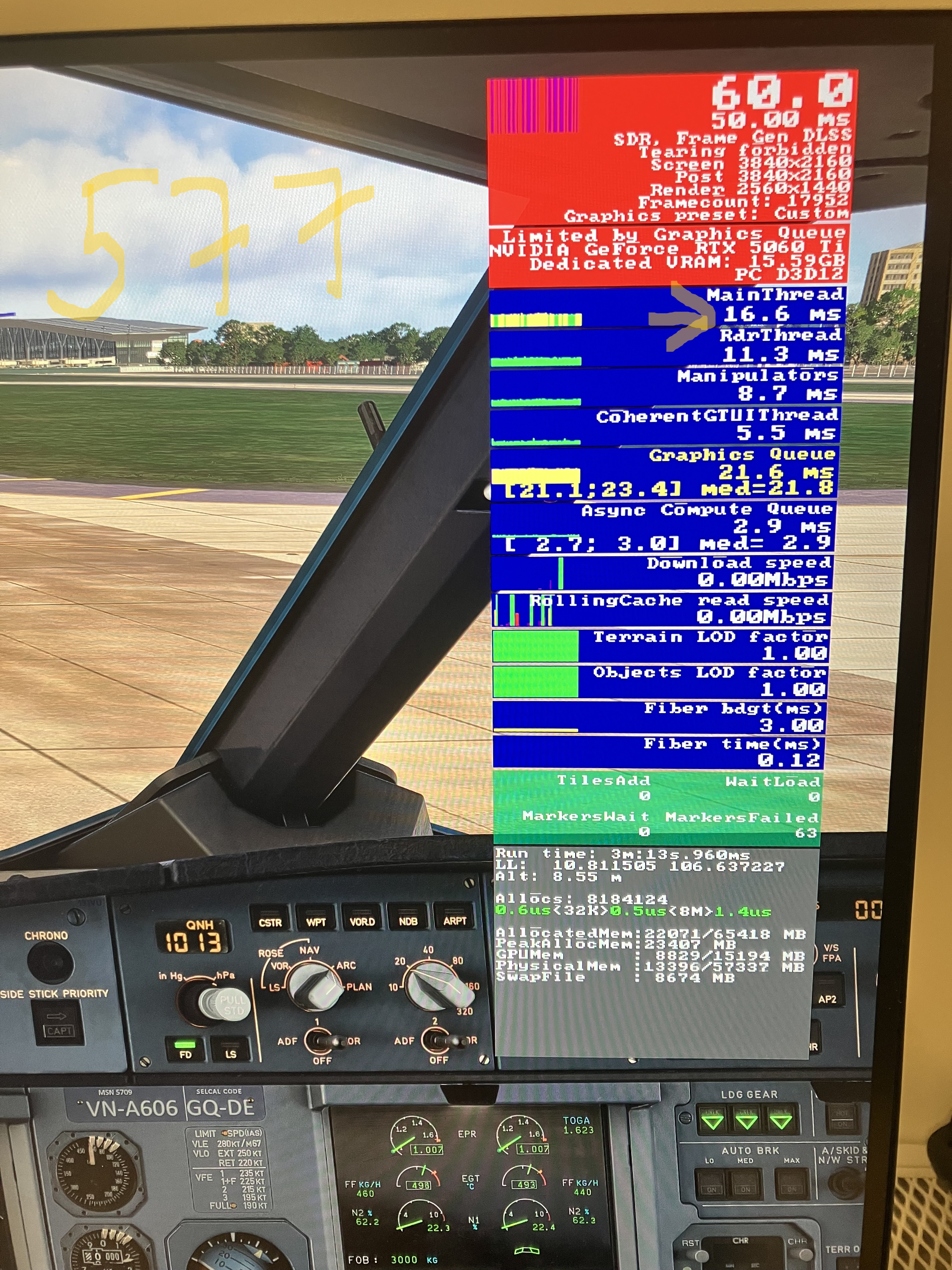
Hi guys, since the last DLSS4.5 driver update, the framegen (x2 and x3) has been causing the mainthread to saturate to 50ms all the time. I had to roll back to 577 driver for it to work normal again (see pic below. 577 with framegen x3 shows a normal ~17ms, while all the drivers from 58x and above cause the mainthread to jump to 50ms). This happenned just recently with the DLSS 4.5 release, so i was wondering if Nvidia did something retroactively with the framegen that affected all the 58x.xx drivers and up?
Do we still need nvidia app in the beta opt in to get latest DLSS or has it been released officially?
Nope mate.
Yep.
do you recommend any preset (M or L or other) for DLSS 310.5.2? using performance?
19 flights to date on DLSS 4.5 (310.5.2) Performance, preset M and super satisfied with the performance of the driver and settings on my PC (specs in my profile). This has been a game changer for me and my flight simming. Absolutely rock solid stable and my target 60 FPS frame rate super smooth at all but the most challenging DLC airports (where Dynamic takes down LODs to preserve FPS). After reading a lot of posts and instructions, its important to note the recommendations for one’s GPU generation and sim settings to find what will work best for one’s PC.
That’s weird. At least in vr 4.5 M performance is overall better for me. Ghosting is gone. I can read everything fine. I’m using a crystal light.
better in performance mod not in quality mod
I believe that is because M only works in performance and L in ultra performance.
If you switch to quality mode, you are no longer running 4.5.
There is a table in this thread or the other nvidia app thread that shows this.
Someone please correct me if I am wrong.
Preset M is “supported” for other modes (DLAA, Quality, Balanced), but is intended / recommended for Performance mode.
I think bottom line is that in these modes M will run but slower than you may want. If you can run DLAA and Quality and your rig does not croak, you probably do not need M. IMHO.
I am running DLAA and with the REGEDIT overlay I can see it is generating 4K and rendering 4K so I think there is little overhead (pass through). I find it hard to argue with the quality of an original 4K image. This is for 2D… whatever i run in VR… I think Quality… the rig even with the 5080 slows on landing at a custom KSFO airport with generated traffic. But I can get away with 26 FPS which the Q3 renders at 52 FPS and it looks fine. TLOD = 200. Normally run 36 99% of the time, which the Q3 doubles to 72. VR does not show the overlay. I will check but probably running K also in VR to keep the speed up. Stutter is the game killer for me and have tuned to maximize image quality in VR without stutter using the Q3 built in FG.
All this gets pretty complex pretty fast!