Graphics for MSFS 2024 are very bad - What am I doing wrong?

Hey,

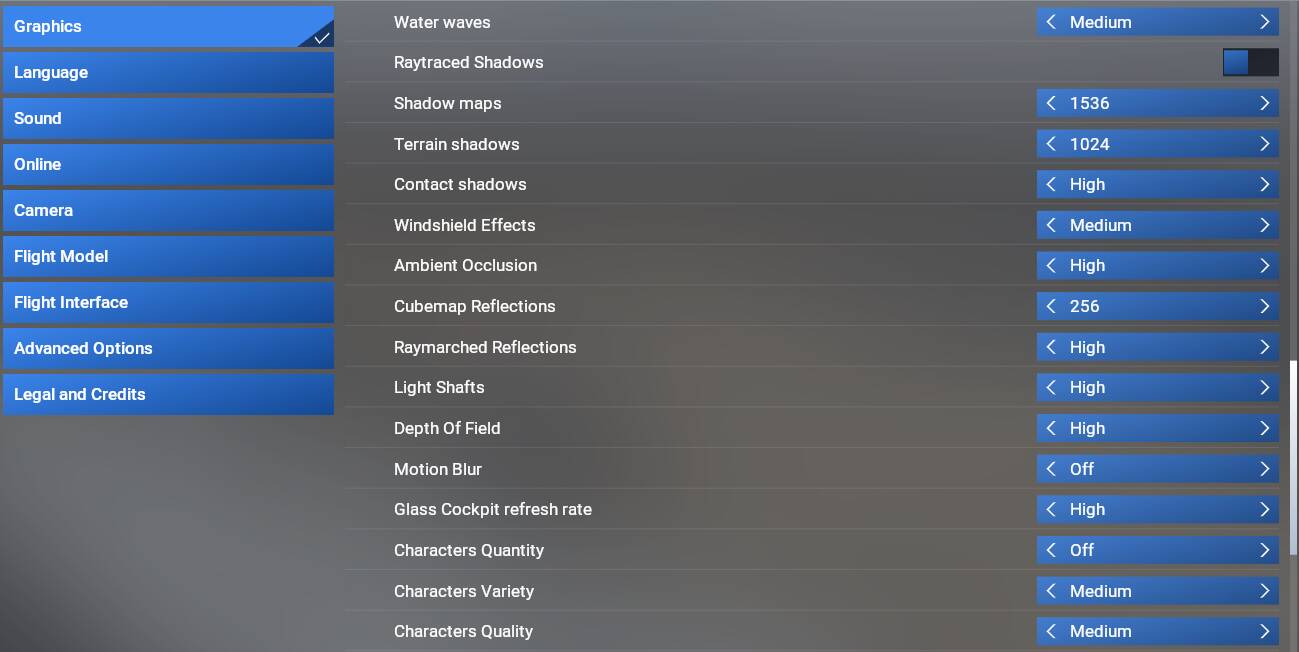
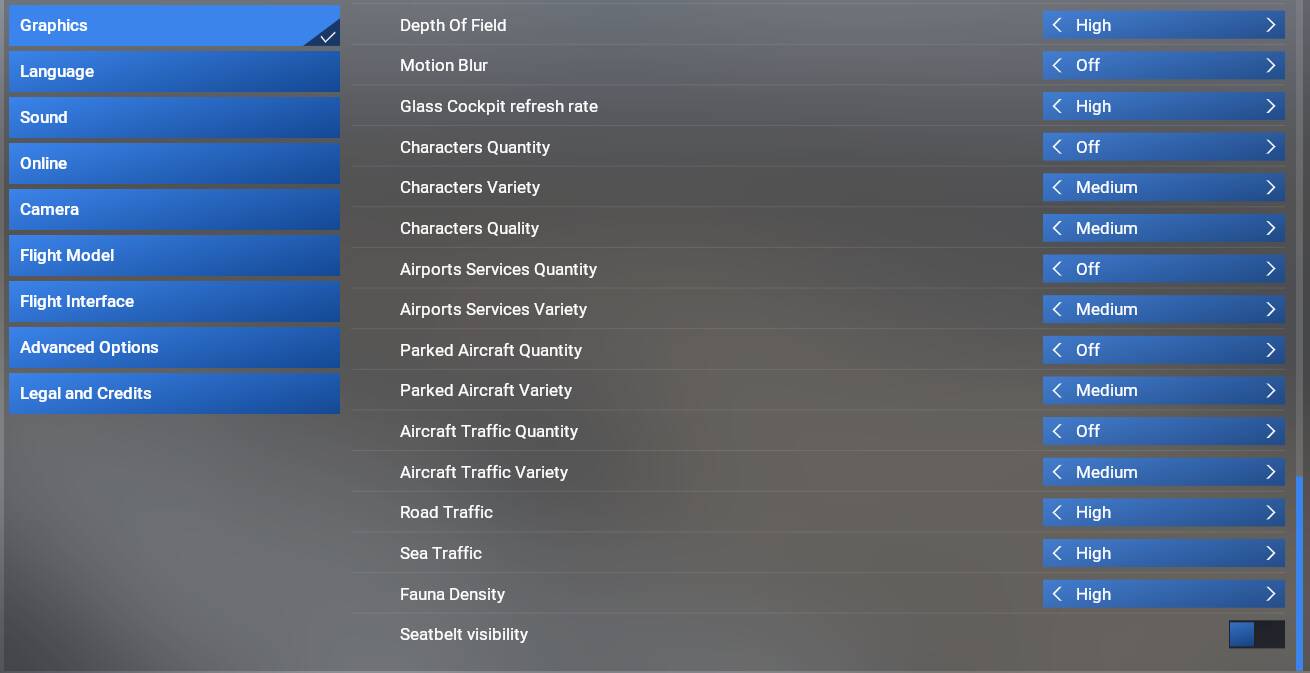
I just switched to MSFS 2024 from MSFS 2020 a few days ago. I couldn’t be unhappier, after having had such a great time with that old version. Whenever I’m flying and landing somewhere, but also inflight, the graphics are horrible. My internet’s not too slow, it’s operating normally and should not be a problem for MSFS 2024. I have listed screenshots of the graphics and the graphics settings below. I’d really appreciate any help, after already having spent hours and hours to get good graphics settings that go along with performance (my PC’s not bad, GPU and CPU are NOT overloaded).

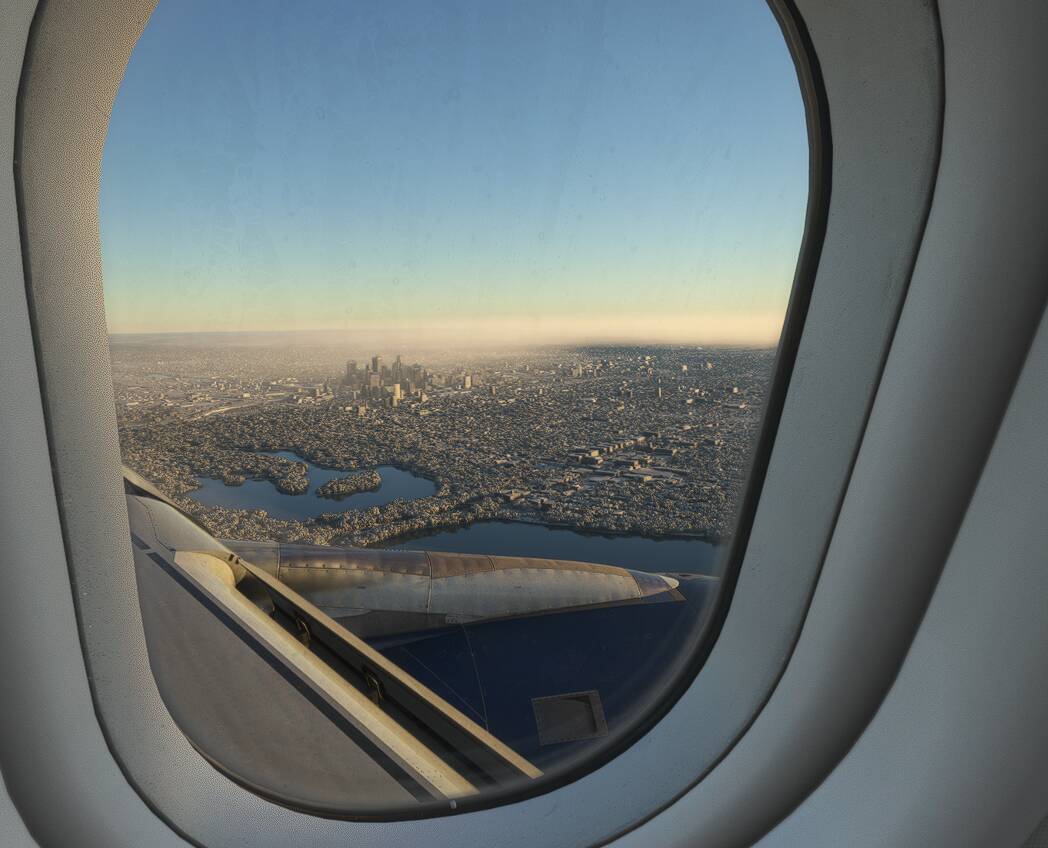
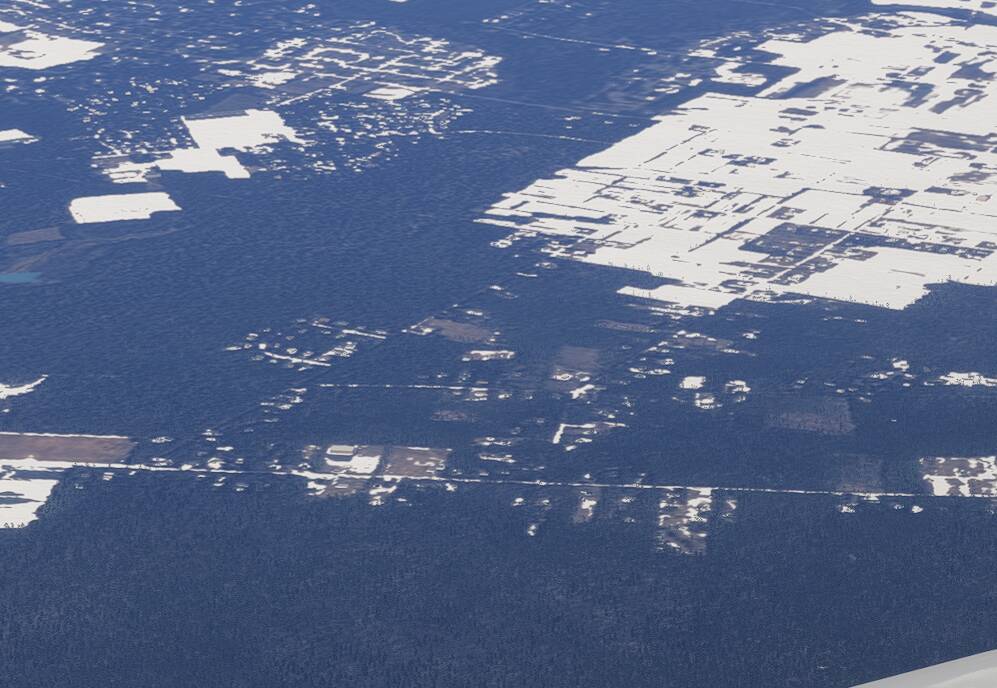
This is from about 18,000 ft. At first sight, it looks normal, if you zoom in though, it’s extremely blurry, as shown here:
When I was then further descending and on final, this was, what’s going on - You can see the borders of the different “tiles”. And generally, it just doesn’t look normal. Not something you’d see in MSFS 2020 (at least with my settings).
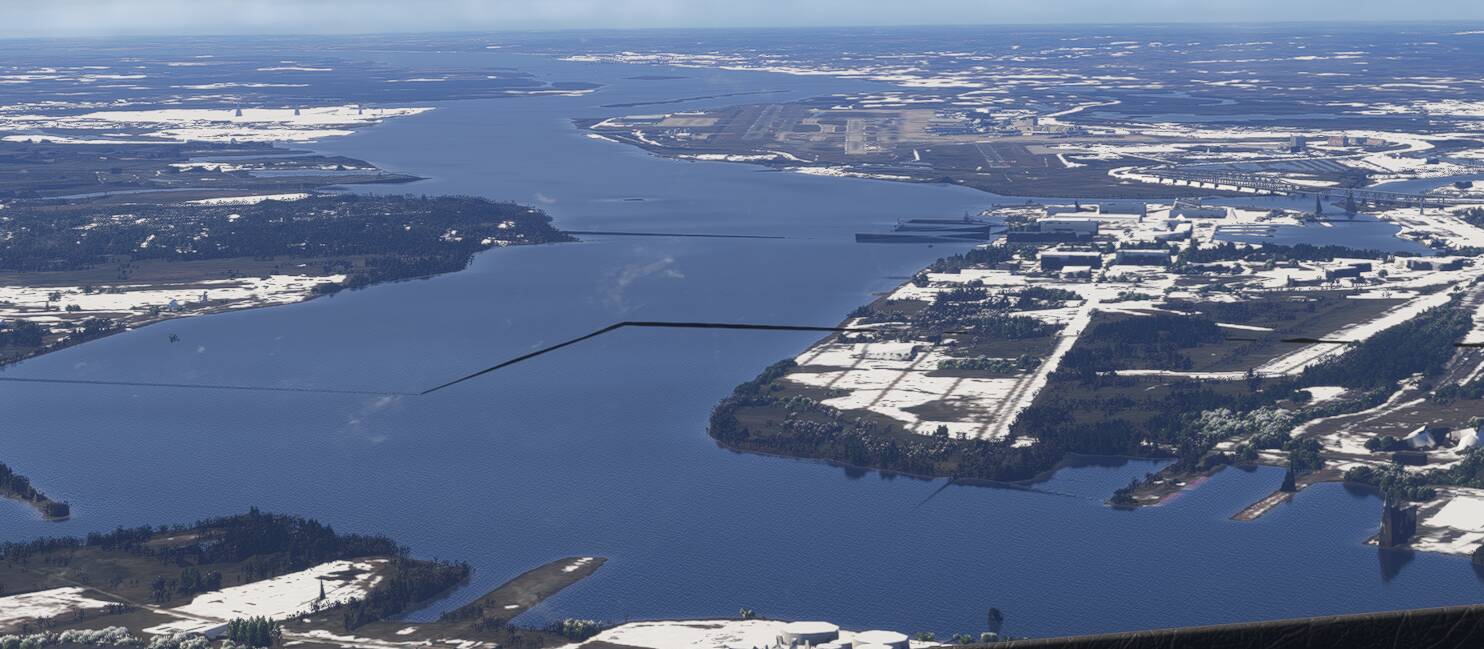
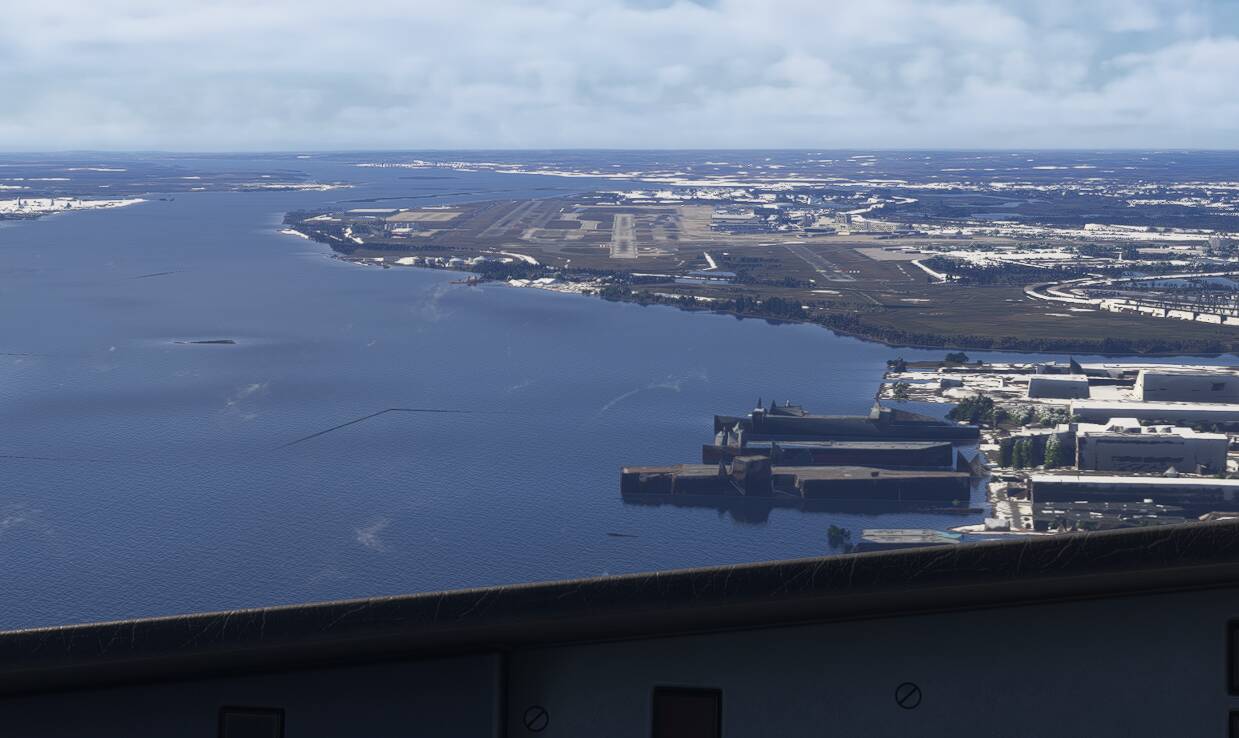
The runway is still blurry as well, until touchdown. The lines on the runway aren’t perfectly aligned either. That is definitely not the fault of the MKStudios-Scenery, because for MSFS 2020, the runway centerline was aligned perfectly and not blurred or like shifted.

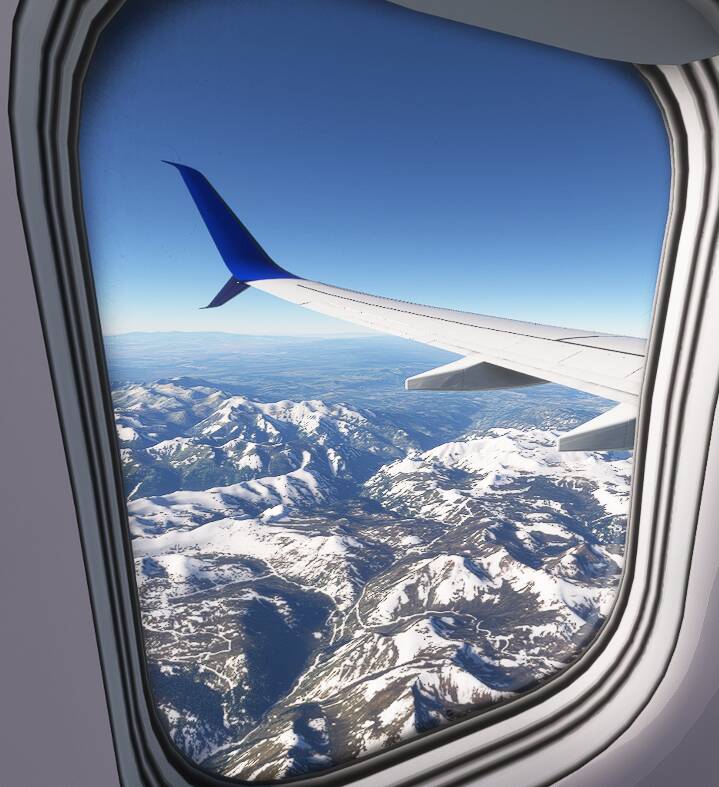
I don’t know what I’m doing wrong with my settings. I followed different guides and came up to an alright mix of ultra and high-settings, which don’t lower my performance. As you can see below, this is what my graphics look like when it - rarely - is working:

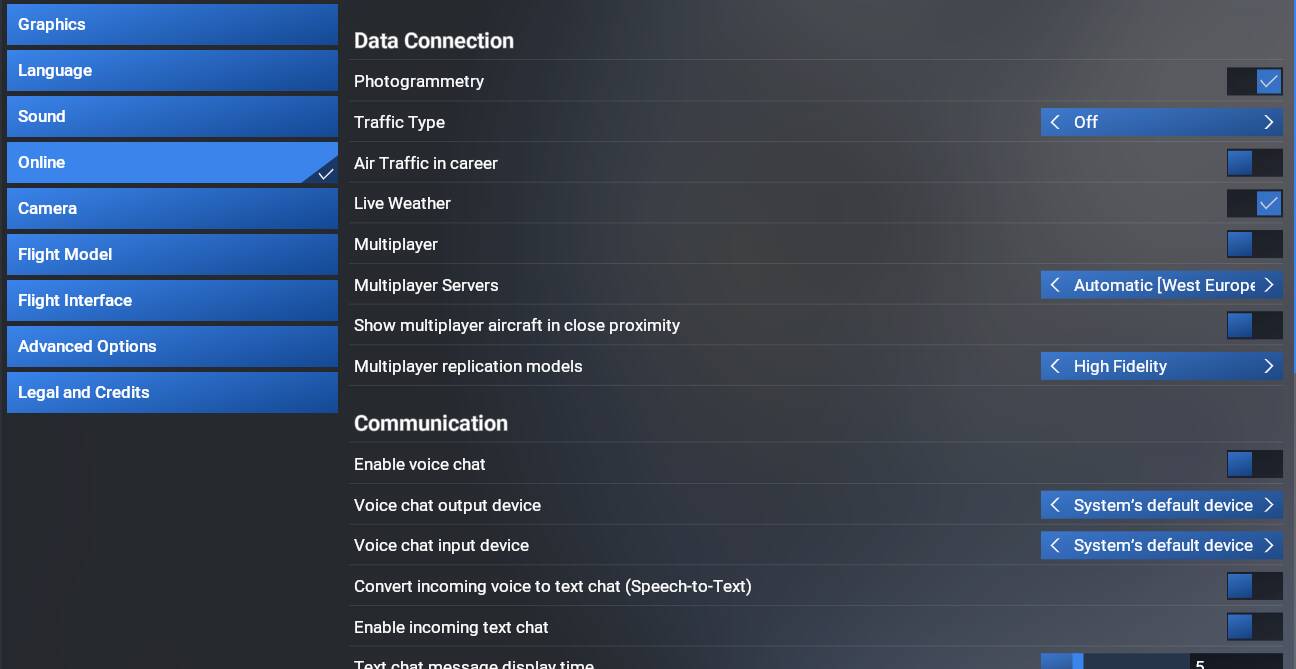
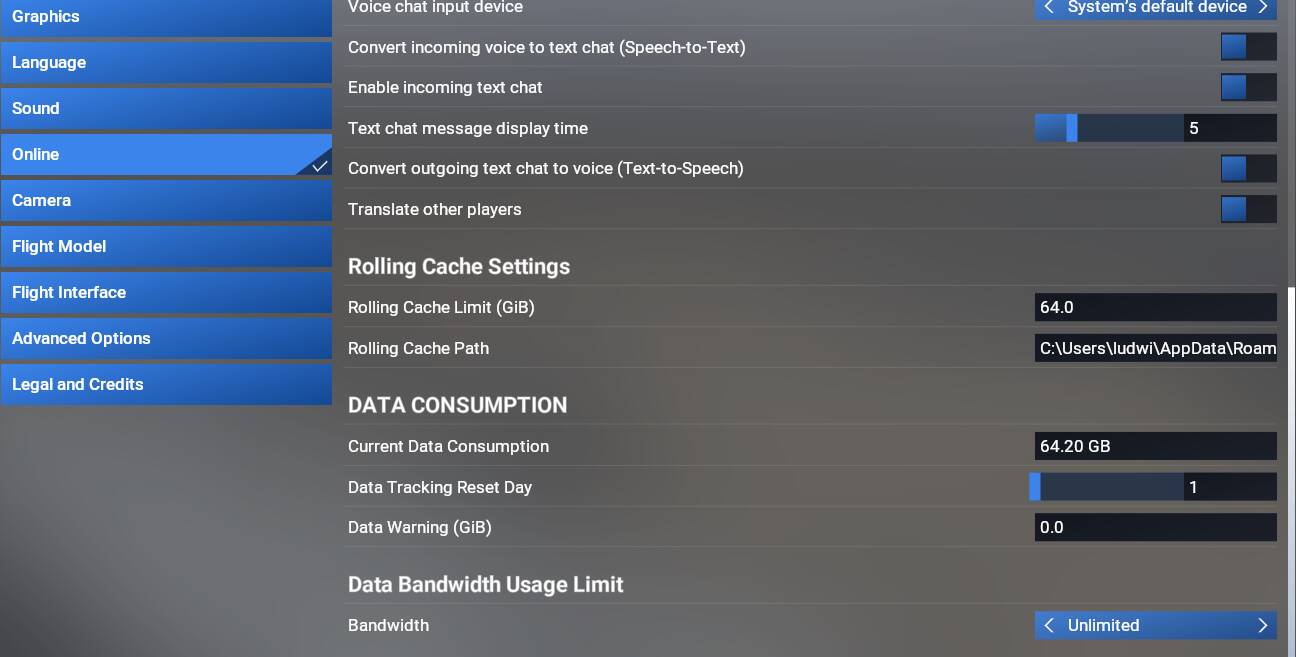
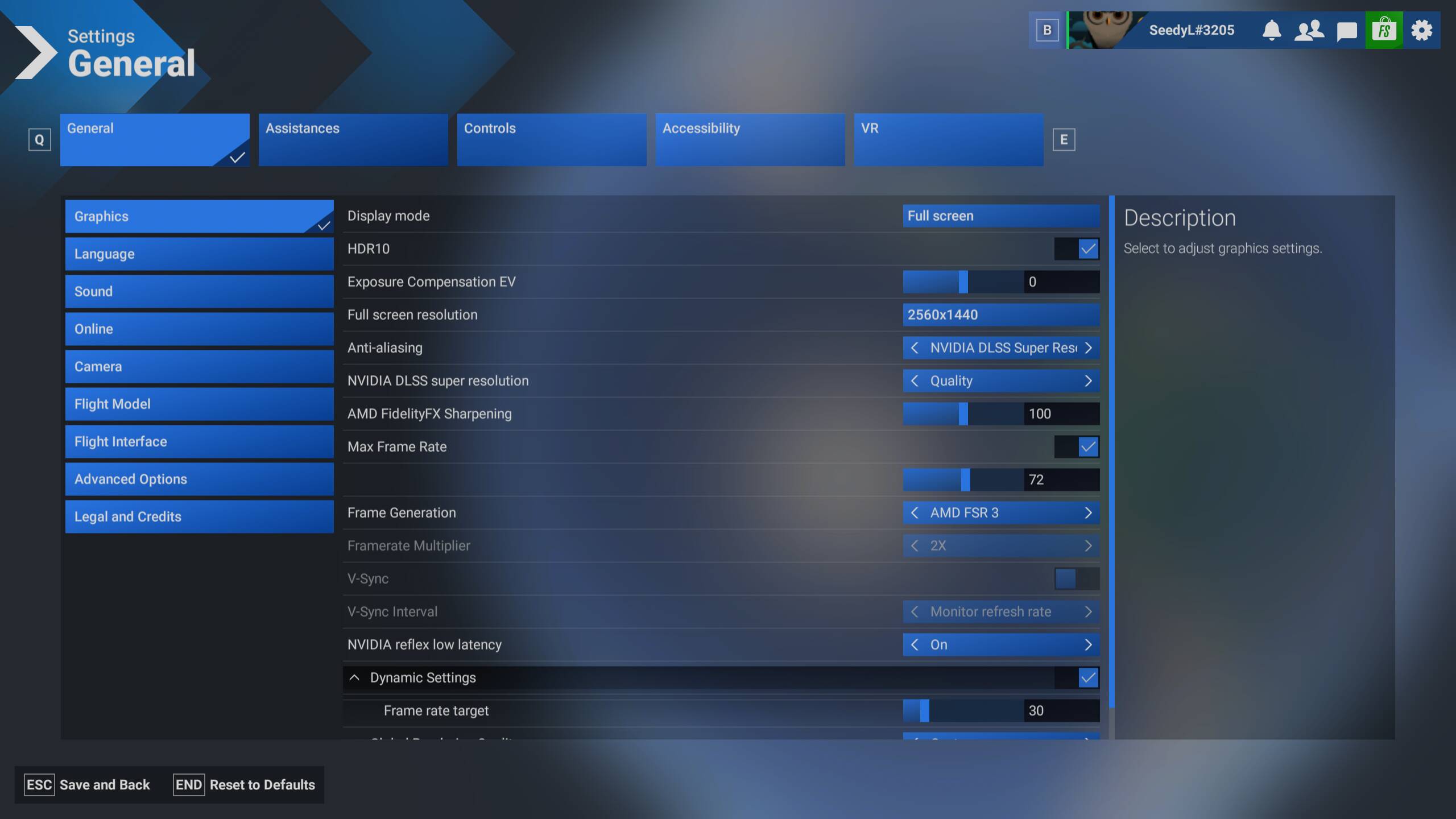
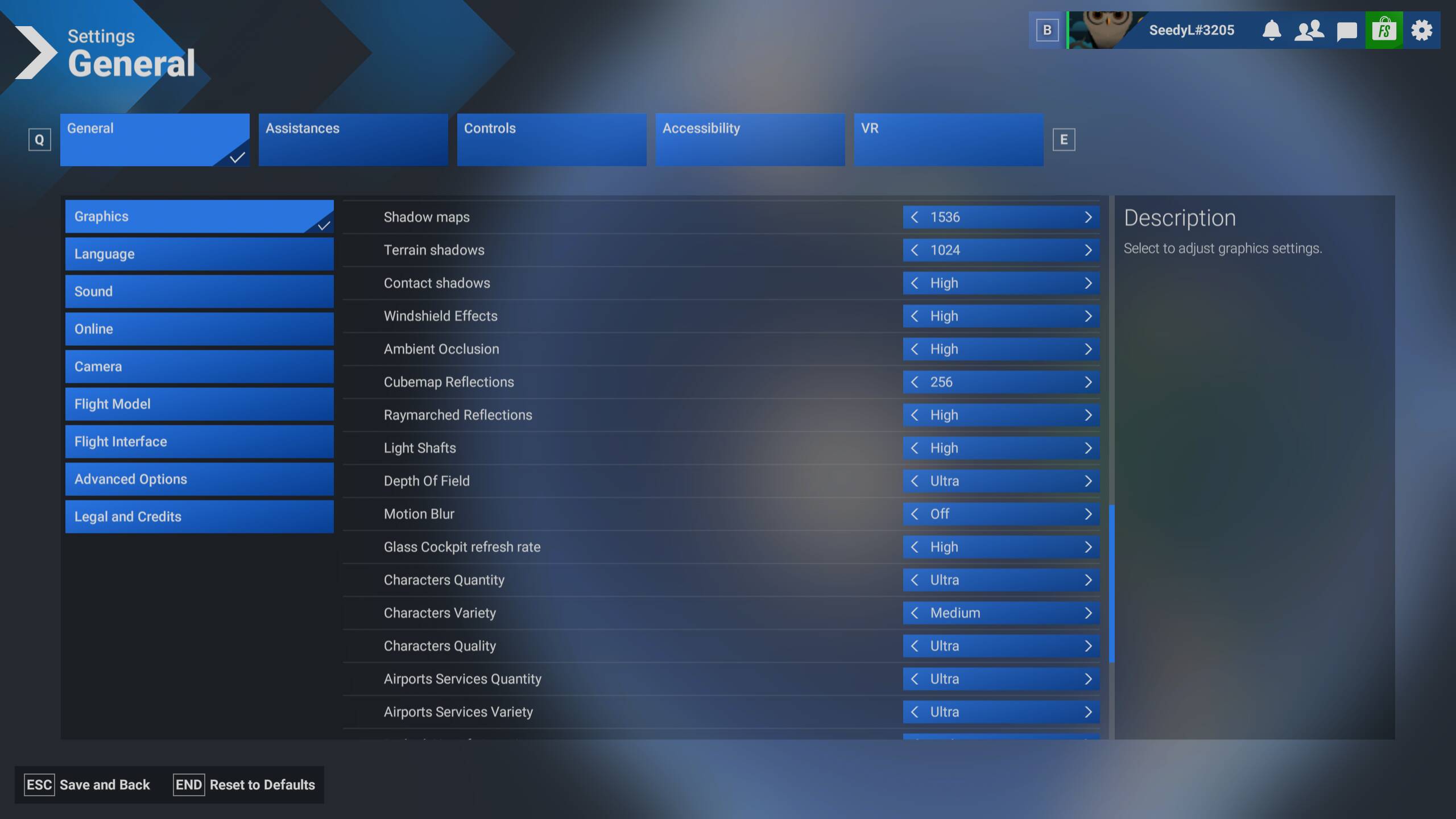
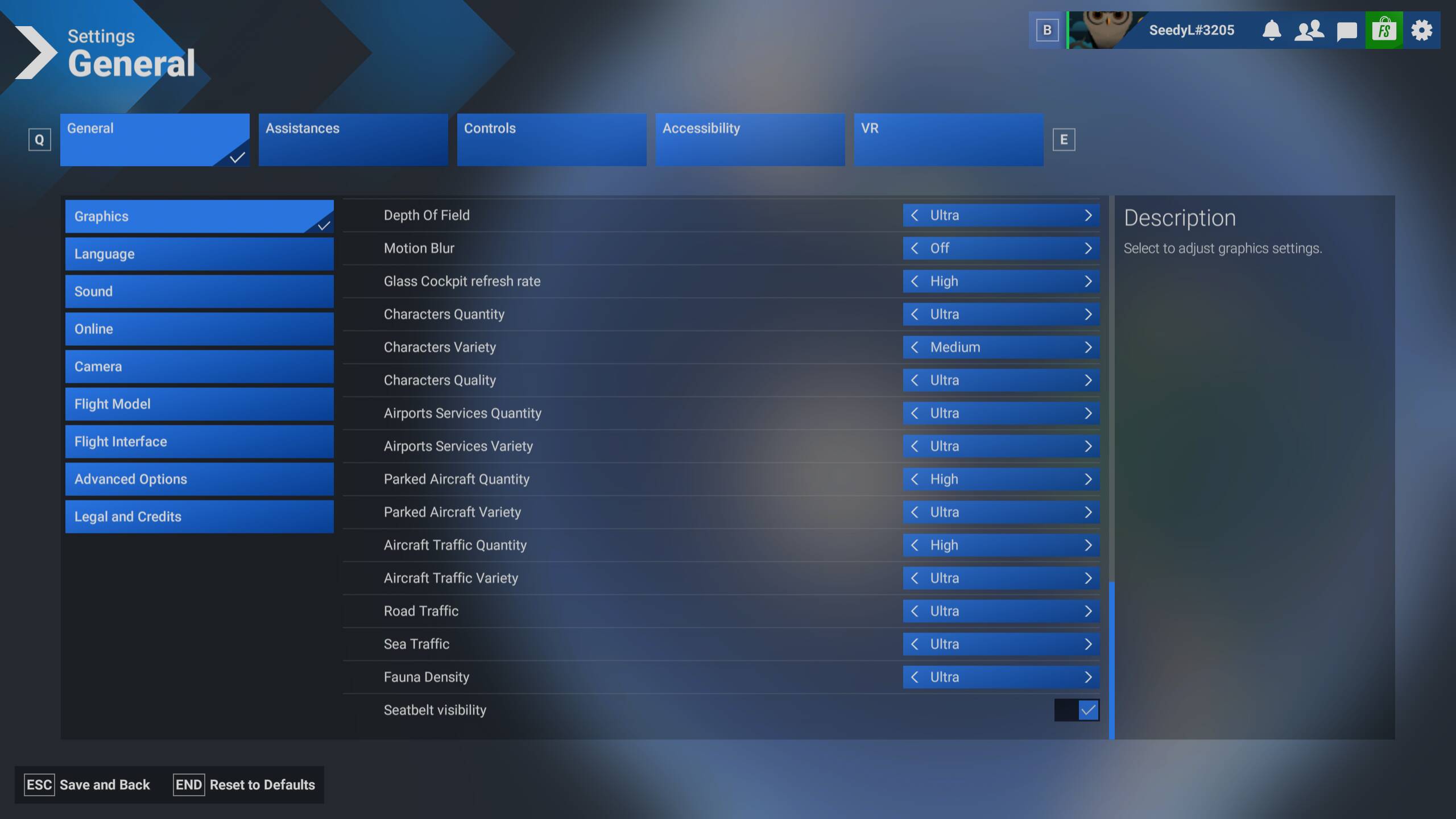
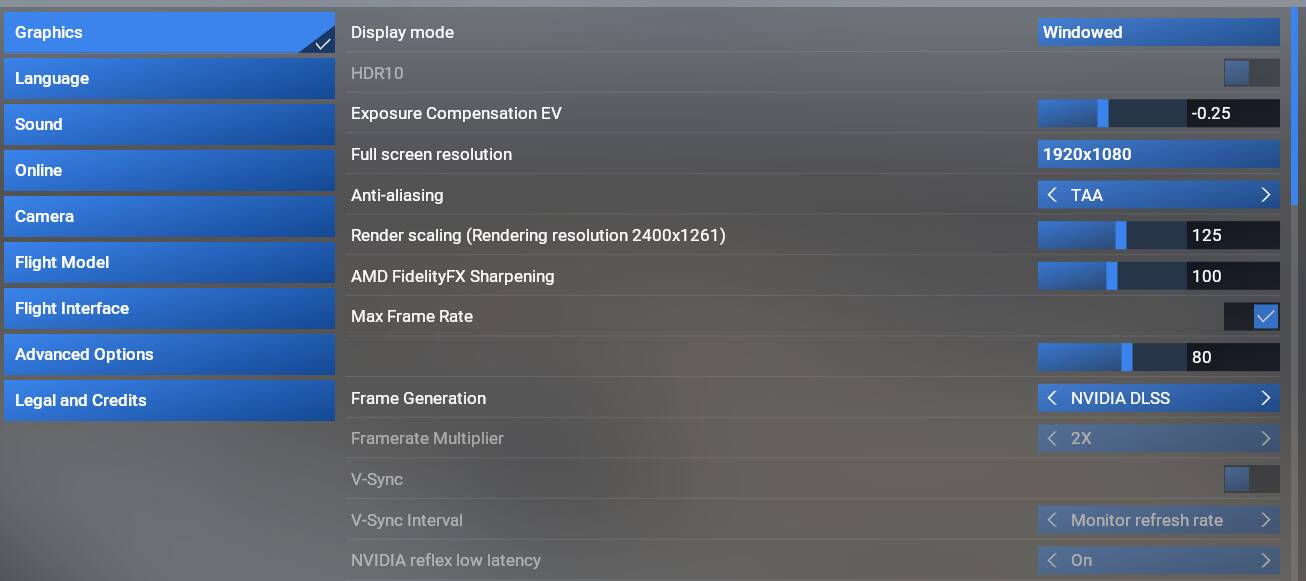
And now, my graphics and online settings:
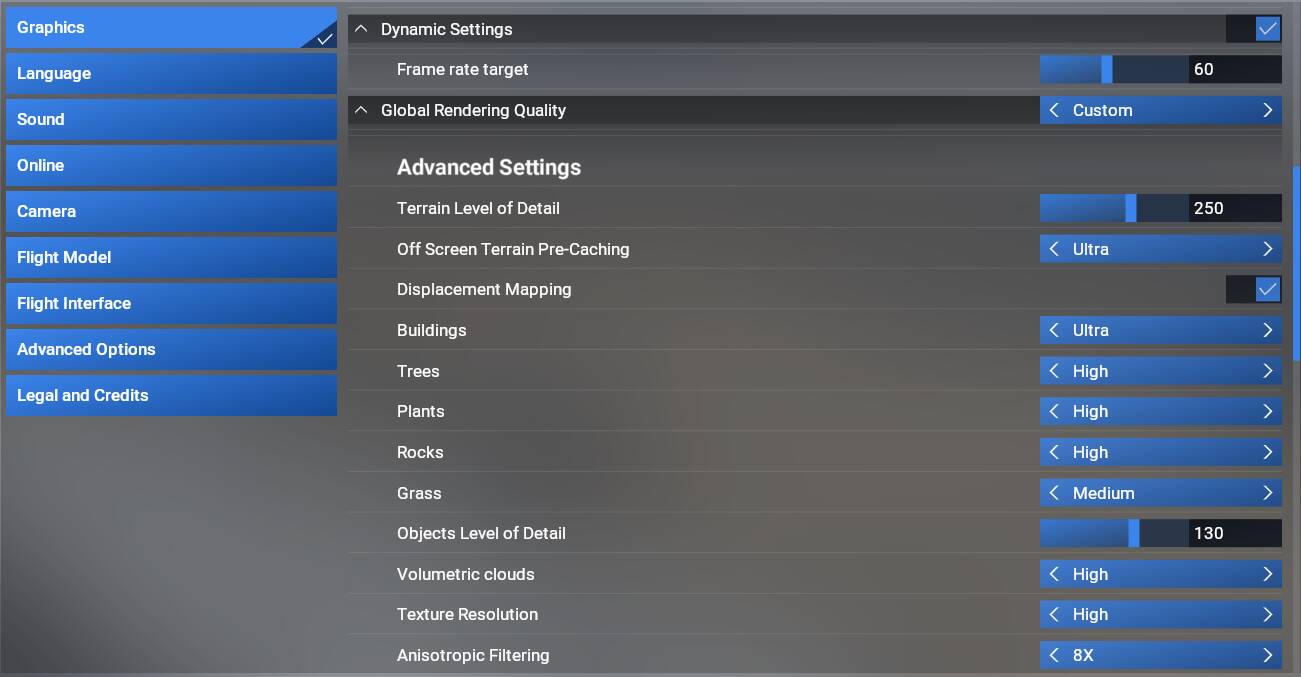
If someone actually takes his time to help me out here, I really do appreciate it in advance!

I’m sure any help should be working!
The photo showing the American Airbus A321 at the gate is a little blurry somehow. Normally it looks better.

Hello,

What are your pc specs and what kind of monitor/TV do you use? What is your native resolution?

Thank you so much for responding!

My PC Specs are:
Processor 12th Gen Intel(R) Core™ i9-12900KF (3.20 GHz)
Installed RAM 32.0 GB (31.8 GB usable)
System type 64-bit operating system, x64-based processor
GPU NVIDIA GeForce RTX 4070

My Screen is not the best of the best, but it has 50 Hz and a resolution of 1920 x 1080.

Let me know if you need any other information!

Unfortunately, the tiles you see in the water are all over the place, it’s a bug at the moment. I cannot see anything wrong with your settings. With a 4070 I would use Nvidia the driver settings to upscale the resolution instead of using the sim. In essence making a 4k resolution on screen, or even 1440p to start with, and just set TAA antialiasing at 100%.

Let me know if you would like any help with that.

Do you mean the settings in the NVIDIA Control Panel? If yes, I’ll try that out.
But about the tiles, isn’t there any way to fix that, as well as those ugly shores the sim lets us see?

Thank you so much again and I’ll try it out and let you know!

I don’t see anything wrong on your photos, this game looks like this for all of us. Blurred ground textures are typical for FS2024. Don’t zoom and you won’t notice it. I stopped using MSFS over a year ago but I remember textures were much crisper.

The black lines on water look worse than on my PC, they are there but a lot thinner. Maybe try turning photogrammetry off? I don’t use it myself.

Thank you!

I understand that a lot of people use it that way. I’m not used to it from MSFS 2020. And honestly it feels like I’m switching from MSFS 2020 to a much older version in almost every aspect. It can’t be modern or the thing now to have worse graphics than before…

I have some screenshots here from my MSFS 2020, fully used without any graphics mods or whatsoever:

Remember the upload quality for screenshots on here is not the best… But still it looks a lot better…

Thank you so much for your answer!

Hello @LuluKuchen,

I believe this might be the cause of your issue:

The Dynamic Frame rate target should be set to the absolute minimum fps value that you ever want to experience. Whenever the sim detects that your frame rate has dropped below the value you set here, it will automatically reduce the graphical quality to keep your frame rate higher than the value you entered. If you set this too high, the sim will dynamically downgrade your graphical quality even in situations where you don’t want it to.

For me personally, I have this value set to 30 fps which for me is the minimum fps below which I never want to experience. Most of the time my sim performs at much higher frame rates than that, so I never experience dynamic graphics quality reduction to improve performance, but if I’m ever flying somewhere that is especially taxing on my system, this ensures that I never drop below 30 fps.

In your case with the value set to 60 fps, you will see dynamic reductions to graphical quality even in situations where you are getting ~55-59 fps, which I’m sure you’d be fine with that level of performance. Try lowering this value to 30-40 (or even temporarily turning it off entirely) and see if that improves the graphical quality you are experiencing.

Thanks,
MSFS Team

4 Likes

Okay that really is a good idea, I’ll try that out immediately. Would it make sense to turn that setting completely off as well?

Thanks for your help!!

You can try turning it off temporarily just to test that it was indeed this setting that was reducing your graphical quality from what you expected it should be. For me personally, I have Dynamic Frame rate target enabled and set to 30 fps.

Thanks,
MSFS Team

Yes, I would try:

  • Max Frame Rate: 30 (or maybe a bit more, 31, 32)
  • Frame Gen x2 will double that to 60, and by keeping it at 60 (or 62, 64) you make some breathing room for the higher TLOD setting you have
  • Dynamic should also be 30 - it works by dynamically reducing TLOD when real frames (before frame gen) fall below this number.
  • Reduce Off Screen Terrain Pre-caching to High, this will reduce strain on VRAM
  • Reduce Terrain Shadows by 1 step, this uses a lot of resources, but not a lot of visual difference that I can see
  • Also, I forget where it is, maybe in Assistances, reduce Turbulence to Low - there is a huge amount of processing done for the invisible air flow.

Turning off displacement mapping might help with the tearing of the terrain.

Okay, thanks so much!!

Any chance you could share your graphics settings in general? Besides the fact I’m having issues with blurry terrain, I’d like to have the best balance between shadows and terrain, textures etc. No worries if you can’t!!

This is so helpful! I’ll try it out! Thanks so much!

Does the turbulence setting to low impact live weather at all? Like do I still notice a tailwind on final or is that then turned off or just very weak?

Thanks so much! I’ll give it a try!

Hi @LuluKuchen,

Here are the graphics settings I use. My PC specs are roughly comparable to yours:

CPU: i9-12900K
GPU: RTX 3080Ti
RAM: 64GB

I have a 144Hz monitor, so I set my frame rate cap to half of that (72 fps) and then use 2x frame generation.


1 Like

That helps a lot! Thanks so much!

Would need your fastest speed on the internet.

My specs are a little less than yours and I have the blurry graphics only when my internet gets slow.

I get up to 300Mb/s Starlink.

Thanks. That must be the case. I think investing into Starlink wouldn’t be a bad idea at all. $29 or $49 per month for an internet speed that’s at least double as fast. Right now we’re paying 39 dollars for a pretty medium internet speed.