Out of curiosity, what Motherboard, PSU, RAM, GPU did you choose?
Last fall I upgraded my GPU and PSU specifically for FS’24, so I’m repurposing those: RTX 4070 Ti Super 16GB and MSI MPG A850 80-plus Gold rated power supply.
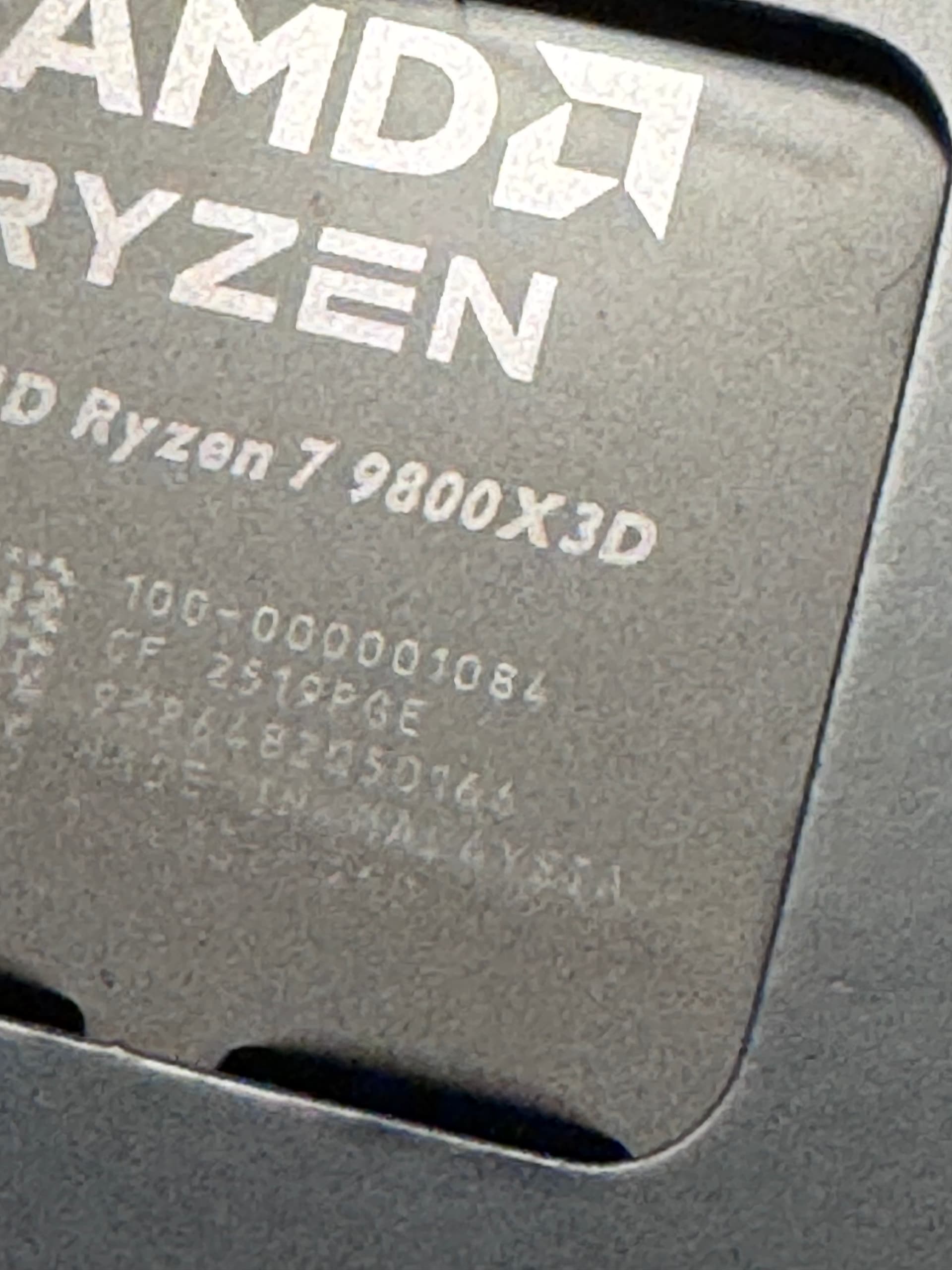
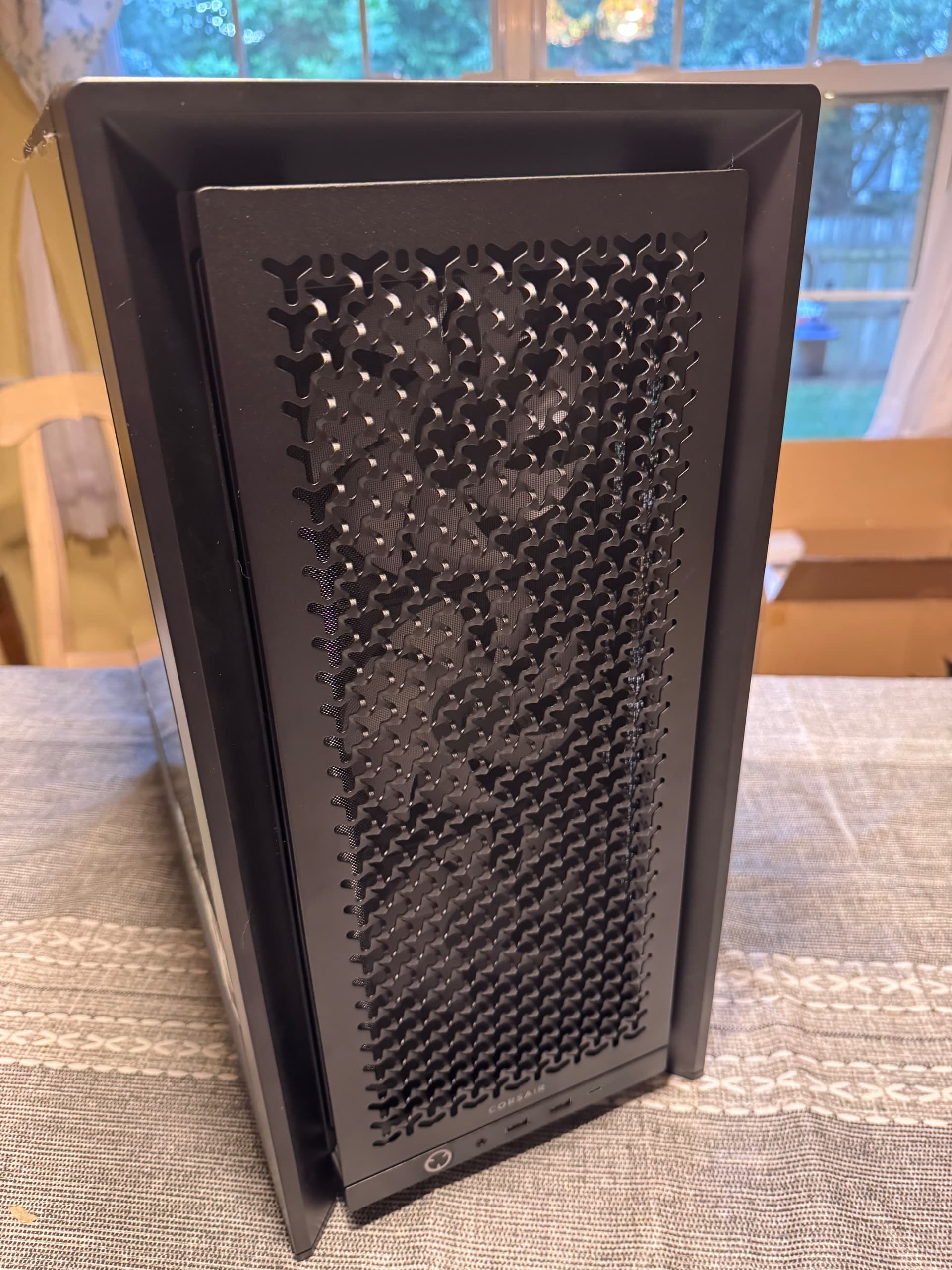
Motherboard is an MSI MAG Tomahawk X870. Ram is 64GB (2x32) G.Skill Z5 DDR5-6400. I’m putting it all into a Corsair Frame 4000D case, and using a Corsair iCue Titan 360 LCD AIO cooler.
I’m know I’m going overboard on some aesthetics and optional features on the motherboard because I’m gonna be using this machine for 4-5 years, I can afford to do it right now, and what the heck, you only live once.
Not saying you should do this, but…
I have 64GB (2x32GB) DDR5-6400/CL32
I manually downclocked it to 6000 MT/s which allowed me to tighten up the secondary / tertiary timings. Every memory benchmark saw a significant improvement, and my system has been very stable. I’m happy to share my settings with you if interested.
Thanks, I’ll let you know once I get things put together and setup. I’ve got a fairly steep “AMD learning curve” ahead so I’m kind of just watching videos from builders and component testers and drinking it all in until I have hardware running to start trying things in person.
Im looking at swapping from xbox to pc in the very near future and was wondering if this would be suitable for a sim rig with VR? All opinions welcome
https://www.chillblast.com/pcs/chillblast-sim-flight-ultra-ryzen-7-rtx-5080-flight-simulator-pc
That should absolutely kick butt in everything, I would think, but VR has its own demands, especially on VRAM (because you’re rendering two images per frame). Maaaybe consider an AMD GPU with more VRAM? Nvidia is absurdly out of step with the market right now on that score.
But on raw specs, it should be pretty great all the way around.
Yeah I went way overboard and decided to do a water cooled PC with the 9800X3D - mostly because of the trend of CPUs and GPUs demanding more and more power, and wanted it to work 4-5 years. I questioned my decision the whole way, as it’s expensive, but actually enjoyed the challenge and learned a lot.
I don’t think there is much of a learning curve for the AMD 9800X3D. Here are the steps I took on my build if it helps:
- Physically install components and cooling
- Boot in to BIOS, and update BIOS to latest version (non-beta version… for my MSI the versions ending in zero are non-beta)
- Clear CMOS and set BIOS to stock settings for Windows install
- Boot to Windows USB to install Windows
- After first boot of Windows, install chipset driver from MSI website, reboot
- Install component drivers from MSI website, reboot
- Run Windows Update until up to date, reboot
- Check Device Info to make sure nothing is missing a driver
- I did not install AMD Ryzen Master or Adrenalin, I just did the minimum chipset and drivers
- I kept Windows stock settings, except turned off a few notification things, but kept Balanced power plan for now.
After running a few benchmarks to get a sense of the temperatures and Cinebench and 3DMark scores with stock settings, I suggest the following simple changes in BIOS:
- Enable EXPO (just this improves the memory timings)
- Enable PBO > Advanced
- Enable Curve Offset > All Core > Negative 10 or 15 (to start with). This allows the CPU to use slightly less voltage across the frequency / voltage curve, greatly improving temperatures, and creates headroom for the CPU to boost without hitting thermal or power limit. It is still using the PBO 2 Algorithm to manage its limits, so it’s totally safe.
Just those 3 things will allow CPU to run cooler and be very happy.
If you want to improve further, assuming it’s similar to the MSI Carbon, look in the MSI BIOS > Advanced for :
- “High Efficiency Mode” > Enable
- Memory Timing Preset > Relax
That alone gives another 5% improvement in latency and performance.
And if you really want to dial in the undervolt curve offset per core, I can guide. It just involves loading each of the 8 cores to find the voltages, and then harmonizing them with individual offsets.
The official limits for 9800X3D for reference are:
- PPT: 162 W
- TDP: 120 W
- TDC CPU: 120 A
- EDC CPU: 180 A
- Thermal: 95 C (Core, GPU, SOC) My goal was to stay under 85C
- VID: 1.40 V (except, 3D cache limit is 1.3V I think)
- FMAX: 5250 MHz
- FIT: 1991.1
Cheers dude. Much appreciate the feed back

Here’s my experience. I’ve always found downloading drivers from the chipset manufacturer is always worse than just letting Windows do the driver installation. It’s true for the graphics drivers too. While you get more options with adrenaline or the Nvidia app, they tend to be more trouble than they’re worth. If I want things to work right and no stutters or hiccups anywhere, I’ll do a clean windows and only install drivers for what windows can’t find. Most problems related to stuttering can be attributed to a manually installed chipset driver. But that’s just my experience.
Where do you think Microsoft gets the drivers?? I always check the motherboard manufacturer website 1st as those drivers have been tested for compatibility. Unfortunately, the drivers Microsoft delivers via Windows update are typically weeks/months later than when available from any of the vendors directly.
Windows knows best  . That’s my experience and I’m sticking to it
Windows doesn’t always know best. That’s why their drivers are usually outdated ^^ I’ve checked before and found drivers many months - or even years old. Usually stuff you don’t think about checking - like chipset drivers.
So I take it you let Windows install your Nvidia driver for your 4070 and you never ever update/change it - right?? 
Yeah there is no clear guidance about whether its better to stick with a chipset driver from the motherboard manufacturer, or directly from AMD.
Does MSI change or customize it at all for their boards, and/or is their BIOS matched somehow to the chipset version they supply? Or is it just whatever AMD supplied to them at the time and getting the latest update from either source is best?
For the 9800X3D the driver supplied by MSI for my X870E Carbon motherboard was from January, and AMD has since issued several updates (the latest from June I think) I decided to try installing the updated one from AMD and will see how it goes. So far no problem. I don’t like how the Adrenalin app used to install the updated chipset driver also installs additional unrelated apps but so far they seem harmless.
AMD works closely with the major motherboard vendors regarding their AGESA updates which get integrated into the MB vendors bios. AMD chipset driver updates are also worked on closely with the motherboard vendors along with Microsoft since this Windows layer interfaces directly with the AGESA/bios and ultimately the cpu.
I have an Asrock X670E Taichi motherboard and I noticed they just released a chipset driver update for my MB which is a newer version than what has been released universally on AMD’s web site. This tells me that AMD and Asrock have either worked out new functionality and/or have completed some new bug fixes. Asrock sometimes releases them 1st as it usually takes a little extra time for AMD to almalgamate all of the MB vendors changes together and do a general chipset release. Therfore, I’ll always check for a newer version of the chipset drivers from Asrock before updating from AMD’s web site. I’ll often also update my bios if a new version has been released at the same time as new chipset drivers to keep them in sync. Either way, I’ll keep up to date - I’ve found this strategy works best.
I won’t say I never have. But I’ll tell you what, the Nvidia app causes more problems than you can shake a stick at. I don’t use DLSS so I don’t care what preset or latest version I have of it. TAA and FG all the way works for me. I turn on gsync and vsync on in the control panel and I’m good. But that’s just me. My system very very rarely get stutters. I play piano and as in music, sometimes less is more .
I do keep my BIOS updated as I have a 13th gen Intel. I’ve only had to do that once though.
Build complete but I’m too tired for a power-on test. Having reached a certain age, a man should learn a few things about himself. The big thing I know about myself is that if it doesn’t post up, I won’t be able to rest until it does, whether it takes 10 minutes or 3 hours. Worse, if it does post, I’ll want to update the BIOS, start installing Windows, install all the chipset and device drivers, do all the Windows updates, and probably even move over my two other m.2 SSDs from my current system and reformat them for reuse …
So until tomorrow …
You have too much self control. Just press the button!
I remember my last PC build, sitting on the living room floor in the wee hours of the morning, realizing I needed a long HDMI cable to plug into my TV for a test run. After finding a way to elevate the case high enough to plug in with the cable I had, I hit the power button and got the sweet BIOS screen telling me I needed an OS. That may have been my last real accomplishment as an adult…
Nice. MSFS requires more patience than anything, so patience with PC hardware just becomes a warm up exercise 