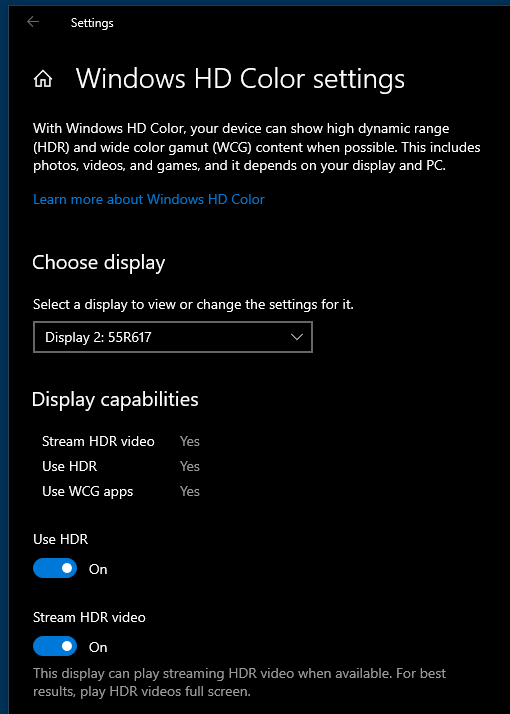
A theory – when Windows boots up if you left it in HDR mode, but the monitor isn’t yet fully alive, it’s not properly detecting the max peak brightness maybe? But if you switch HDR mode off and on again in Windows, it seems to reset something and it recognizes the monitor’s peak brightness setting and fixes the tone-mapping.
(Seems that I can resolve it by simply switching HDR off and on in Windows settings while MSFS is running with HDR10 enabled. Once this is done it survives across exiting and restarting MSFS, but not across reboots.)
I also like to give it a slight touch of sepia effect, i think this makes the colours more natural.
Colour wise I just increase the red channel slightly to warm it up a bit, but I guess it’s whatever suits your monitor and personal taste.
I agree on that coz no monitor is the same, and the monitor visualize feedback to the personal taste.
I believe that there is 3 profiles and it give you to easilly switch and manage in different stages of youre flight or where you fly. And is also to get some grainyness out the clouds by reducing the sharpness to make it more puffy.
I had great results HDR on - then things went bad (update?) dunno.
I spent 2 weeks trying to tune the monitors. I could not even use WINDOWS Snipping tool as the screen shots would be all washed out.
Not sure what I did? or another update did? But I no longer have a HDR option in FS2020. (it’s grayed out). Greyed out but says “ON” ??? is that forced on?
I have a 144hz Dell and a 240hz Samsung G9. I run them both at 120hz to allow them to be shared with same window. Both say they are HDR capable in Nvidea/windows. I finally was able to tweak color and contrast, gamma etc to match the two monitors picture. (and scissor tool now works properly) but I have no idea how or why? Did an update change something to “AUTO” configure per monitors? I love the color and pciture now… but HDR10 is greyed out (but says on) not sure if that really means it’s on.
Is the HDR setting enabled in Windows? If so, perhaps check your monitors’ statuses to verify they are getting and displaying a ‘HDR signal’.
…just a little, little tad later… 
So: If I want to ONLY have HDR in game and absolutely not on the desktop or with other apps - how should I do? Is there support in FS2020 to start HDR (like some games seem to be able to), or do I have to turn on HDR in Windows (and therefore also have it activated all the time?). win 10 here…
You’d have to manually flip the switch in Windows Settings.
1 Like
Wow. But thanks for the info. =)
1 Like
Ooh, that sounds like a good trick for people who need to be able to flip the config setting on/off often. 
1 Like
Hey guys, just in case anyone still has issues with this, something that seems to work well for me is to simply turn off and on my monitor. My MSFS always boots up in low contrast grey mode for some reason, but by rebooting the monitor, it seems to correctly switch into HDR mode and it looks amazing.
I have HDR turned on in Windows and of course also in MSFS with HDR10 enabled. You must have both enabled for HDR to work properly in Windows 10.
Also, don’t forget to use the Windows HDR Calibration app upon first use of HDR. If you don’t calibrate your HDR monitor, colours may look off, and you have a big chance that highlights become too bright and/or shadows too dark.