Congratulations on your new PC, that sounds like a powerful system.
How did you limit the CPU to 77C, in BIOS?
I am only familiar with my own PC (9800X3D / 5090 / DDR5 6000 CL28 RAM / MSI X870E Carbon / triple screens) and not an expert, but can give you some general guidance on tuning for MSFS based on similar hardware. Also the latest AMD X870E Chipset Drivers are here.
In general, I would start with these simple BIOS settings, assuming you are starting wtih default BIOS settings:
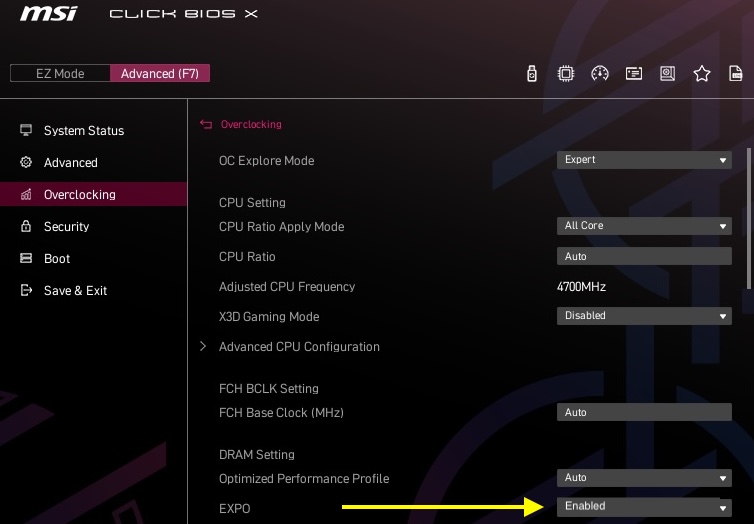
EXPO
Assuming your RAM is on your motherboard’s compatible list… This allows your motherboard to read and use the timing profile from your RAM, allowing it to run at its advertized speed. RAM tuning is by far the most direct way to tune for MSFS, because the sim uses so much memory and data, efficient timings really have a positive effect.
- In BIOS, click Advanced at the top…
- … Overclocking on the Left
- … Scroll down, EXPO = Enabled
- … It’s possible to go farther with subtimings, but you want to try just EXPO first for a while, to make sure it’s stable.
PBO
This Enables AMD’s Precision Boost Override 2 algo which will allow the CPU to use its advertized 5.7 GHz boost clock (not limited to the 4.3 GHz base clock) while protecting CPU within automatic thermal, power, and current limits set by AMD.
- In BIOS, click Advanced at the top…
- … Overclocking on the Left
- … Advanced CPU Configuration
- … AMD Overclocking
- … Precision Boost Overdrive
- Set PBO = Advanced
- IF you are concerned about heat, on this page is where I would set the “Platform Thermal Throttle Limit”. By default PBO will throttle your CPU when temps approach the 95 degree limit, but you can lower that limit with this setting. But if you have good cooling, and use the Curve Optimizer (below) your CPU will likely never get near the limit in MSFS, instead staying around 70-75 at most (depending) although still better to be safe until you learn how it behaves.

Curve Optimizer
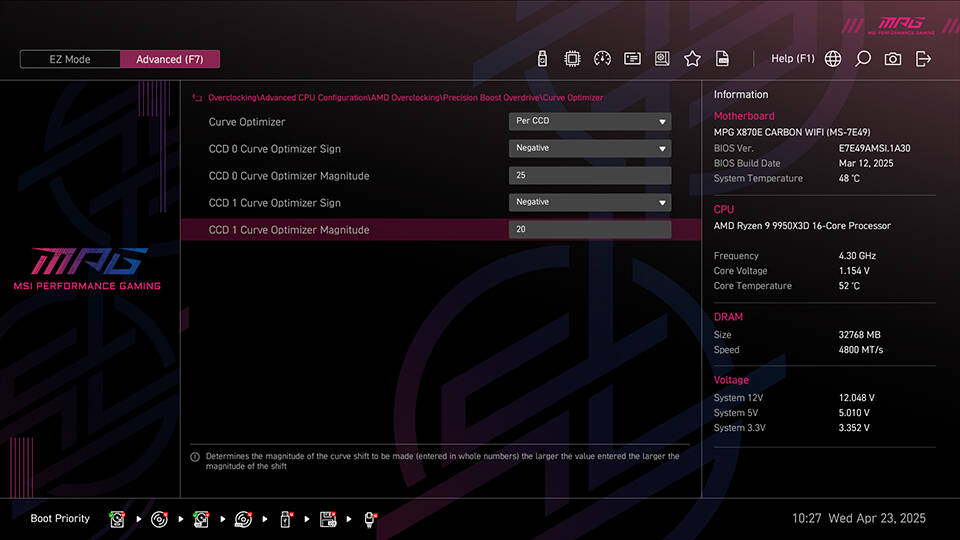
This appears when you set PBO to Advanced in the above step. CO slightly reduces voltage, which reduces heat and power, making thermal room for the boost clock - it’s such a simple setting, and works very well.
- Your 9950X3D has 2 CCDs, the 1st, CCD0, has the V-Cache used by games, so we focus on that one.
- On the same page as above click Curve Optimizer
- Curve Optimizer = Enabled
- Per CCD
- CCD0 = Negative 10
- You can go further, but I wouldn’t go further than -15, because then you starve the CPU when MSFS is CPU limited
MSI has a detailed page about Curve Optimizer
The above 3 settings would be a great starting point. I suggest downloading the following so you can take some measurements and test for basic stability (before and after changing BIOS).
- HWInfo
- Cinebench (CPU testing)
- Furmark (GPU testing)
- Superposition (General game test)
- MSFS
RAM Subtimings
Again, assuming your RAM is on your motherboard’s compatible list… If the above is stable and runs well, you can push a bit further by tuning your ram’s subtimings. I know how to do this with 6000 MT/s RAM, but am not sure about your 6400 MT/s.
For my RAM, I do the following to set the main timings on the same BIOS > Advanced > Overclocking > page noted above for EXPO:
- FCLK Frequency = 2000
- UCLK DIV1 MODE = UCLK = MEMCLK (aka 1 to 1 mode)
- For me, this is equivalent to defaults, but I set it to be sure…
- … You could try the same, but your Ram is capable of faster:
- … FCLK = 2133 (x3 = 6400)
- … UCLK = MEMCLK
- You’d want to test that, it may also use more voltage for higher frequency, so you can watch the RAM temps in HWInfo when you do testing. When in doubt leave it in Auto
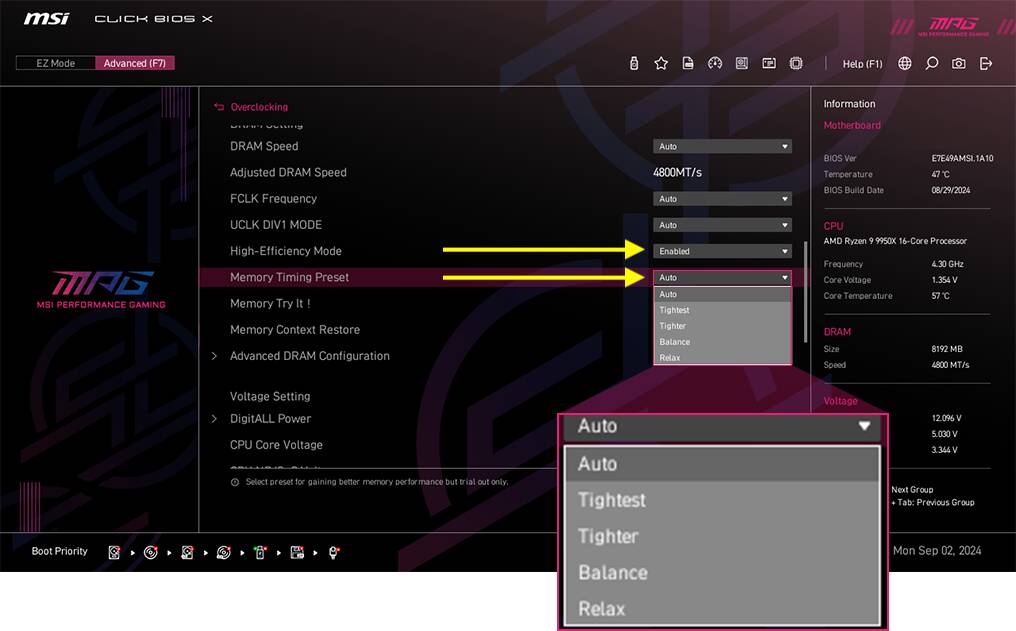
Subtimings, on the same page once EXPO is enabled, you’ll see the following, which allows the motherboard to use tighter subtimings based on the RAM profile, with 4 presets: Relax, Balance, Tighter, Tightest.
- High Efficiency Mode = Enabled
- Memory Timing Preset =
- … Relax
- … Balance
- … Tighter
- … Tightest
- Even the Relax setting gives about 5% improvement in MSFS, assuming it’s stable on your system.
I have triple 4K screens, and (currently) use the following.
- Monitors (TVs) set to 120 Hz, which unlocks VSync, etc
- TAA (although sometimes DLAA)
- Max Frames 30
- Vertical Sync: Half Monitor Refresh
- FSR3 Frame Gen x2 (targeting 60 FPS) I use FSR3 instead of DLSS because DLSS FG only works on 1 screen.
- Dynamic On, 25 (so LODs reduce at 50 FPS)
- Graphics Preset: High, +TLOD 300 / OLOD 150 (sometimes I adjust)
You can see some specific test results here … and more thorough testing here