That might be the issue. I don’t fly the big hair dryers, but I do have the Kodiak, and that one is not exactly easy on frames. But even in real weather with cloudy skies and the Kodiak loaded up and running, I still only dip into the high 20’s once in a while. I usually stay in the mid 30’s. Go through the video I posted and see what does and doesn’t make a big impact on visuals. Turn down anything you can live without and you’ll be surprised at how much you can gain and still have a great picture on your screen.
3 Likes
Has anyone used Intel Extreme Tuning Utility with an I9 11900k? I see there is an option for a basic tuning
IN THIS ORDER: Terrain LOD (over 100 is hardly noticeable anyway), volumetric clouds, live anything, and AI traffic are the biggest resource hogs, imho.
Happy tweaking!
1 Like
Nice, are you screen or VR in it and does it work as well as i’m led to believe 
Probably not the right place. I saw a youtube video from Q8 pilot, to delete DXcach and GLcache folder. It seems I do not have GLcache folder. Any suggestions? Only nvidia driver installed, without geforce experience. Thanks in advance.
I’ve reduced LOD from 200 to 150. Visually still looks the same👍
1 Like
I just booted up MSFS probably not the best place to test this but Im currently FL370 over the English channel so not much scenary to take my CPU temps look quite low not sure if I am reading this right?
Also, is my CPU working? Speed look ok? Utilisation looks low?
Again, sorry if I sould stupid, complete noob and trying to play around a bit with what I have because I have pretty much kept the same settings since day 1.
Appreciate the help.
i9 11900k
RTX3070ti
32RAM
Windows 10
DX12
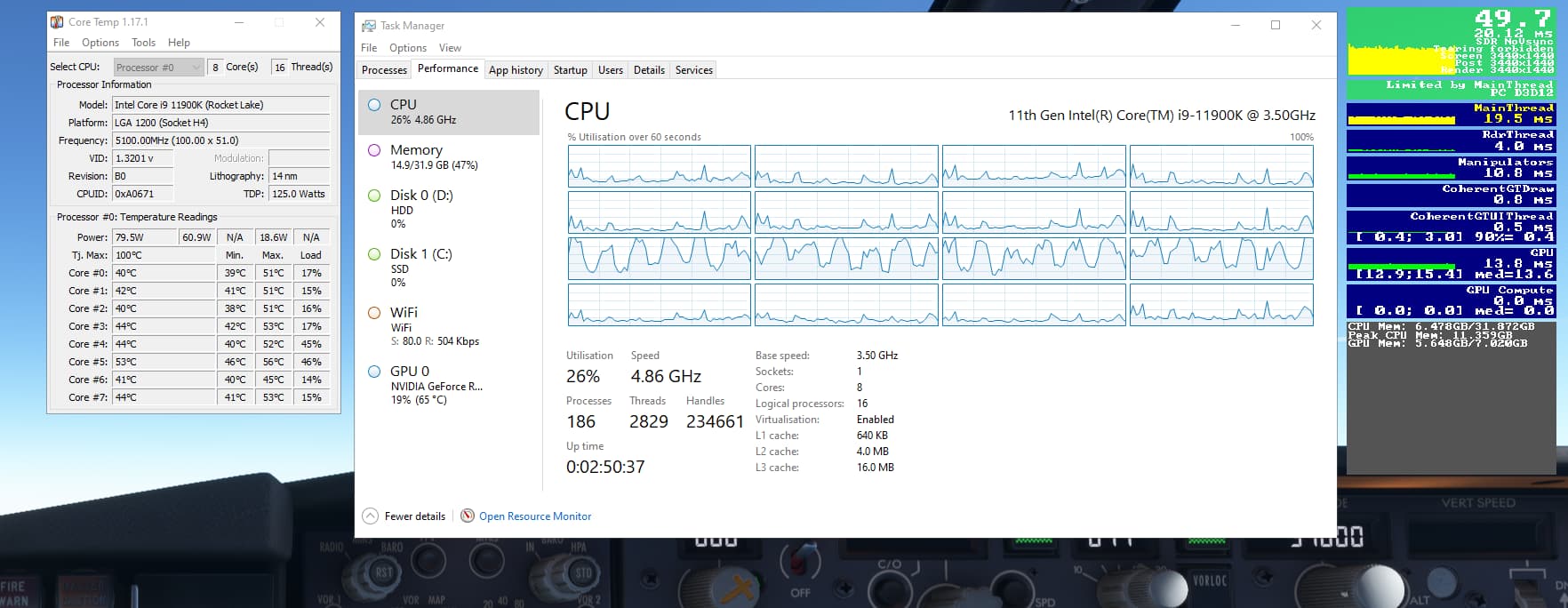
Kevin, that looks fine for CPU utilisation, you don’t want it running 100% or it means there’s a bottleneck. It’s quite normal to see anything upto 30% usage and sometimes a bit more if it’s being stressed due to complex aircraft. I would recommend searching for youtube videos on tweaking the Nvidia control panel.  Be prepared to become addicted to tweaking though!
1 Like
Thanks!
I will check it out now.
Yes, definitly I can see myself falling into a rabbit hole! 
I don’t know if this tuning tip is still valid or was ever definitively proven to change sim performance, but it’s one more thing you can try. You were on this thread way back when it was active, but I notice on your screenshot from Task Manager you still have Virtualization enabled. Maybe try disabling in BIOS and see if there’s any difference.
2 Likes
Thanks!
How do I disable this in BIOS bit nervy going into BIOS for me!
Can you launch into the BIOS while logged in? I believe has to be done on start up?
No, you enter BIOS immediately after turning the PC on or immediately after restarting. There’s always a key sequence you mash before the PC boots into windows. Often times, it’s the DEL key, but it can be something else. It will pop up on the monitor momentarily on every boot. Your motherboard mfg will have this documented somewhere on their site.
You can also restart into a recovery mode by using holding SHIFT when you restart the PC from the menu.
1 Like
Thank you for the information.
I will try disable as you suggested.
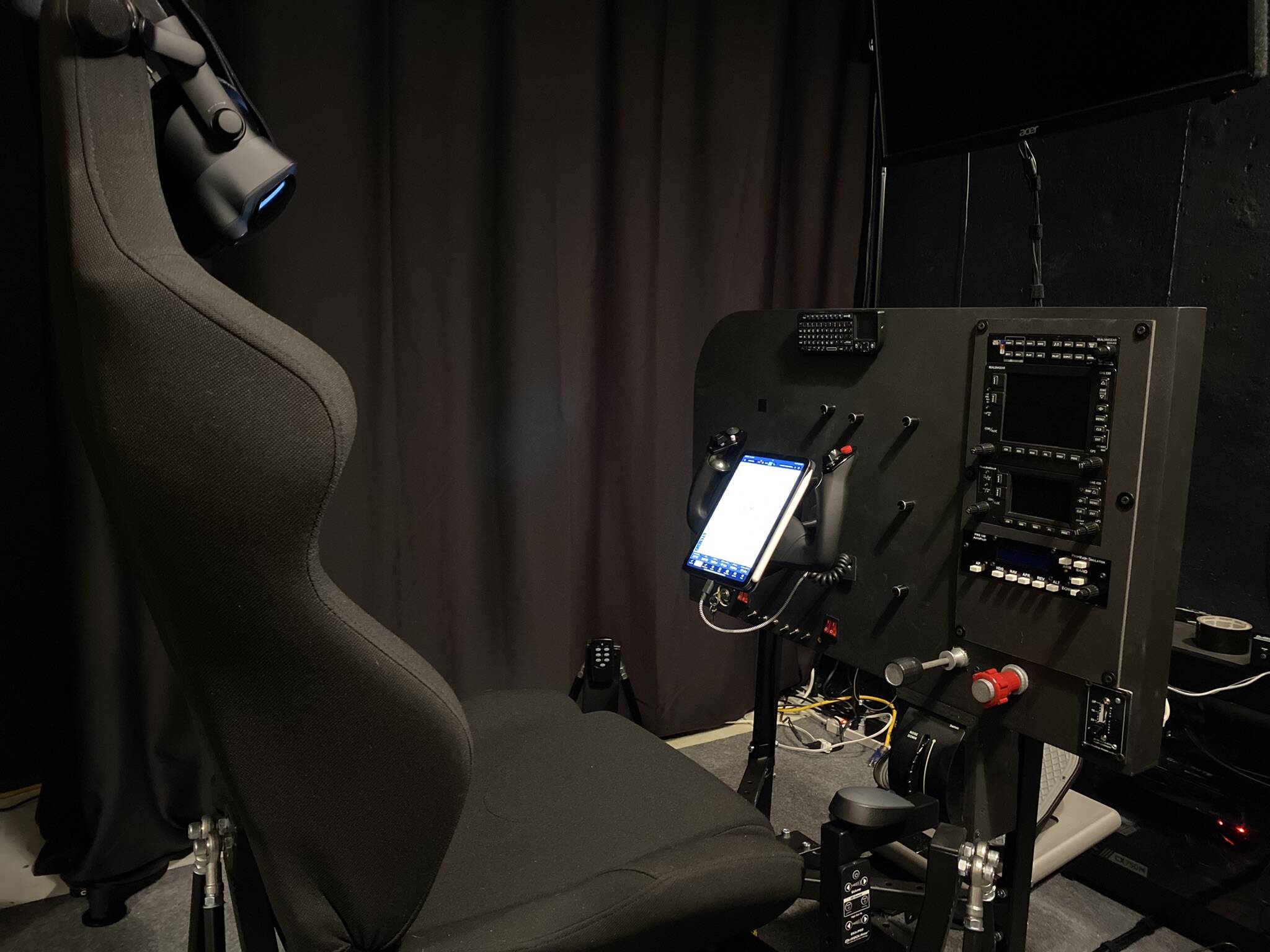
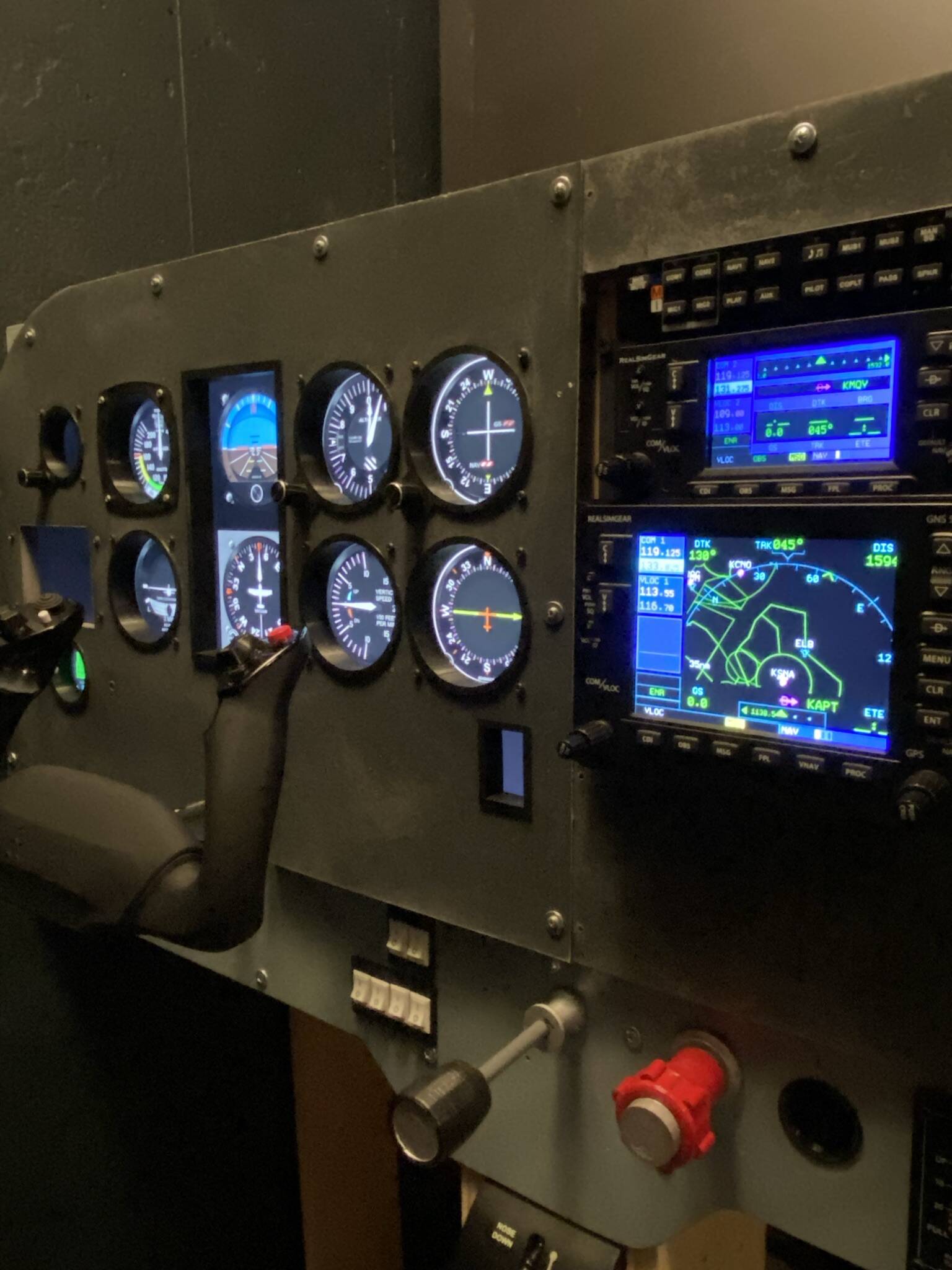
I fly in VR. I’ve had every imaginable combination of screens, projectors, head trackers, & authentic physical panel(s); the final one built to replicate my real-life trainer.
I can say without a doubt that VR is the best way to experience flight. Not even close.
I had a 7700k and a 3080ti for a couple years, and only upgraded recently. The 13900k(?) was a game changer. The 4090 was a bust for VR, but I understand it’s fantastic for 2d. I’d rather have my 3080 back, but I gave it away. 
Pics of my last 2d panel and current VR setup:
2 Likes