So how do you use it in VR exactly? Are you using other frame gen mechanisms like SSW or ASW? Or are they deactivated?
For me, SM gives me tearing, DLSS gives me smearing, FG some artifacts.
So if I had to pick my poison I would use FG.
But Im sticking to sluggish vsync @ 33% of 120hz and TAA, with input lag instead, as I cant stand smeared/blurry graphics and/or artifacts/flickering induced by FG.
If anyone has a better option/fix I would love to try that.
Did you try DLSS with the latest preset K and DLAA? Blurriness is very minimalistic there.
TAA is sharp but causes flickering/shimmering.
DLAA has a much more stable edge rendering.
Ive tried all the different presets of DLSS including K. DLAA has its own smearing issues (like lightpoles against clouds/sky). But yes, TAA or DLAA is the AA solutions I would use. For fps increase, I havent really found a decent solution to keep clarity in motion without issues like smearing, artifacts or flickering. I wish they could exclude glass screens from DLSS somehow.
I prefer DLSS because except for screen blurriness, the scenery out the window is better than with TAA.
I found a long time ago, the same as he did in this recent video. But I think my opinion is a minority one.

I had the same experience here and did something that worked like magic.
I set my VSync to Adaptive (half refresh rate) in the Nvidia control panel and enabled SM.
It turned out better than Framegen, with no tearing and no artifacts with TAA.
Have you capped your FPS at all? I set my monitor back to 180hz, max FPS 102, FG - none, TAA, Vsync - half refresh and its never been better for me, super smooth and sharp. I was thinking of lowering my FPS cap even lower, but not sure how that interacts with the half refresh setting. Instead of that I may just now try this smooth motion option.
Yes,
My monitor was set to 240Hz. So, I configured it in the NVIDIA control panel to sync at half the refresh rate (Adaptive half refresh rate), which means it will sync at 120Hz.
I limited it to 120 in RivaTuner.
With frame generation turned off, my simulator produces 80fps. Using SM, it delivers 120 synced fps, and there’s still some headroom.
It feels very smooth, and the latency stays at normal levels without stuttering or artifacts.
It turned out great here.
this is because you have frame gen on it interfiers go adn turn off the frame gen and it should work
Interesting, will give this a try since I’ve been struggling a bit to have a smooth VR experience after switching to MSFS2024 from MSFS2020.
Can this setting be changed while the sim is running to see the result or do you need to restart to see the effect?
I have smooth motion and fsr3 on and no pink flickering, 4070 ti super
wait without fsr and only smooth motion on u get lower fps???
so you say smooth motion with fsr is
smooth and gives you more fps then just one of them alone on right???
yes it can be opened, you will see the flickering stop
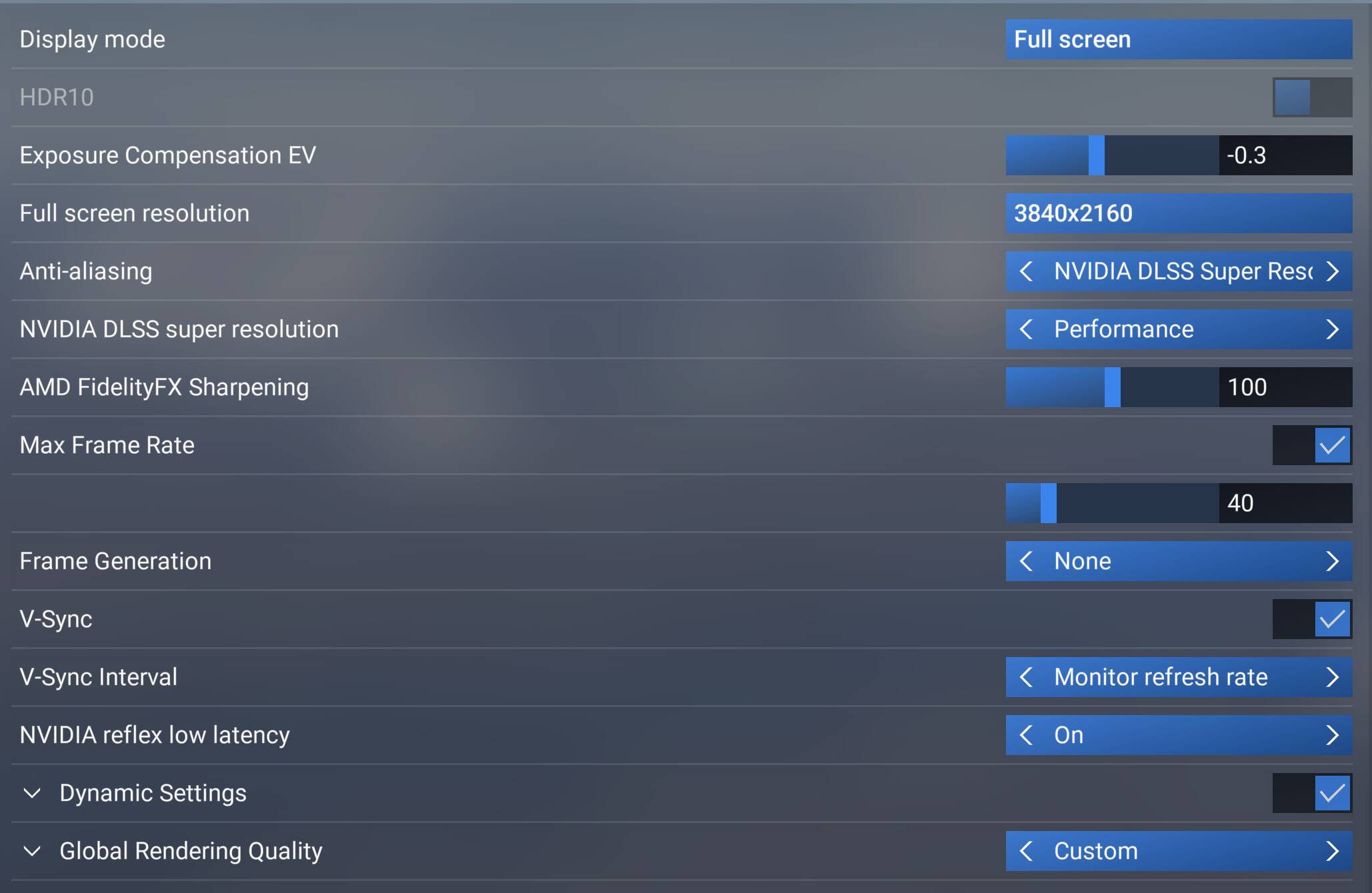
I’m not near my computer right now, but I can tell you the settings I’m currently using:
In-game settings:
-
Anti-aliasing: DLSS Super Resolution (Quality mode) + Version 4.5 Preset M
-
AMD Sharpening: 100
-
Max Frames: Off
-
Frame Generation: None
-
V-Sync: Off (in-game) → using Adaptive (Half Refresh Rate) in NVIDIA Control Panel
-
NVIDIA Reflex: Off (in-game) → enabled in NVIDIA Control Panel
-
Dynamic Settings: Off
NVIDIA Control Panel tweaks:
-
Shadow Cache: Unlimited (No Limit)
-
Monitor Refresh Rate: 240hz
-
Power management mode: Prefer maximum performance
-
Low Latency Mode: On
-
Vertical sync: Adaptive (Half Refresh Rate)
-
Gsync: Off
I enabled Smooth Motion using the NVIDIA Profile Inspector, since I don’t use the NVIDIA App.
Hi
is the nvidia reflex option in nvidia app/control panel called low latency mode?
I can’t find anything with the name reflex in it other than in sim.
edit/ nevermind read that it is.
Thanks