I tried the rejected takeoff at KSEA on 16L. Fenix a320. Triple 65” 4k, DLSS quality, live weather which was overcast and light rain in the area, BATC for my ATC, Just flight FS Traffic with default settings for ground traffic and air traffic, 5090 GPU and 9950x3d cpu (stock and no overclocking), 96gb ram, 128gb rolling cache in MSFS 2024, 30 fps limit in sim and AMD FSR frame generation to get 60 fps total….no stutters and smooth on the rejected takeoff and then again smooth on the 2nd takeoff headed up to Vancouver. I did open and close the toolbar menu once to turn on FS Traffic but I did NOT open the MSFS in-sim EFB at all for anything, as I use the Fenix EFB and simbrief on a separate browser window with navigraph as well. I’ve followed the long post on mainthread rising over time potentially related to the use of the in-sim EFB and I haven’t had that problem but I don’t use the in-sim EFB at all.
So that means you’ve got things tuned pretty well!
What are your
- Display’s native VRR technology - G-Sync, Free-Sync, VRR?
- Windows > Display > Monitor refresh rate?
- Windows > Display > Graphics > VRR setting?
- NVCP > Set up G-Sync setting?
- NVCP > 3D Settings > Monitor Technology, and Vertical Sync settings?
For now….Ive used MSFS 2020 and 2024 long enough to know that every time there’s a sim update something might break and bring back stutters or other problems. I also clear all the NVidia caches every so often, erase the MSFS rolling cache so it rebuilds every so often, reboot the machine every day/power down when done, etc….its a constant game of trying to keep things clean and only update NVidia drivers or windows OS after something has been out for a while and the posts say it works well. Like many in flight sim I spend as much time reading forum posts and tinkering with the software as I do flying 
My 3 screens are OLED TVs, 120hz, using hdmi to display port adapters (high quality adapters and cables and the shortest cable length I could use), so no variable refresh rate is possible as the hdmi-Dp adapters mean you can’t use VRR/Gsync/etc.
Thanks tempestornado for the retesting - I will check my results even though I only have a 5080. I only have a 32gb RC, I will try the 128gb setting. What settings do you have for the characters, ground equipment, air traffic, etc. I always wonder what the differences are caused by - we have such complex and slightly different systems.
I also put the 128gb rolling cache on a different ssd (D) than the OS and sim (C drive). I turned off characters, fauna, cars, boats as all those objects seem to really hit the cpu and I can live without that if the AI traffic from FS Traffic is smooth and BATC is able to run too. The MSFS ai traffic is off as I use Just Flight FS traffic. I tried to use BATC for AI traffic and it was a mess, stutters and audio problems so I turned that feature off in BATC and bought FS Traffic and am having better performance. I had a random thought that having the rolling cache on C: meant the drive was dealing with all of that and also the OS and Sim, so maybe moving the rolling cache to my D drive would help spread things around. Not sure if that really helps or not as I did that change at the same time as increasing it from 32gb to 128gb.
Resizable BAR is not the reason for high VRAM usage in MSFS 2024. Disabling it may reduce VRAM usage by about 0.5–1 GB (I tested MSFS 2024 with RBAR on and off), but that’s about it. It can make sense to turn it off if your GPU has limited VRAM. On cards like the RTX 4090/5090, however, there’s more than enough memory, so this setting really isn’t something to worry about.
Thanks. I’m not advocating on or off - just trying to make a list of all the settings that exist, the defaults that were set on my system, and a casual attempt to understand what they do.
Making the list helped me get my head around how to set up and configure my hardware and MSFS itself - hoping it can help others to have a sort of reference list.
And I agree - I think that NVIDIA including rBAR enabled in their specific MSFS 2024 profile means that NVIDIA and MSFS intend for it to work (on supported hardware), and it’s up to Asobo to get VRAM and Main Thread under control by finding whatever is causing those issues.
I understand what you meant. I just wanted to clarify because you mentioned “there are some reports this is leading to very high VRAM usage in current builds of MSFS”. The high VRAM usage in MSFS 2024 is actually a bug in the sim itself. Just a small correction so nobody gets the impression that our hardware settings are to blame for all the issues in MSFS 2024.
Of course, users can always test it for themselves. If someone has a GPU with limited VRAM, say 8GB and MSFS 2024 is using around 7.5GB during a flight, disabling RBAR could lower that to about 6/6.5GB instead of 7/7.5
For them that difference can matter.
EDIT
Ok - your goal is basically to trade some image quality for higher LOD. That’s perfectly fine: if image quality isn’t that important to you, then playing with DLSS and FG makes sense. I get it - some of us prefer to push LOD to the max, while others prioritize cleaner image quality in the sim.
What’s the verdict on HAGS these days, in 2024? It used to be a big no-no in 2020 for a good while, as it caused stutters for many, including myself. But what’s the consensus today? Especially for VR if anyone knows. I’ve had it off for years.
I believe that HAGS is required for DLSS Frame Generation, but not needed for DLSS upscaling. And since MSFS tends to be CPU (Main Thread) limited, and HAGS offloads some graphics scheduling to the GPU, it should help to relieve load on CPU (I assume).
It’s on by default in my new install of Windows 11 24H2. I assume Windows detects hardware when installing and enables it.
This site was down for a while but is now back with old and new tricks, hopefully you can find some performance boost help from there too: Performance Boost Tricks for MSFS
Outstanding content you posted here, Gimbal.
I’ve done a mind-boggling amount of testing: enabling/disabling various things in various combinations. There are literally thousands of possibilities, and quite frankly, stumbling on the best combination is as much a matter of luck as it is of skill.
I’m not done yet. I would simply advise people to use CapFrameX to test. Of course it’s important to just look at the world as we fly and make subjective decisions. But data is king.
A prime example for me is finding that my system runs best (and looks best) with no framerate cap, and no frame generation. I know that some folks can’t achieve acceptable FPS unless they use a combination of those. And in some scenarios (complex, resource-intensive aircraft and scenery) they become a necessary evil for almost everyone. This sim will find the limits of a computer if you let it.
But for me, I get the best experience in most cases just letting my computer stretch its legs. YMMV has never been more true than it is with this sim.
Here’s the best I’ve been able to achieve thus far.

One caveat: The graph showing ‘CPU Total Load’ is a little misleading, since it shows the load on all cores. The sim runs on the Vcores-only, and everything else runs on the non-Vcores. I also set many processes to CPU Priority = Idle. In reality, the sim is using about 35-40% load on the Vcores.
Wow! What a fantastic bit of work; thank you. I’ve also just migrated from Xbox to a PC setup like yours, so this was exactly what I needed to start making sense of all the settings. A bit mind blowing coming from Xbox where there are so few settings to tinker with! Even before any tinkering I’m blown away with how amazing it all is, amazing. Looking forward to getting into the weeds with all of this; thanks again.
I wish I had found this earlier: I just added links to 2 videos in the top post, but here is a screen shot, from Dwindling FPS channel on Youtube, showing which graphics settings have the biggest impact on FPS and processing resources, compared to each other:
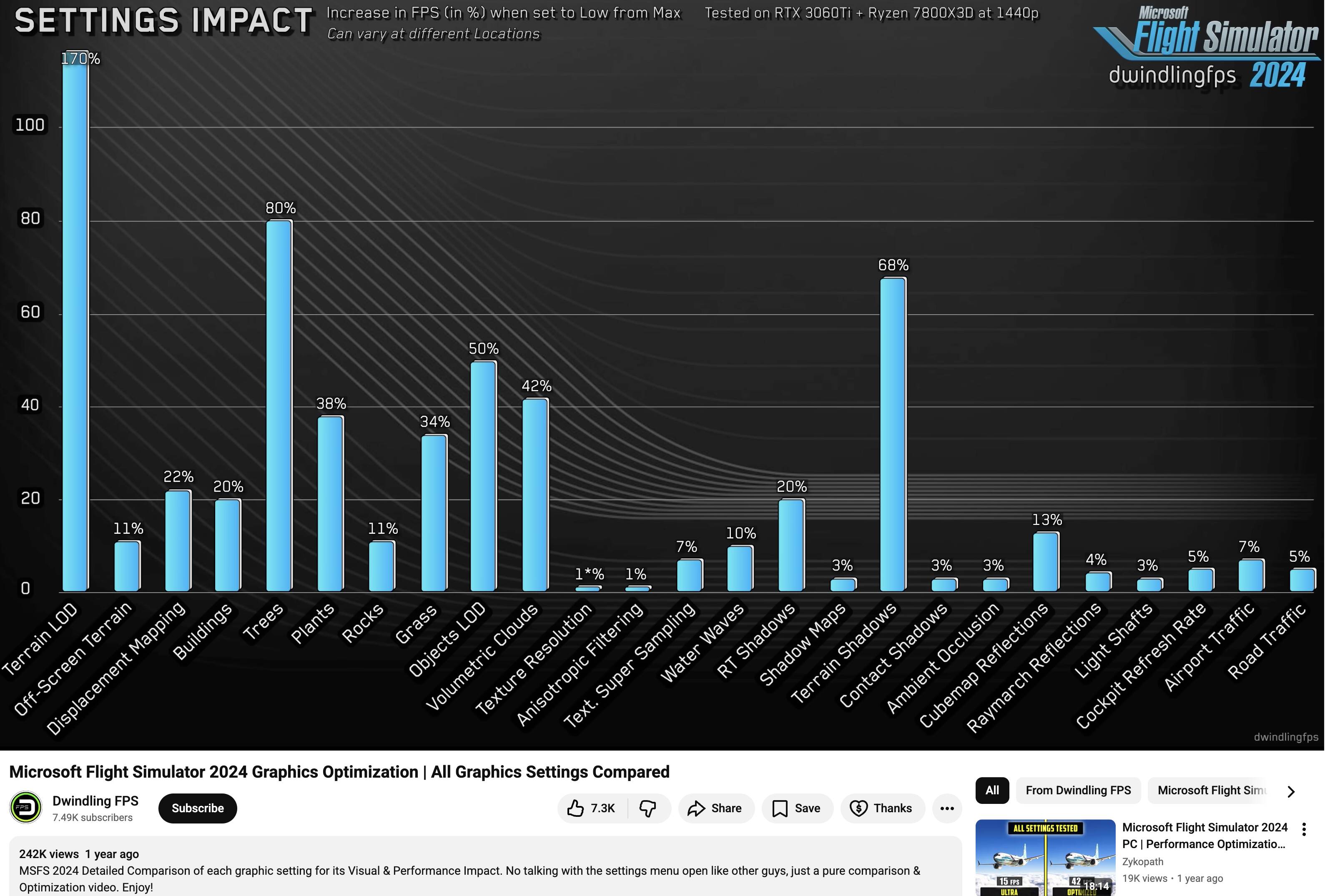
I understand TLOD and LOD have the biggest impact, but I had no idea that Trees and Terrain Shadows were using so much processing compared to other settings (although it makes sense).
Much respect to those folks who put in a ton of time to create comparisons like this.
For completeness they probably have to re-do these after every SU because I’m sure there are underlying tweaks and optimizations that are constantly in flux. I wonder if those numbers hold up for SU4, for example?
This was a great video but it’s also really old / not up to date anymore, so much has been tweaked since then. Most of it is probably still valid, but I wouldn’t count on everything to be 100% accurate anymore.
Very interesting! Thanks!
yes, tested and verified. msfs max fps → real frames, driver max fps → all frames including frame gen.
the target framerate does have influence even with dynamic settings disabled (but not verified on what game contents and how). however setting it to 45 and disabling dynamic contents did result in roughly 45 fps in menus for me.
might be worth to mention that if you are using the default BorderlessWindow option in msfs (found in UserCfg.opt) you will need to enable G-Sync for Full-Screen AND Windows. (in NVIDIA App its in the system section).
maybe you could clarify that DLAA AA has nothing to do with TAA except both using native game resolution. DLAA uses advanced AI to achvieve the best AA resolut possible.
i would argue against that. When using frame gen and newest dlss version (currently v310.5.3 & Preset M) DLSS with DLAA beats TAA by far (but consumes fairly more computing power).
sidenote: leaving those settings untouched in NVIDIA App and using DLSS Swapper instead results in more recent dll versions (NV App v310.5.2 but DLSS Swapper already v310.5.3) and is said to replace and use the newer dlss more stable.
They try to keep people use their software. using DLSS Swapper is currently more stable and without issues.
worth to mention that speaking of DLSS Presets its worth to inform about the presets (currently mostly K, L and M i’d say. The latest are not always superior depending on your goal (quality, balance, performance). Also in my tests v310.5.2 (as replaced by NV App) does create shimmers / artificacts when using with Preset M.
might be worth to mention that the user should ideally decide for ONE Driver Setting Tool and leave the others untouched.
NVIDIA App → Default Variant, suggested by NVIDIA
NVIDIA Control Panel → If using NVIDIA App is causing trouble (some reports about CTDs with
NVIDIA App - for me it has always been stable and i am using the NVIDIA Overlay for Recording
NVIDIA Profile Inspector - includes much more (but possible incompatible or even game breaking) settings, so mostly for very advanced users.
Also would suggest adding information for Advanced MSFS2024 Settings using UserCfg.opt:
e.g. i changed Shadows from
{ Shadows
MaxSliceCount 4
Size 2048
DLightContributionCullingThresholdS0 0.100000
DLightContributionCullingThresholdS1 0.100000
DLightContributionCullingThresholdS2 0.100000
DLightContributionCullingThresholdS3 0.100000
OmniContributionCullingThreshold 0.000000
}
to this
{Shadows
MaxSliceCount 4
Size 4096
DLightContributionCullingThresholdS0 0.02000
DLightContributionCullingThresholdS1 0.030000
DLightContributionCullingThresholdS2 0.040000
DLightContributionCullingThresholdS3 0.050000
OmniContributionCullingThreshold 0.000000
}
The Sie is DLight Thresholds are the threshold for how large ambient lights (e.g. from a city) have to be min to be rendered. 0.1 is a pretty aggresive performance friendly default value, but lowering the threshold will result in even more lights from cities / streets / cars - but only notable at night!
Also in SSAO i changed FullRes from 0 to 1. Causes notable performance loss but a fairly notable quality improvent e.g. in the visual depth of detailed 3d surfaced (cockpit panel).
Thanks for posting all the info. I’m still learning how all this works.
I still get the best cockpit instrument clarity with TAA, but with the recent NVIDIA DLSS updates, I can see more details outside with DLAA, especially in things like towers or light poles - with the cost of a little bit less clarity on cockpit displays. I’m trying to test if I can use DLAA on 3 4K screens while pushing TLOD higher - but I think I have to set the 2 side screens, maybe, am still testing.
I still find TAA better in the cockpit than DLSS Performance with the latest “M” preset - but I’ve just done a clean install and am trying to systematically test each setting to see. I’m somewhat limited because with 3 screens, if I want to use Frame Gen, I have to use FSR3, since DLSS FG only works on 1 window. (Why does NVIDIA not support multiple windows for these things?)
So far I only use the NVIDIA App and what it provides natively, but once I understand it more I might try the 3rd party tools to update to the latest versions faster.
Is there a way to reduce how bright clouds are illuminated from below at night? I have not ventured in to editing the UserCfg.opt file.