I recently moved from MSFS 2020 on Xbox X, to MSFS 2024 on new PC, and trying to understand the Graphics Settings was a challenge. The settings span BIOS, Windows, the GPU capabilities, drivers, brand and model, and then settings in MSFS 2024 itself.
Perhaps most overlooked are the wide range of capabilities (and limitations) of each user’s particular Monitor or TV screen: Settings for Refresh Rate, Variable Refresh Rate, G-Sync and V-Sync, HDMI or Displayport versions, and cable specs and data rate - all really must be aligned with your particular screen to get good results. THIS is where I think people with similar PCs might have much different experiences (I believe).
This is a summary / index of the various Graphics Settings defaults I encountered, as well as the options presented. It is just a list of settings that exist and the defaults that appear on my PC - not a recommendation on how to set them. Your system may be completely different that mine. Please feel free to correct anything I’ve posted!
Listing out all of the settings helped me to understand my own set up, as well as to understand what people were talking about in the many graphics threads. It can also be useful to have a list of defaults and choices when trying to find the cause of an issue. Hopefully the list can help serve as a casual reference for others too:
TL/DR
My own realization about MSFS is that Level of Detail (LOD) and Terrain Level of Detail (TLOD) are the Holy Grails to chase. I will settle for a lower FPS - as long as it’s mostly smooth - to get a higher TLOD which is what make MSFS so visually rewarding (for me).
The concepts that helped me most are:
- Resizable BAR (CPU can access GPU VRAM more efficiently - there are some reports this is leading to very high VRAM usage in current builds of MSFS, so YMMV)
- HAGS (Hardware Accelerated GPU Scheduling) in Windows
- Anti-Aliasing choices and differences
- Rendering scale (GPU renders smaller to reduce load, then upscales it)
- Frame Rate and Frame Generation (for example one technique is to set a maximum frame rate of, say 30, then using Frame Gen x2 to target 60 FPS, gives the CPU and GPU more time to generate each raw frame, making room for higher LODs)
- Refresh Rate and Screen tearing (G-Sync, VSync, VRR)
- LOD is a combination of the quantity / quality of objects and the distance from your point of view that they are rendered or disappear. This is what accounts for terrain and objects popping in as you move around. I believe much of the work of MSFS 2024 up to now has been adding in progressive levels of LOD to all objects and terrain, so that if something is far away, a less detailed version loads to allow more objects to be visible and further away.
As I write this, MSFS 2024 is SU3 version 1.5.27.0 (September 2025)
I’m on Windows 11 24H2, with an AMD CPU and NVIDIA GPU (v581.15)
Resizable BAR
Most people recommend Resizable Bar (ReBar) be enabled and NVIDIA has it turned on in their profile for MSFS 2024. Quoting Google:
Resizable BAR (Base Address Register) is a PCI Express technology that allows the CPU to access the entire graphics card’s memory (VRAM) at once, instead of limited 256MB chunks. This increases efficiency by improving the transfer of assets like textures and shaders, which can boost performance and reduce loading times in supported games and applications.
For me it was all enabled and on by default with a new PC and new install of Windows 11. For ReBAR to work, CPU, GPU and Motherboard must support it:
- In BIOS, Boot Mode should be UEFI
- In BIOS, ReBAR and Above 4G Decoding must be enabled
- In NVIDIA Control Panel, click System Information to see ReBAR Status
- In AMD Adrenalin, look under Performance for “Smart Access Memory” (SAM is AMD’s flavor of ReBAR).
In my BIOS (on an MSI motherboard for an AMD CPU), it is under Advanced > PCIe Subsystems, looks like this, and was on by default:

The NVIDIA Control Panel > System Information shows Resizable BAR: Yes

Windows 11 Display and Graphics
- In Settings > System >
- Display > Display Resolution
- Display > Advanced > Refresh Rate
- Display > Graphics > Optimizations for Windowed Games (was on)
- Display > Graphics > HAGS (was on)
- Display > Graphics > Variable Refresh Rate (was off, I turned on)
- Power > Power Mode > Balanced (was on)
- Power> Screen, Sleep & hibernate timeouts > (I set to Never for all)
- Settings > Gaming > Game Mode (was on)
Some notes:
-
Refresh Rate: By default, my Samsung 4K TV showed up as 60Hz. After tuning my MSFS settings, I increased this to 120Hz.
-
Don’t confuse “Dynamic Refresh Rate” with “Variable Refresh Rate”. DRR is a Windows feature that lowers refresh rate when you are looking at static or slow moving content to save battery on laptops. I don’t think you want this for gaming!
-
Variable Refresh Rate allows the screen to (try to) match the frame rate coming from the GPU. For me on my Samsung TV, VRR did not show up until enabled Game Mode on my TV, then enabled “G-Sync Compatible” in the NVIDIA Control Panel, and only then did VRR appear as an option in Settings > Display > Graphics
-
Hardware Accelerated GPU Scheduling, or HAGS moves some scheduling to the GPU from the CPU.
-
Optimizations for Windowed Games was on by default. I think it was developed as “a new presentation model” (flip model?) for DX10 and DX11 games a few years ago - but MSFS 2024 uses DX12 so I am not sure if this should be on or off. A Google search suggests if you have unusual stuttering to try turning this off… I would welcome any insight in to this one!
-
I left the default “Balanced” power plan, but turned off all the Sleep, Hibernate and Energy Saver options. Some people suggest changing Power Plan to Performance. I think that might keep the CPU running at full clock speed, instead of letting it drop down when idle.
-
Windows 11 has a Hibernate feature which, if I understand, constantly saves RAM to disk to avoid loss of data in case of a sudden power outage, and also allow faster boot times. I prefer fresh, cold boot, and not to have all the IO on the SSD, so I disabled Hibernation by running CMD as Administrator and entering: powercfg.exe /hibernate off per Microsoft’s instructions
-
Game Mode is supposed to reduce the activity of tasks running in the background when it detects your are playing a game. It was on by default. I’m also not sure if this benefits MSFS 2024 or not.
-
I also found it helpful to disable all of the various Notifications settings scattered in Settings.
NVIDIA Control Panel
- NVIDIA Game Ready Driver 581.15 at time of writing
- Defaults shown on my system with AMD CPU and RTX card, and Samsung TV (which is not G-Sync native, more about that below):
| 3D Setting | Global Defaults | MSFS 2024 Profile Defaults |
|---|---|---|
| Image Scaling | Off | Use global setting |
| Ambient Occlusion | Off | Not supported for this application |
| Anisotropic filtering | Application-controlled | Use global setting |
| Antialiasing - FXAA | Off | Not supported for this application\t |
| Antialiasing - Gamma correction | On | Use global setting |
| Antialiasing - Mode | Application-controlled | Use global setting |
| Antialiasing - Setting | Application-controlled | Use global setting |
| Antialiasing - Transparency | Off | Use global setting |
| Background Application Max Frame Rate | Off | Use global setting |
| CUDA - GPUs | All | Use global setting |
| CUDA - Sysmem Fallback Policy | Driver Default | Use global setting |
| DSR - Factors | Off | Use global setting |
| DSR - Smoothness | Off | Use global setting |
| Low Latency Mode | Off | Use global setting |
| Max Frame Rate | Off | Use global setting |
| Multi-Frame Sampled AA (MFAA) | Off | Not supported for this application |
| OpenGL GDI compatibility | Auto | Use global setting |
| OpenGL rendering GPU | Auto-select | Use global setting |
| Power management mode | Normal | Use global setting |
| Preferred refresh rate | Application-controlled | Use global setting |
| Shader Cache Size | Driver Default | Use global setting |
| Texture filtering - Anisotropic sample optimization | Off | Use global setting |
| Texture filtering - Negative LOD bias | Allow | Use global setting |
| Texture filtering - Quality | Quality | Use global setting |
| Texture filtering - Trilinear optimization | On | Use global setting |
| Threaded optimization | Auto | Use global setting |
| Triple buffering | Off | Use global setting |
| Vertical sync | Use the 3D application setting | Use global setting |
| Virtual Reality pre-rendered frames | 1 | Use global setting |
| Virtual Reality - Variable Rate Super Sampling | Off | Not supported for this application |
| Vulkan/OpenGL present method | Auto | Use global setting |
- Some people recommend changing Power Management Mode to “Prefer Maximum Performance” in the NVCP which is supposed to keep the GPU clock speed up even when it is idle. I have not tried this.
- Max Frame Rate, if desired, is controlled in MSFS 2024 Graphics Settings
G-Sync, Vertical Sync, VRR - here be dragons
What is shown in the NVIDIA Control Panel defaults above is dynamic based on what it detects from your screen technology - and I think THIS is where a lot of differences in settings and user experience come from.
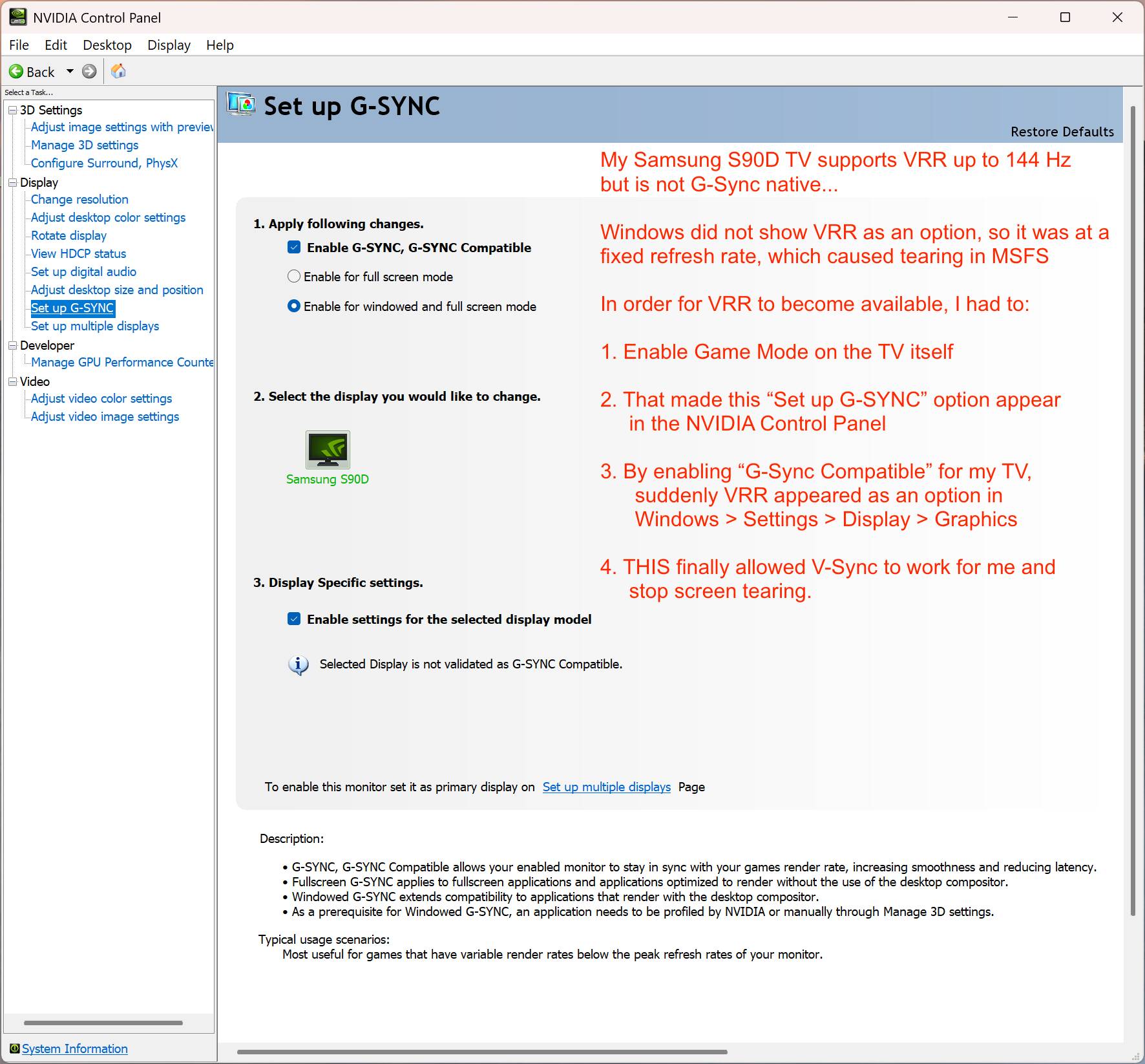
- For example, my Samsung S90D is VRR capable up to 144Hz, but is not G-Sync native, so at first no V-Sync options appeared in the NVCP.
- As a result, Windows detected the TV as 60Hz with a Fixed Refresh, and no VRR option was visible
- So I first had to enable Game Mode on my TV itself so that the NVCP would detect the TV as VRR capable
- Immediately, “Set up G-Sync” appeared in the NVIDIA Control Panel, allowing me to set the TV to “G-Sync Compatible”
- Then these 2 new settings appeared in the NV CP:
| 3D Setting | Global Defaults | MSFS 2024 Profile Defaults |
|---|---|---|
| Monitor Technology | G-Sync Compatible | Use global setting |
| Vertical Sync | Use the 3D application setting | Use global setting |

- Finally with above, Windows recognized from the NVIDIA Control Panel the TV was VRR capable, and offered VRR as an option in Display > Graphics, which I enabled.
- Now V-Sync worked for me in MSFS, and solved a screen tearing issue.
- For a pretty thorough review of G-Sync, Free-Sync, Adaptive-Sync, VRR, by the Hardware Unboxed and Monitors Unboxed Youtube Channel: https://www.youtube-nocookie.com/embed/CQdo67SjIHk
NVIDIA Profile Inspector - MSFS 2024
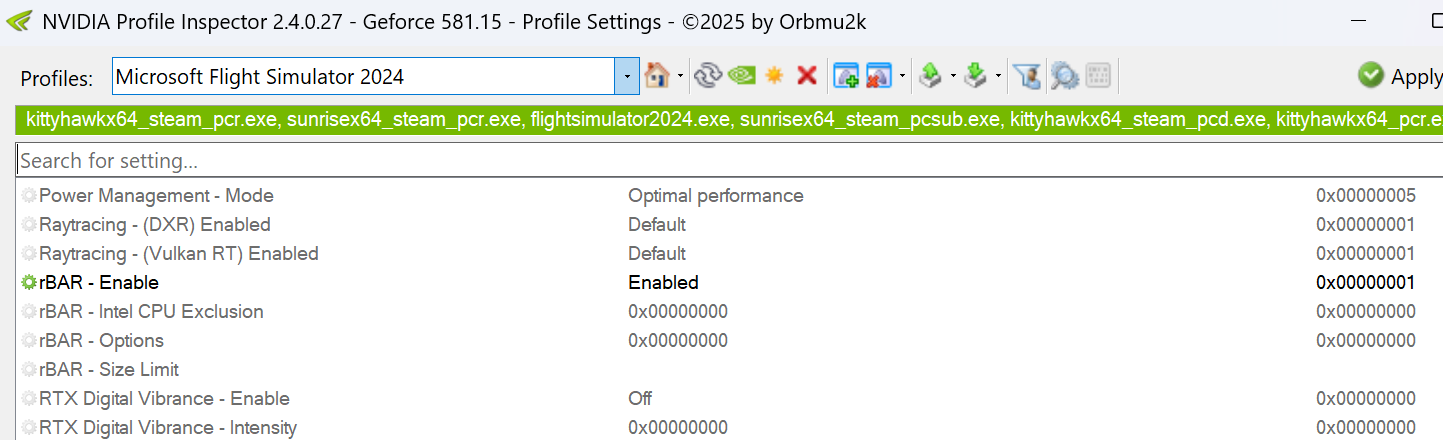
- Some people download and install a free utility called NVIDIA Profile Inspector, which is simple a GUI to see - and edit - the full list of settings in the NVIDIA Global profile, and for virtually every published Game.
- Using this I can see that Resizable BAR is OFF Globally, but is ON by default in the MSFS 2024 Profile. So no need to change anything.
- Some people reported that turning ReBAR off helped fix issues, others reported the opposite. I’ve left mine at defaults.
MSFS Initial Graphics Set Up Screen
- When I first installed MSFS 2024, the set up screen suggests (and has you choose) 1 of 4 Graphics Presets: Low, Medium, High, and Ultra, based on what it can detect of your PC’s hardware.

Settings > Graphics Defaults and Options
These were the Defaults that showed up for me with a 4K display, yours may be different:
| SU3 Graphics Setting | Default | Choices |
|---|---|---|
| Display mode | Full screen | Windowed |
| HDR10 | Off | Off, On |
| Exposure compensation EV | 0 | -2 to +2 |
| Full screen resolution | 3840 x 2160 | 640 x 480 up to 4096 x 2160 |
| Anti-Aliasing | TAA | Off, TAA, DLSS Super Resolution, AMD FSR 3 |
| Render scaling (shown when AA is Off, or TAA) | 100 | 30 to 200 |
| AMD FidelityFX Sharpening | 100 | 0 to 200 |
| Max Frame Rate | Off | Off, On, Range of 20 to 120 |
| Frame Generation | None | None, NVIDIA DLSS, AMD FSR3 |
| Framerate Multiplier | x2 (x3, x4 for RTX 50 series) | |
| V-Sync | On | Off, On |
| V-Sync interval | Monitor refresh rate | 1/3, 1/2, Monitor refresh rate |
| NVIDIA reflex low latency | On | Off, On |
| Dynamic Settings Frame Rate Target | 30 | 10 to 120 |
Note: DLSS Frame Generation requires HAGS be on
Anti-Aliasing Options
Note: Rendering Scale values below are what show for my 4K screen, and may differ based on your screen resolution:
| Anti-Aliasing Options | Subsetting | Rendering |
|---|---|---|
| TAA | Render scaling | 30 to 200 percent |
| DLSS Super Resolution Presets: | Auto | 1920 x 1080 |
| Quality | 67% or 2560 x 1440 | |
| Balanced | 58% or 2227 x 1253 | |
| Performance | 50% or 1920 x 1080 | |
| Ultra Performance | 33% or 1280 x 720 | |
| DLAA | Monitor resolution, no upscaling | |
| AMD FSR3 | Quality | 67% or 2560 x 1440 |
| Balanced | 59% or 2250 x 1270 | |
| Performance | 50% or 1920 x 1080 | |
| Ultra Performance | 33% or 1280 x 720 |
DLSS Versions and Presets
-
I’m sure a whole thread could be opened to cover DLSS, but in many discussions and advice about DLSS in MSFS, people point out that the version of DLSS that ships with MSFS at any given time is not always the latest - and that the latest often works better.
-
DLSS Swapper: If I understand correctly, until recently this 3rd party utility was needed to override MSFS to download and manage the latest DLSS version and preset.
-
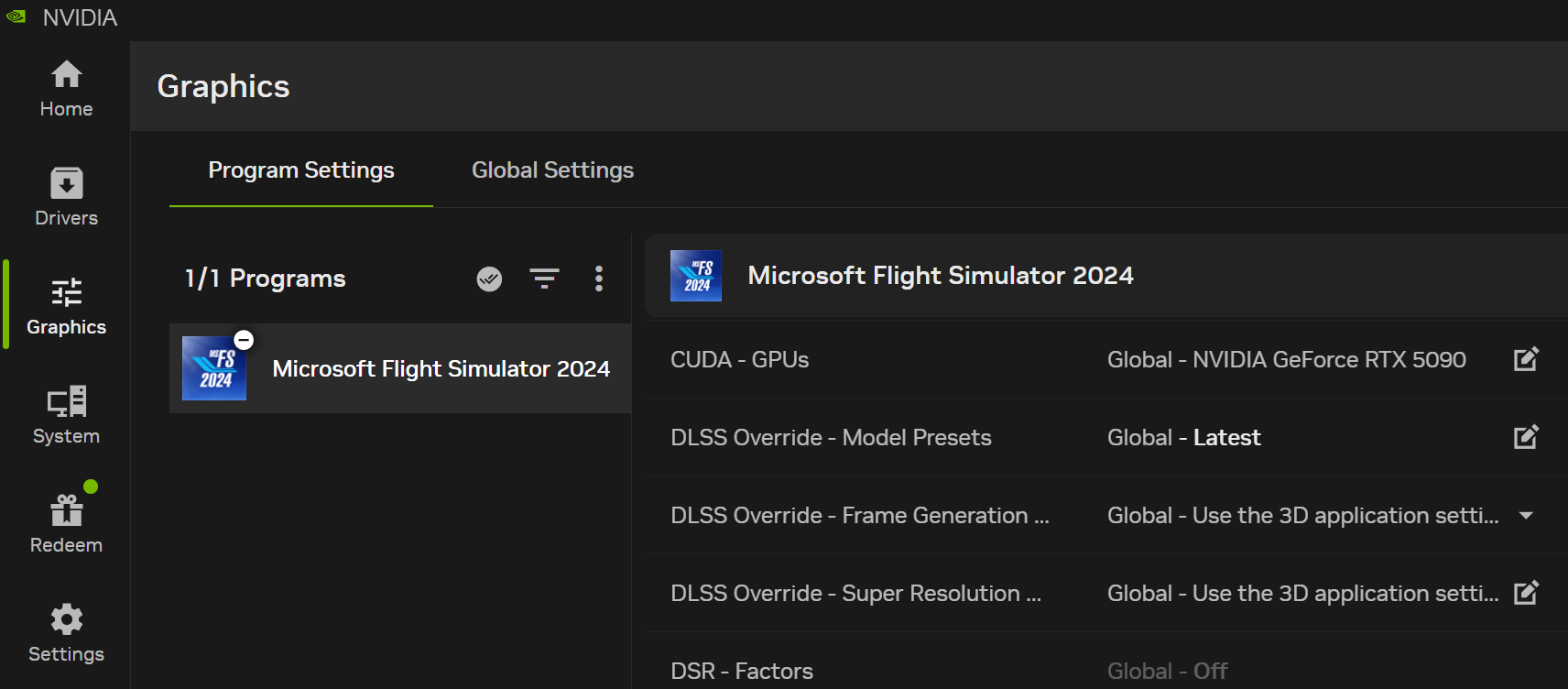
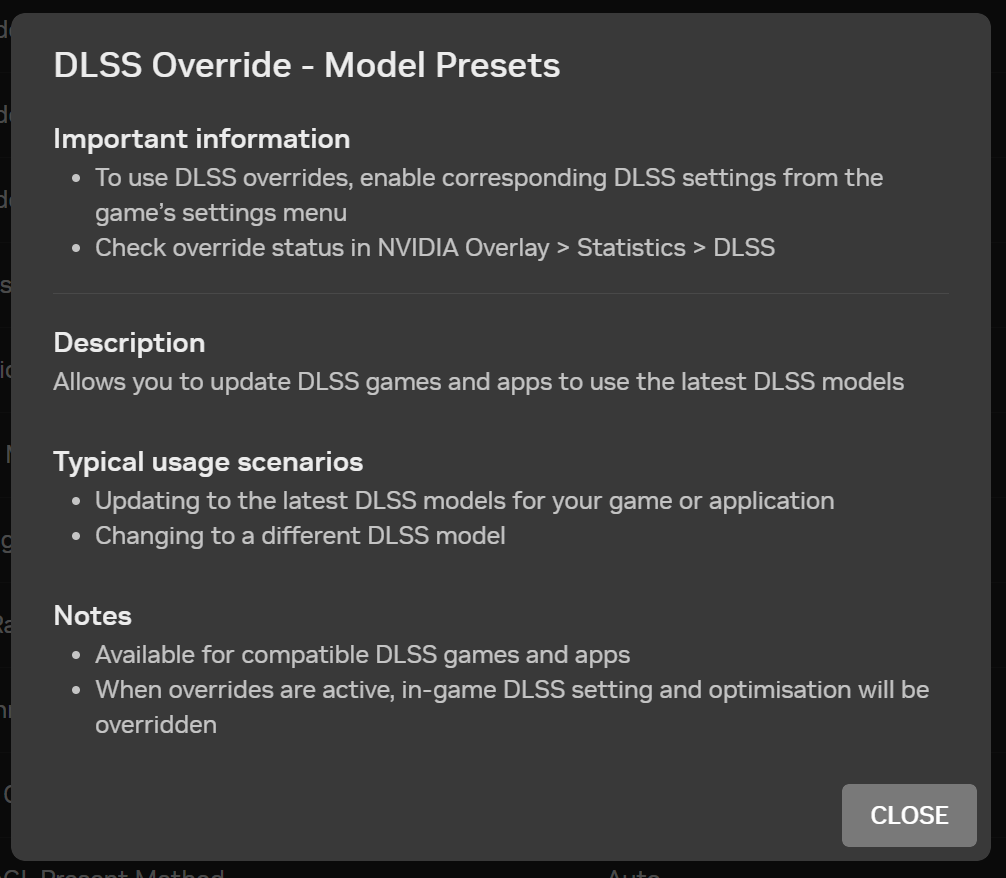
NVIDIA App > Graphics > “DLSS Override - Model Presets” now allows configuring the DLSS version and preset directly in the native App, for each game individually, or globally. NVIDIA says this is the only approved way to make these changes (apparently not doing it via the app can result in issues with Multi-player?)
-
Here are screenshots from the NVIDIA App, and I changed the Model Preset to “Latest”:
-
You can even set a Custom Render Scale:



MSFS Graphics Presets - Low, Medium, High, Ultra - sets all levels of detail
- Everything up to this point is about the resolution and frame rate being generated. These are the settings that control how much detail is being rendered in the sim itself - how many objects, how much variety, how much detail, and at what distance each item is rendered or disappears.
| Global Rendering Quality | Low | Medium | High | Ultra | Note |
|---|---|---|---|---|---|
| Terrain Level of Detail (TLOD) | 25 | 50 | 100 | 200 | 10 to 400 |
| Off Screen Terrain Pre-caching | Low | Low | Medium | High | |
| Displacement Mapping | Off | Off | On | On | |
| Buildings | Low | Medium | High | Ultra | |
| Trees | Low | Medium | High | Ultra | |
| Plants | Low | Medium | High | Ultra | |
| Rocks | Low | Medium | High | Ultra | |
| Grass | Low | Medium | High | Ultra | |
| Objects Level of Detail (LOD) | 25 | 50 | 100 | 200 | 10 to 200 |
| Volumetric Clouds | Low | Medium | HIgh | Ultra | |
| Texture Resolution | Low | Medium | High | Ultra | Restart Required |
| Anisotropic Filtering | Off | 4x | 8x | 16x | 2, 4, 8, 16x |
| Water waves | Low | Medium | High | High | No Ultra |
| Raytraced Shadows | Off | Off | On | On | |
| Shadow maps | 768 | 1024 | 1536 | 2048 | 128 to 2048 |
| Terrain shadows | Off | 256 | 512 | 1024 | |
| Contact shadows | Off | Medium | High | Ultra | |
| Windsheild Effects | Medium | High | High | High | |
| Ambient Occlusion | Off | Medium | High | Ultra | |
| Cubemap Reflections | 128 | 192 | 256 | 384 | |
| Raymarched Reflections | Off | Medium | High | Ultra | |
| Light Shafts | Off | Medium | High | Ultra | |
| Depth of Field | Off | Medium | High | Ultra | |
| Motion Blur | Off | Medium | High | Ultra | |
| Glass Cockpit refresh rate | Low | Low | Medium | High | |
| Characters Quantity | Low | Medium | High | Ultra | |
| Characters Variety | Low | Medium | High | Ultra | |
| Characters Quality | Low | Medium | High | Ultra | |
| Airport Services Quantity | Low | Medium | High | Ultra | |
| Airport Services Variety | Low | Medium | High | Ultra | |
| Parked Aircraft Quantity | Low | Medium | High | Ultra | |
| Parked Aircraft Variety | Low | Medium | High | Ultra | |
| Aircraft Traffic Quantity | Low | Medium | High | Ultra | |
| Arcraft Traffic Variety | Low | Medium | High | Ultra | |
| Road Traffic | Off | Medium | High | Ultra | |
| Sea Traffic | Off | Medium | High | Ultra | |
| Fauna | Low | Medium | High | Ultra |
Notes
-
Anti-Aliasing smooths out jagged lines and pixilation. TAA usually results in the best clarity for reading text in the cockpit. When TAA is selected, you can also choose to have MSFS render at a scale between 30 and 200 percent of your selected screen resolution, and then upscale it to fill the screen.. A lower rendering means less work for the GPU, at the expense of some detail.
-
FSR3 is AMD’s technology, for Anti-Aliasing and Frame Generation
-
DLSS is NVIDIA’s technology, and it also refers to both Anti-Aliasing, and Frame Generation.
-
FSR3 and DLSS Anti-Aliasing each have a few Presets that reduce the size of the rendering, and then scale it to fit your screen. Depending on the preset, this can reduce the GPU workload, at the expense of some blurriness, especially of text on glass cockpit screens. TAA was typically better at preserving text, However, newer versions of DLSS, depending on GPU, have improved. YMMV.
-
The DLSS Anti-Aliasing preset “DLAA” is NVIDIAs version of TAA, it is the only DLSS preset that does not scale down the rendering, it just does Anti-Aliasing at your current resolution.
-
Max Frame Rate value in MSFS refers to the GPUs real frames only, before any extra Frame Generation. So if you were to set Max Frames of 30 in MSFS, plus Frame Generation x2, the result should be 60 FPS. Some people set this to match the refresh rate of their monitor (eg, 60 or 50 Hz), to avoid MSFS using power to render frames that aren’t needed.
-
There is also a Max Frame Rate setting in the NVIDIA Control Panel, but (I’m pretty sure) this represents real frames + Frame Generated frames.
-
Frame Generation: Newer NVIDIA and AMD GPUs are capable of FG. The idea is that if your GPU is struggling to render at your screen’s refresh rate, you could set a Max Frame Rate, and then use Frame Generation x2 to target a higher FPS.
-
If you have multiple monitors, NVIDIA DLSS Frame Generation only works on the main monitor, and not on the addition monitors. AMD FSR3 Frame Generation does work on multiple monitors, luckily.
-
G-Sync, Free-Sync, Vertical Sync and Variable Refresh Rate (VRR) require Monitor, GPU, Windows, and MSFS all to be in alignment:
- Monitor or TV must have VRR technology, and it must be enabled.
- NVCP will detect if screen is VRR capable and offer “Set Up G-Sync”.
- Setting screen to “G-Sync”, or “G-Sync compatible” enables VRR.
- NVCP Setting appears: Monitor Technology, Fixed, or G-Sync Compatible.
- NVCP Setting appears: Vertical Sync, Use 3D Application setting, or On.
- Windows will now offer VRR in Settings > System > Display > Graphics
- Now MSFS can use V-Sync.
-
The Dynamic Setting > Frame Rate Target will dynamically reduce the LOD and other settings (below) when the GPU is overloaded, in order to target or maintain a minimum frame rate you set. With the Dev Mode FPS counter open, I would see the TLOD / LOD drop if I moved quickly around a busy airport in a big city with Photogrammetry and high TLOD / LOD settings.
-
The MSFS Graphics Presets of Low, Medium, High and Ultra are a long list of objects and effects like Terrain Level of Detail that control how much detail is shown in the sim. My personal preference is to set TLOD and LOD as high as I can, and to reduce things like Texture Resolution, Aircraft Traffic Quantity, Parked Aircraft, in order to keep LOD.
My Settings
Everyone’s system is different, which really is why it’s so hard to find what works individually.
The biggest stumbling block for me was my TV and navigating the VRR V-Sync settings. I bought a Samsung S90D TV which is VRR capable up to 144Hz, but not G-Sync compatible. In order for the NVIDIA Control Panel to detect VRR on the TV, I had to first turn on Game Mode on the TV itself. Then a G-Sync Compatible option appeared in the NVCP, which revealed the Vertical Sync option. Then and only then did VRR show up in Windows Display settings, and finally worked with MSFS.
With an AMD 9800X3D CPU, and RTX 5090 GPU, so far these settings below are working well for me - although I’m still experimenting.
Following the example of others, I used a combination of:
- Reducing the render scale (DLSS Super Resolution with Quality preset)
- Max Frame Rate of 30
- Frame Generation (DLSS) x2 to target 60 FPS
- This created some headroom to increase TLOD, which was my goal
- I then reduced Texture Resolution, Airport vehicles, Parked aircraft and Aircraft Traffic to declutter big airports and reduce the workload.
- VRR in Windows and G-Sync compatible/V-Sync in NVIDIA, allow MSFS to use VSync and got rid of tearing.
- Thanks to @mjchernis in this post for the idea in a very informative thread: V-Sync vs Frame Limiter - #2 by mjchernis
| Setting | |
|---|---|
| Resizable BAR | Enabled by default |
| Samsung TV | Game Mode unlocks VRR! |
| Windows 11 HAGS | Enabled by default |
| Windows 11 Refresh Rate | 120 Hz |
| Windows 11 VRR | Enabled |
| NVIDIA G-Sync Compatible | Enabled |
| NVIDIA Vertical Sync | Set to “ON” |
| - MSFS Settings | |
| Full screen resolution | 3840 x 2160 |
| Anti-Aliasing | DLSS Super Resolution |
| DLSS Super Resolution Presets | Quality 2560 x 1440 (AI upscaling) |
| Max Frame Rate | 30 |
| Frame Generation | NVIDIA DLSS |
| Framerate Multiplier | x2 (targeting 60 fps) |
| NVIDIA reflex low latency | On |
| Dynamic Settings Frame Rate Target | 30 |
| Global Rendering Quality | Ultra (with some edits, below) |
| TLOD | increased to 400! |
| Texture Resolution | Reduced to High |
| Characters Quantity | Reduced to Medium |
| Airport Services Quantity | Reduced to High |
| Parked Aircraft Quantity | Reduced to Medium |
| Aircraft Traffic Quantity | Reduced to Medium |
| Road Traffic | Reduced to Medium |
| Sea Traffic | Reduced to Medium |
My Settings - updated with triple monitors...
I finally reached my goal of setting up triple 4K TVs, at 120Hz, with VRR enabled in Windows.
- 4K on main screen
- 2K on side screens, in order to keep TLOD settings higher
- TAA was just clearer cockpit text than DLSS for me
- DLSS Frame Gen only works on 1 monitor, so using FSR3 instead
| Setting | |
|---|---|
| Resizable BAR | Enabled by default |
| Samsung TVs | Game Mode unlocks VRR! |
| Windows 11 HAGS | Enabled by default |
| Windows 11 Refresh Rate | 120 Hz |
| Windows 11 VRR | Enabled |
| NVIDIA G-Sync Compatible | Enabled |
| NVIDIA Vertical Sync | Set to “ON” |
| - MSFS Settings | |
| Full screen resolution | 3840 x 2160 |
| Anti-Aliasing | TAA |
| TAA Render Scale | 100 |
| Max Frame Rate | 31 |
| Frame Generation | FSR3 |
| Framerate Multiplier | x2 (targeting 62 fps) |
| NVIDIA reflex low latency | On |
| Dynamic Settings Frame Rate Target | 30 |
| Global Rendering Quality | High (with some edits, below) |
| TLOD | increased to 400 |
| Buildings | Ultra |
| Volumetric Clouds | Ultra |
| Texture Resolution | Ultra |
| Parked Aircraft Quantity | Off (using BATC) |
| Aircraft Traffic Quantity | Off (using BATC) |
| Road Traffic | Reduced to Medium |
| Sea Traffic | Reduced to Medium |
Edit Sept 6 - I finally retraced the steps to get my non-G-Sync Samsung TV to use the VRR and V-Sync it is capable of, and added the info above in “G-Sync, Vertical Sync, VRR - here be dragons”.
Edit 2 - Added some screenshots of DLSS options
Edit Jan 5, 2026:
- Apparently, in MSFS Graphics Settings, Ramarched Reflections can cause or affect shimmering and flickering in some textures (ie, landscape or buildings)
- Apparently, Light Shafts is what causes haze (too much haze) reflected by the exterior lights at night.
Edit Jan 13, 2026: detailed videos comparing settings
I keep going back to watch these 2 videos to understand what each of the MSFS Graphics settings does, and their individual impact on resources and performance:
AirNOTT: MSFS 2024 Graphics Settings - Optimising For FPS and Visuals

