Hi all
Long time VR player, used to have a Reverb G2, but it finally died so I’ve got myself a Quest 3. While VR play is Ok at least as far as my old eyes and expectations go, I’m at the lowest refresh rate and standard resolution in the headset and pretty low settings in the game VR settings and using the Oculus performance viewer in the headset shows terrible performance and solidly negative headroom. It feels like the Reverb allowed higher quality settings. Does anyone have any tips on what I might be able to try to eek a little more performance from the Quest. I also play Elite Dangerous and that is running with higher settings and headroom to spare in the performance viewer. I do know that is a less demanding game graphics wise.
The PC is getting on a bit now, but it has an I7 processor and an RTX3080 which is still (I believe) considered a decent GPU. Software wise I’m running just the Meta Link software and connected via a link cable.
Switch to Virtual Desktop. Image quality is a lot better than via Quest Link. I used to have G2 too and switched to Q3 over a year ago.
Thanks for the replies. I do know about Virtual Desktop, but prefer to connect via a cable than wirelessly. Nonetheless, I’ll take another look. 
You can use USB to Ethernet adapter and connect Q3 to your router with a cable.
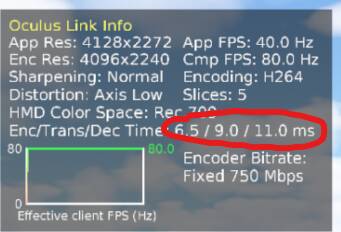
You can do this, but you’re still limited to 500mbps bitrate. With my official Link Cable I can easily get a solid 750mbps with good clarity and no compression artifacts. I already know that 750mbps looks better than 500mbps so I don’t see the point in doing this. Each to their own I guess.
Regardless of whether you use VD or Link Cable, your GPU is going to be holding you back. I have a 4090 maxed out resolution on a Q2 (Q3 will be purchased soon…) and I sometimes struggle. You are going to have to lower from native resolution and probably lower MSFS settings to get anything descent. Lots of guides out there for MSFS Q3 settings… I don’t have any links handy but a few searches will get you on the right track for what settings you should be running with that rig. Try to lock in at half your refresh rate. That’s huge. Lower headset resolution and settings and tweak up from there until you remain locked in at half the refresh rate. That’s the basics. There are tons of guides out there to get things dialed in.
Well, seems you are correct.
I will continue to experiment, but as of this morning I have had to reduce the native resolution down to 0.8 and have most in-game settings at low! A little surprising as this is quite a downgrade from the settings I used with my old Reverb. Still, the sim is playable which is what matters.
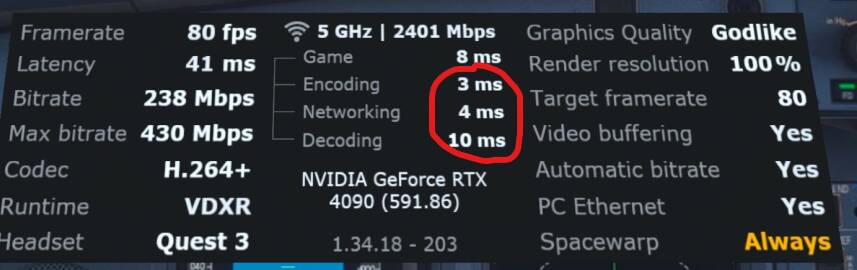
Well, good for you. I have 10x clearer picture when using VD with 250 bitrate than 750 with official link cable. When sitting in A320 I can’t read any text on EICAS when using Link. With VD everything is clear and readable. Even latency is lower. Not sure about FPS as these are capped.
My Quest 2 is set to 72Hz and maximum resolution. I’m using a link cable. I use this batch file to launch my Oculus app and get very good results with a Ryzen 7 5700x3d and an RTX 3080Ti. You need to adjust the location of the temporary file “D:\temp.txt” and you can modify the FOV values of 0.8 and 0.7 to values you’re comfortable with.
Oculus.bat
echo off
echo server:asw.Clock45 > “D:\temp.txt”
echo perfhud set-mode 0 >> “D:\temp.txt”
echo service enable-adaptive-gpu-perf-scale false >> “D:\temp.txt”
echo service set-client-fov-tan-angle-multiplier 0.80 0.70 >> “D:\temp.txt”
echo service set-pixels-per-display-pixel-override 0 >> “D:\temp.txt”
echo service set-offset-mip-bias-on-all-layers false >> “D:\temp.txt”
echo exit >> “D:\temp.txt”
call “C:\Program Files\Oculus\Support\oculus-diagnostics\OculusDebugToolCLI.exe” -f “D:\temp.txt”
del “D:\temp.txt”
start /MIN /D “C:\Program Files\Oculus\Support\oculus-diagnostics” OculusDebugTool.exe
START /MIN /B /D “C:\Program Files\Oculus\Support\oculus-client” Client.exe
EXIT
The secret to get Godlike equivalent with Link is to add 1.20x pixel density (super sample upscale) with the Oculus Debug Tool (I use the Oculus Tray Tool game profiles to adjust this, and also asw modes). BTW, I hate ASW or SSW artifacts, so I never use these.
With mfsf2020/2024 I set ASW = forced 45fps with asw = off. This gives you fixed fps = 1/2 your refresh rate, 40fps in my case since I use 80hz refresh rate (with meta-link res slider full right). With msfs2024 there is no need to limit in-game framerates, or use in-game reprojection.
In any case, use whatever works best for you mate. I can also get very good results with VD using my Quest Pro with VD’s latest dynamic foveated streaming option. This is the closest to Link that I’ve ever seen. So now, Link vs VD is more of a personal preference thing, for me anyway. Cheers.
I recommend Virtual Desktop too. I have a 4070 Ti Super, I had no problems running the Quest 3 with DLSS quality, Godlike resolution, 72 Hz, ASW always on, framerate limited to 36 in MSFS.
With 50% foveated rendering (event though the Quest 3 does not have eye tracking) I got even better results, the lower resolution at the edges was hardly noticeable.
I have now a Galaxy XR, same old 4070, no issues with Monster resolution and DLSS quality, foveated rendering with eye tracking, can get stable 72Hz with ASW always on.
Just putting this here in case it helps anyone else.
Having messed around with settings and having to reduce them a lot both in game and in the headset, I changed the anti-aliasing setting from TAA to DLSS and now I’m at native resolution in the headset and have bumped up things like terrain and object level of detail to 100 and upped some others from low to medium. I am now getting a very steady 36 fps in game (forced in the Oculus Debug Tool) and while there’s no spare headroom I feel the game looks fine and I’ll probably try upping some more in-game settings too. Only downside is control displays in the glass cockpit aren’t as crisp, but so far they are very readable.
Again, I’m running an RTX 3080, connecting via a link cable using the Meta Link software and using the Oculus Debug Tool to force 50% fps to refresh rate, no other software.
In this video I create a full guide of how to use link cable and extract the maximum clarity possible.
The only diference nowadays I’s that I’m using DLSS 4.5 not TAA anymore.
Hope it helps.
Regarding DLSS 4.5, can anyone link to any info on using updated versions of DLSS, and recommendations on what might be the best version to use with my GPU (RTX 3080)?
From the info I have found, it seems updating the DLSS version improves blurriness and ghosting and improves visuals in the glass cockpit which would be welcome.
Google ‘how to enable dlss4.5 with a rtx3080 gpu’. You’ll get lots of info on how to do this. I suggest that with your rtx3080 the latest dlss 310.6.0, dlss/balanced, with preset K would be a good place to start off with.
Your GPU is probably a limitation.
I also use Quest 3, but I use Virtual Desktop to stream - I connect using an ethernet cable connected to the router and a cable matters USB-C to ethernet adapter (connected to the Quest 3) and wifi disabled. I can also just use the WIFI as well, that also runs quickly.
I’m using an older 2019 Mac Pro (Xeon W3275M 28 core cpu) and RX09070XT along with the original W6800X 32GB GPU (which is just doing random windows related stuff).
I have tried using the official link cable and it just doesn’t work very nicely that way for me.
Hi. Yes, a lot of people suggest VD, but I have to say I am having zero problems with the Meta Link software and a link cable. Took me a little while to figure out the correct order to do things, but now it’s very stable and reliable.
I imagine the GPU is a bit of a limitation, but I do monitor the load on it, and while it spikes at some point early on in a session to close to 100%, the typical current usage is in the mid 70% and average usage sometimes lower than that.
From various suggestions from the forums I’m limiting fps to 36 (half the refresh rate), I can up the pixel density to 1.4 (both of those with the Oculus Debug Tool) and I use OpenXR to make a couple of other modifications and I’m getting reasonable performance and the cockpit is generally readable.
I have to go back to try the Meta app with the link cable. I bought a good one on Amazon and it tests out to USB3 and fast with their test, but just never looked as good to me with VD. I think the optimal transfer rate was 500Mbps… 6G is 2401 in VD but I do not think it uses more than 500Mbps.
I bought the adapter for ethernet but not tried it (is cheap). I assume you are using that with VD and it is working? Oh I see you are using Steam… I am on PC.
Meta has told me they have a problem with the Ryzen 7950X not the 7950X3D…
Need to mention this separately, but the VD connection works much better for me with a fixed IP address for the Q3.