Group flights, Aussie style. Aussie Group Flights Team is the ultimate way to explore the world with your favourite people.
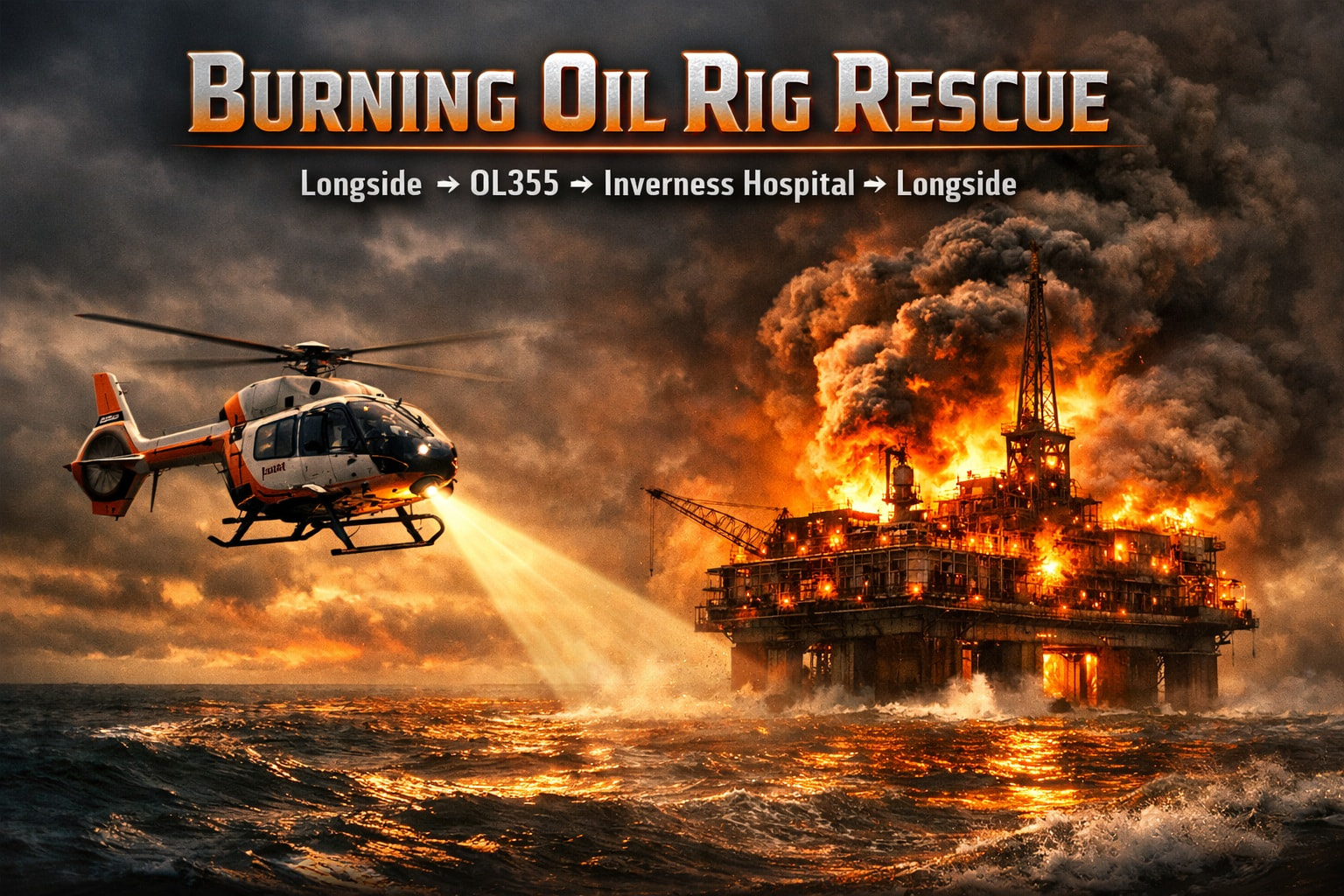
Burning Oil Rig Rescue – Offshore Emergency Event
Longside (EGPS) → Oil Rig (OL355) → Raigmore Hospital (EGVH3) → Longside (EGPS)
Aircraft: Airbus H145 (HEMS configuration) Altitude: 2,500 ft Duration: ~1 hr 10 min Role: Offshore rescue and medical evacuation
Mission Objective
Respond to a distress call from Oil Rig OL355, where an explosion has injured several workers. Perform a precision landing on the rig, simulate casualty pickup, then transport to Raigmore Hospital (EGVH3) in Inverness for medical handover. Return to Longside Heli Base (EGPS) for debrief and shutdown.
Route Overview
| Leg |
From → To |
Distance (NM) |
Notes |
| 1 |
EGPS → OL355 |
~42 |
Depart Longside, track northeast over the North Sea |
| 2 |
OL355 → EGVH3 |
~67 |
Evacuation leg to Inverness Hospital helipad |
| 3 |
EGVH3 → EGPS |
~45 |
Return to base for mission completion |
Operational Flow
- Departure – Longside Heli Base (EGPS)
- Brief crew, load rescue gear.
- Climb to 2,500 ft, heading 045°.
- Rig Approach – OL355
- Descend to 300–500 ft for visual contact.
- Orbit once to assess smoke and wind.
- Land on helideck, simulate casualty pickup.
- Medical Evacuation – Raigmore Hospital (EGVH3)
- Maintain stable cruise at 2,500 ft.
- Land on hospital pad, simulate patient transfer.
- Return to Base – Longside (EGPS)
- Refuel and log mission completion.
Mission Notes
- Weather: Broken cloud, moderate wind for realism.
- Visibility: Clear or light haze for smoke effects.
- Optional: Add emergency lighting or smoke effects at OL355 for immersion.
Achievement Badge
Rig Rescuer – Offshore Emergency Ops Awarded for successful completion of the rescue and return flight.
If you are not a member, to join for FREE, click here: Aussie Group Flights Team - On-line Flying
Details to follow. Hope you can join us.
PLEASE NOTE: THIS INFORMATION IS FOR FLIGHT SIMULATION USE ONLY.
Regards, Paul
Multiplayer Fire Fighting: In this event we will use FS Fire, an addon that allows fires to be spawned randomly, at specific points or real world fire events. In particular, it allows pilots to work as a team in putting out fires and can see drops from other pilots.
It is available from the Marketplace in MSFS2024 or via SimMarket: simMarket: FS FIRE - MSFS20
The link is for a 2020 version but a 2024 version is also available in the site. We also tested the 2020 version, which worked fine in 2024.
Note: pilots can choose which event they want to take part in, i.e., the rescue or the fire fighting. Same start time. Different bases. Different flight plan and responsibilities. BUT … WORKING AS A TEAM.
FS Fire – Pilot Connection Guide
Joining the Host Session & Syncing Fire Effects
This procedure explains how pilots connect to your hosted FS Fire session using the Connection Code you generate when you start the event.
1. Pilot Requirements
Each pilot needs:
- FS Fire installed
- Microsoft Flight Simulator running
- Multiplayer set to the same server as the host
- Connection Code (you will provide this once hosting begins)
No additional configuration is required on the pilot side.
2. When the Host Starts the Session
You (the host) will:
- Launch FS Fire
- Select Host Session
- FS Fire generates a Connection Code
- You post that code in Discord for all pilots
Once the code is posted, pilots can join immediately.
3. Pilot Join Procedure
Each pilot follows these steps:
Step 1 — Start FS Fire
- Launch FS Fire after MSFS is running
- Select Join Session
Step 2 — Enter the Connection Code
- Type in the exact code provided by the host
- Press Connect
Step 3 — Confirm Sync
Pilots should see:
- Fire markers appear on their FS Fire map
- Active fire effects (smoke, flames) spawn at the host‑defined coordinates
- Status indicator: Connected to Host
If they see the fire zone, they’re synced.
4. In‑Flight Usage for Pilots
Once connected:
Fire Visibility
- All fire locations placed by the host appear automatically
- Pilots cannot place or delete fires — only the host controls the scenario
Water Drop Sync
- When a pilot drops water (CL‑415, AT‑802, etc.), FS Fire shows:
- Drop plume
- Fire reduction effect (if enabled by host)
- All connected pilots see the same fire behaviour
Refill Cycles
- Pilots perform scooping normally
- FS Fire does not manage water quantity — the aircraft mod handles that
- Fire suppression visuals remain synced across all clients
5. Troubleshooting (Pilot Side)
No fire visible
- Ensure FS Fire is connected
- Re‑enter the Connection Code
- Confirm you’re on the same MSFS server as the host
Fire appears but doesn’t react to drops
- Host may have suppression effects disabled
- Or the fire radius is large (normal for big events)
Disconnected mid‑flight
- Reopen FS Fire
- Select Join Session
- Re‑enter the same Connection Code
- You will resync instantly