Hi there,
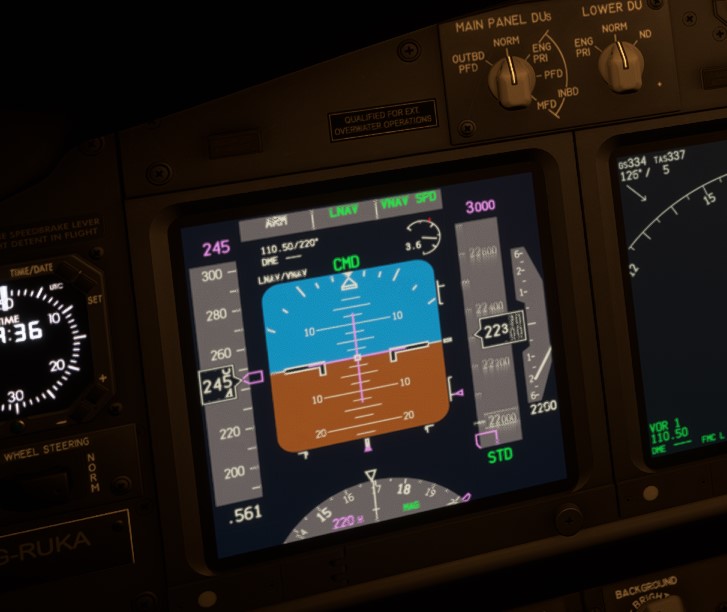
I got blurry numbers on my screens for the first time, after a pilot update.
Does anyone know that ?
See screenshot.
What do you mean “Pilot Update” ?
1 Like
Hello,
Welcome back to the forums!
We ask that people not use General Discussion for help, advice, or troubleshooting. Please use one of the green Community Support subcategories. I have moved your post to Community Support > Tech Support.
1 Like
What anti-aliasing are you using in your graphics settings?
1 Like
DX11 or DX12?
Looks like you’re using DLSS? (Or perhaps FSR which I haven’t tried but works similarly, so likely produces similar artifacts.)
3 Likes
Yes, it was DLSS automatically set by GeForce app  !
!
Thank you !
3 Likes
Hi,
Sorry but what should I understand from this discussion? Since I’m suffering the same problem, should I make DLSS off? If yes then how?
Thanks in advance for your feedback
Cheers,
Hakan
1 Like
Yes, you should disable the DLSS into the “graphics” menu.
Use TAA. I’ve noticed DLSS seems a bit less blurry in DX12. Popped-out screens are not blurry at all.
For Antialiasing in the graphics menu, ensure that “TAA” is selected and the “resolution scaling” slider below it is set to exactly 100%. If it is set to “DLSS” it will be blurry. If resolution scaling is less than 100%, it will be blurry. If it is more than 100% it will be slow.
Also ensure that the configured screen resolution at the top of the graphics settings is the exact resolution of your monitor and desktop. If it is not matching, the results will be blurry.
Thanks all! I’ll try all these and provide feedback.
Cheers,
Hakan
For me TAA gives a huge performance drop, compared to DLSS on a 4k screen. Even when scaled down to 1080, and compared with DLSS Quality setting.
Thanks for the help!