Can’t change between managed and selected mode in airbus

Well, that’s basically the issue. I use my mouse to interact with the knobs in the cockpit. I tried click the lower or the upper part of the knobs, but nothing happens.

Both in lateral or vertical navigation control knobs, I can’t change the modes, so it’s always in NAV mode and heading mode in impossible for me to set.

The same happens with the altitude and VS knobs.

I also can’t change the barometer knob from qnh to std baro.

I’m sure this has to do with the mouse controls settings, but I don’t know what bindings I should change. I have a simple mouse with 2 buttons and a scroll wheel that can be also pressed.

I will be grateful with any advice

Maybe if you use right click on the knob?

Tutorial: How to Push and Pull Speed, ALT, HDG Knob in Lock Mode

You need to use a specific mouse input sequence to push or pull the knob. Follow the steps below:

1. How to Push the Knob:

  1. Move your mouse cursor over the HDG knob to highlight it.
  2. Press and hold the left mouse button.
  3. While holding the left mouse button, press the right mouse button.

2. How to Pull the Knob:

  1. Move your mouse cursor over the HDG knob to highlight it.
  2. Press and hold the left mouse button.
  3. While holding the left mouse button, press the mouse wheel button (middle mouse button).


FYI, you can perform the push or pull actions using two different methods.

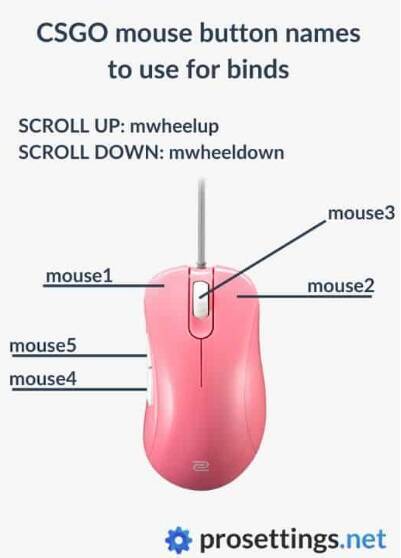
Method 2: Using Mouse4 and Mouse5 buttons.

1. How to Push the HDG Knob:

  1. Move your mouse cursor over the knob to highlight it.
  2. Press and hold the left mouse button.
  3. While holding the left mouse button, press the Mouse4 button.

2. How to Pull the HDG Knob:

  1. Move your mouse cursor over the HDG knob to highlight it.
  2. Press and hold the left mouse button.
  3. While holding the left mouse button, press the Mouse5 button

Source https://forums.flightsimulator.com/t/inibuilds-a320-v2-how-to-push-pull-for-managed-set-modes/692961/11?u=tenpatrol

1 Like

I believe there is a mouse setting in MSFS 2024. You might need to use the legacy mouse or not use it.

Thanks. I already tried the first method, but it doesn’t work. While holding the left button pressed, clicking the right button or the mouse wheel doesn’t change the mode.

When I hover over an airbus button I get the option of an up arrow for managed or down arrow for selected. Again, there is a mouse setting for this.

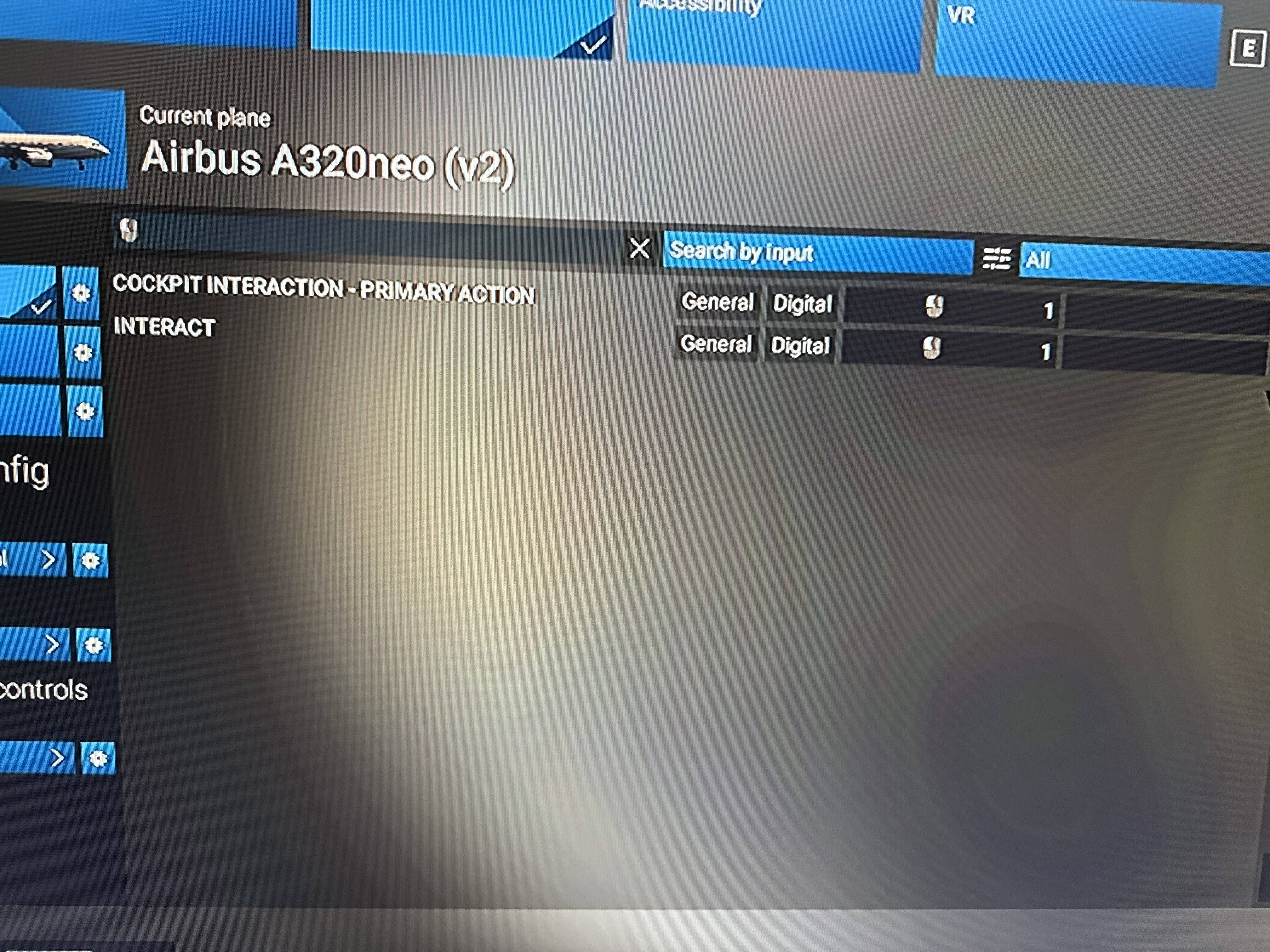
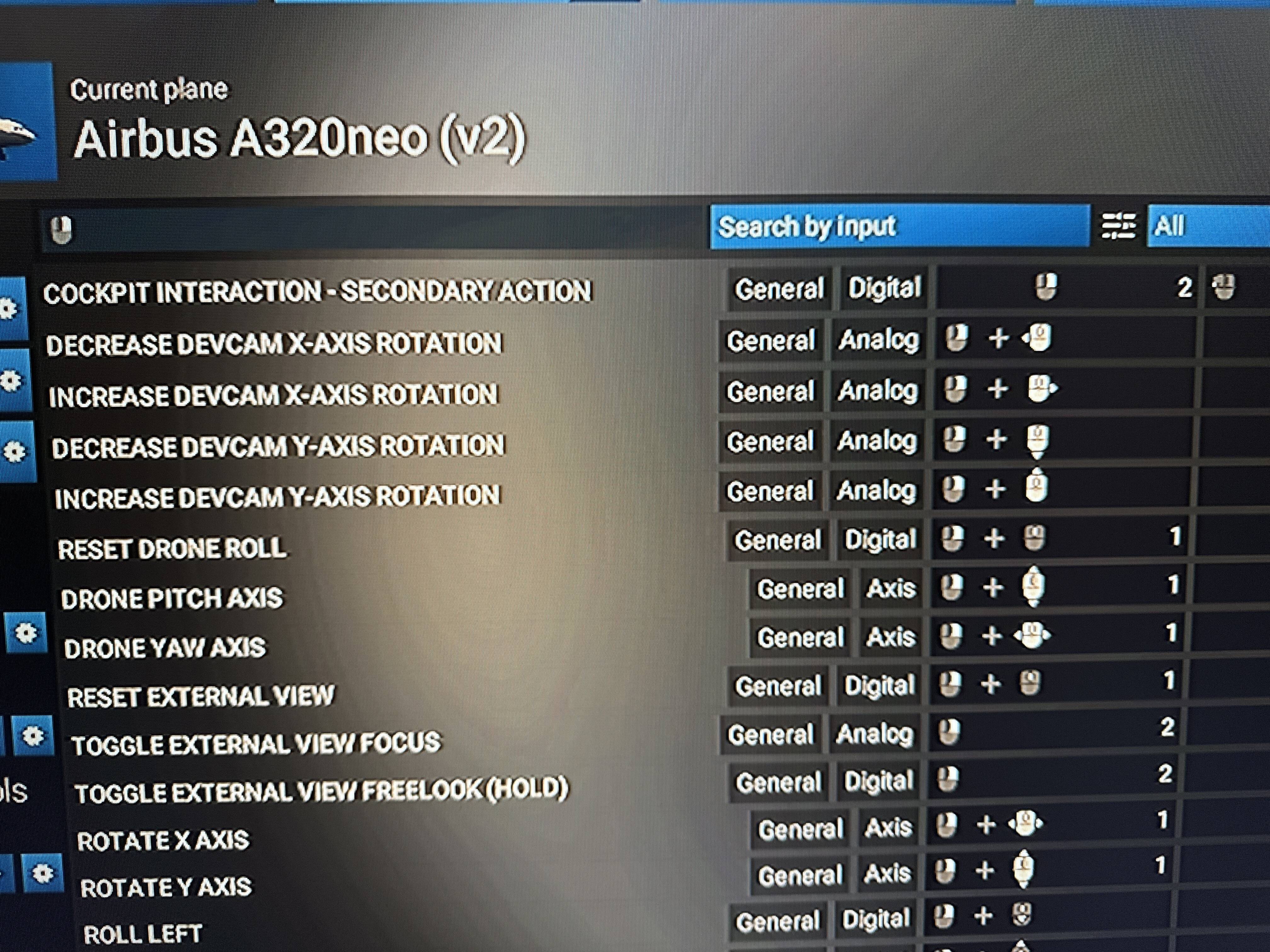
If you use LOCK mouse controls, you need to map secondary action and tertiary action to your mouse buttons. I use this in Fenix and iniBuild airbuses for pushing and pulling knobs.

image

I use the lock interaction system and have a tertiary button mapped, but I can’t get the knob pushed or pulled :exploding_head:


Finally, it seems that the wheel button in my mouse isn’t working :man_facepalming:
I had to change the interaction to legacy an I could change between modes just fine.
Thanks to everyone for the help

Like I was saying.

Exactly. But I didn’t understand why I couldn’t do it with the lock interaction, and it turns out that the problem was my mouse

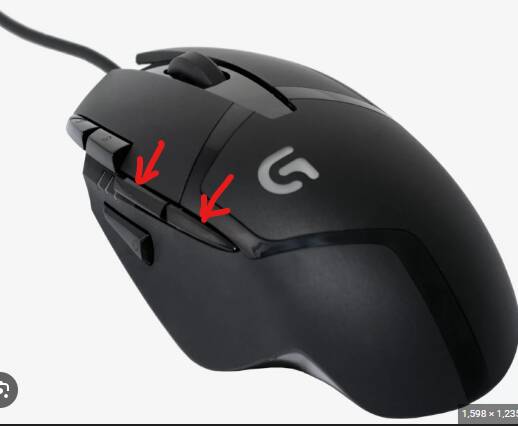
My mouse has two extra buttons under a thumb. One for pushing, the other for pulling knobs. Works perfectly for me. If your mouse does not have any spare buttons, then Legacy mode is your only solution.

2 Likes

Woa! That’s cool.

before pushback, i select FD and constraints every things is in managed mode except for speed, i push the speed knob in and nothing, i can’t select managed speed no matter what i do, i used the mouse and ps5 controller.

Perhaps worth bearing in mind - the Airbus won’t allow managed modes in certain circumstances. For example, you can’t use managed CLB/DES in HDG mode, it won’t allow managed speed without a GW & CG etc