Ok, thats done
Do you have Xbox app installed?
Yes. I have the Xbox version so not the Steam version…
Btw, my Digital Ownership is also on E. Just to mention it, but I don’t know if this matters?
I know that Digital Ownership is also included, so don’t worry. After uninstalling MSFS Launcher and reinstalling it, Digital Ownership will be installed again as well.
Open Xbox app.
Then, on the left side of the app, right-click on MSFS 2020 and select Uninstall.
After it’s uninstalled, restart your PC and let me know …
OK, I’ll let you know immediately.
1 Like
Uninstalled successfully and restarted the pc…
1 open Xbox app and go to My Library.
Then, click on MSFS 2020 and click Install.
2 In the new window, please check both checkboxes and click Next.
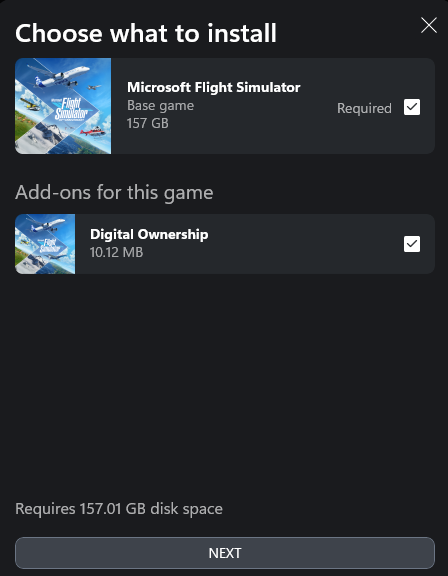
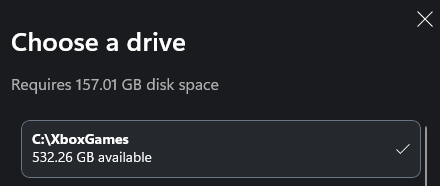
3 Select Drive C and XboxGames folder then click Next.
4 In the next window, check the box for “Create desktop shortcut” and click Install
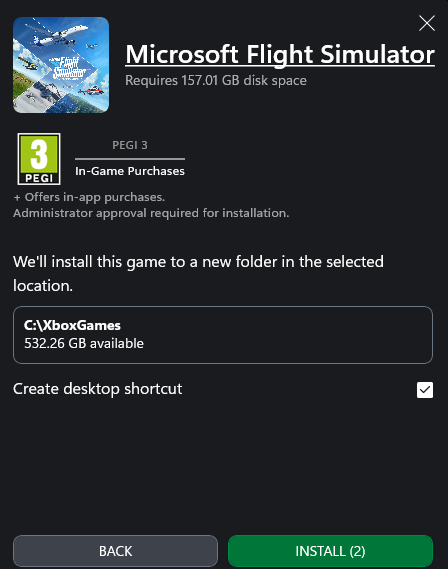
Once the installation is complete, please don’t launch MSFS.
Reply back.
1 Like
Ok, I followed all the steps you mentioned and now the installation successfully completed in the C drive.
1 While still in the Xbox app, click Play.
2 On the Installation Manager screen, click Install Package Path
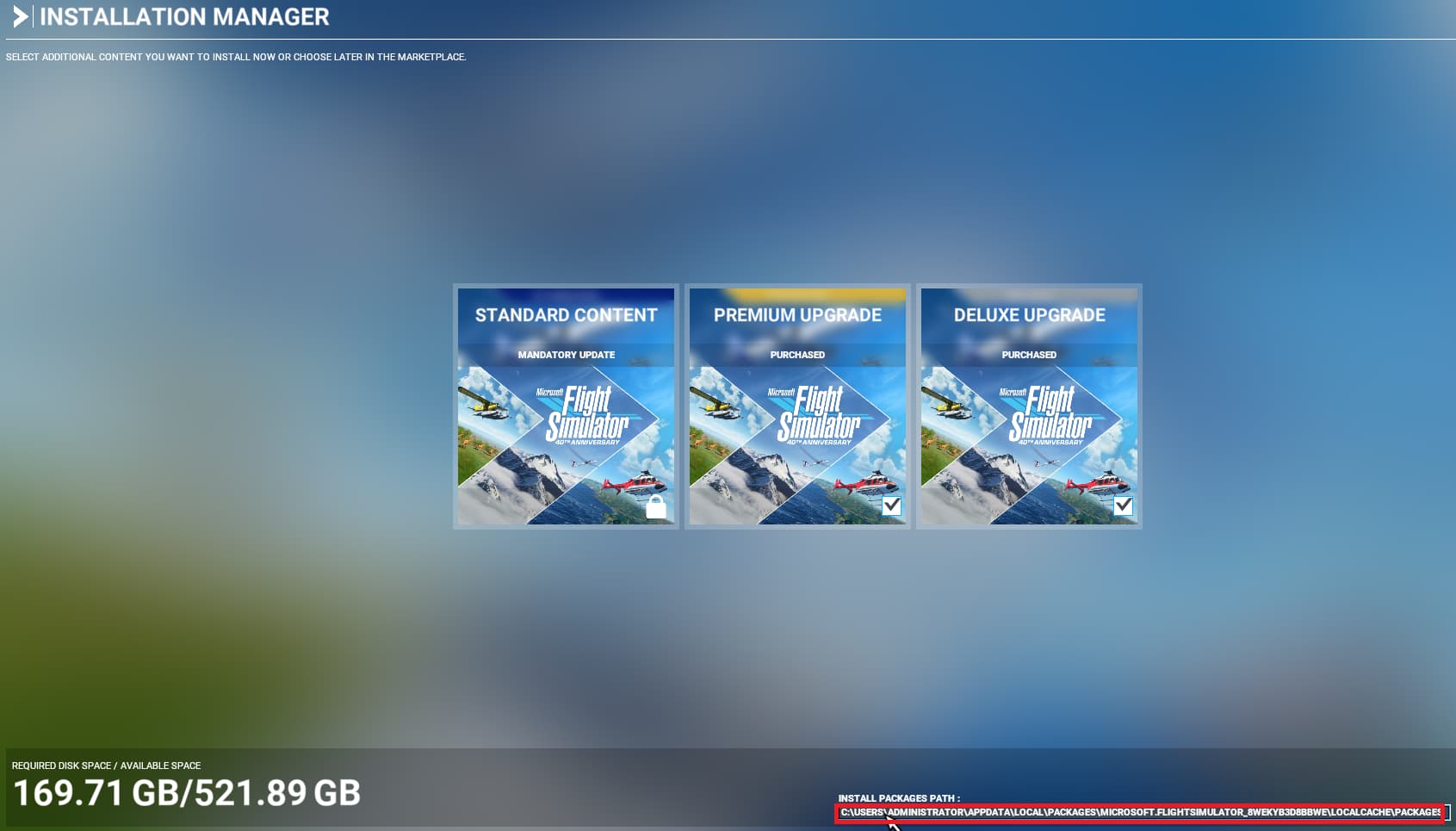
3 In new window, select Drive E and MSFS 2020 folder
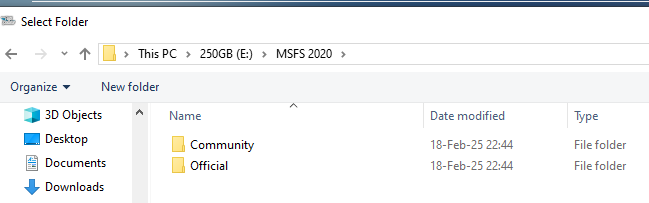
Then, click Select Folder
4 Finally, click Update.
1 Like
I followed all the steps exactly. When I clicked update, there was a prompt like: You are missing packages that are essential to run MSFS…
Then I decided to do uninstall and reinstall again, but this time my Official folder in E drive was empty…
I think I have to download them again all over.
Anyway I’m really glad for your help and assistance. I think this had to happen someday anyway… At least from now on I understand the structure much better for organizing it.
Go to: drive E MSFS 2020 folder, then open Official folder. Inside, you should find a folder named OneStore and within it, there should be many other folders
Unifortunately, all gone 0 items. But Community folder suprisingly still remains and the same as before…
If the OneStore folder is empty, something went wrong during the copying process. I suspect that the files from the OneStore folder didn’t get copied properly.
FYI, It took about 3 minutes between my question and your response saying
which seems a bit too quick for 200GB of game data to be copied. It’s likely that the copying process didn’t complete properly.
Anyway, now you know how to properly install MSFS 2020 - launcher on drive C and the large game files (Official folder) and Community on drive E.
Yes, it went fast but it was all on the same SSD drive? I waited for the prompt to finished completely. And to verify, I also checked inside the folders. After I moved the folders, I also checked for the folder size and amount of files in total for the MSFS 2020 folder…
Anyway, I learned my lesson, next time I’ll make a backup beforehand…
So next step is to move the Community/Official folder items to MSFS 2020 in E drive and then link them with Addons Linker?
Nope.
Are you reinstalling MSFS from scratch now?
edit
How to install MSFS 2020
1 Install MSFS Launcher on C
2 Once the installation is complete, launch MSFS.
3 On the Installation Manager screen, click Install Package Path
4 In new window, select Drive E and MSFS 2020 folder
5 Then, click Select Folder and click Update.
No, still from the Xbox app.
The Install Package Path method is not gonna work for me now, because Official (E) is allready empty…
Please go to the MSFS 2020 folder on drive E and delete the Official folder, but leave the Community folder.
Next, install MSFS 2020.
How to install MSFS 2020
1 Install MSFS 2020 via Xbox app on C
2 Once the installation is complete, launch MSFS (click Play).
3 On the Installation Manager screen, click Install Package Path
4 In new window, select Drive E and MSFS 2020 folder
5 Then, click Select Folder and click Update.
Be patient …
1 Like
Update: I finally managed to complete the installation, while the Packages are in the E drive now.
The last time I posted here, I lost the Official folders contents. Then I reinstalled the game with default Packages location in C. My intention was either use Addons Linker or move the Packages folders manually end edit the UserCfg file method. Unfortunately, both methods didn’t work for me. I dont know what went wrong…
Then I reinstalled again with the method you mentioned by updating the location to the E drives dedicated folder. This time I got stuck in the Installation Manager proces. I was almost there and somehow it stopped downloading… I closed the installation, restarted it again and again and each time it progressed just a little bit. It took me couple of hours. Then I was tired and decided to give a break and abort the proces.
Today, I gave it another try with a fresh reinstall but again the same… And couple of hours past and no luck again… This gave me a lot of frustration why it not worked for me.
Then I decided to uninstall all the addons, including the Community folder. I searched to find all the leftovers of MSFS 2020 anywhere in the C drive… With a fresh reinstall this time the installation finally successfully completed… I finally could start MSFS 2020 and download the ingame purchases via Content Manager.
I want to thank you again for your time and help. I really appreciate it.
1 Like