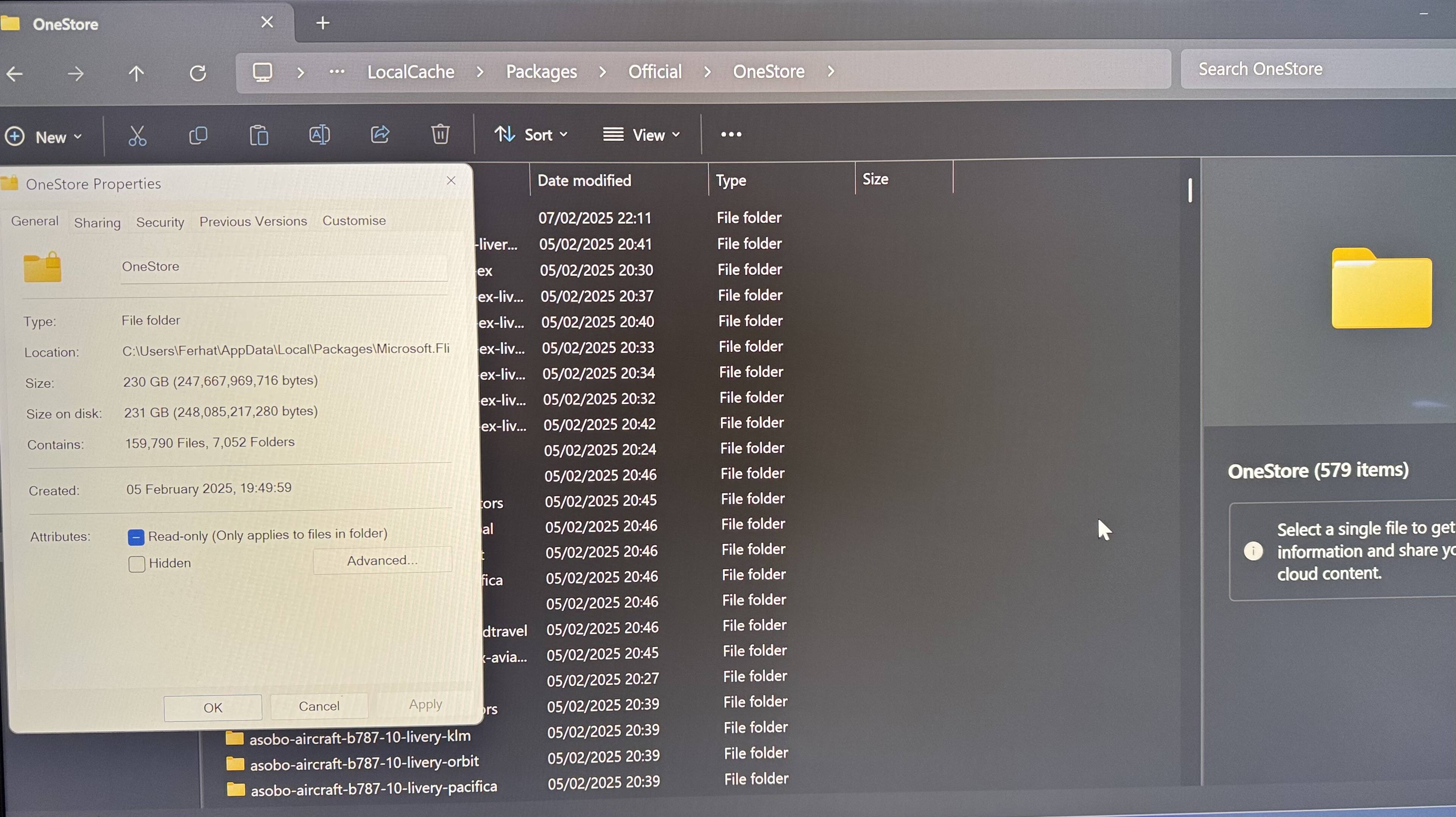
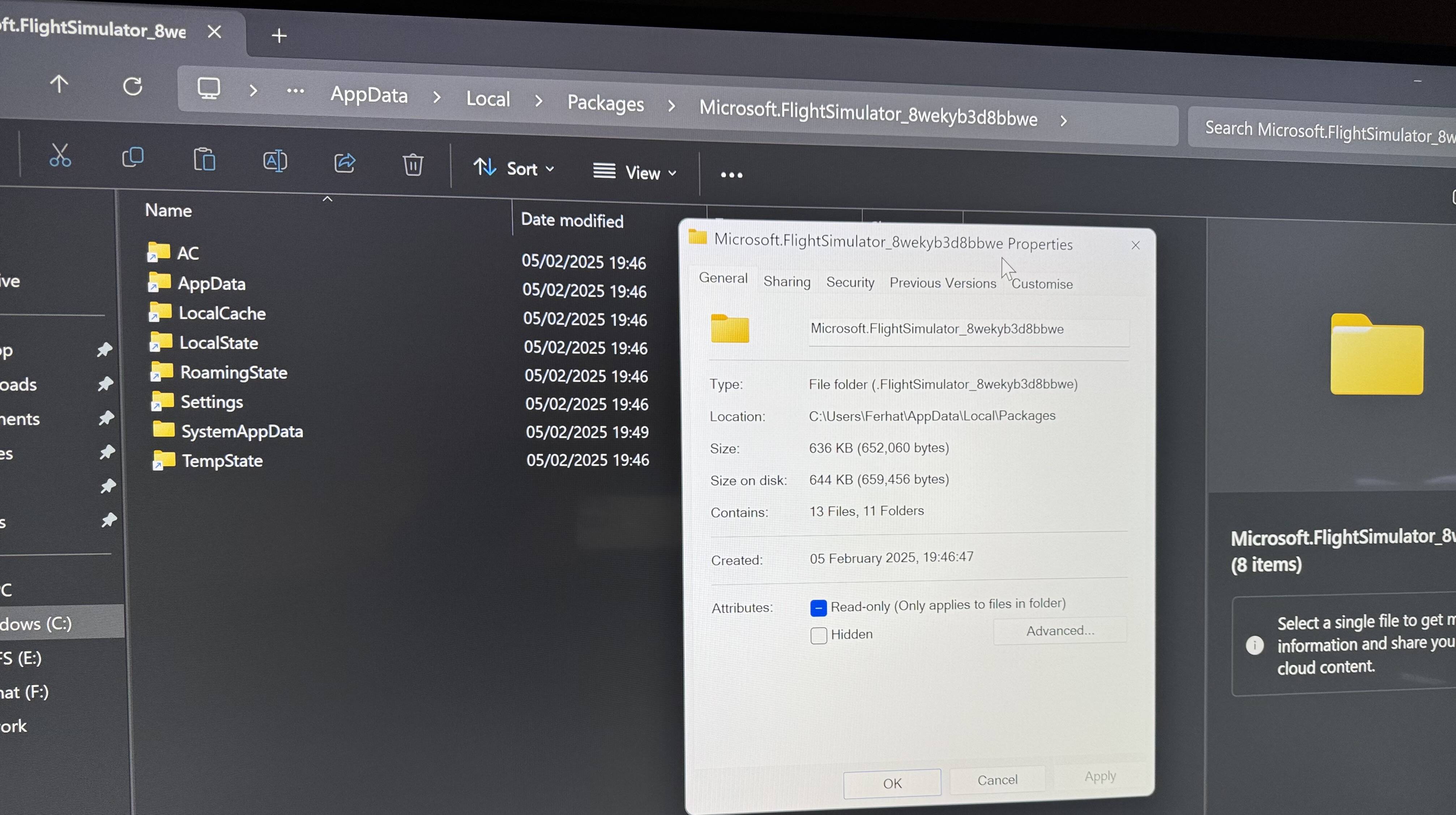
I have installed MSFS 2020 on the E drive and I want to move the Community and Official folders to this drive and then use the Addons Linker.
But I can’t even move/copy the files inside these folders…
Anytime when I attempt to do this, I got a prompt like: “your organisation does not allow you to place this file here”…
Btw, I recently switched from a Xbox Series X console to a Windows 11 pc. So I assume I have the MS Store version? Does this matter?
Can someone help me?
Thanks in advance!
Hi Ferhat,
Scott
1 Like
If that E: is a USB drive, don’t bother. It will not run on that configuration. Otherwise, follow this link. How to install Flight Sim on a different drive? – Microsoft Flight Simulator Support
1 Like
It’s on a NTFS format SSD
1 Like
ScottMDA:
Hi Ferhat,
Scott
Not at the moment, but later I can and I don’t know what time is convenient for you?
Please provide the exact path to the Official\OneStore folder. While inside the OneStore folder, take a screenshot of the open window and attach it in your reply.
1 Like
Hi Ferhat !
Scott
1 Like
C:\Users[Name]\AppData\Local\Packages\Microsoft.FlightSimulator_8wekyb3d8bbwe\LocalCache\Packages\Official\OneStore
Are you sure?
So go to E drive > wpsystem/ …
1 Like
Yes, this is my Official/OneStore folder in C drive
So why did you write that MSFS is installed on drive E?
Go to
take a screenshot of the open window and attach it in your reply.
1 Like
Wow, I never saw this before…
E:\WpSystem\S-1-5-21-3486883660-1358386521-3894989905-1001\AppData\Local\Packages\Microsoft.FlightSimulator_8wekyb3d8bbwe\LocalCache\Packages
Both Community an Official/OneStore folders are stored inside here…
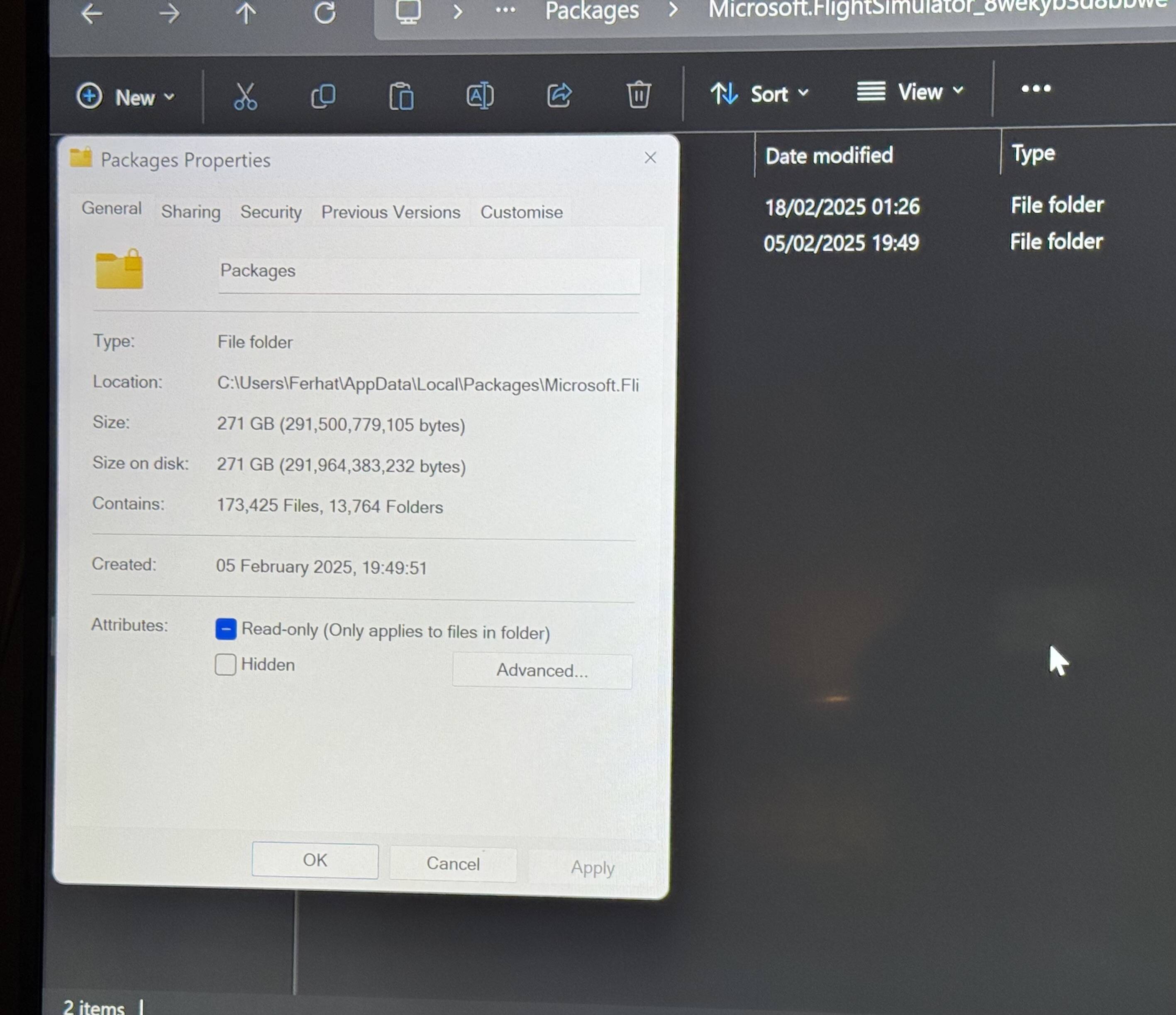
But this is odd… Now I have both in C and E drives the same folders with the same size and amount of file sizes?
If you installed MSFS 2020 on Drive E, there are so-called symbolic links on Drive C pointing to folders that are physically located on Drive E.
So your Community folder is on Drive E, not C
1 Like
I was really stressing the last couple of days, why it was not working even tough I installed MSFS 2020 to a separate drive from the very start…
So even tough it says 271 GB, 173K amount of files in C, I can assume its “empty” and its not filling my C drive?
Btw, thank you very much for the clarification and your help! I really appreciate it!
Exactly mate.
I noticed that you switched from Xbox to PC, so you’re probably not an advanced user yet. That’s why I decided to help you out.
Installing MSFS 2020, especially when purchased from the Microsoft Store, isn’t as straightforward as with other games.
If you’d like, we can fix the installation to make sure everything is set up correctly.
MSFS Launcher on drive C (2GB)
while MSFS packages (300GB) and Community folder should be on drive E
This is the only proper and recommended way to install MSFS 2020.
1 Like
MSFS Launcher is also on E drive
What happens if I use the MOVE option to the C drive, inside Settings>Apps>Installed apps? Would the MSFS packages stay in E, or they move also along with it?
Btw, sorry for my broken English
Please don’t use the “MOVE”, as that’s not the correct way to do it. We handle the installation differently.
We’ll start by creating a folder named MSFS 2020 on drive E, where we’ll move the Official and Community folders.MSFS 2020 folder on drive E.
3 Copy Official and Community folders and paste them to the MSFS 2020 folder you just created
1 Like
So only the “Community” and “Official” folders without the parent “Packages” folder?