Can't get the MSFS I bought from Microsoft

Both Asobo and Microsoft employees provide support through the Zendesk portal.

When bug reports are submitted through Zendesk, the information is then added into an internal bug tracking software and sent to the QA teams for testing. If the issues are reproduced, then the reports go to the development team where they are prioritized depending on severity and resources available.

On the Zendesk side of things, the initial bug report will be closed as there is nothing more that we at support can do for the issue.

2 Likes

The title is Support, nowhere do you ever click on Zendesk. Not ever.

Newbies get screwed up by this every… single… time… ā€œWhere the heck is ā€˜Zendesk’???ā€

If we’re going to continue to call it Zendesk, please change the link at the top of the page to reflect that!

And then please add a link to Carenado’s Zendesk support system as well, so people aren’t completely confused all… the… time.

Please scroll up to the OP’s question about this when he was told to contact Zendesk. I don’t know why this isn’t clear. I see people get messed up by this all the time. As was I when I was first told to contact Zendesk. I went to www.zendesk.com, and that was clearly not the place to go.

1 Like

Yes Yes Yes. All very interesting . But going further and further away from the OP’s (my) problem … I’ve paid for a MS game that I love and need and can’ use it, PLEASE, some effective guidamce from this forum ro let me fly again. Or does MS force me to try again by spending another Ā£75 avoiding yhe MS Store? Or do I turn to another sim provider with my new PC??? But before I leave just now, thanks to BoomUga, N6722C, GlitteryGecko5 and GlitteryGecko5 etc - and FlyingsCool’s "every… single… time… " - I’m heartily sick of all this. Sorry folks but I’m not going to bed happy,

2 Likes

All the answers have been given.

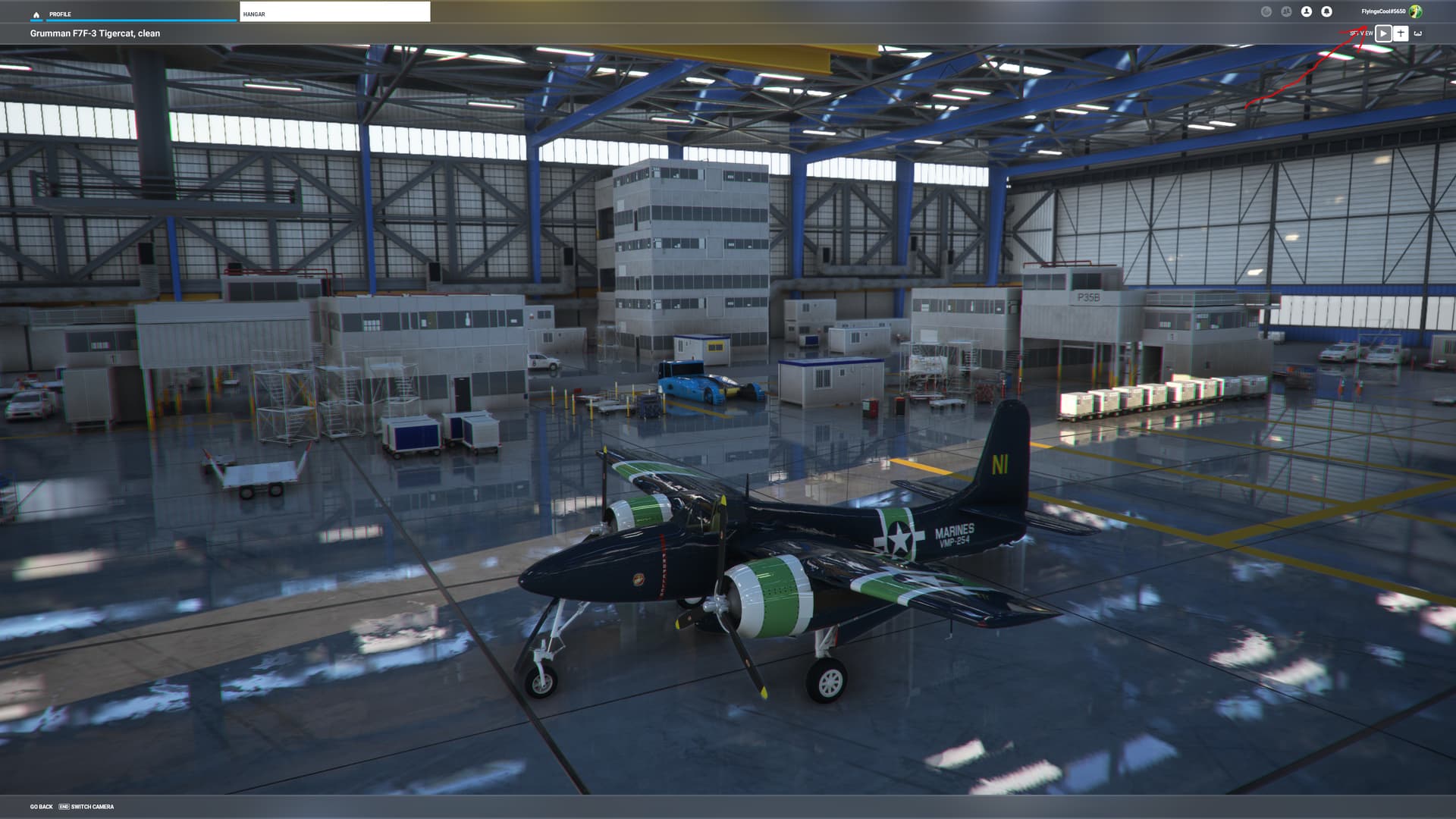
You said you successfully saw your two computers on your main Xbox login on your new PC, but you never confirmed for us that you are in fact using that login to start MSFS on PC1 (it’s possible they are different). You can see who you are logged in as in the top right corner of the program after you get into it. You could also start a purchase process in the MSFS store and see what login it tries to purchase from and cancel before you actually buy the product to see who it thinks you’re logged in as.

If you are using the same login on both computers AND MSFS on the other computer, and that login matches your Microsoft Store and the Xbox App logins on your new PC , and you are logged in the same absolutely everywhere (Microsoft Store, Xbox App, and MSFS on PC1), then you have a problem with your gaming services as noted by @BoomUga (Can't get the MSFS I bought from Microsoft - #20), and you’re going to have to click on Support at the top of the page and then click on ā€œSubmit a (help) Requestā€ at the top of the next page and get help from Microsoft. @BoomUga listed the process they’re likely going to tell you you have to go through.

In the meantime, did you pay cash for MSFS? If you used a Credit card, can’t you look through your statements and figure out when you purchased it.

Unfortunately, and it’s a major reason I avoid purchasing things through the Microsoft Store, you do not get a receipt from them of what you purchased. I have zero idea why or who thought it would be a good idea to do this, but the upshot is your credit card is going to be your only proof of purchase, and it won’t list what you purchased.

Anyway, at this point, it sounds like the only people who can help you are Microsoft and you’re going to have to open a ticket.

BTW, I assume as well that you didn’t purchase MSFS through Steam? You never mentioned, it, but, the question needs to be asked. If so, then, well, there’s your answer why it’s not showing up in the Microsoft Store. The Steam purchase process is completely different, and not shareable back to Microsoft Store.

Reinstall ms store app.
https://www.howtogeek.com/883144/how-to-reinstall-microsoft-store-on-windows-11/

Restart PC.

Reinstall gaming services.

How to

In windows seacrh bar type
powershell

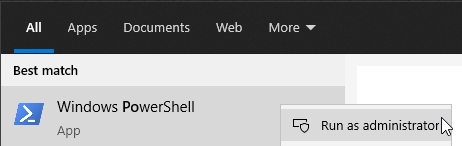
Right-click on windows powershell and select run as administrator

Copy the following command and paste into powershell (right-click to paste into powershell window)

Remove-Item -Path ā€œHKLM:\SYSTEM\CurrentControlSet\Services\GamingServicesā€ -Recurse

press enter

Copy the following command and paste into powershell (right-click to paste into powershell)

Remove-Item -Path ā€œHKLM:\SYSTEM\CurrentControlSet\Services\GamingServicesNetā€ -Recurse

press enter

Copy the following command and paste into powershell

get-appxpackage Microsoft.GamingServices | remove-AppxPackage -allusers

press enter

Restart PC

Run powershell as administrator.

Copy the following command and paste into powershell

start ms-windows-store://pdp/?productid=9MWPM2CQNLHN

Click Install

Restart PC

Sync time and date.
https://pureinfotech.com/fix-clock-out-sync-windows-11/

Restart PC.

Reinstall xbox app (uninstall and install).

Restart PC.

Open Xbox app - sign in.
Click my library

@LankyCape030052
I’d recommend not reinstalling individually. Uninstall all of them, then follow each of the processes above, including the processes that @BoomUga noted (wsreset in particular).

And please confirm that the login that you’re running MSFS under is the same as the login you are using for the Store and Xbox app.

And please note, when I had a gaming services issue like this, I had to run through the process twice to get it to work. I don’t know why or if I did anything differently. As far as I know, I didn’t do anything differently.

No I didn’t, I said this … ā€œThanks for that - a glimmer of light!
I logged out of my account on PC1 and logged in again on the new PC2. The window that comes up only shows PC2, the one I’m now working on. PC1ā€. There was no sign of the graphic suggested of my PC1. And as to ā€œusing that login to start MSFS on PC1ā€ I’ve never said such a thing. On PC1 I just run MSFS from the installed MSFS icon in the taskber. Don’t mean to be picky FlyingsCool5650, just trying to make things clear. Brian.

Ok, now I understand better what you said. Please follow the instructions people are giving here. They asked you to log into the same user on both PC1 and PC2 and make sure both PC’s show up in your Microsoft Store on PC2.

And I have to ask… How could you have logged out of your Xbox user on PC1 and still run MSFS? Based on what you’re saying, it’s sounding like you have two users if that’s true. It should not run if you are logged out of your Xbox app and/or the Windows Store app, at least, you should not have access to PG or any of the 3D trees, and other data dependent scenery, etc..

I also asked you to start MSFS on PC1, go to the upper right corner and pick on one of the little icons up there, and it should tell you who you are logged into.

Also, I can’t imagine this is the case, but please answer the question, I assume you don’t use Steam, and you didn’t purchase MSFS through Steam (you would still start from the icon on your desktop).

P.S. I went on my Zendesk rant because everything you need to know was said. But it seems like you’re not understanding our instructions?

What is ā€œCASHā€ ??? :wink:

The actual MSFS software, does get a Receipt, and it is itemized with Date Purchase, Item Description and Price.

Other Content bought ā€œFORā€ MSFS only shows date, and number of ā€œCreditsā€, and NO other description.

All very strange !!!

2 Likes

Hi there FlyingsCool 5650. Straight to the point - you said " also asked you to start MSFS on PC1, go to the upper right corner and pick on one of the little icons up there, and it should tell you who you are logged into.ā€œ. I started MSFS on PC1 using the Taskbar icon that’s been there since I downloaded and installed MSFS. The programme opened perfectly, as it’s always done. I looked at the top right hand corner of the display for the ā€œlittle icons up thereā€ and there are none. I looked all around the screen and dropdown menus (including Help) for the " it should tell you who you are logged into.ā€ No sign anywhere.
MSFS is working just as it should on PC1 - all the trees and buildings are there. Everything moves as it should. It sounds OK and the Cabri G2 flies just like it would when I fly one in real life at my local airfield. And when I finish a flight I can close MSFS just as I do any other programme on my Windows 11 PC. And I’m using the MSFS bought direct from the Microsoft Store, NOT Steam.

FlyingsCool 5650, you’ve tried hard to help me like many of your associates over the past few days and I’m grateful. Despite following the guidance as best I could I’ve not done things right. Please can I ask a direct question. Given the masses of directions I’ve been given in all the posts on this topic, what steps should I take, in order, to try and make progress?

Did you follow the steps suggested by BoomUga above?

Thanks GlitteryGecko5.
I was just about to go back to BoomUga’s steps when something popped up that explains things, but I still need your help. I’ve been saying from the start that everything is happening , on PC1 and PC2, under the same account. I got that wrong, I’m sorry. Both PCs show the same Microsoft Account but I’ve just noticed that the MS Store account on PC1 has an email name against it that’s not on PC2’s MS Store. So there is a difference. I can see that without that email name PC2 can’t know know the contents of PC1’s Microsoft Store. How do I link PC1’s MS store to PC2?

I would sign out of the Microsoft Store on both PCs and then reboot PC2 and sign in to the Microsoft Store on PC2 using your credentials and see if that works. If not, follow the Customer Support steps to reset the Microsoft Store app above.

1 Like

You solved your problem. You have two logins. To solve your problem you log out of the secondary login on PC2 and log into the same email on PC2 that MSFS is logged into on PC1. It’s as simple as that.

You don’t need to do what BoomUga said, or anything else.

This is what I’m talking about… That’s the login you purchased under… Assuming ā€œDataā€ is turned on under General options/Data

I have no idea how data can be turned on in your menus without you being properly logged into the Xbox App for MSFS on PC1, the one you purchased from. If you open the Xbox app on PC1, you should be logged into the proper user for MSFS if MSFS is working properly.

No idea what prompted your attitude with me, but, you’re all set now.
If you’re wondering how to combine the two logins, I don’ think that’s possible, but you can ask Microsoft through the helpdesk.

It was possible and it happened like I said. The case is now solved. I followed your last post and did what you said. That didn’t lead directly to MSFS in the Ms Store - no sign. So then I did what’s been suggested earlier, I opened the Xbox App on PC2. There was MSFS. I am now installing it from the Xbox app. All seems to be going well. Case solved. Thank you all.

2 Likes

So you’re saying on PC1, you were logged into a different user in the Xbox app than who you were logged into MSFS with? I didn’t think that was possible.

MS Store doesn’t really matter; the gaming services, as I understand it, are controlled by the Xbox App, so that’s why I didn’t think it was possible. But that was my understanding, I could be wrong.