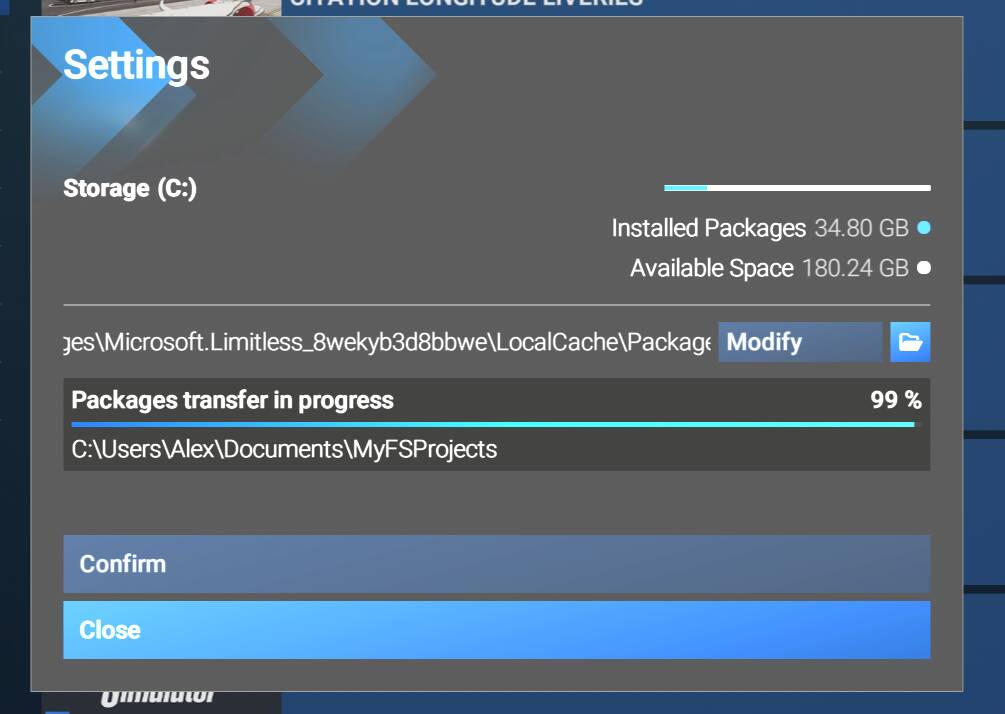
I tried to move the Community Folder to another location using the “Marketplace-MyLibrary-Settings” window. Everything started to transfer seamlessly, but the ”Packages transfer progress” stopped at 99% and stayed there.
I tried to “Close” the window, rebooted the sim and PC numerous times, but the progress “Settings” window always remains frozen at 99% and unable to close it.
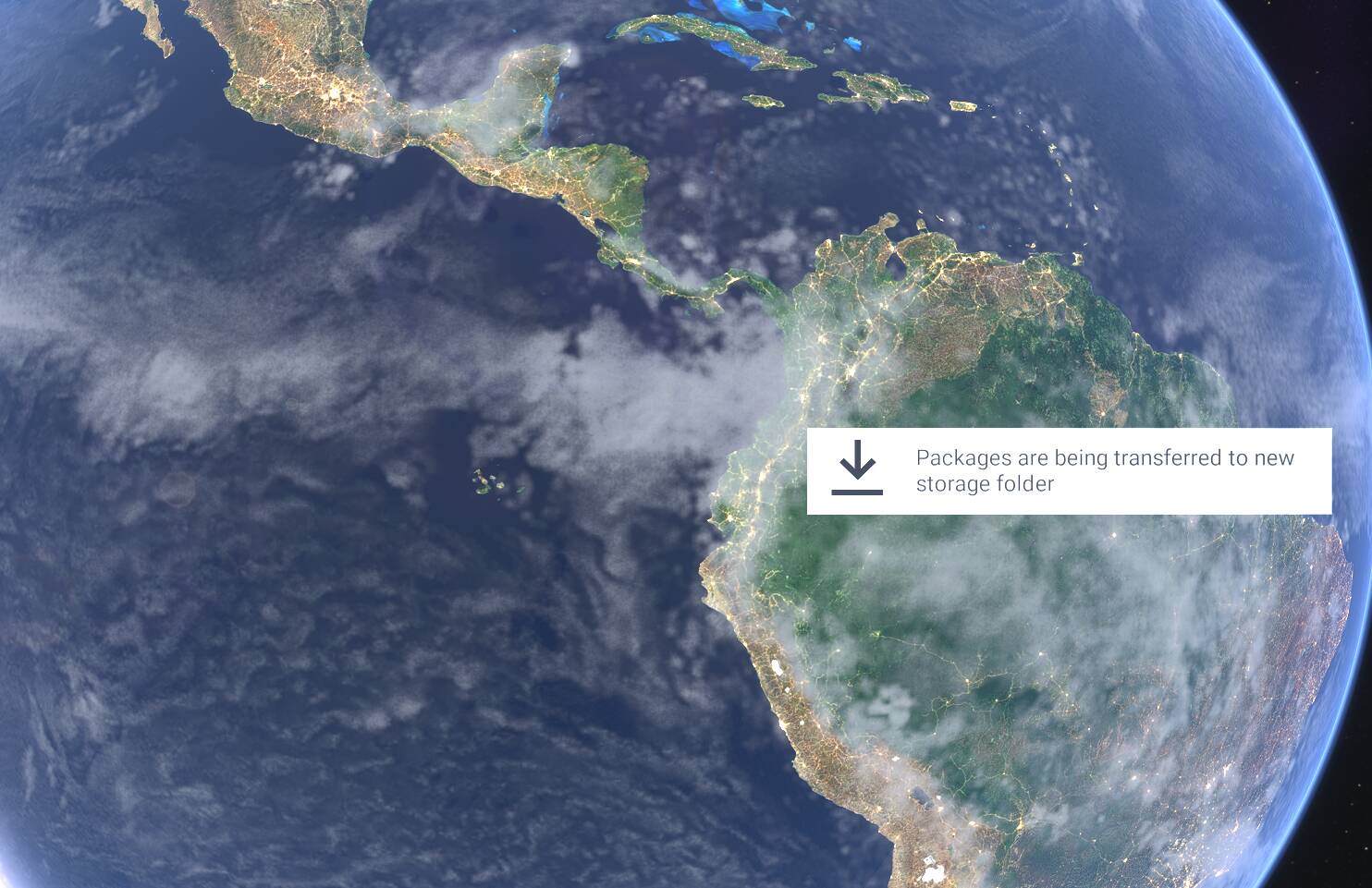
Also when I start-up the sim the message, “Packages are being transferred to new storage folder” always appears.
The sim still works but unable to remove the 99% progress window.
Anybody know what I should do?
Screenshot 2025-12-19 2152571484×961 157 KB
Same issue, looking for a solution…
If you have GSX Pro installed, either run the FSDT Installer and unlink GSX Pro or delete the linked GSX folders in your Community folder. Seems MSFS has problems with copying the links.
- fsdreamteam-gsx-world-of-jetways
- fsdreamteam-gsx-pro
On Windows 11 these will have a “shortcut” icon overlay so they will be fairly obviously different from the other folders.
Close and re-open Flight Simulator and hopefully the copy process will complete. You should get a notification (yellow dot on the bell icon).
Once the folder is moved, re-run the FSDT Installer and Re-link GSX Pro.
- Close MSFS 2024
- Open the file named Usercfg.opt – you’ll find it in:
C:\Users\Yourusername\AppData\Local\Packages\Microsoft.Limitless_8wekyb3d8bbwe\LocalCache
- Scroll down to the botton of the UserCfg.opt file.
- Start by deleting the entire InstalledPackagesPathNextBoot line, not just its name.
- Also, edit last line so it looks like this:
InstalledPackagesPath “C:\Users\Alex\Documents\MyFSProjects”
Save changes.
After saving the changes, manually copy the files and folders from the old Community folder to the new Community folder. Once the files and folders have been copied, you can launch MSFS 2024.
Thanks friend, this helps me.
Hi guys. I’m sorry to reopen this topic after months, but I’m having the same problem and unfortunately I wasn’t able to solve it with the solution above because there is no C:\Users\Yourusername\AppData\Local\Packages\Microsoft.Limitless_8wekyb3d8bbwe\LocalCace in my game folders.
Do you have any other suggestions?
If you are stuck at 99% for more than an hour. Move your current/old community folder to a “staging” one that you just created, delete the old community folder content, relaunch the game to complete the move then move your staging content to your new community folder. It fixed it for me. Also move your rolling cache to your new drive, it solved a lot as well
Hey there, I had the EXACT same issue as you, I couldn’t find it either. Where I found mine was under “AppData\ROAMING\Microsoft Flight Simulator 2024” Not in local. Not sure if there was an update or just my computer being set up differently, but that’s where I found it.
Also, I also did something slightly different than stated above. I deleted the entire line that TenPatrol mentioned, but instead of editing the last line to install to my Documents folder in my C drive, I just created a new folder in my large gaming drive and typed it instead. Hope this helps you (and anyone else)!