What about cache files?
Delete cache and try without add-ons.
How to delete game cache
1 Start your PC in safe mode
- Click start

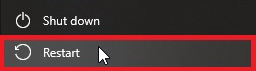
- Click power icon

- Press and hold left SHIFT key and click restart
- Select Troubleshoot > advanced options > startup settings > restart
- Select 4 - Enable safe mode
2 Click start and type
%localappdata%\D3DSCache
Press Enter
Delete all folders
3 Click start and type
%APPDATA%\..\LocalLow\NVIDIA\DXCache\
Press enter
Delete all files
4 Type
%localappdata%\Nvidia\GLCache
Press enter
Delete all folders
5 type
%appdata%\NVIDIA\ComputeCache
Press enter
Delete all folders
6 type
%localappdata%\Packages\Microsoft.FlightSimulator_8wekyb3d8bbwe\LocalCache\SceneryIndexes
Delete all files
Restart PC
7 Click “start” and type storage settings - press enter
8 Click temporary files > scroll down > check box DirectX Shader Cache
9 scroll up > click Remove Files
10 Restart PC.
11 Launch MSFS. Delete and turn off rolling cache.
Also …
Disable all startup programs except for the software managing your AIO liquid cooling system, if you have one. For testing purpose temporarily disable your AV software and uninstall NVIDIA GeForce Experience.
Check the motherboard manufacturer’s website for Intel Management Engine (ME firmware) updates and install latest version if one is available.
Update BIOS to the latest version if one is available. Make sure to set it up correctly after updating.