Nostalgia on low settings. I’ll have to give it a try!
Hope you get your stutters sorted somehow. Maddening when everything is running smooth and then something gets updated and…stutters.
1 Like
You know, I am very inexperienced when it comes to making videos but something bothered me about the one I posted yesterday. I didn’t recall my “real” flight being as jittery as depicted in the video.
So, I ran another test flight video using the exact settings as recommended in the “Flight Simulator Blog”, above, which is capped at 30FPS. (I used the XBox Game Bar recorder. Which recorder did you use for your video?) Paying closer attention, I can now say that those jitters are a product of the Game Bar recording. They don’t originate in MSFS.
If you are interested in what London looks like with those “recommended” settings, here is the video. Personally, I think London looks much better in this video. The “jitters” look to me to be normal, steady 15-20FPS results. I strongly suspect that the recorder is the source as I didn’t see anything this bad during the flight. (BTW, I deserve any/all criticism received for my landing. 2 bounces in the PA28 is absolutely inexcusable!  )
)
Bottom-line: I am pretty happy with both SU-10 AND the advanced settings recommended in that aforementioned and linked blog.
https://drive.google.com/file/d/1FFAsS9r1Ie-7S5YjNu4WHZprn7_y5ya_/view?usp=sharing
1 Like
I’ve always used Nvidia GeForce Experience. The videos always come out very smooth.
2 Likes
Ah-ha. I’ll have to try that! I have heard so many recommendations to clean install the driver without “Experience”, I’ve just kind of followed along.
Thank you!
Since the update, the white menu arrow at the top of the screen in the cockpit and exterior view becomes no longer hidden. It is visible all the time. Is there a setting somewhere to fix this?
Seems ok on my non-VR, PC version. The menu arrow only appears if I move the mouse around in those views. You might have a glitch…
2 posts were merged into an existing topic: Warning: Your graphics device has encountered a problem
I just got that error on Win 10 whild in VR. Using DX12 and latest Nvidia game ready driver.
Problem solved. For me, the arrow only disappears when I can leave the active window. If I’m in window mode and click on the symbol to the left of the cross (window change) in the top right corner (window size mode), then I can move the cursor out of the active window and the white arrow disappears. I can’t do that in full screen mode. The mouse cursor disappears after a short time if you don’t move it, but the white menu arrow remains visible.
Doesn’t the Nvidia software provide you with a screen recording option?
I found that the AMD one (ReLive) works much better than OBS and the other ones I tried, including the Xbox game bar.
1 Like
Indeed it does as noted by hobanagerik yesterday. It’s included with the nVidia “Experience” option. I have since tested it out and it works much better for me than the Xbox recorder. I’ll post a couple of side by side samples sometime in the future, in an appropriate forum thread - which I hope this one’s moderator can point me to?
1 Like
I would just start a thread in the General Discussion section.
You can then point to it from discussions in other sections if you need to ;¬)
Here’s one I made earlier … Escorting ZZ177 and Queen Elizabeth II in to Northolt live in MSFS 2020 - who was there?
It lives!
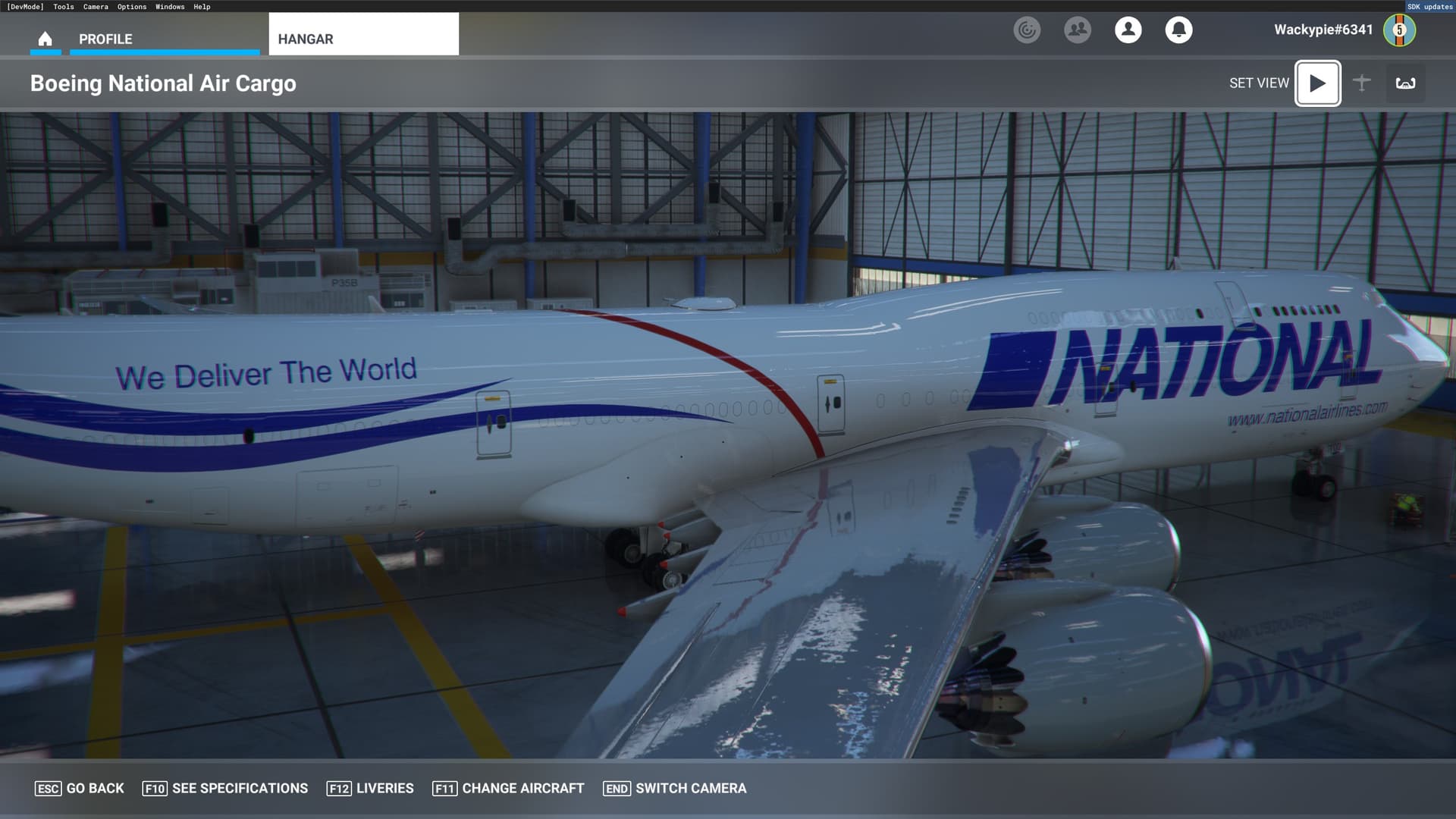
Took a huge ton of work and lots of figuring, along with a few file fixes that were being extremely sneaky, and 1 out of date mod
1 Like
That’s the silliest thing ever, its the same driver but with differently configured presets, as a matter of fact I once had issues with the game ready driver, my flight sim giving me only about 36 FPS and at that time over a year ago, the Studio driver was actually giving me higher frame rates, so you’re kinda talking through your hat. Simple as THAT ! 
1 Like
9900k, rtx3090, 64GB G-skill (Samsung b-die), z390 aorus xtreme, samsung nvme’s, fps locked to 30fps ncp fast v-sync 120 refresh. Studio driver (DDU+clean install)DX12 HT=on. Smooth as silk all Ultra. just flew from PAULO RICARDO - SANTOS DUMONT AIRPORT (SDU) RIO DE JANEIRO CITY LANDMARKS , to pedro pilotx sbbz. FSW 414. LOD 500/600 Orbx S/A mesh. looked stunning!!!
1 Like
I’ll bet it did, with your top of the line set-up. But the one thing that many will miss is that you have your FPS locked at 30 FPS. I recorded 2 identical flights yesterday - one with unlocked FPS (it settled on 59-60 for most of the flight) and the other locked at 30 FPS in the nVidia controller. Honest truth? I couldn’t detect any difference.
HOWEVER, what this means is that for the lower spec’ed systems out there, locking the FPS at 30 could provide them more head-room to adjust upwards their other graphics settings.
2 Likes
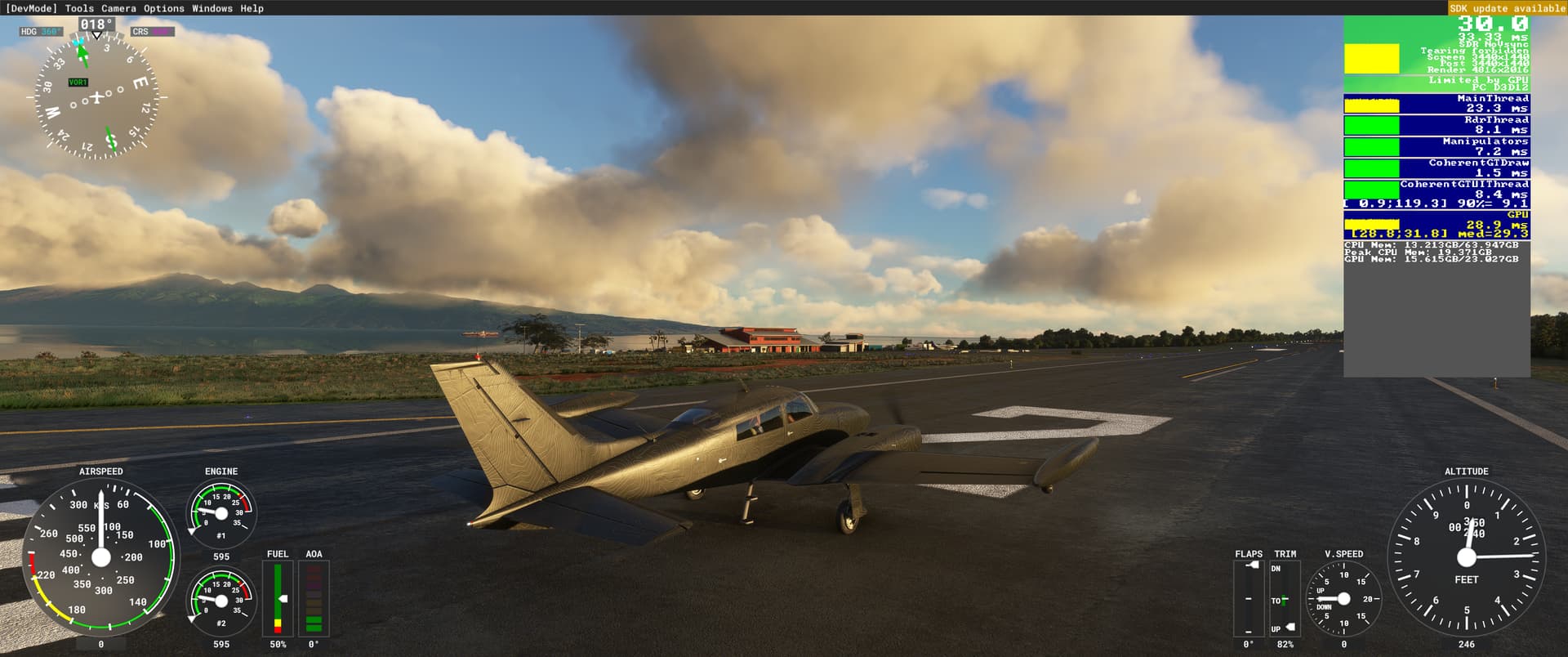
Thank you for that suggestion. For comparison I have posted 2 video links of similar flights from London City Airport (EGLC) to Buckingham Palace.
The Experience recording is clearly superior, although also 5 times greater in size.
Unfortunatly, hard to compare as the 60fps mp4 version is encoded at 30fps too. Anyway I got your point as I agree, locking to 30fps is a good way to get smoother and avoid stutters, and free up lot of resources.
1 Like
Actually I encoded both at 60fps using NVidia Experience and Clipchamp. I suspect (not very knowledgeable in this realm) that the 30fps you are seeing must be from the Google viewer. If you could suggest a better way for me to share, please feel free.
Edit: Have since deleted the post.