When I use DLSS 4.5 preset L and M, there are shimmering of small objects like stones, muds etc on the ground. It won’t impact big objects such as houses. When I choose preset K which is DLSS 4.0 I suppose, the shimmering will be gone. Have you encountered this?
1 Like
I had issues with DLSS 310.5, which I think is due to a combination of my 3090 Ti and my nVidia driver (576.52) not working well with it. I’m back to DLSS 310.4
Good post, I recall seeing in other threads with links out that DLSS 4.5 is really a 40xx & 50xx series advance, and that earlier generations may not benefit.
1 Like
Just upgraded from a 3080 to a 5080. The shimmering has increased with M and L. I think I will need to roll back to K, and search which Nvidia driver is best for K.
The good news is, as soon as I do that there will be an Nvidia driver released the following day fixing the issue.
I just recently did that tutorial, I had no DLSS Swapper installed.
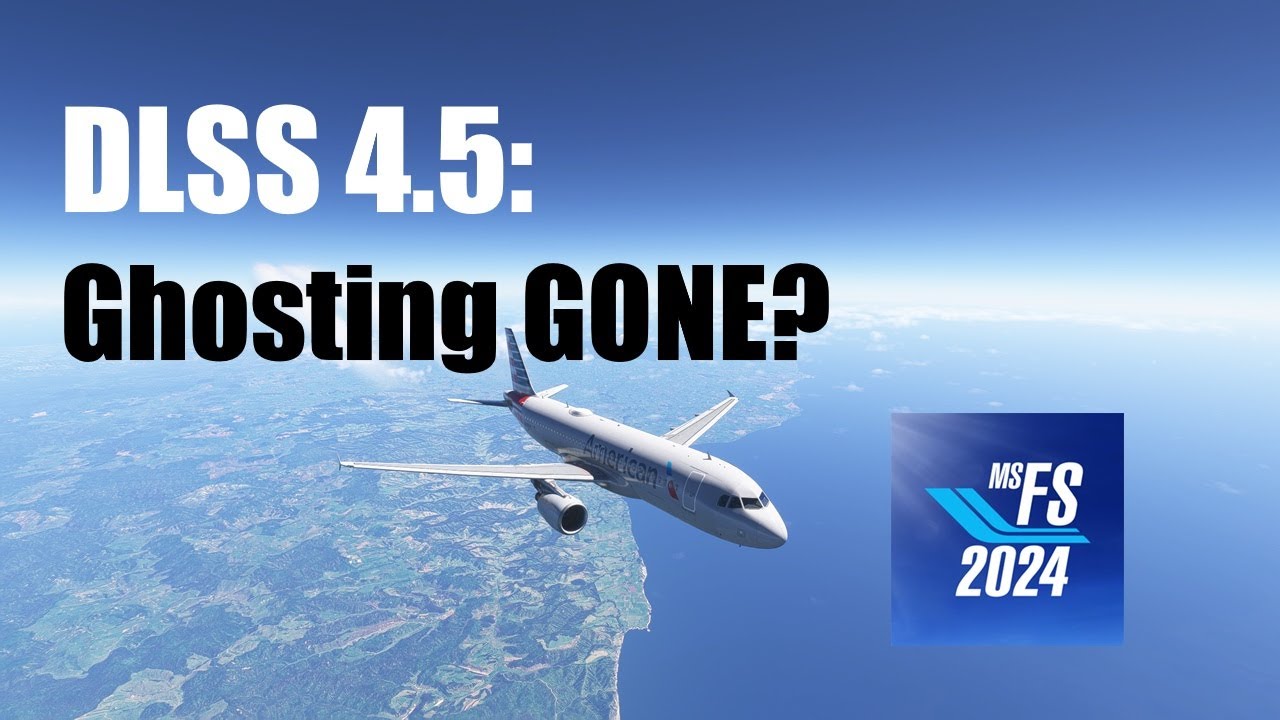
Did all the steps and went straight to the newest driver (from my previous very old one…). And I got that shimmering too. That jitter or shimmer was very noticable, especially with external camera and quickly panning the camera around the aircraft.
In the end I switched back to my old driver, without any DLSS Swapper. Thank god everything is back to normal.
BTW, what DLSS version is used by default, when you don’t use DLSS Swapper?
That depends on whether you use the nvidia appt, or nvidiaprofileinspector, or not.
The key thing here is that Dlss Swapper does not specify drivers, only dlss libs. So to answer it properly we would need to know more info.
If you wish to know the answer yourself then use either the parm in Dlss Swapper, Show on-screen indicator, or add the reg entry to show the indication in game.
If you don’t use the nvidia app or nvidiaprofileinspector then it is whatever you have set in Dlss Swapper. If you haven’t used that either then the answer is 310.1
1 Like
So, no one else with the shimmering problem?
I did some testing after going back to the latest driver but I didn’t use DLSS-Swapper.
I guess it has something to do with sharpening. I was able to reduce the shimmering by lowering the AMD sharpening (which was set to 100, BTW is this default?) to zero.
But the shimmering while panning external camera was still noticable.
I had to switch back to TAA and FrameGen because I also got too much smearing effects with DLSS (can’t call it ghosting anymore) when flying over water. Watching external flyby, the aircraft left a trail that made it look like some of these spaceships in space games.
I get those trails behind aircraft, especially over water, the cause is FG. Switch it off and no trails.
However, that effect is vastly reduced/gone if you use Dlss 4.5, which means performance mode.
Which preset do you use with TAA? K or L M?
TAA is not DLSS, therefore there are no DLSS presets used in TAA.
FG was not the cause, because I tested it with and without it. The cause for me is DLSS. And it didn’t matter what DLSS I used, even with DLAA. The only way to get rid of the trails was not using DLSS.
Though, I might check if it is gone with performance DLSS, because thats probably the one I didn’t use. But shouldn’t it be the other way around? Performance doesn’t sound like it would improve image quality.
Hmm, I didn’t use any preset. No DLSS Swapper, no nvidia app. Just the settings in FS24.
1 Like
All I can state is my experience. With the same issue that you describe it disappears with FG off on my system. In the same way that it remains in VR as Spacewarp is effectively a software based FG.
So if it is different for you then the cause is different for you than for me. I even tried TAA mode and the trails still remained so for me it is not Dlss it is FG.
Now on the Performance mode front you are right about it being counterintuitive, but remember that Dlss 4.5 is only there for Performance and Ultra Performance modes.
I know that some people assert that hard setting preset M and Quality mode is good for them, you actually incur a massive performance hit plus the algorithm for the 4.5 libs has only been created for Performance and UP - so far.
Therefore you best chance of seeing if the issue is improved is by using the recommended setting and then selecting Performance in game. I hope it does improve things fr you.
1 Like
You are right, I tried it with performance and the smearing is quite less noticable, thanks!
Turn off any denoisers like AMD FidelityFX sharpening.