Nowadays it’s not unusual for video memory to access it directly so yes it should still be enabled even with a one drive set up. In theory you can have it on any drive, even a ramdisk but I suggest not on slow HDD. Ideally nowhere near your packages bus which might get accessed at the same time possibly causing a data bottleneck and stutters. You could also let windows manage it but increase the maximum to at least double the recommended.
And all this might change once we have Direct Storage
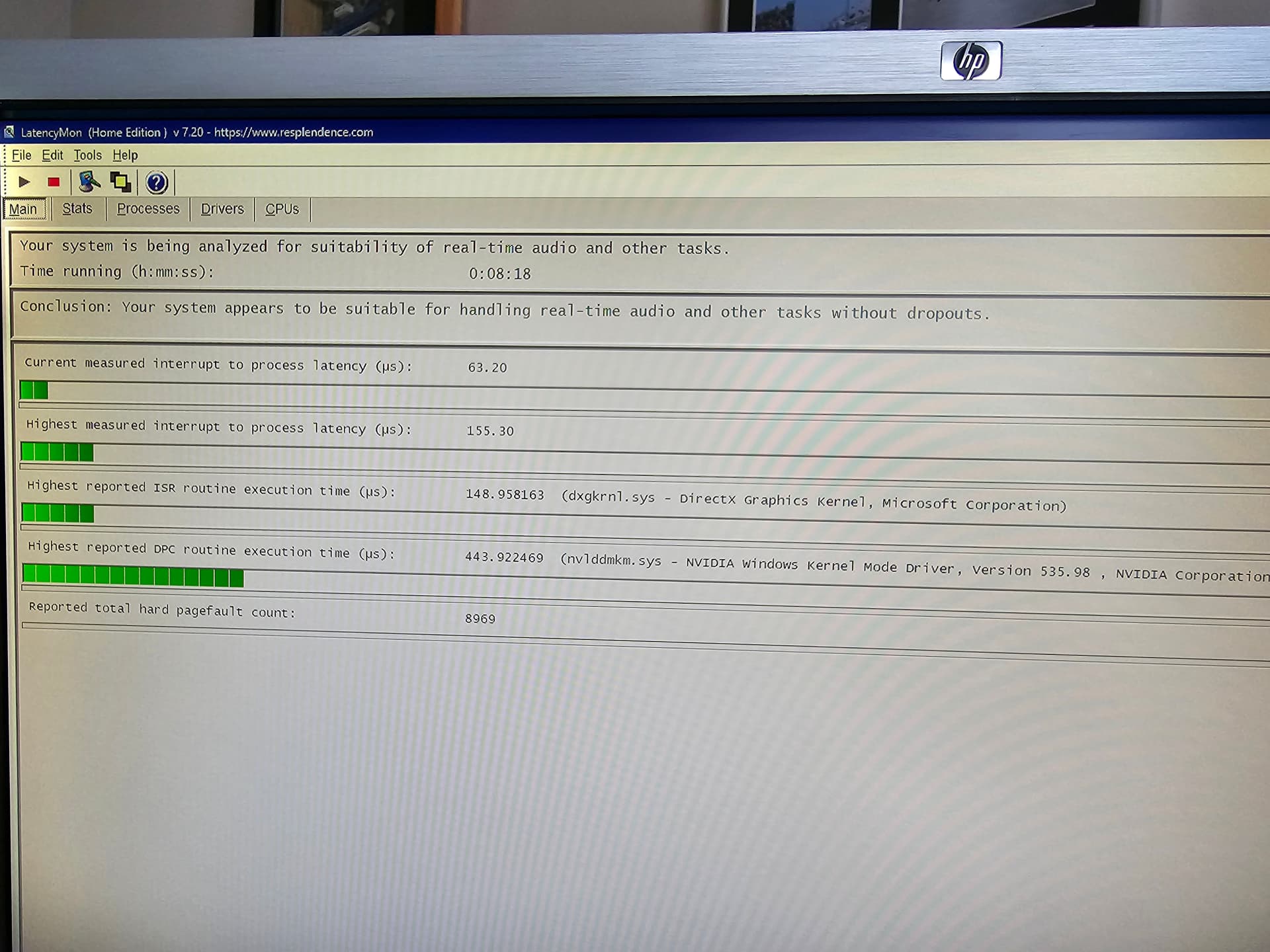
I don’t know if this will help as I haven’t been able to try it out yet (working from home) but I was running LatencyMon on my machine (13700K, 32GB 3800 CL17 RAM in Gear 1, RTX 4090, Quest 2, WD850 SSD etc) and was seeing massive latency from the Nvidia driver, even though the machine was idle.
Noticed in Task Manager that my CPU cores were being parked. I downloaded ParkControl and disabled core parking on AC and all my latencies remained quite low (in the green) on LatencyMon…
Hoping that this is going to help with the stuttering. I’ll report back when I get the chance to test.
That is very interesting. I don’t care for core parking on CCD1 cores, as I use Process Lasso to force MSFS to cache cores (CCD0). So that can be easily disabled it it makes any difference… Please share your results…
Not sure about Intel but AMD core management is best left to AMD algorithms. On die differences in substrate and relative location to the cache means that what seems obvious is not always the best. Running a curve optimiser would make the situation clearer.
Well I found that to be very successful! Stopping my CPU cores from parking seems to have stopped the elastic banding, stutters when viewing the aircraft from outside and spinning the view around, and also headset tracking jerkiness.
It could just have been luck on this particular occasion but I had about an hour’s worth of flying that was smooth as butter
I don’t doubt you get better performance specifically for MSFS, my input is more of a general advice for AMD cpu’s. They already know which cores are the best and also those that underperform.
I think you may have misunderstood what I’m talking about here, it’s not setting which cores I want MSFS to run on or which CCD you have MSFS running on on an AMD chip.
What I was finding was that Windows was parking CPU cores when they were not active, regardless of which cores are the preferred cores (in Intel-speak).
I found that with Windows parking the cores, the latency in LatencyMon was showing very high spikes for the Nvidia driver.
Stopping Windows parking the cores (kind of like stopping them being put to sleep) completely changed this and LatencyMon showed no high latency spikes, which seems to translate into MSFS ceasing to be jerky and stuttery for me.
This isn’t an AMD / Intel thing, it’s a Windows thing.
Your milage may vary but check it out for yourself using LatencyMon and ParkControl - if it helps you then great, if not then you’ve lost nothing as the software is free.
It’s even trickier. On some X3D chips like my 7950X3D, the 3D cache is only on one CCD0, while CCD1 has a normal cache. The 3D cache is best for games and MSFS but the cores don’t boost as high, so CCD1 cores are faster, and would be preferred by default. To make sure games run on slower but better CCD0, AMD provisioning drivers + Windows Game mode + Windows Game Bar make sure that when the game is recognized, the faster CCD1 cores are parked, so the game runs on CCD0 cores. So basic (though simplified) explanation is that shutting down the faster cores forces MSFS to run on the 3D cache cores. This works automatically, but you can also make sure in the game bar that something is recognized as a game. This process absolutely requires core parking to work. If it doesn’t, MSFS and games would use faster cores instead of 3D cache-enabled cores.
An alternative, and better, approach is to disable the Game Mode and Game Bar and use Process Lasso instead, to force MSFS to CCD0 without parking CCD1 cores. Then other software (Pilot2ATC, FlyPT Mover for motion rig, FSRealistic, FSUIPC etc.) can be forced to use only the CCD1 cores, and most system processes too. So CCD0 is almost exclusively used only for MSFS. This doesn’t explicitly disable core parking itself, which is part of Windows. I haven’t tested, but it’s possible that Windows is still parking the unused cores - it probably does. And that may be disabled, possibly to reduce stutters. I’ll test it and see if it makes any difference. But it may be a good idea anyway for anyone who is not using the automatic core parking for 3D cache gaming.
CPU affinity for MSFS is thus set to cores 0 to 8 (logical cores 0 to 15), and within those limits, AMD provisioning drivers would still use whatever cores they think best. So disabling core parking shouldn’t interfere with that working as intended.
Yeah I get it and agree MIMO games should be treated differently to sandboxed, I just wasn’t sure Process Lasso was the right way to go. You seem to understand it much more than many on here so the benefit of the doubt is all yours.
I tested both the normal way (Game Bar + core parking) and Process Lasso, and they both worked fine, stutters were not noticeably better or worse with either. Process Lasso made better sense though, as after I add all the other software it’s better to isolate MSFS to separate cores and send everything else to other cores. I’m not married to it but it seems to work better, and makes more sense. I paid for 16 cores, why should I disable half of them when I can use them?
In that case I totally agree. I wonder about temps and power usage but if you’re anything like me that comes secondary so long as they’re within limits.
It didn’t seem to make any difference on it’s own which is why I didn’t mention it, however in conjunction with stopping cores from parking seems to keep the nvlddmkm.sys driver latency in check.
While I have both AMD cpu & gpu, I can see similar results by not parking my cores on my Ryzen 5900x. I can disable parking cores via my Windows power plan (AMD Ryzen high performance plan). For me, this also resulted in MSFS running smoother.
Doing this does not stress my cpu or generate any additional heat so I highly recommend it.
sorry to dig this up, I also have a 7950x3d and use lasso also. All my other programs and windows services run on ccd1. MSFS on CCD0. However I can only change the affinity of Msfs to ccd0 ( core 0-7 ) after Msfs is passed the first loading screen, otherwise it will crash do you have the same?
The fps are ridiculous high and smooth, but it’s a bit annoying to have to put it manually each time.
THANK YOU so much for this recommendation - preventing the cores from parking. I’ve had stuttering issues for the past several weeks and have tried so many things to fix it, to no avail. While it hasn’t changed the high latency on nvlddmkm.sys, using ParkControl to force the cores to not park seems to have solved my stuttering issues for now in MSFS. More testing needed but it’s already much better!
Yeah that is odd, I found I have 2 sets of registry keys with the 0000 and lots of entries, I added the PowerMizer DWord values to both.
I noticed in the video he uses ‘PowerMizer’ and ‘Powermizer’, made sure that I used ‘PowerMizer’ each time for consistency - I can’t remember if registry is case sensitive or not (I think it is though).
I’ve also put them in a batch file to rewrite them in after each time there’s a driver update too.
Actually, just checked on my machine and I only have 1 entry for this now, I wonder if I’d updated the driver when I looked last time… Anyway, here’s a photo of my reg settings if it helps…
Yes, it’s known that forcing MSFS affinity too early causes an instant CTD. Also, restarting it is impossible after that without resetting the affinity. But you can get around that:
if using .bat file affinity settings you can set a pause and use PowerShell command to set affinity after specific time (after MSFS loads). I have a separate .bat file for restarting that resets affinity (sets it to cores 0 to 31), then sets it back a few times (to make sure) after a set of timers.
if using Process Lasso you can use rules for automatic affinity settings instead of just setting it in the table. The trick is that rule can have a trigger, and the trigger can be set to “if application X uses X% of CPU for X amount of time - trigger the rule”. So you can set it to something like “if flightsimulator.exe uses 1% for 1 minute - set affinity to cores 0,2,4,6,8,10,12,14” - BTW that’s kinda turns SMT off by only using physical cores, not logical cores. But I’m not sure yet if it’s better or worse than just using cores 0 to 15 instead. I still have to use the restart bat file if I need to restart after that.
And you have to use core 0 - can’t force MSFS not to use it or it CTDs. (others are optional). But it’s fine as X3D uses CCD0, including core 0.