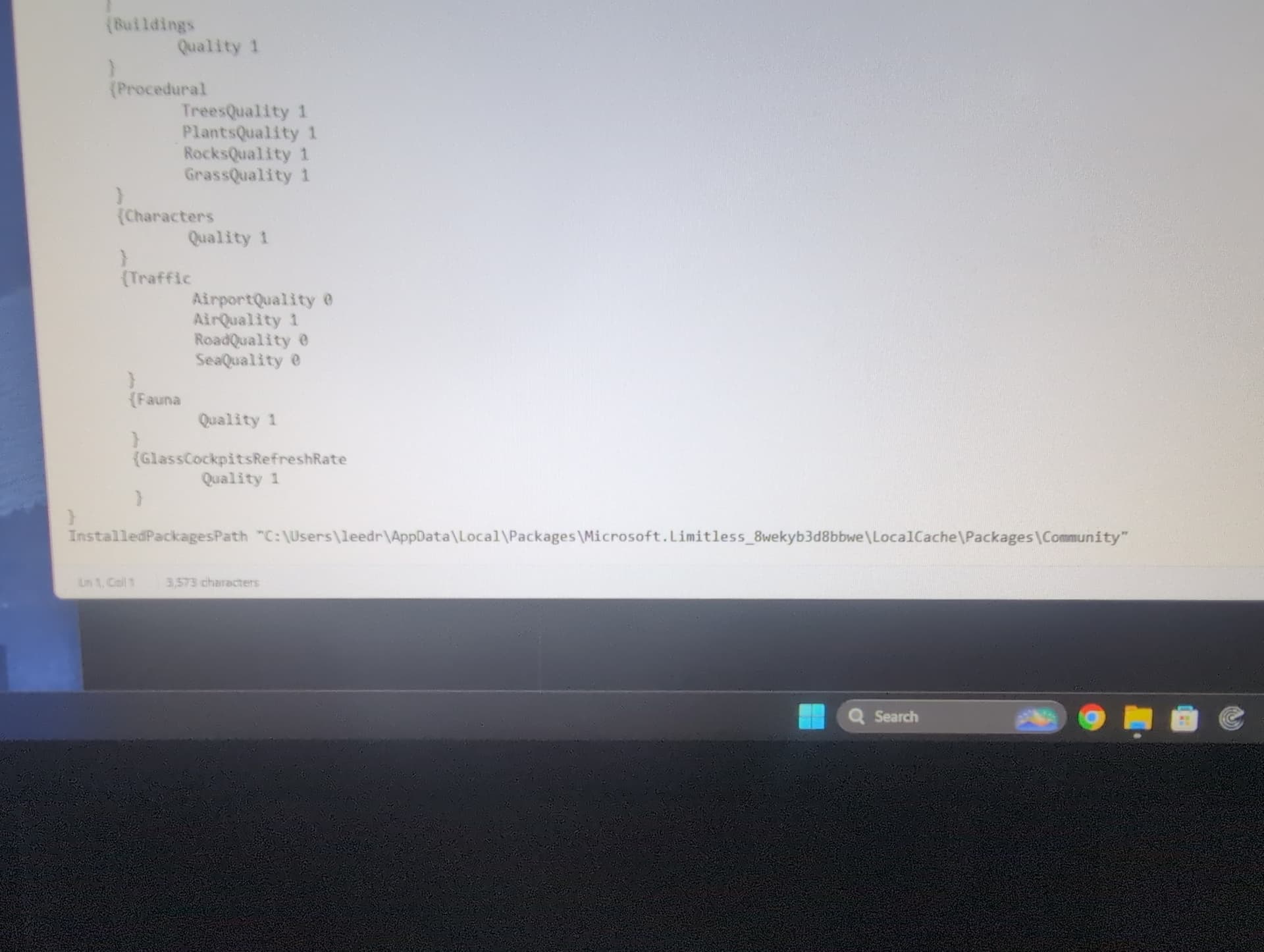
Thanks for the screenshot. The path to the Community folder is definitely incorrect. It looks like you may have selected the Community folder directly in the MSFS 2024 settings - but that’s not the correct way to do it. You should select the parent folder, usually called Packages, not Community itself.
Please close the file you have open in Notepad so it doesn’t cause confusion - we’ll get back to it later.
While you’re in the LocalCache folder, please open the Packages folder and then open the Community folder inside it.
Take a screenshot …
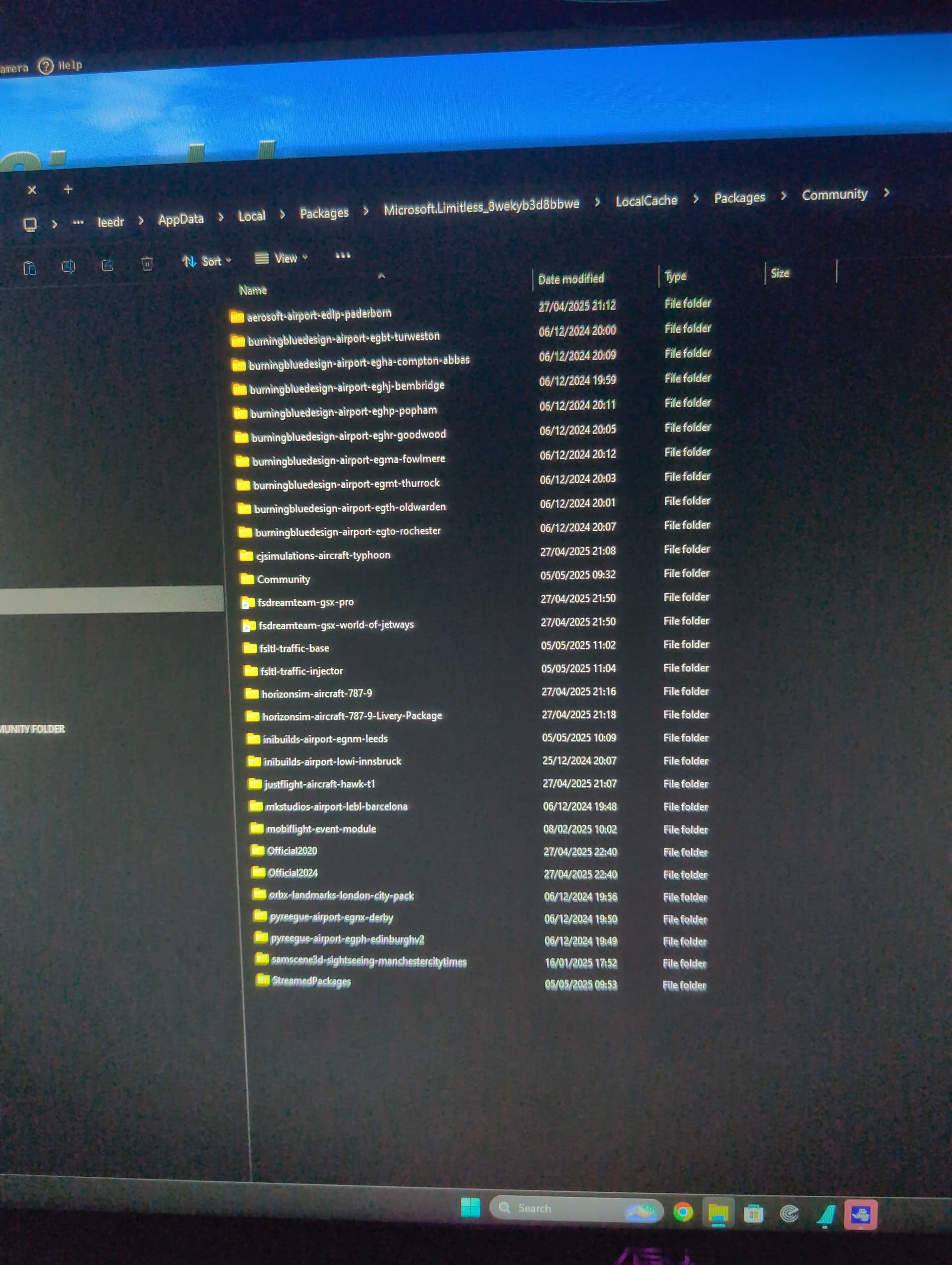
Thanks for the photo, but it’s a bit hard to read. Please open the Community folder that is located inside the first Community folder — there seems to be one nested inside the other.
Take a …
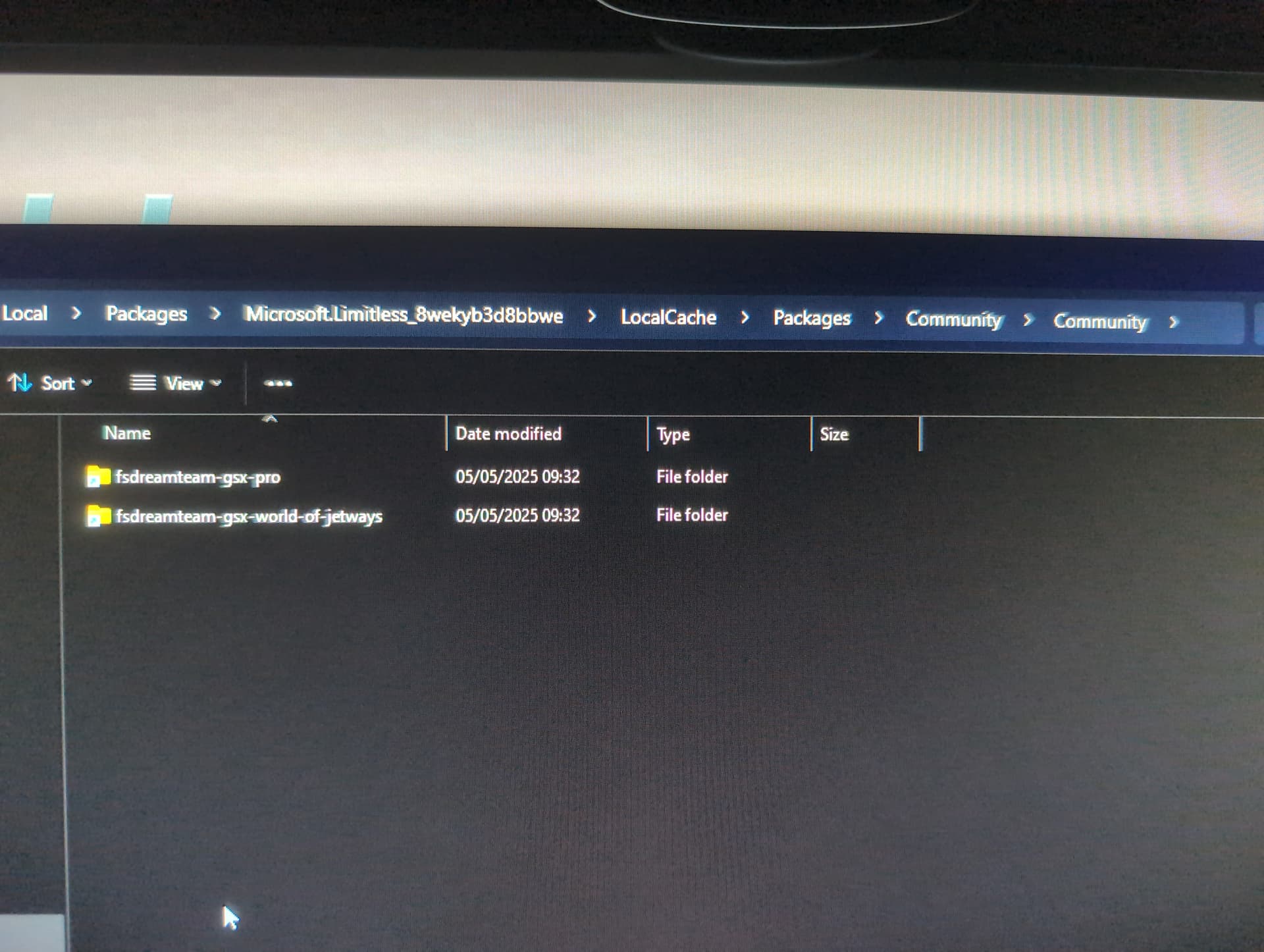
Thx, now please go back to the previous Community folder - the one that contains folders like: fsltl-traffic-base, fsltl-traffic-injector, fbw …
Once you’re back in the correct Community folder, please delete the inner Community folder - it’s unnecessary and shouldn’t be there.
Report back.

Thanks. Now please go back to the Packages folder.
Take a …
Hopefully get my inibuilds Leeds to work after this too. As that doesn’t seem to work in the sim. That’s another issue for later 

Open Community folder and delete folders: Official2020 ; Official2024 ; StreamedPackages
Go back to LocalCache folder.
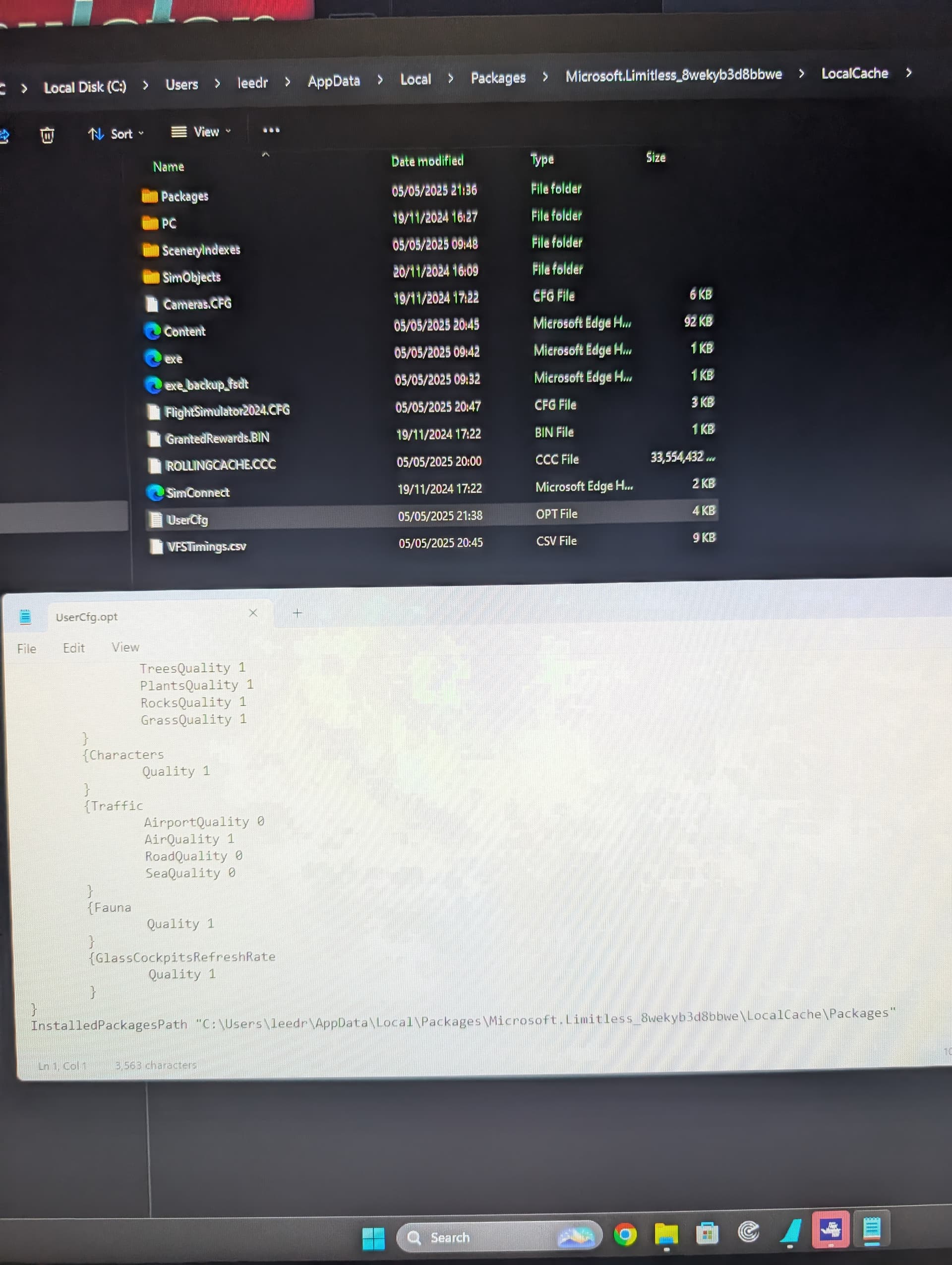
Please open the usercfg.opt file again, scroll to the last line and delete the entire “Community” part from the path.
So, instead of:
InstalledPackagesPath "C:\Users\leedr\AppData\Local\Packages\Microsoft.Limitless_8wekyb3d8bbwe\LocalCache\Packages\Community"it should become:
InstalledPackagesPath "C:\Users\leedr\AppData\Local\Packages\Microsoft.Limitless_8wekyb3d8bbwe\LocalCache\Packages"Save changes.
Take a …
Now, in the FBW Installer settings, go to the Download Settings section. Please set the following paths:
-
MSFS Community Directory:
C:\Users\leedr\AppData\Local\Packages\Microsoft.Limitless_8wekyb3d8bbwe\LocalCache\Packages\Community -
Install Directory:
C:\Users\leedr\AppData\Local\Packages\Microsoft.Limitless_8wekyb3d8bbwe\LocalCache\Packages\Community
For example

After entering the changes, please close the FBW Installer and then launch MSFS 2024 - but do not run FSLTL yet.
Once you’re in the main menu, select any third-party aircraft (for example, the FBW A320) and check if it loads and works correctly.
If everything works fine, just close MSFS 2024 and let me know.
I don’t have any of my own installed aircraft I can select eg CJsimulations typhoon or just flight hawk.
It also looks like another community folder has created itself within the community folder
I noticed that MSFS was running in the background while you were making the changes — that’s a serious mistake, as it can cause the sim to overwrite or ignore those changes.
Please don’t make any changes on your own now. Just restart your PC, and after it boots up, open only your web browser and let me know you’re back.
Restarted pc
In notepad open file named usercfg.opt.
Scroll down to the very last line.
Take a screenshot and paste into your reply.
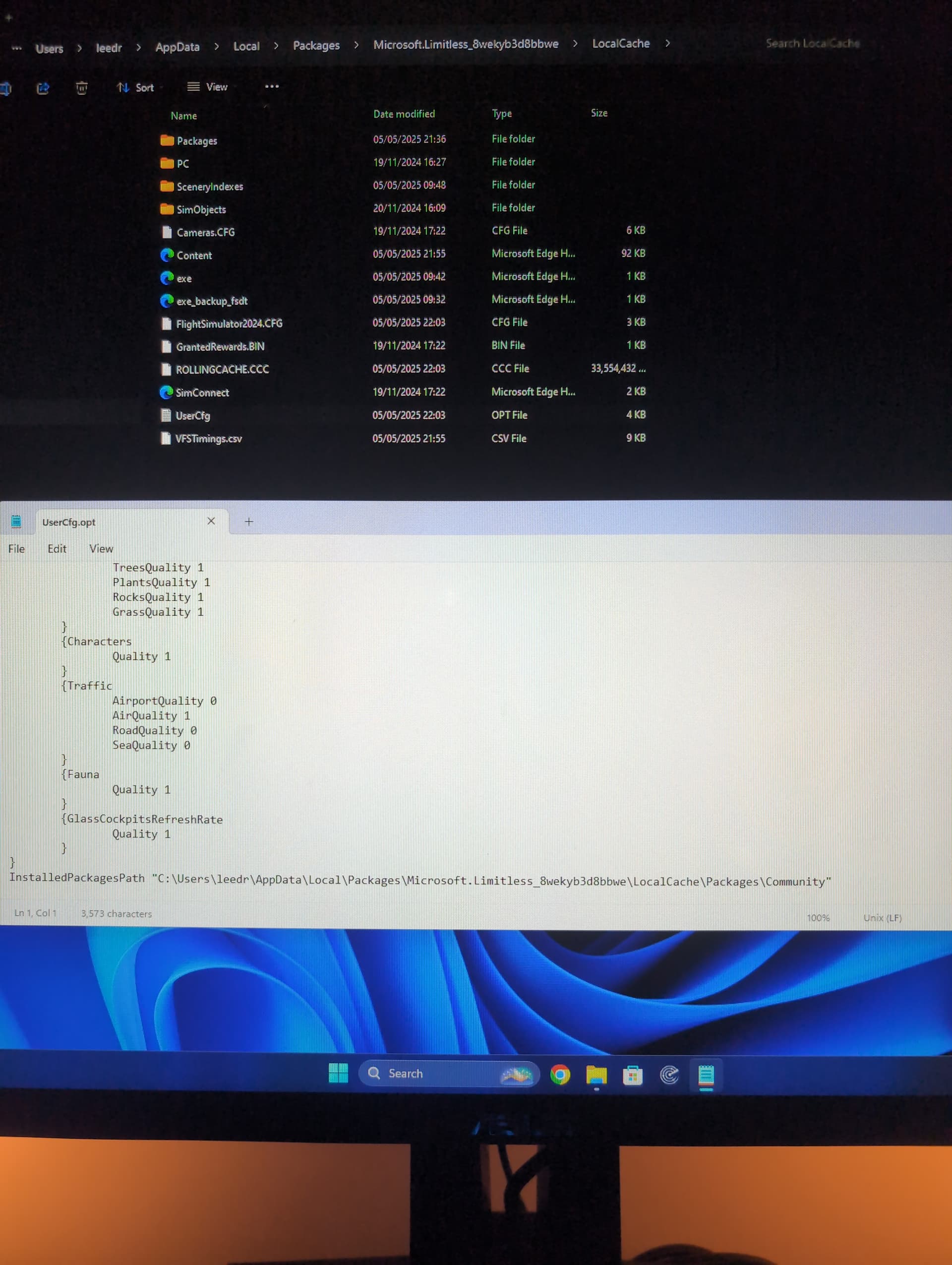
Delete the entire “Community” part from the path.
So, instead of:
InstalledPackagesPath "C:\Users\leedr\AppData\Local\Packages\Microsoft.Limitless_8wekyb3d8bbwe\LocalCache\Packages\Community"
it should become:
InstalledPackagesPath "C:\Users\leedr\AppData\Local\Packages\Microsoft.Limitless_8wekyb3d8bbwe\LocalCache\Packages"
Please make sure to save the changes in the file, then close Notepad completely.
Open Community folder and delete folders: Official2020 ; Official2024 ; StreamedPackages
Report back.