Hi,
I’m starting to have a play with creating some of my own liveries and I am unable to build the package receiving the following errors in the console:
AssetBuilder | Could not find a valid simobject in ‘D:\MSFS2020\Projects\Liveries\C152\c152-livery\PackageSources\SimObjects\Airplanes\aircraft-c152-livery-black’. Does it have one of [aircraft.cfg / sim.cfg / container.cfg] and does it reference the correct model folder(s)?
PackageBuilder | Failed to spawn lister for asset group aircraft-c152-livery-black (type SimObject) (package: scpcomputers-aircraft-c152-livery-black)
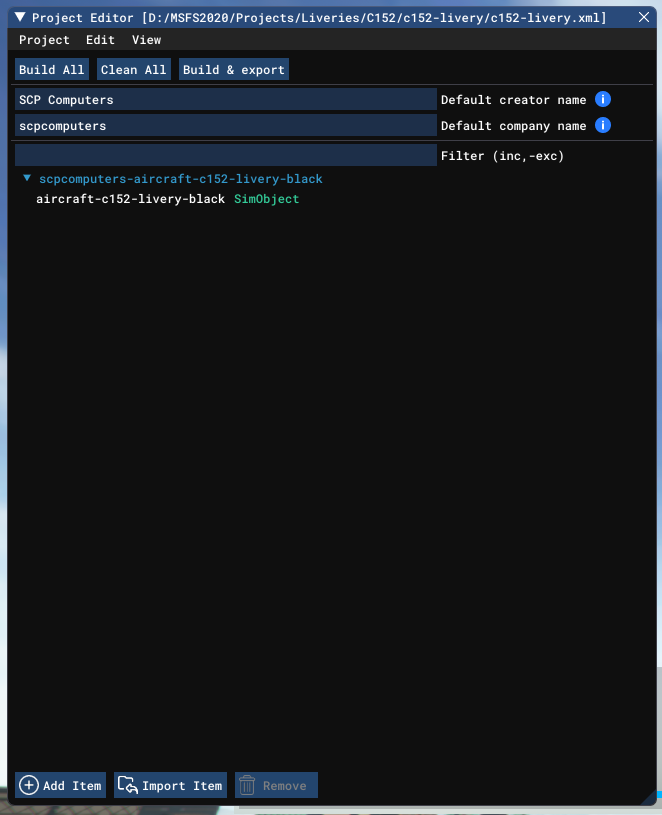
Project:
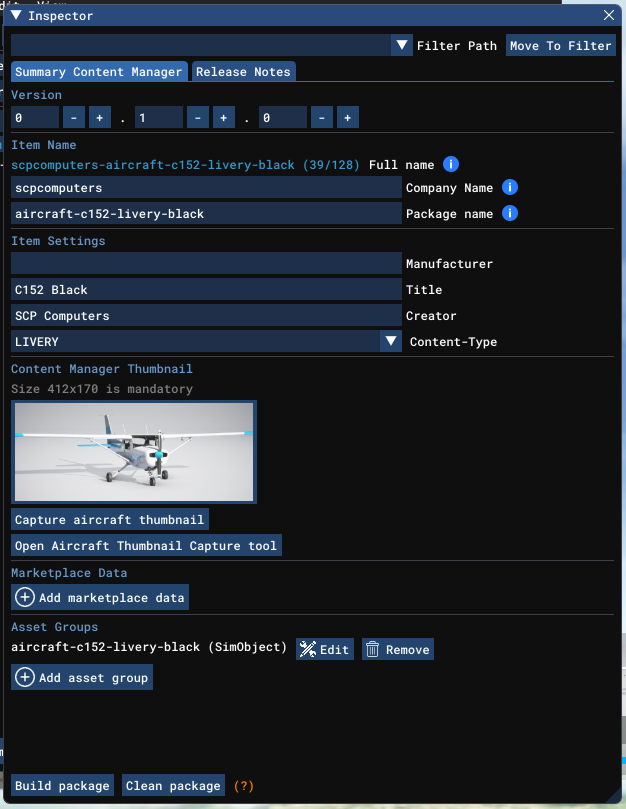
Inspector:
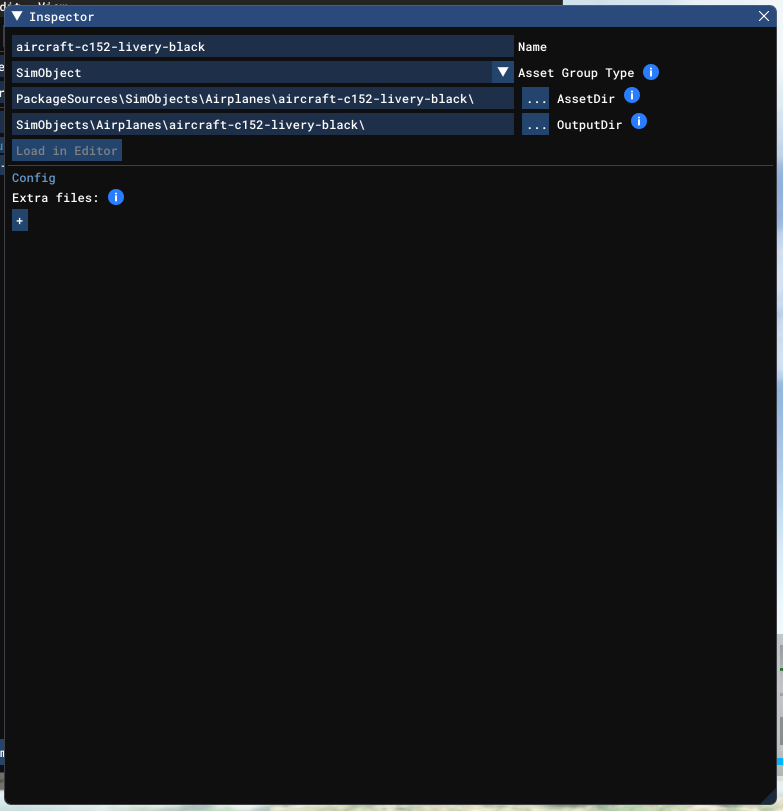
Asset Group Inspector:
Project Folder:
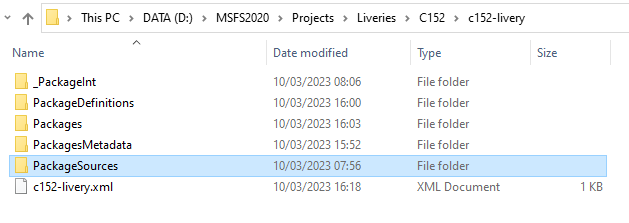
PackageSources Folder:

aircraft.cfg file:
[VERSION]
major = 1
minor = 0[VARIATION]
base_container = “..\Asobo_C152”[FLTSIM.0]
title = “Cessna 152 Black” ; Variation name
model = “” ; model folder
panel = “” ; panel folder
sound = “” ; sound folder
texture = “black” ; texture folder
kb_checklists = “” ; Procedures/Checklist sibling file name
kb_reference = “” ; Reference information sibling file name
description = “My aircraft” ; Variation description.
wip_indicator = 0 ; know if the variation is good to go or still WIP : -1=Disabled, 0=Rough, 1=1st Pass, 2=Finished
ui_manufacturer = “Cessna” ; e.g. Boeing, Cessna
ui_type = “C152” ; e.g. 747-400, 172
ui_variation = “Black” ; e.g. World Air, IFR Panel
ui_typerole = “Single Engine Prop” ; e.g. Single Engine Prop, Twin Engine Prop, Rotorcraft, etc
ui_createdby = “SCP Computers” ; e.g. Asobo Studio, Microsoft, FSAddonCompany, etc
ui_thumbnailfile = “” ; app relative path to ThumbNail image file
ui_certified_ceiling = 14700 ; service ceiling / max certified operating altitude (ft)
ui_max_range = 415 ; max distance the aircraft can fly between take-off and landing in (NM)
ui_autonomy = 5 ; max duration the aircraft can fly between take-off and landing in (Hrs)
ui_fuel_burn_rate = 40 ; average fuel consumption per hour (lbs/hr) - reminder: fuel density is ~6.7lbs per US gallon
atc_id = “ASXGS” ; tail number
atc_id_enable = 1 ; enable tail number
atc_airline = “” ; airline name
atc_flight_number = “” ; flight number
atc_heavy = 0 ; heavy?
atc_parking_types = “RAMP” ; “ANY” / “RAMP” / “CARGO” / “MIL_CARGO” / “MIL_COMBAT” / “GATE” / “DOCK”
atc_parking_codes = “” ; Comma separated and may be as small as one character each
atc_id_color = “” ; color for the tail number : i.e. “#ffff00ff”
atc_id_font = “” ; font for the tail number
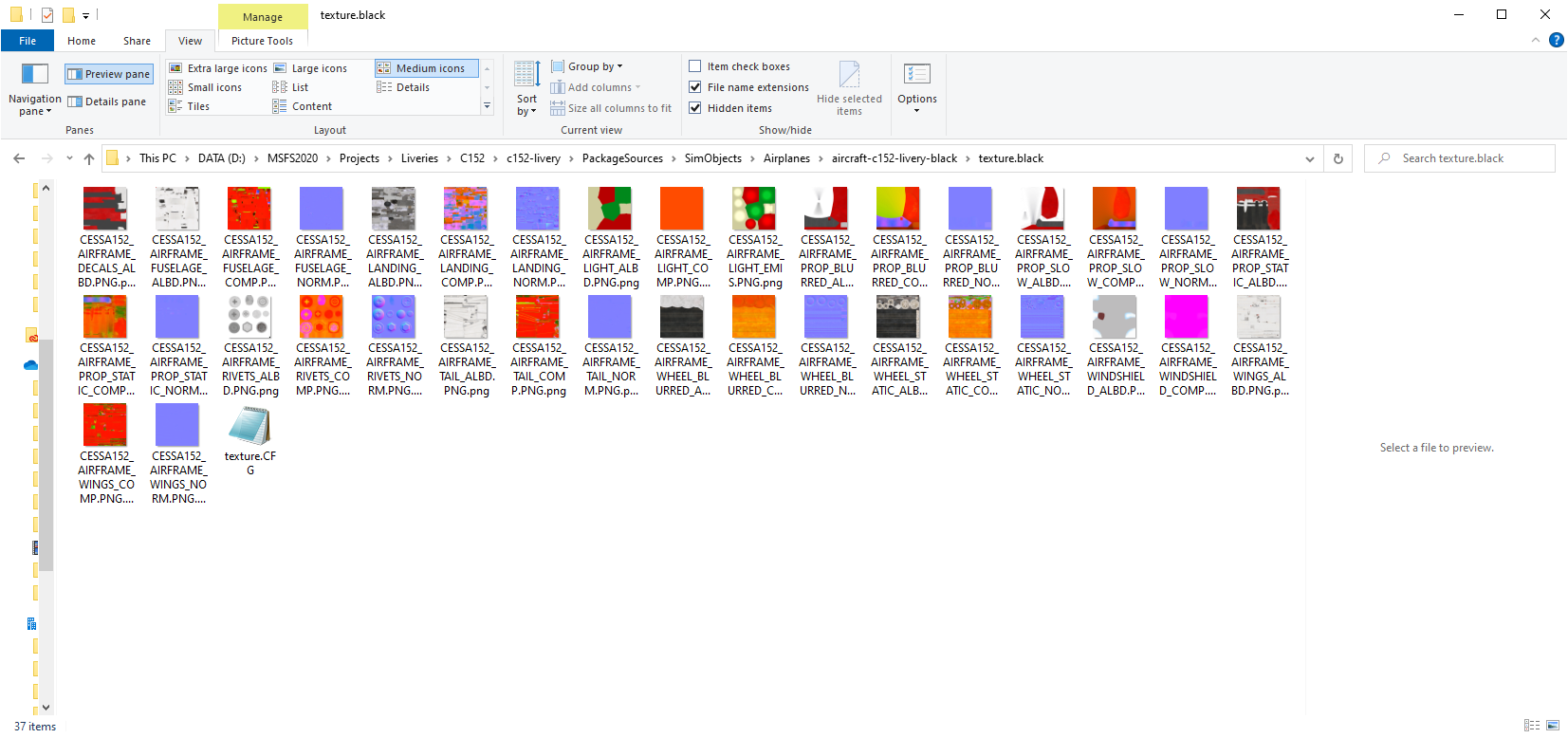
My textures file content:
I’ve followed the tutorial in the SDK and run the LiveryAircraft sample, even creating a customised livery in there and that works.
SDK Version: 0.20.5
Any help would be appreciated.
Thank you