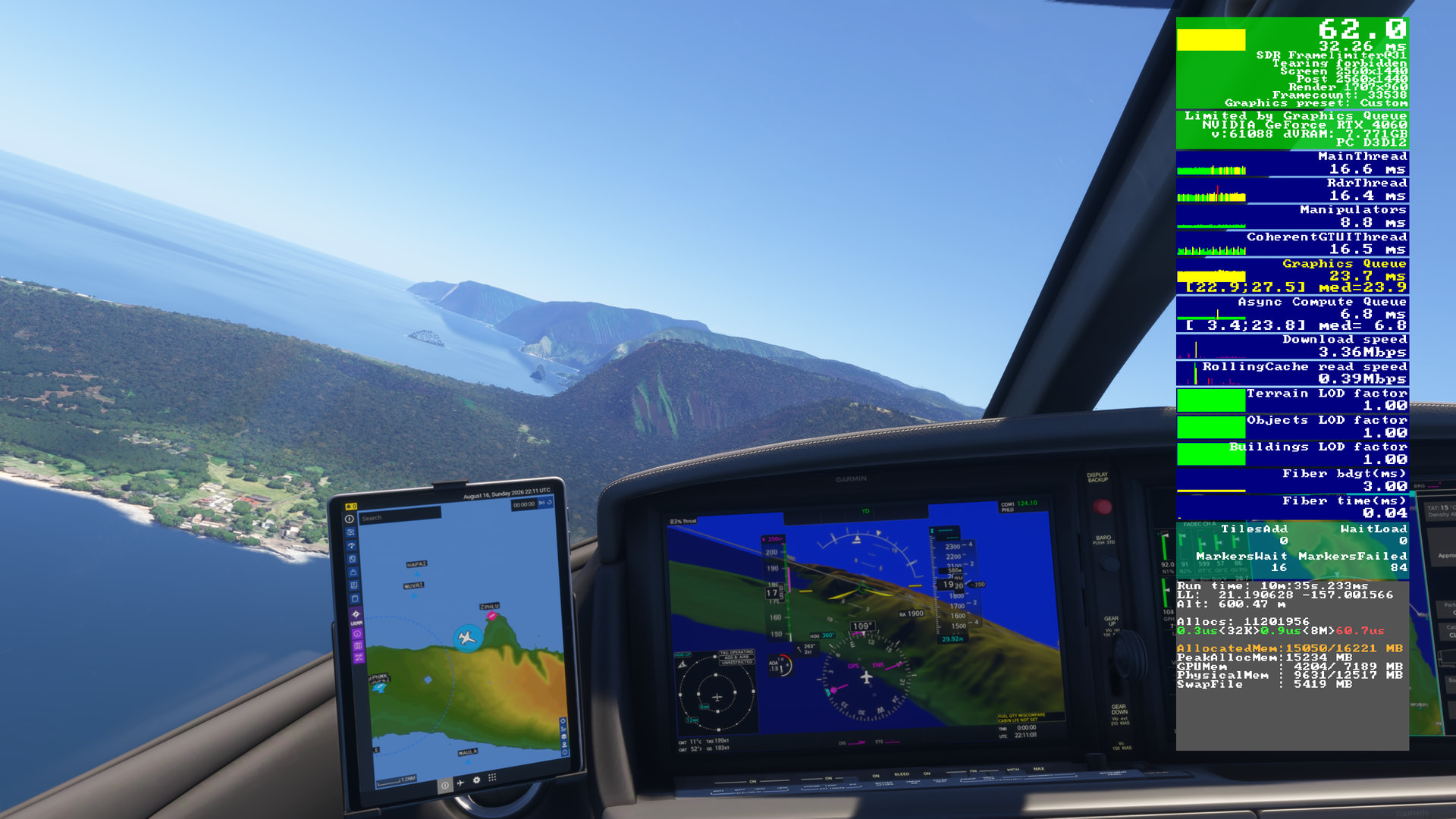
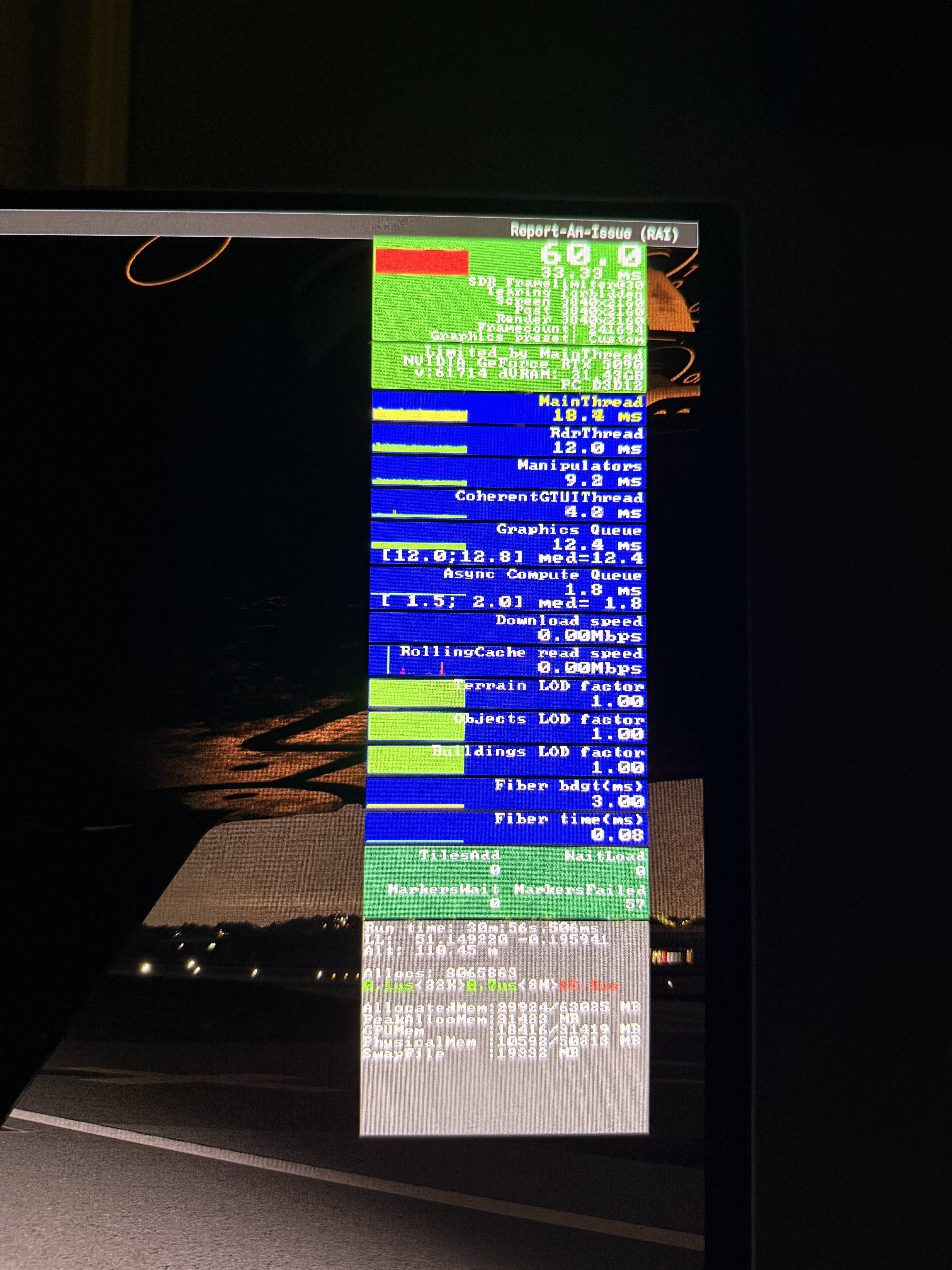
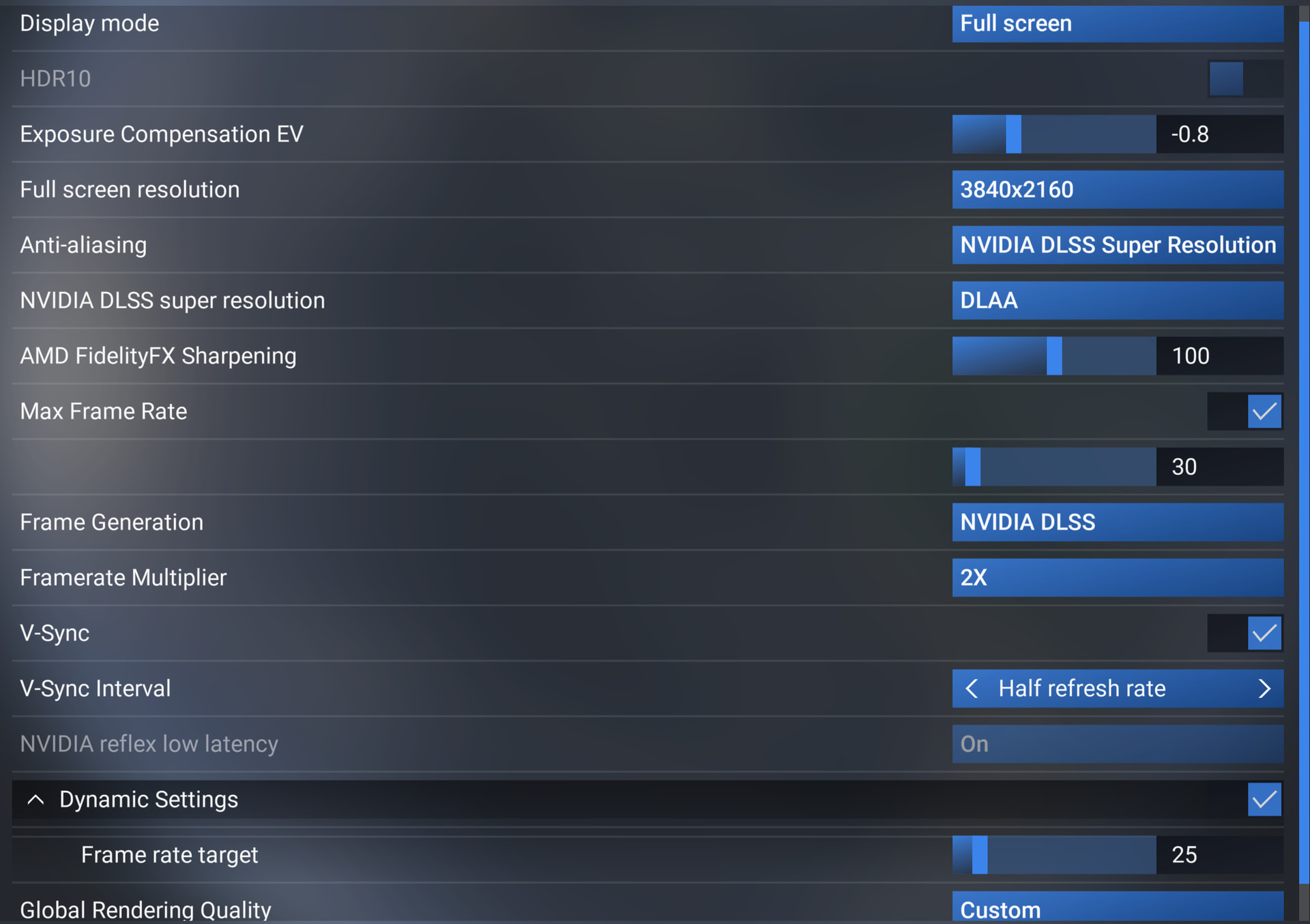
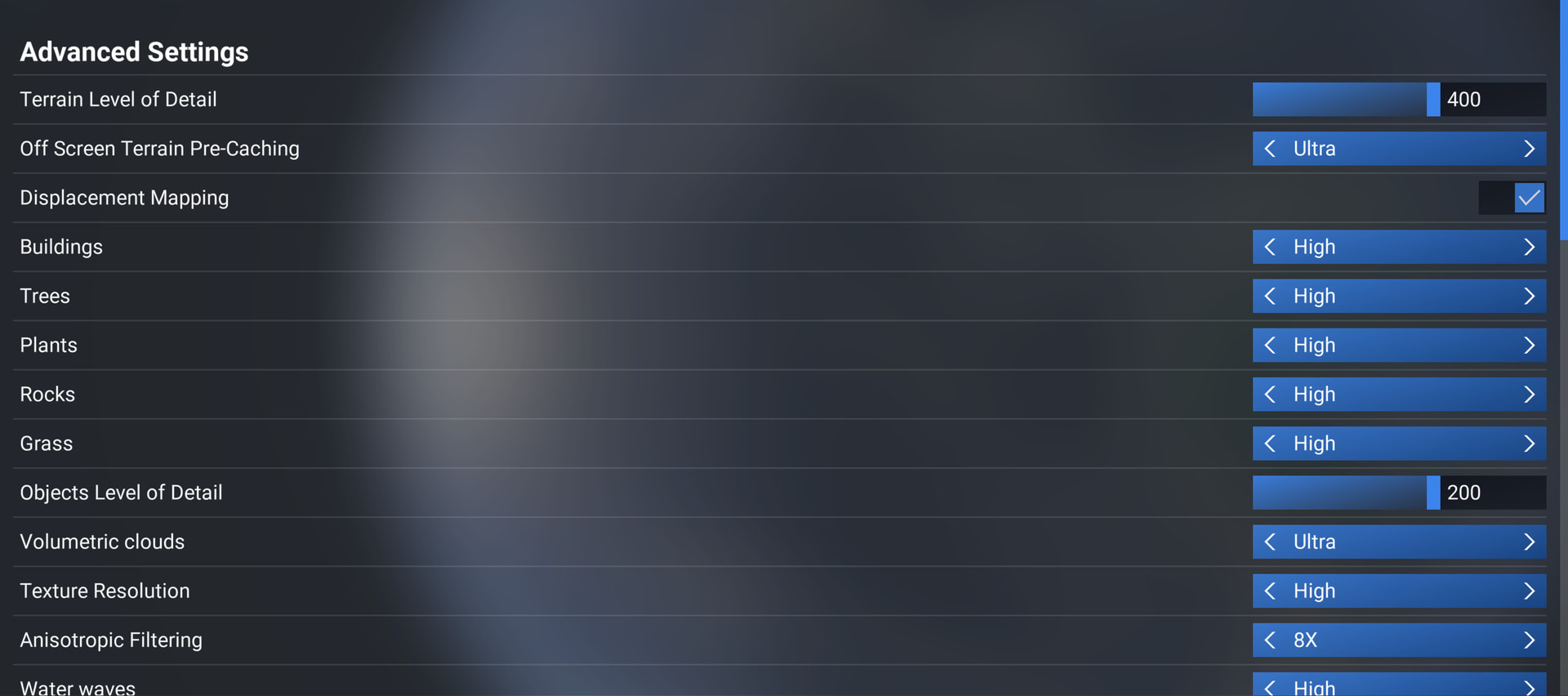
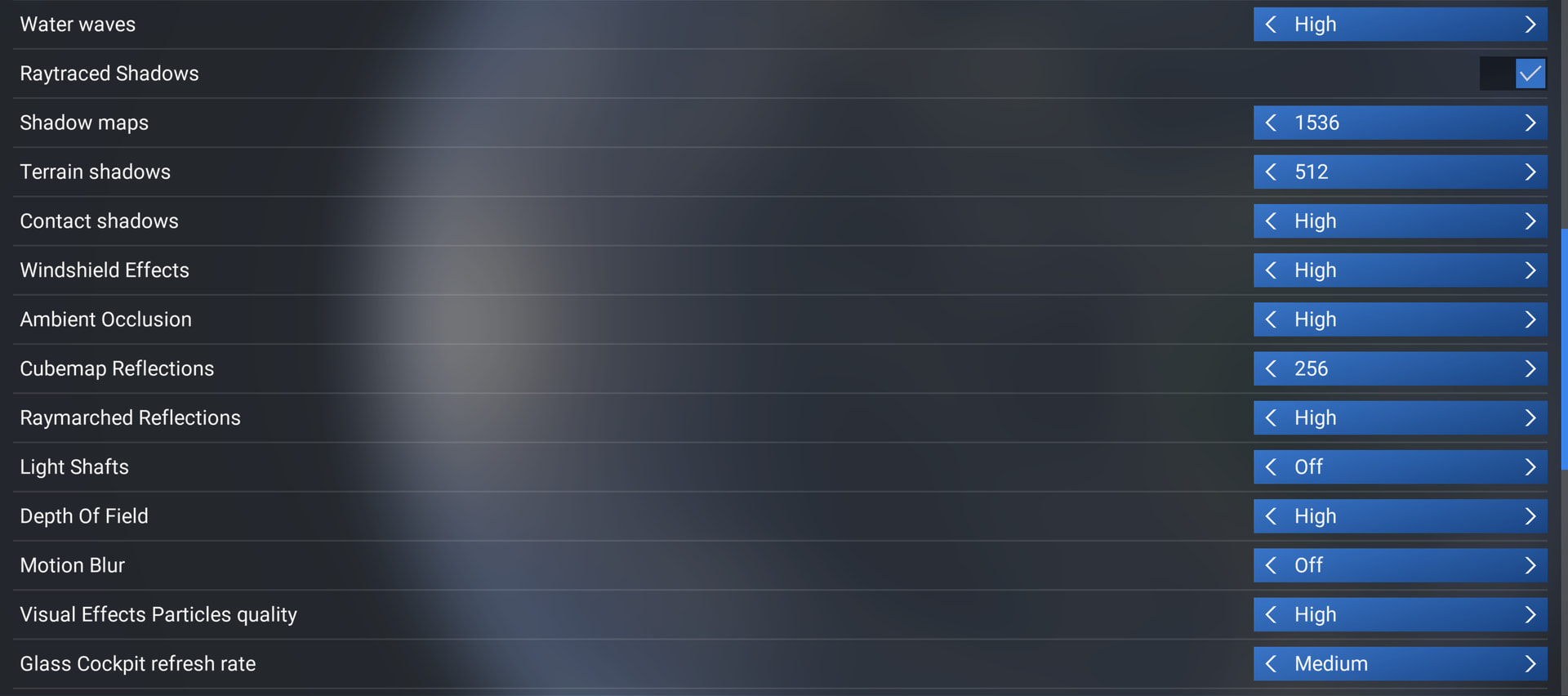
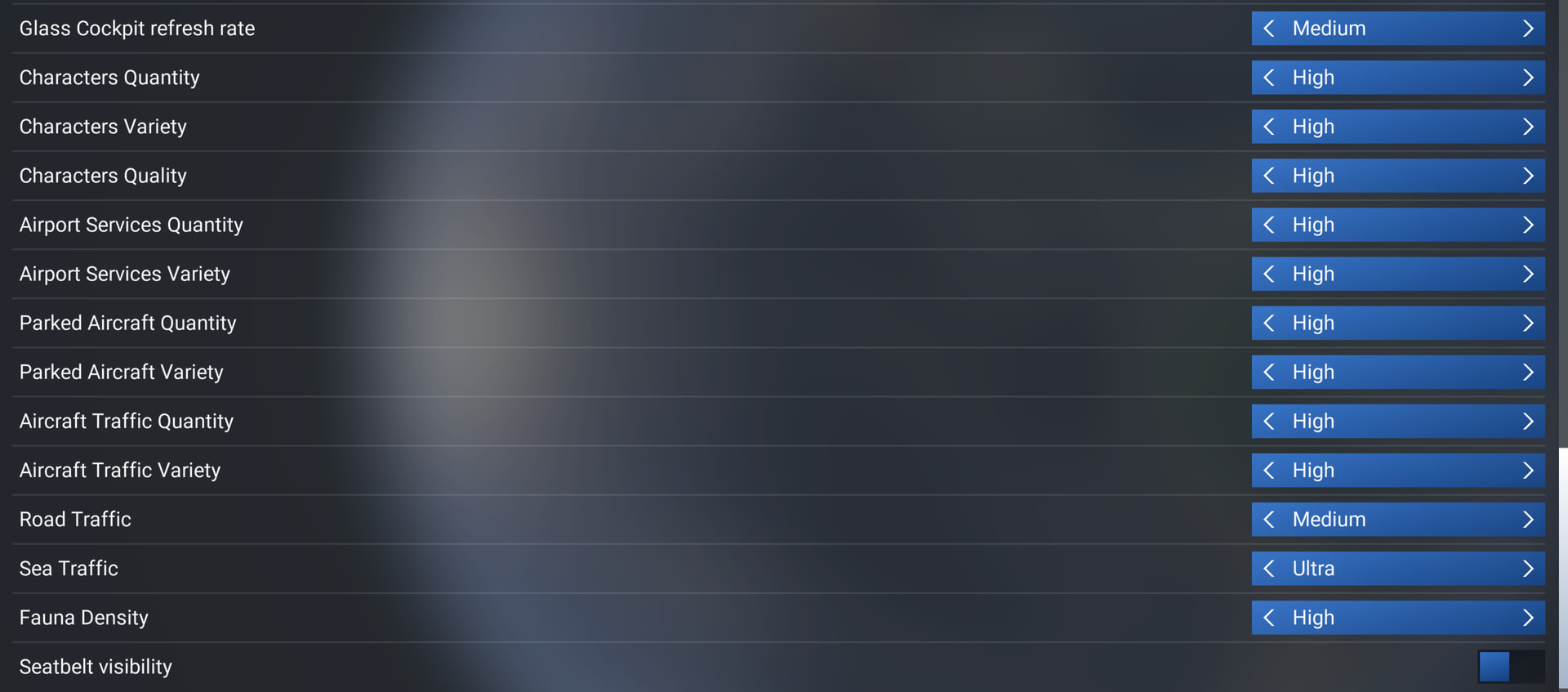
Yes, so that’s a good result.
Understanding MainThread and the other values measured in milli-seconds… 18 ms is good. With your configuration now, anything under 33 ms will be fine.
Explanation
Note:
- The FPS shown in big numbers is after Frame Gen, 30 x 2 = 60 FPS…
- The other metrics are on raw frames, before Frame Gen, in your case based on 30 FPS since it is capped.
- FPS is Frames Per Second
- They are “Seconds Per Frame” in milliseconds, or 1/1000th of a second.
- Frame Time in ms = 1000 / FPS
| Raw Frames Per Second |
= ms per Frame |
Note |
| 1000 FPS |
1.00 ms |
|
| 120 FPS |
8.33 ms |
|
| 60 FPS |
16.67 ms |
|
| 30 FPS |
33.33 ms |
your cap |
| 25 FPS |
40.00 ms |
Dynamic kicks in |
So when MainThread (or any other metric) is under 33.33 ms, it is capable of producing more FPS than the cap of 30, meaning, it has a bit of extra time. If any value goes over that 33.33 then you will start to notice, a bit. If any value goes over 40, then FPS drops to 25 and the Dynamic setting kicks in to lower TLOD to preserve 50 FPS
3 Examples, starting with your 18 ms…
| Raw Frames Per Second |
= ms per Frame |
Note |
| 55.6 FPS |
18.00 ms |
good, more than your 30 FPS cap |
| 28.6 FPS |
35.00 ms |
so-so, 25-30 FPS |
| 21.3 FPS |
47.00 ms |
bad, under 25 FPS, Dynamic kicks in |
The stutters you notice most in MSFS I think are caused by some other aspect in the render pipeline where objects are burst loaded in to memory and it just locks up the render queue somehow, you’ll see purple in the FPS overlay.
What version of NVIDIA do you have installed?
I ask for 2 reasons:
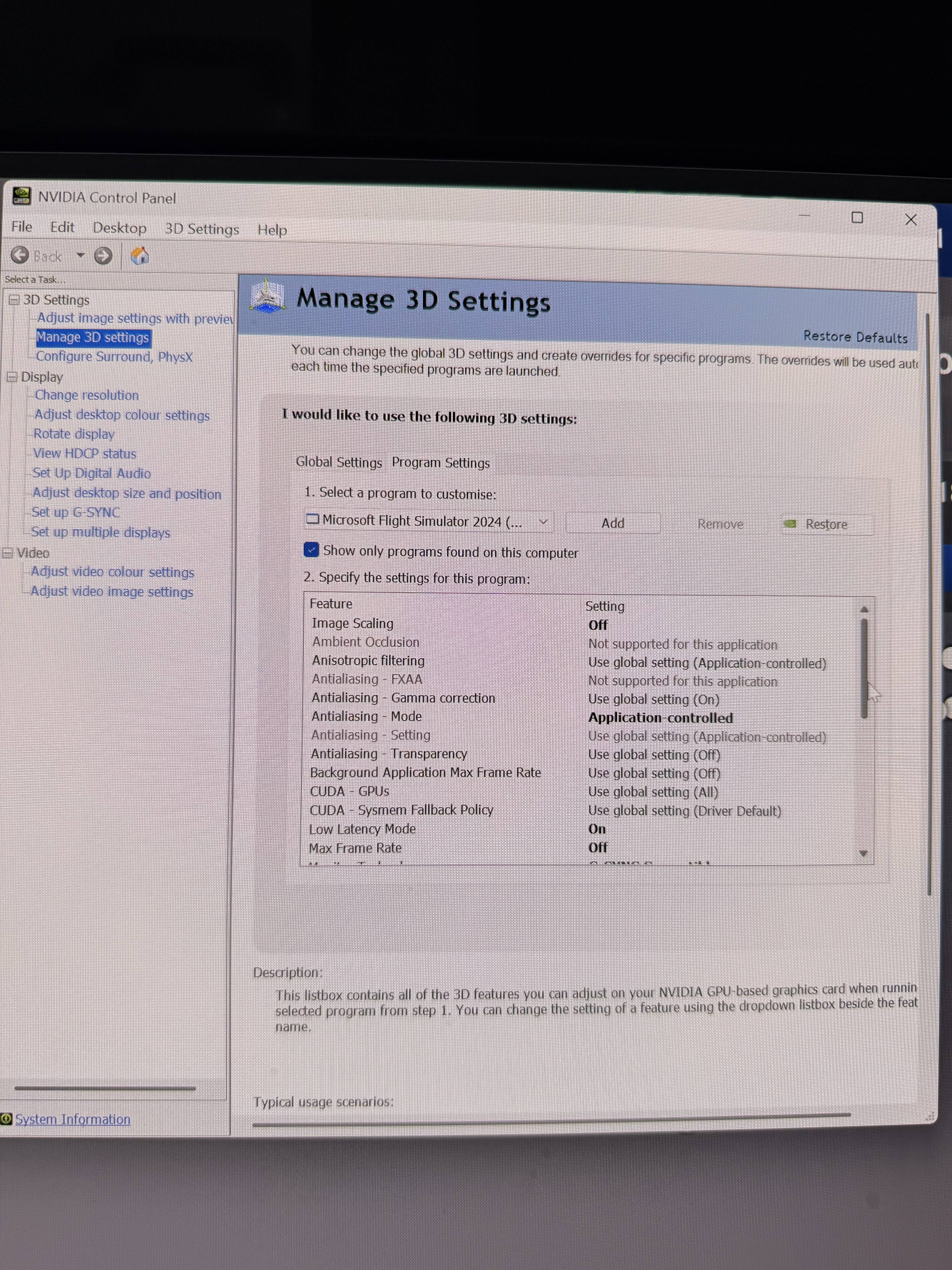
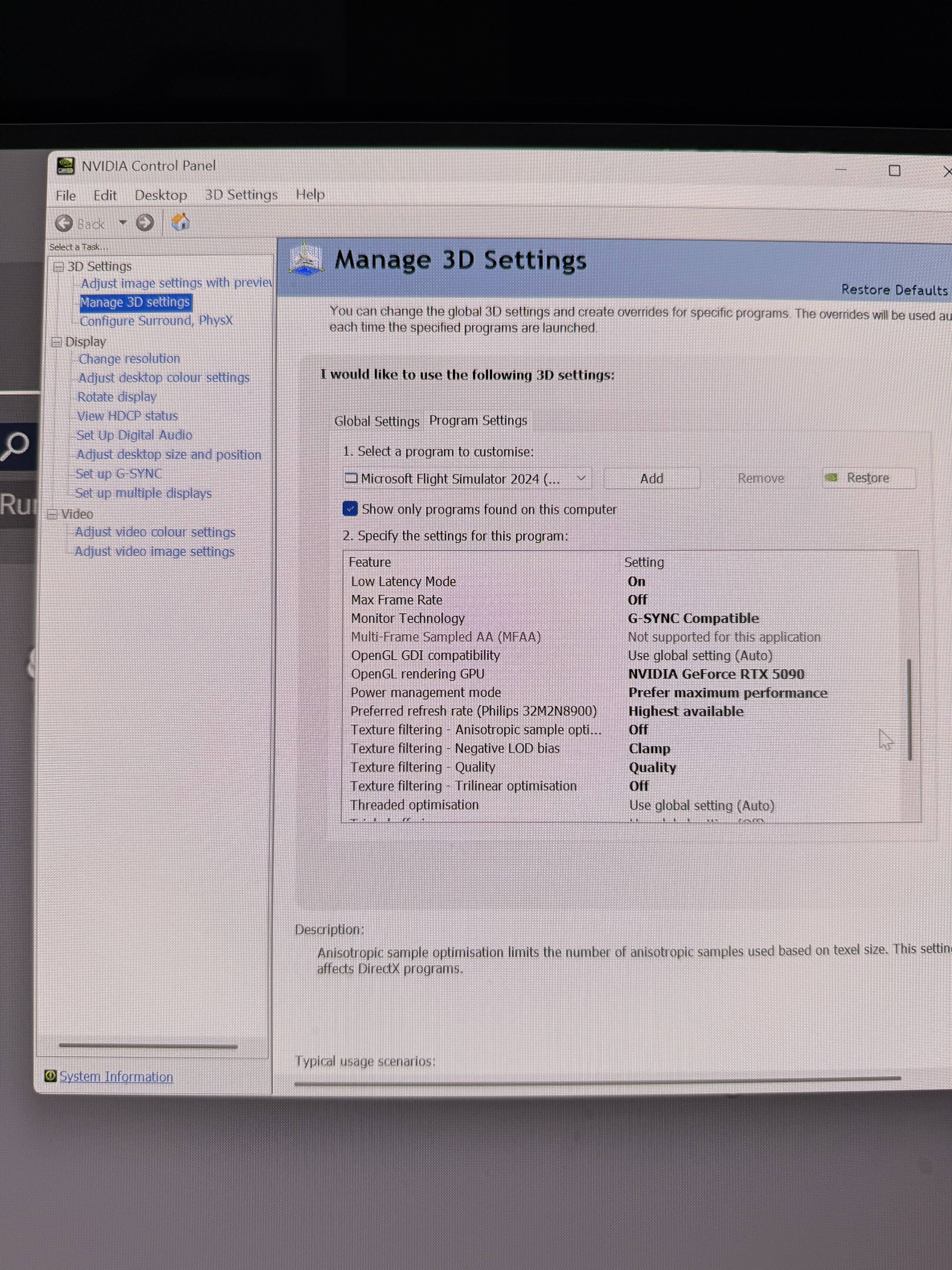
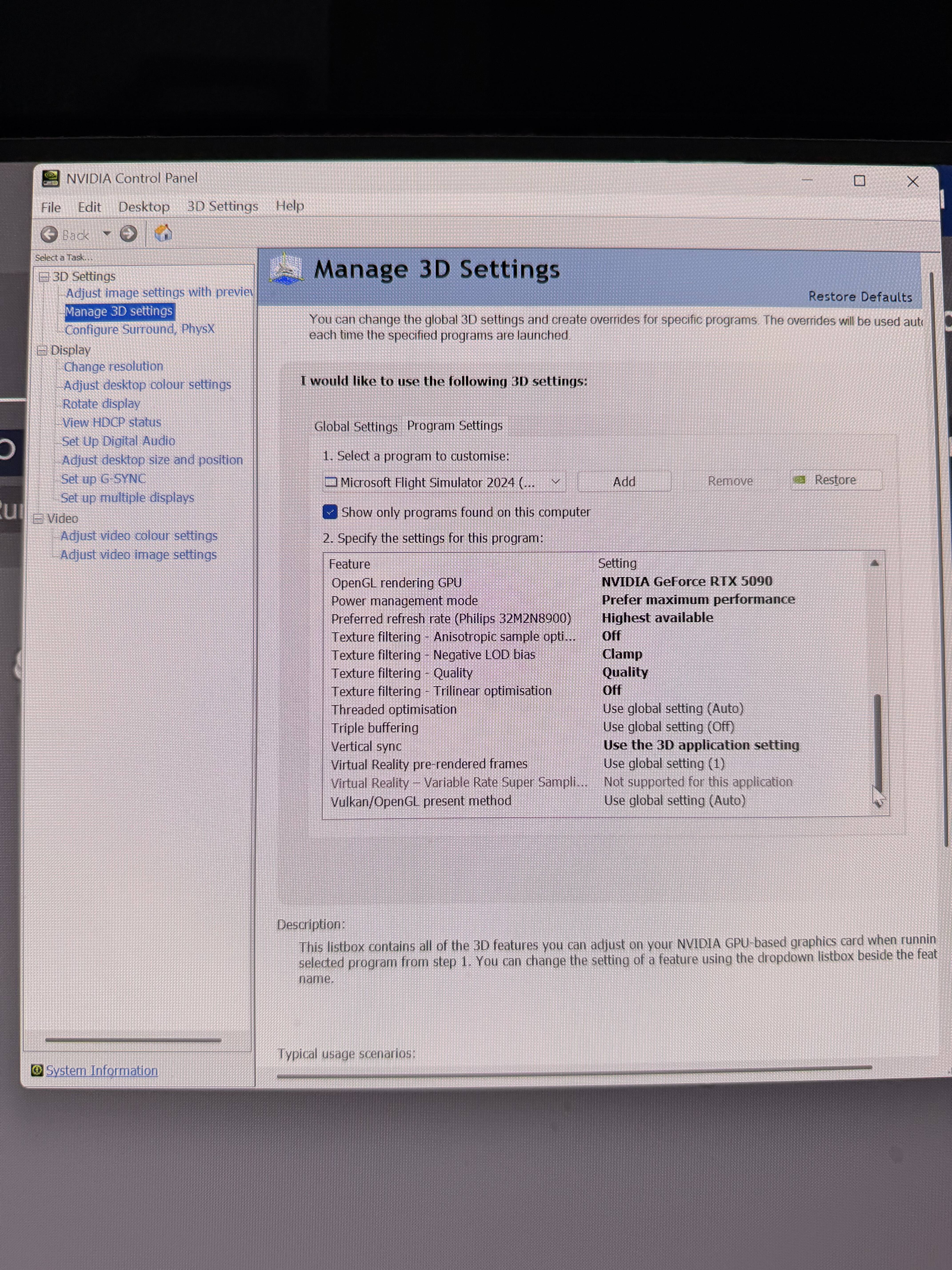
NVIDIA stopped installing the NVCP a while ago, and now you just use the App for any settings. Be sure not to set conflicting settings, or, consider just using the App…
You have quite a few things with custom settings in NVCP showing (anything in bold)… in general, I use default settings in NVIDIA except:
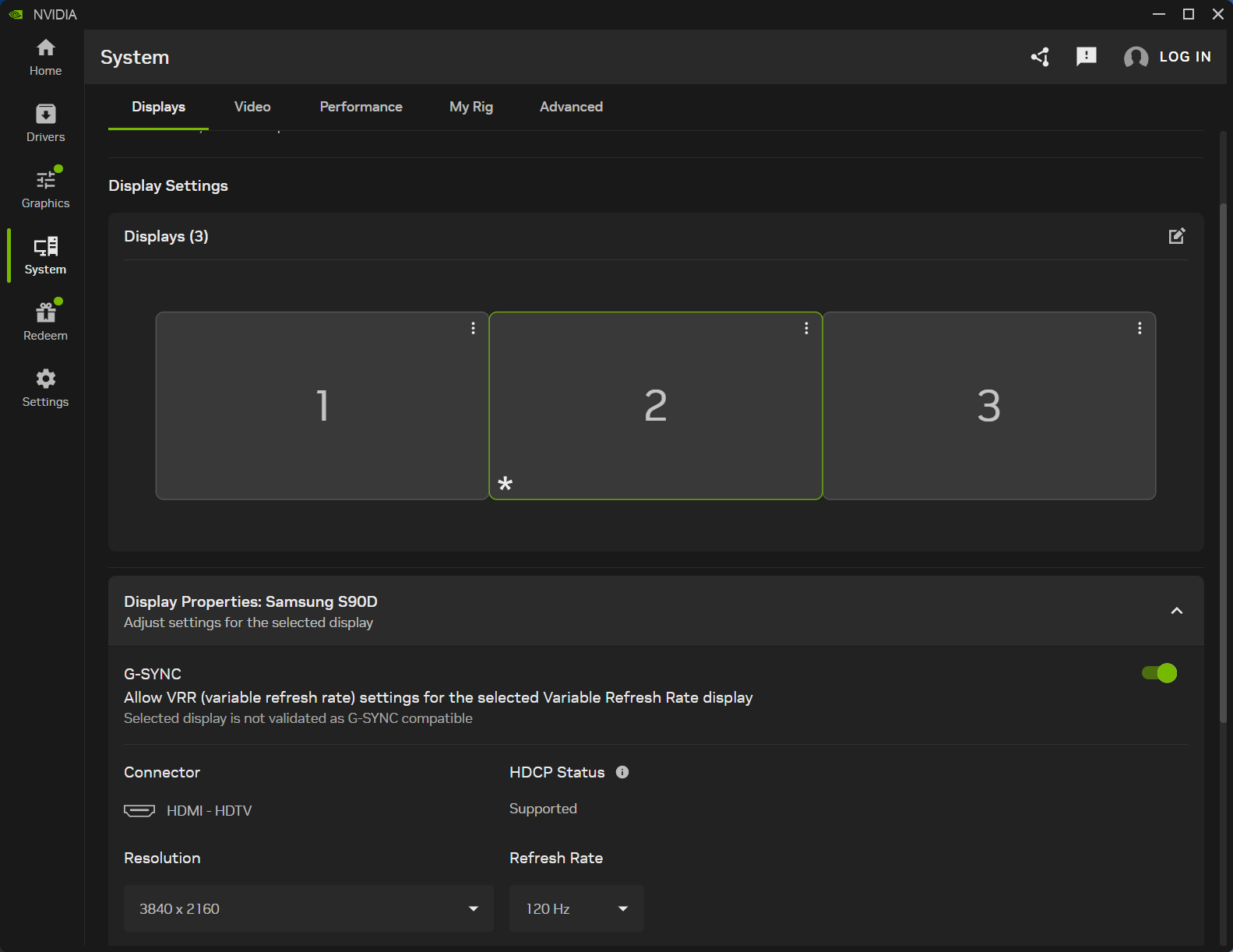
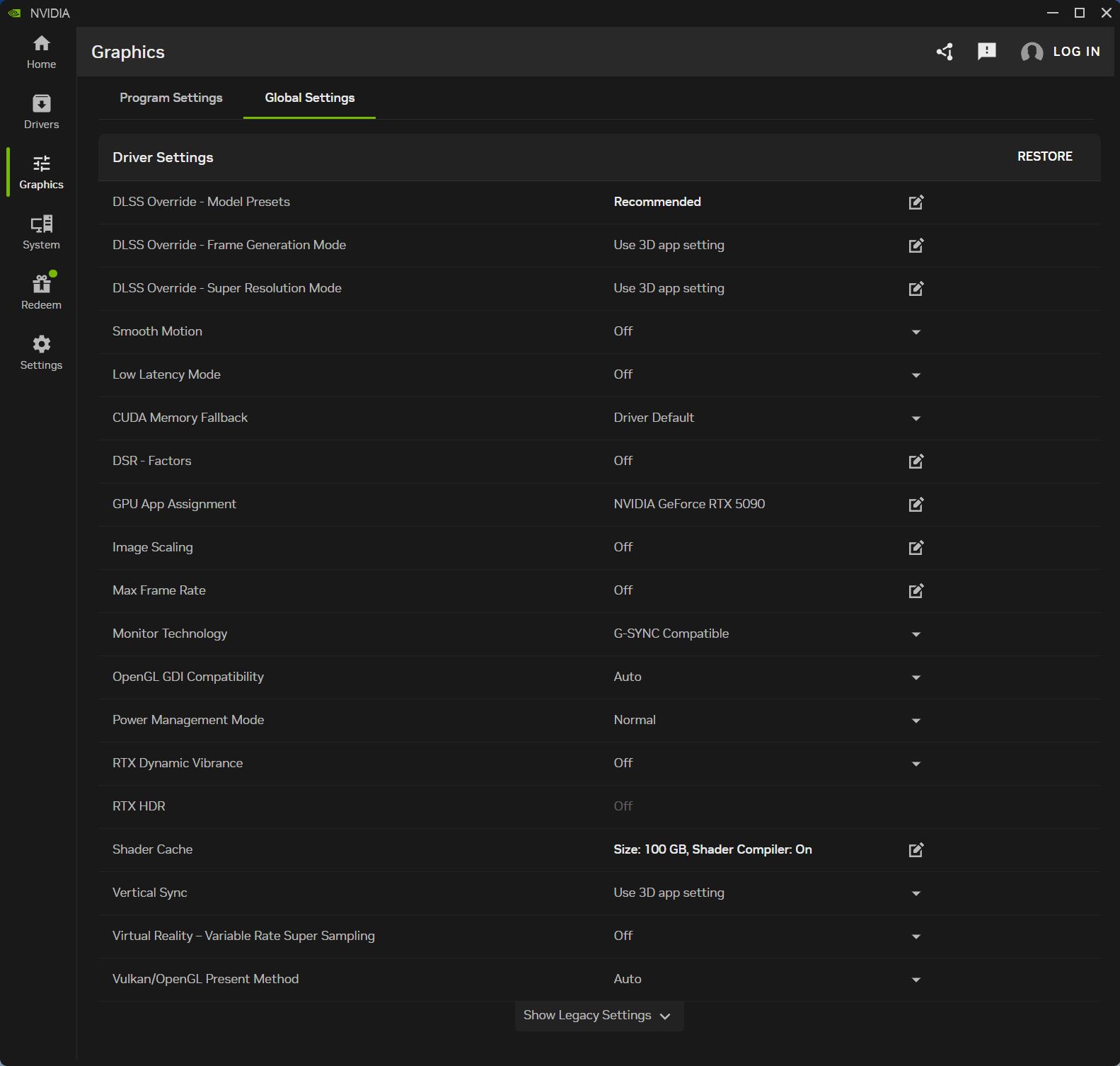
- Monitor Technology = GSync Compatible, VRR On
- DLSS Override - Model Preset = Recommended
- Shader Cache = 100 GB (not sure if this matters)
- Leave everything else as default (allowing 3D application, ie MSFS, to determine settings)
Be sure if whenever you use the NVIDIA App to disable it’s “Optimization” of MSFS.
As for PBO, you shouldn’t be afraid of it - it is AMD’s own algorithm, and sets its own safety limits, and allows the CPU to use it’s own boost clock, which is what you paid for.
What I do, is install HWInfo, and just open it in Sensor Mode, to view the CPU and GPU temperatures every now and then while MSFS is running. That way you’ll know what you are working with.
Screenshots of my settings
My settings when using 1 screen (9800X3D / 5090 / 4K), applied in this order…
NVIDIA App > System > Displays > GSync VRR > ON
NVIDIA App > Graphics > Global >
- everything at defaults, except
- DLSS Override - Model Preset = Recommended
- Shader Cache = 100 GB, Compiler On
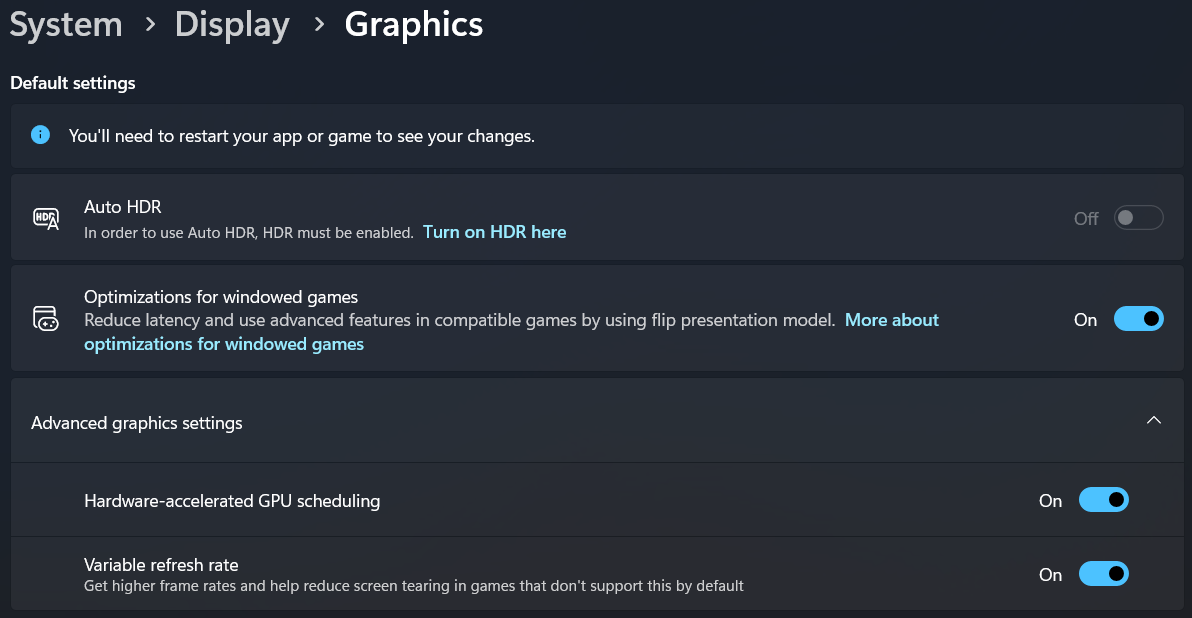
Windows > Settings > Display > Graphics > Advanced > VRR
Windows > Settings > Display Advanced > confirm VRR and Refresh
MSFS Graphics (for 1x 4K screen)
I use the High preset and increase TLOD / OLOD, and mostly I turn MSFS Traffic quantities off, because I use BeyondATC for traffic.