Right. OK, so your LG 27G610A supports up to 200 Hz and has FreeSync / Adaptive Sync allowing it to run between 48 and 200 FPS, so the NVIDIA App will recognize it as GSync compatible, but it sounds like you need to turn on VRR manually in the NVIDIA App.
The purpose of VRR is to let WIndows, the GPU and the monitor coordinate so that the frames are displayed when ready (variable refresh) instead of a fixed refresh rate.
Note: MSFS doesn’t really run at very high refresh rates like 200… I mean, it can, but you would have to sacrifice TLOD and OLOD (draw distances for terrain and objects).
In your shoes, here is what I would try:
- Setting your Refresh Rate to something like 120
- Verifying VRR
- BIOS settings
- Windows settings
- MSFS settings
Here are the steps:
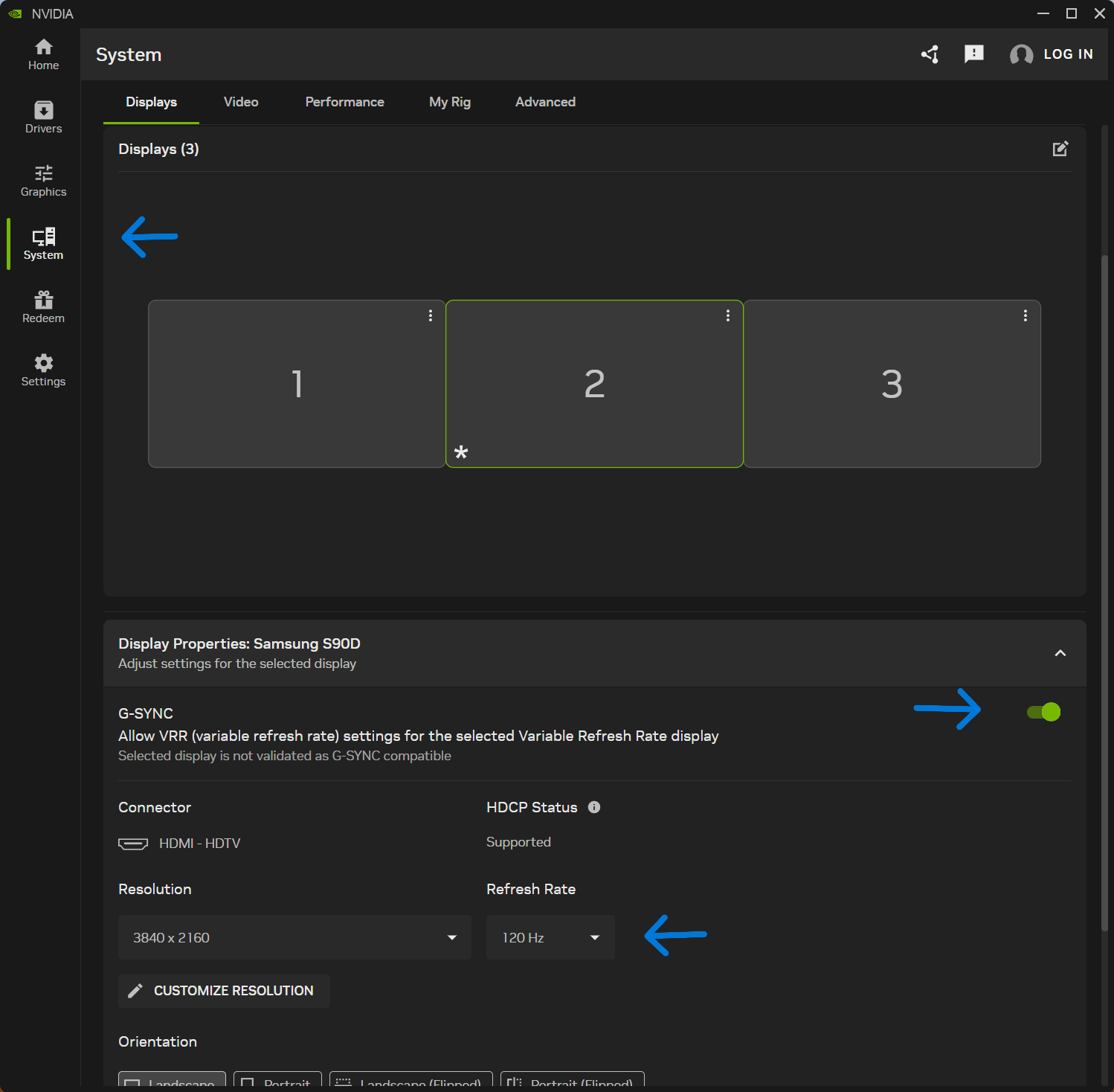
Check NVIDIA App > System > GSync VRR
- Open the NVIDIA App > System > select monitor
- Expand the Display Properties below the monitor icon
- Look to see if GSync Allow VRR is shown, and turn it on
- You can also check your monitor’s refresh rate here
- Changing Refresh Rate here also changes it in the Windows settings, and vice-versa
Check NVIDIA App > Graphics > Global
- Open NVIDIA App > Graphics > Global
- Check if GSync is indicated
- Check if VSync is set to Use 3D App Setting

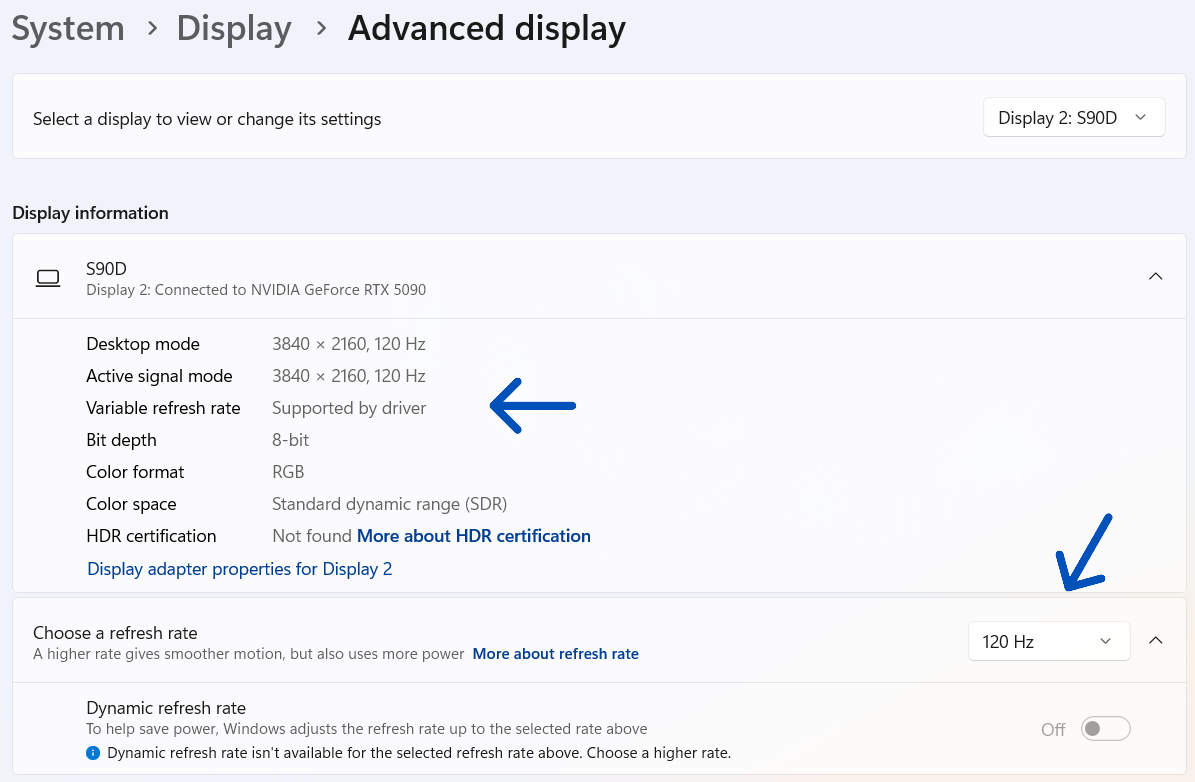
Verify VRR by checking Windows > Display
- Open Windows Settings > System > Display > Advanced Display
- Look to see if VRR is now “Supported”
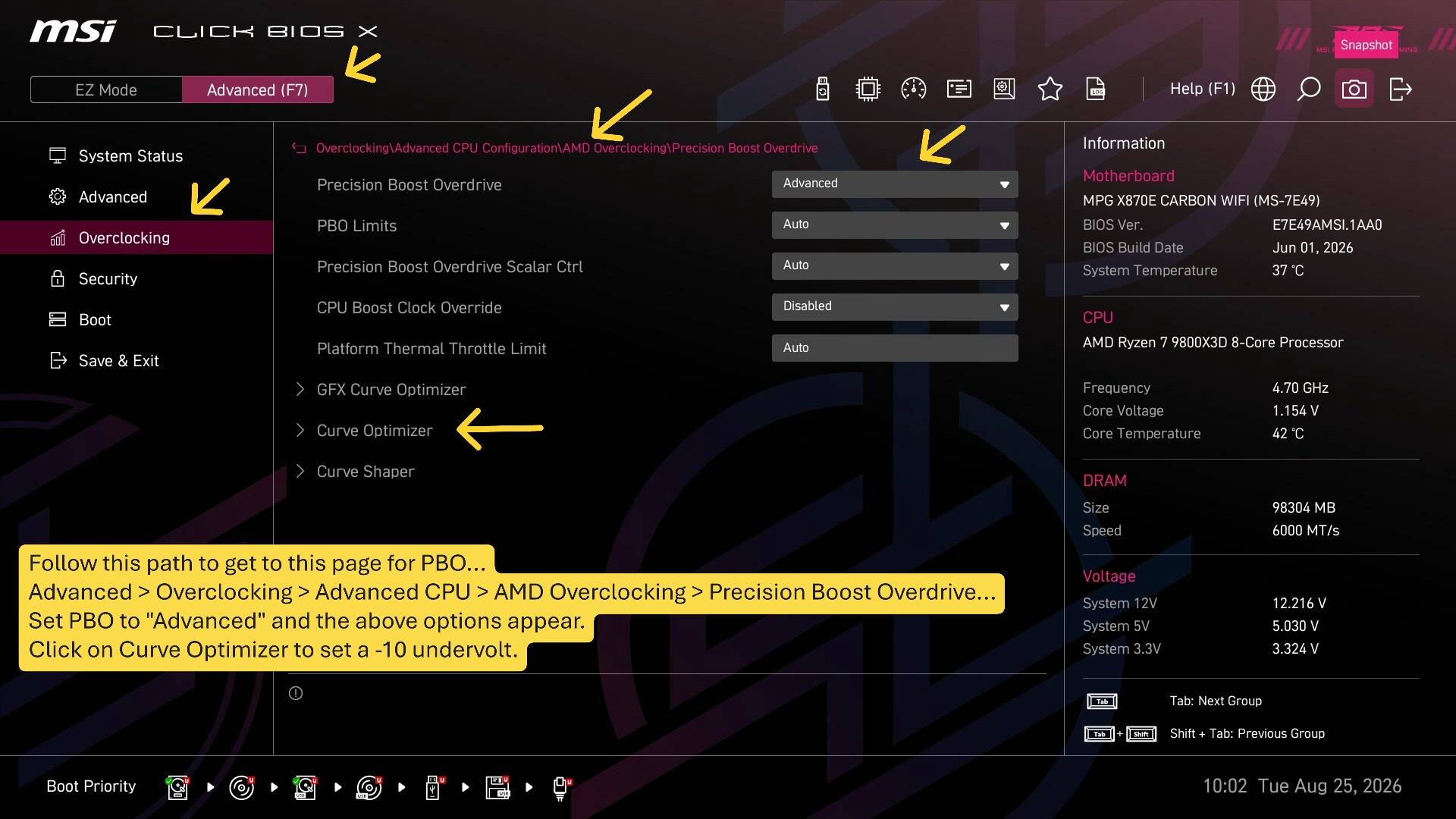
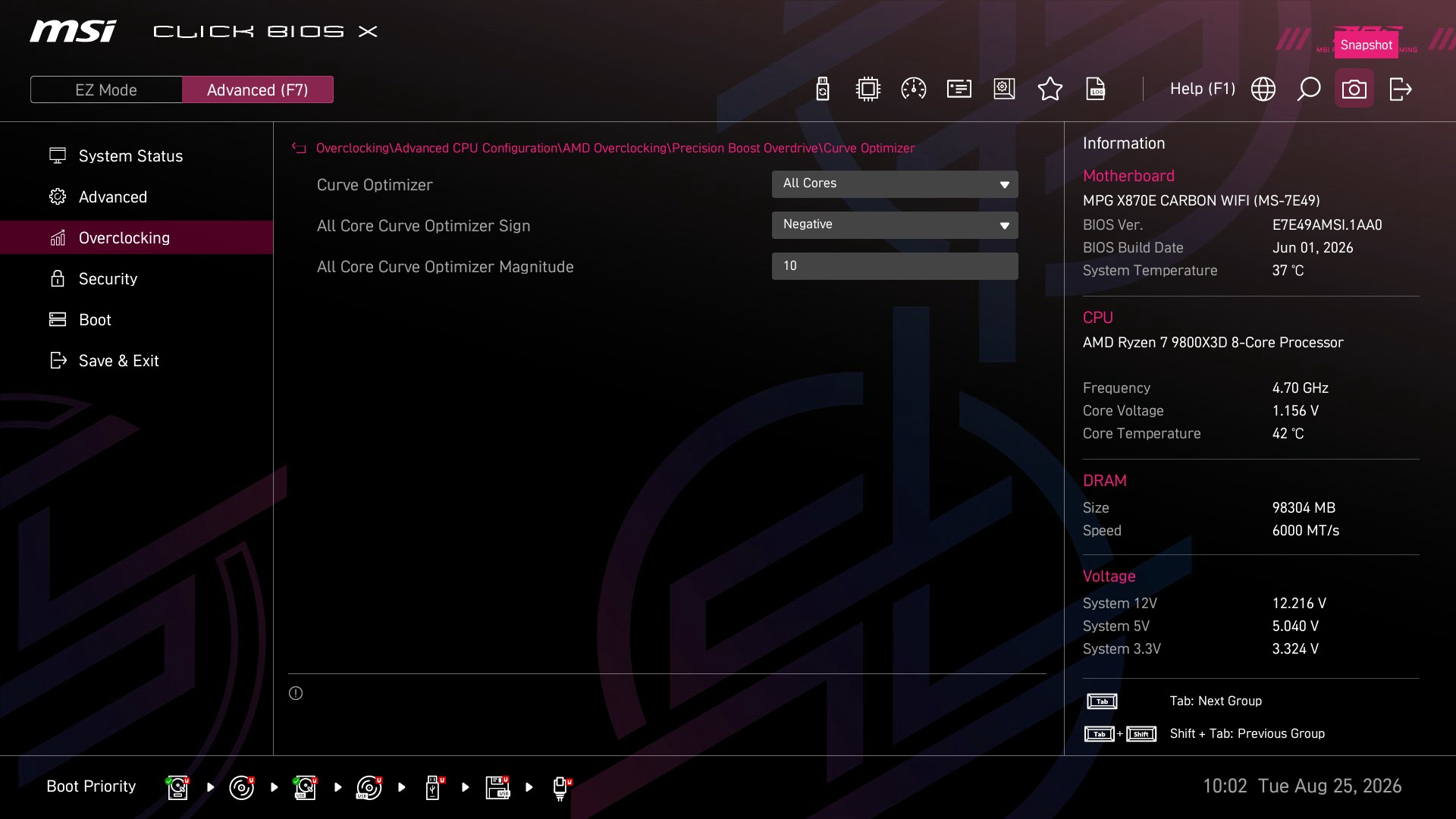
MSI BIOS - Enable PBO and Curve Optimizer
The purpose of AMD’s PBO (Precision Boost Overdrive) is to enable the AMD algorithm that allows the CPU to use its boost clock, all self managed and protected within thermal and power limits - it’s what allows it to run at advertised speed.
There is a simple technique called undervolting, which slightly reduces the voltage, thus reducing heat, and creating thermal headroom for that PBO boost clock - so it can sustain higher frequencies (like when flight simming!) without overheating. AMD built it in and calls it “Curve Optimizer”. It is safe to enable a -10 (negative) value.
- Boot pressing the Delete key to enter BIOS
- In the BIOS window, click Advanced at the top
- Click Overclocking on the Left, then follow these links:
- … Advanced CPU Configuration
- … AMD Overclocking
- … Precision Boost Overdrive
- Set PBO to “Advanced” and more options appear
- … Click on Curve Optimizer
- … Set All Core
- … Negative
- … 10
- Save and reboot. Note: when you make any change in BIOS, the next reboot takes more time because it is training memory, so be patient.
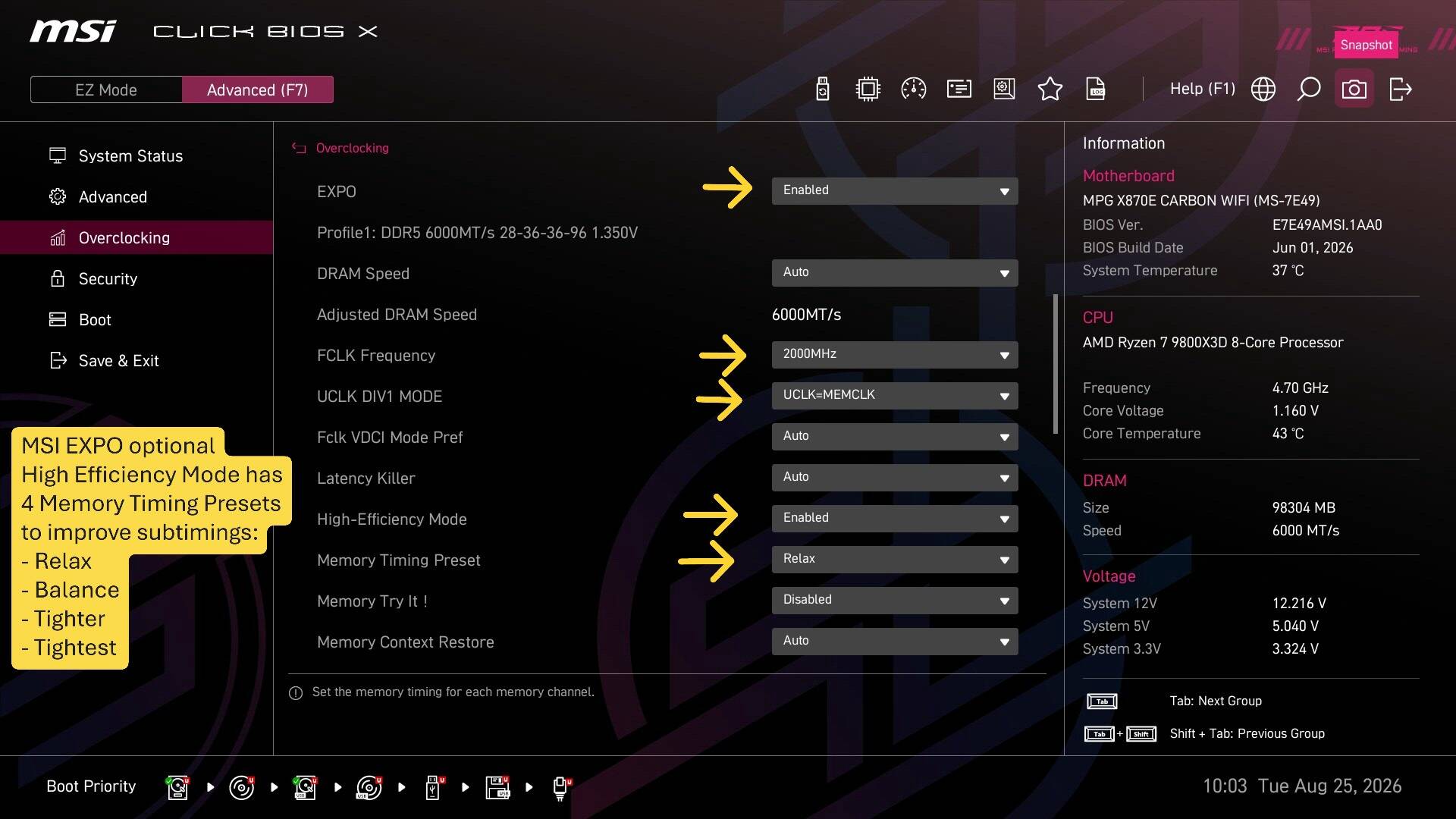
MSI BIOS - EXPO and subtimings
Your Ram would normally run at 4800 MT/s, but when you enable EXPO, the motherboard can read and run at the advertized speed of 6000 MT/s. That alone improves MSFS FPS by about 10-15%.
The MSI BIOS can also apply improved memory subtimings from 4 profiles. Even the lowest one, “Relax”, makes a difference. I run the “Tightest” one but did a lot of testing to make sure it was stable.
- Boot holding Delete to enter BIOS
- Click on Advanced at the Top
- Click on Overclocking on the Left
- Scroll down and enable EXPO (if not already)
- Set High Efficiency Mode = Enabled
- A new Memory Timing Preset appear
- … try setting it to Relax
- Save and reboot. Note: when you make any change in BIOS, the next reboot takes more time because it is training memory, so be patient.
Note: I’ve made additional indications on the image which are specifically for EXPO memory when the speed is 6000. The FCLK at 2000 and UCLK = MEMCLK would be set to these values automatically, but I lock them in manually to be sure. When in doubt, leave on Auto
Windows settings
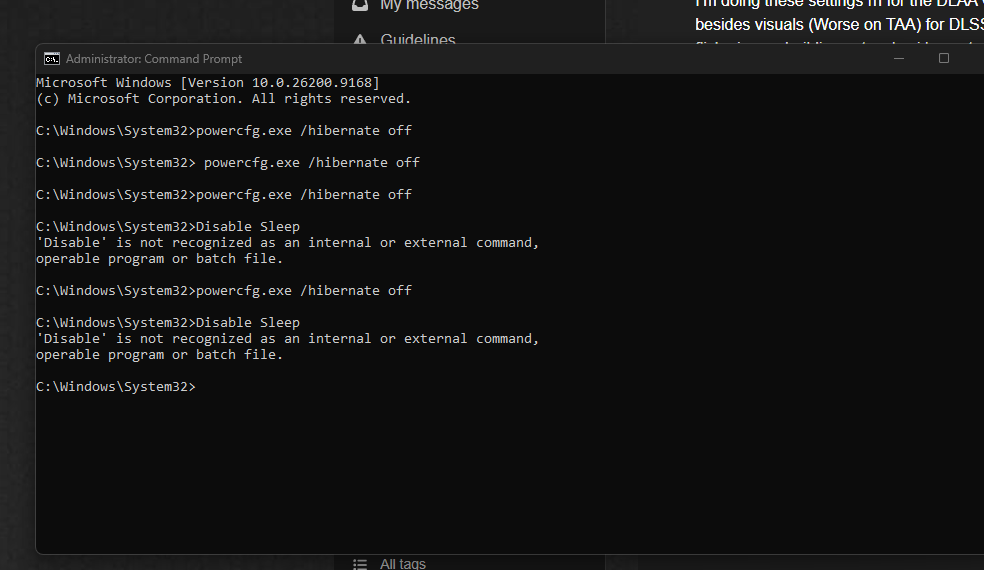
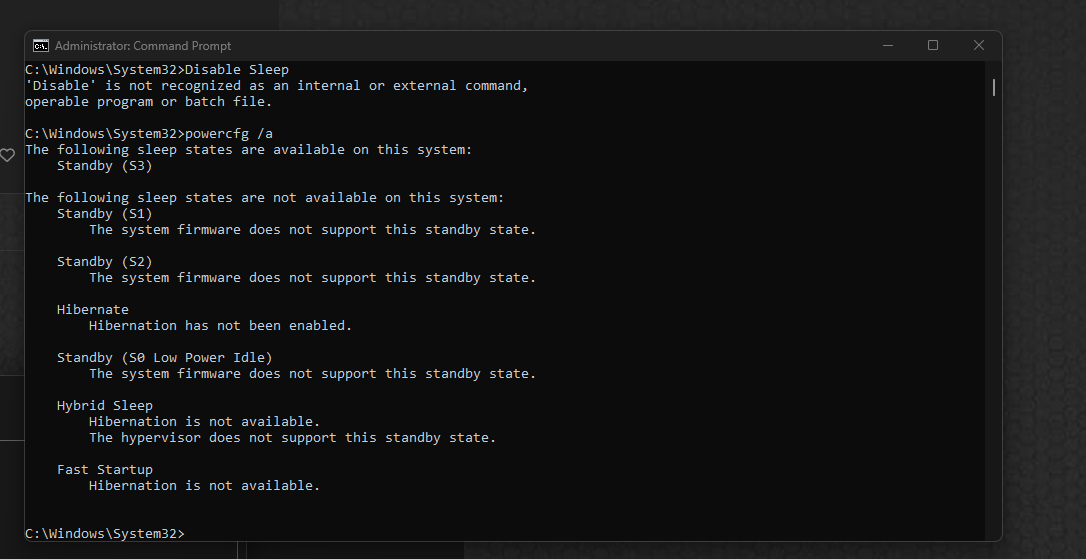
There are a few Windows settings that can / might interfere with gaming. For example, Hibernation is constantly saving RAM to disk. I turn the following off:
- Open CMD as Admin, and enter: powercfg.exe /hibernate off
- Disable Sleep
- Settings > Apps > App Resume > Off
- Settings > Apps > Startup Apps > turn off anything not needed
- Settings > System > Recovery > Point in time restore (PITR) > Off
One thing many people overlook is updating the MS Store apps, which include gaming services, etc. Open MS Store App > Downloads > and check for updates regularly, so they don’t update while gaming.
Testing
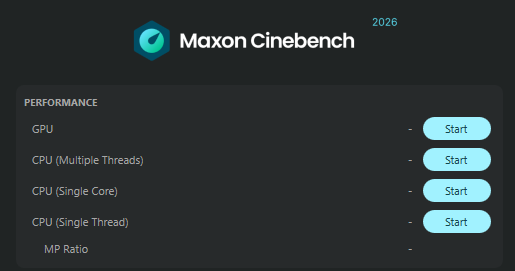
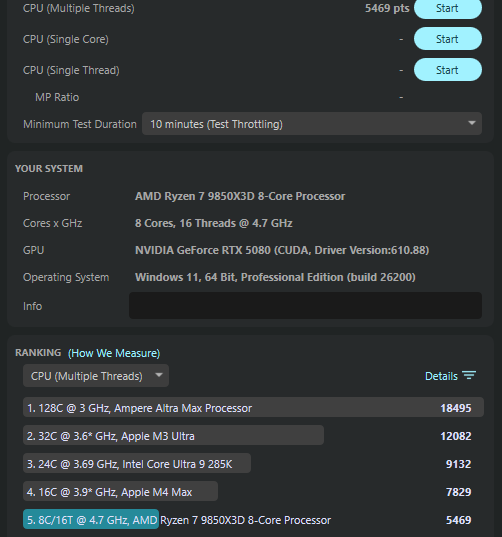
I use the following to test stability and performance when I make changes:
Cinebench for CPU
Furmark for GPU
HWInfo to see temperatures, etc
MSFS Settings
Start with Frame Generation OFF. If you do end up turning it on later, I suggest also setting a Cap. So if your target was 60 FPS, Max Frames would be 30, and Frame Gen x2.
Be methodical and start at the LOW Global preset end so you can see how it performs. When changing Global Preset you have to quit and relaunch MSFS because any change to the Texture Resolution setting requires it to restart.
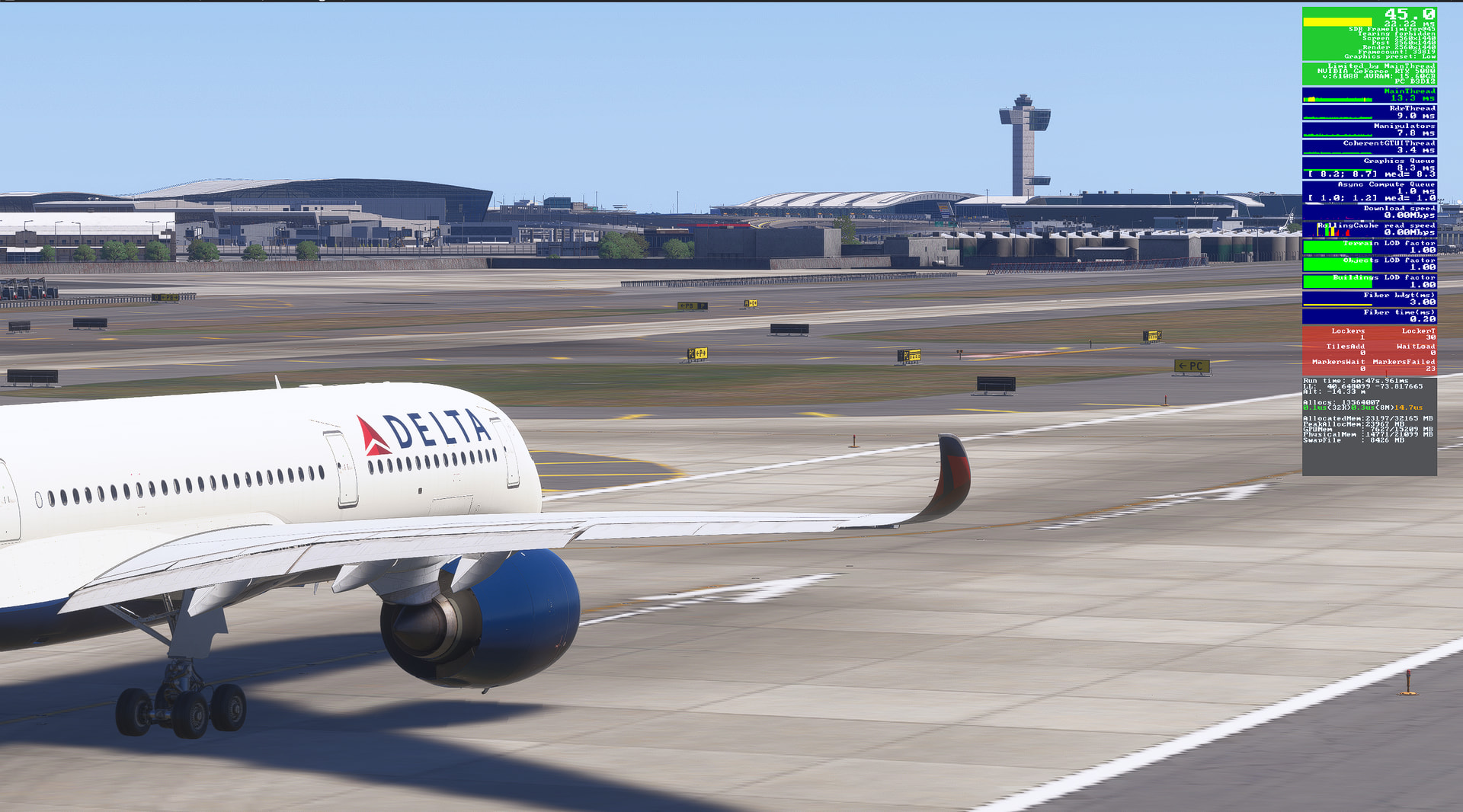
VSync … Ultimately I think you want VSync ON to avoid tearing, but keep in mind this limits FPS to whatever Refresh Rate you have set (eg, 120) but still allows VRR and works when the GPU is outputting between 48 and (eg) 120. I use “Half Monitor Refresh Rate” because I am targeting 60 FPS. Also, by setting it to Half, it means the FPS Overlay will show Green instead of Red when the FPS is 60 or above (assuming 120 refresh rate).
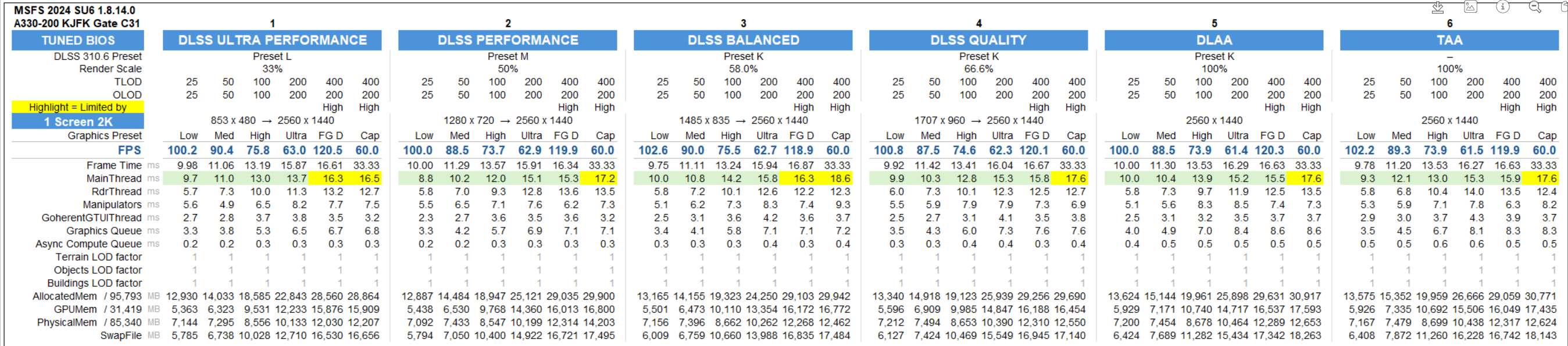
DLAA is the best looking for scenery (although still has some ghosting on moving numbers on cockpit instruments), but DLAA is also the most demanding. That should not be a problem for your specs, unless it is using more VRAM than your GPU has.
To open the FPS overly, open MSFS Settings > Advanced > Dev Mode. then a menu bar appears. Debug > Display FPS. Note, Dev Mode affects performance, so best not to have it on unless testing.
If possible post a screen shot of this FPS overlay when you are having stutters to see the stats.
Your initial question was about stutters… With your high end hardware and 1440 monitor, you should not get stutters if configured properly… except 2 things:
-
There are some chronic issues when panning the view, where terrain and objects are jettisoned and loaded in to memory in a way that currently can cause stutters. Over the weekend I did extensive testing and found that for whatever reason, these stutters on camera view change can be exacerbated by Frame Generation, especially without a Max Frame Rate cap.
-
You have a 5080 and are running DLAA. I just tested (on a 5090) every configuration, and found that in a demanding scenario like the A330 at KJFK, on a 2K resolution with DLAA, VRAM was just above 16 GB… So you might want to try DLSS Quality, or TAA
I hope some of that feedback helps.