It clearly is adding LOD for some reason as SvenZ latest photo’s show, additional windows, grass turfs display further etc.
1 Like
Probably just a terminology disagreement there. LOD in my understanding is what level of detail should be available to be rendered. Various algorithms decide what detail that should be, and then it gets sent to the rendering pipeline (simplified description here). In the rendering pipeline the resulting frame(s) is rendered. So LOD that did not go into the rendering pipeline is not there, it cannot be rendered. E.g., if the LOD to be rendered left out a particular tree the rendering pipeline does not even know about it and cannot put it back in (again, simplified description).
The appearance of detail is a different thing. The LOD can include a certain tree, but in the rendering the algorithms might find that there are not enough pixels to show that tree and drop it (or just show a slightly green single pixel somewhere). Different rendering parameters (e.g. increasing render scaling) could make a different decision and end up showing that tree in higher detail by utilizing the same number of available pixels in a different way. So the end result is that increasing render scaling could end up in a tree suddenly showing up, but it was not because the LOD was increased but because the rendering was better.
6 Likes
That could be whats happening. I guess that could be tested by changing the terrain and object LOD’s for each render scale as well and see if the windows can be made to display at 50 and 100 render just by increasing LOD?
It’s got me thinking about my best settings. I use the Reverb G2 and set openxr to 100 and in game render to 85. I wonder if I change OpenXR to 85 and in game to 100 I’ll see more detail? Will try it out later.
1 Like
I just checked, set Terrain and Object LoDFactor to 4.0.
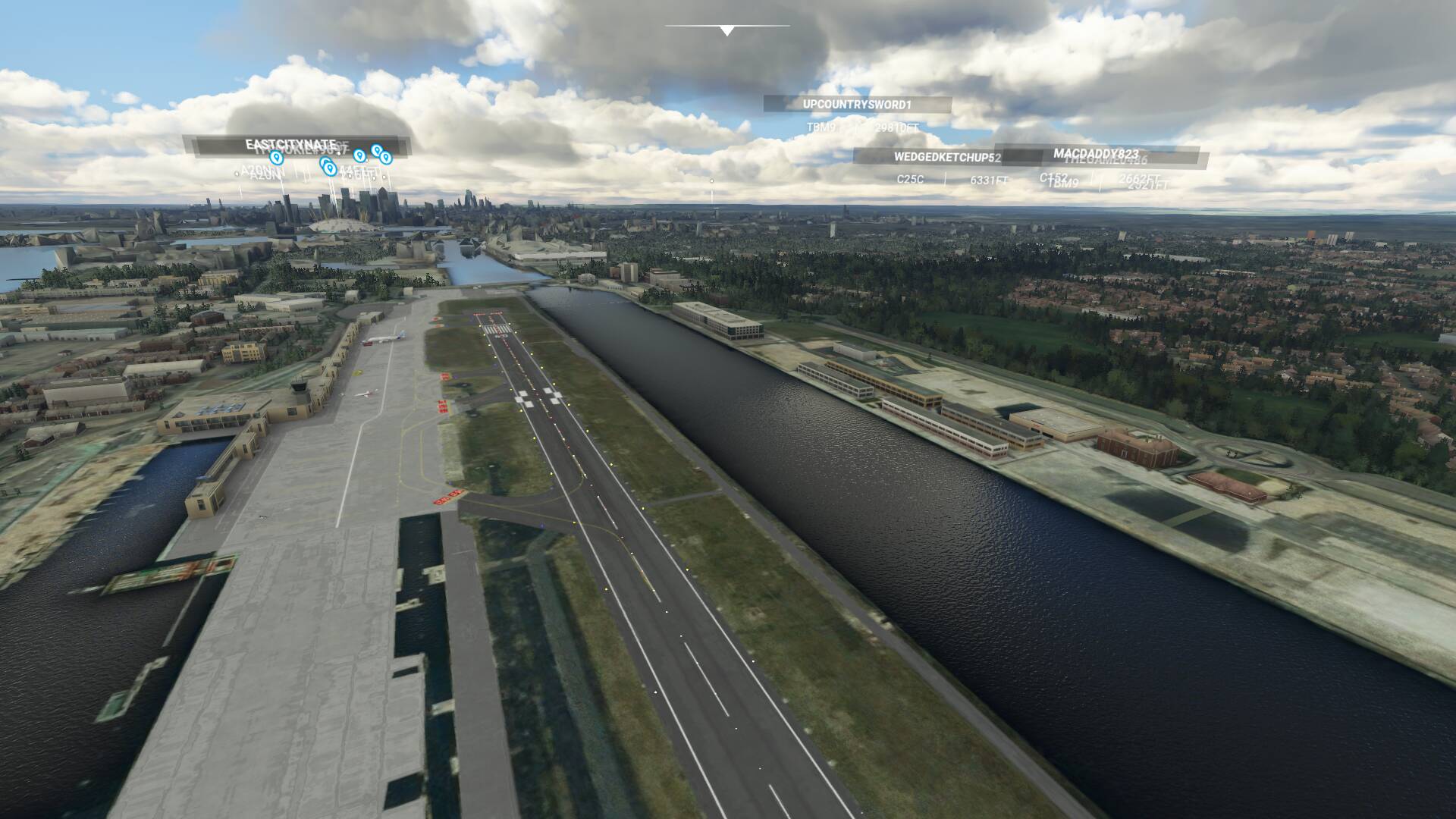
London city LOD 2.0 RenderScale 100 vs LOD 4.0 Renderscale 100
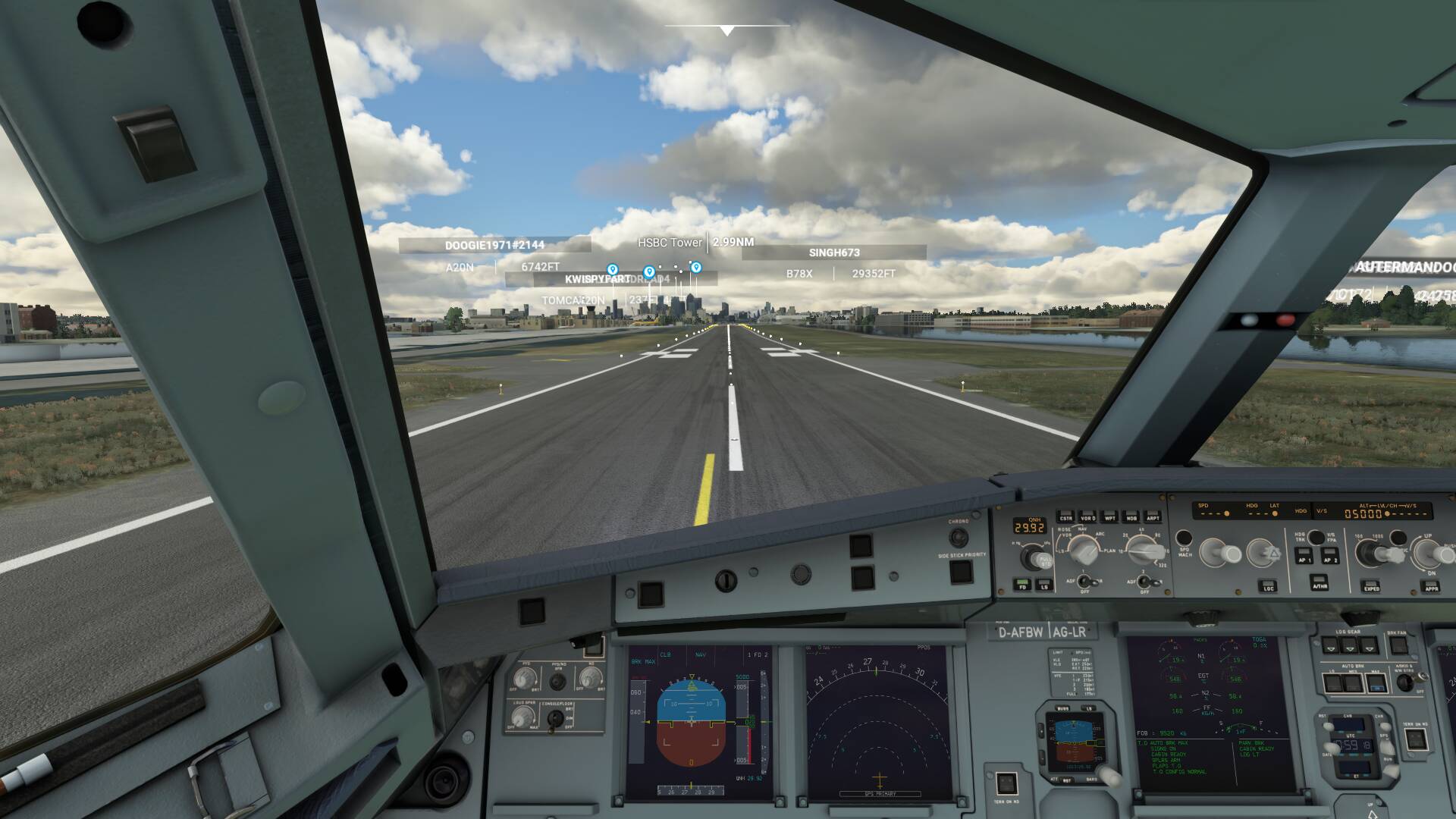
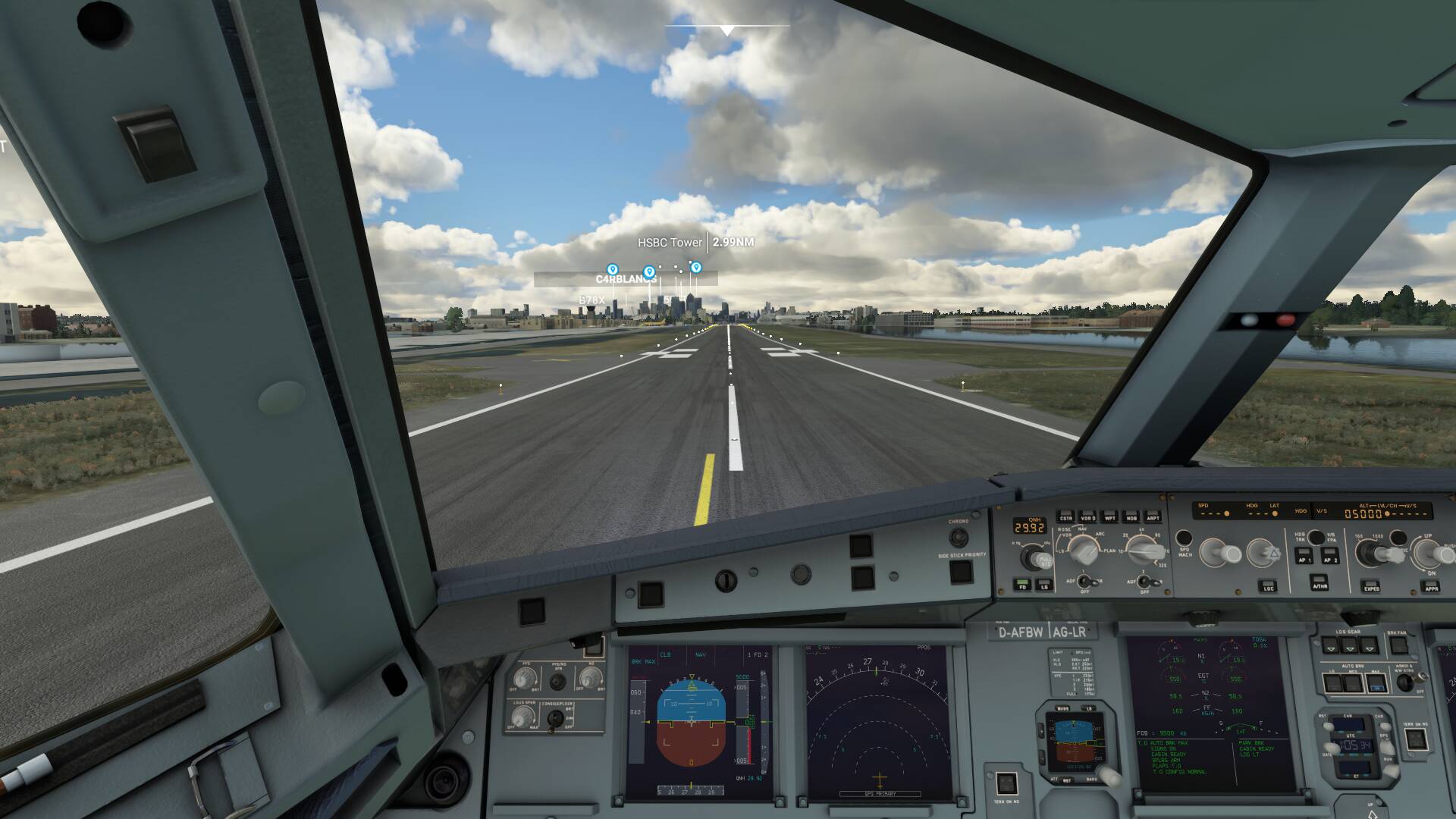
London city LOD 2.0 RenderScale 200 vs LOD 4.0 Renderscale 200
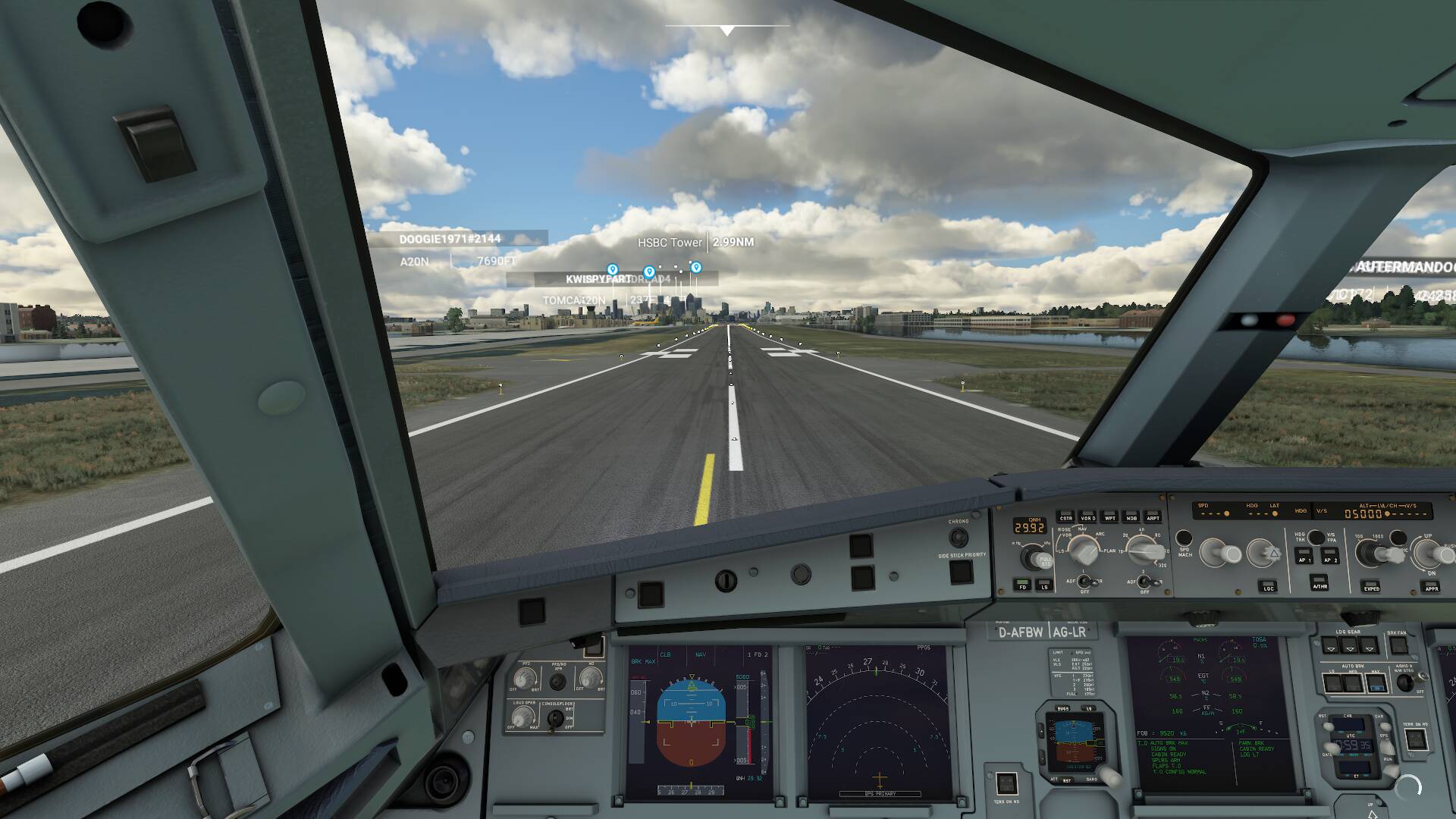

I don’t see any difference, yet ram use is now at 16GB. Up in the air the detail extends farther of course, yet on the ground LOD 2.0 is already overkill.
1 Like
The only differences I can see are the clouds and planes moving across the scene. It’s weird, it seems that render sets LOD and LOD does very little.
Can you increase LOD to 4.0 at 50 render to display the windows on the buildings or do they just not appear? That would suggest FlyingBear1’s idea that the render needs to be a certain level to render everything.
Hmm not sure if it’s a coincidence. First time I tried render scale 50 with lods at 4.0 I fell through the world after spawning on the runway (with a low bandwidth warning). Second attempt it crashed to desktop after loading. One more try!
1 Like
Hmm strange! Thank’s for being a pioneer and finding these things out for us!
Just thinking about it now, it might well support FlyingBear01’s idea. Maybe at 50 render it can’t fit all the LOD detail in so it just crashes or says low bandwidth when what it really means is not enough render resolution!?
It probably crashed due to low bandwith, my kids are streaming their stuff as well. Plus I’m running another game alongside while FS2020 does its thing. Stress testing it to the max!
Anyway this time it loaded properly and all detail is there yet still the same result
LOD at 4.0, Renderscle at 50, same thing
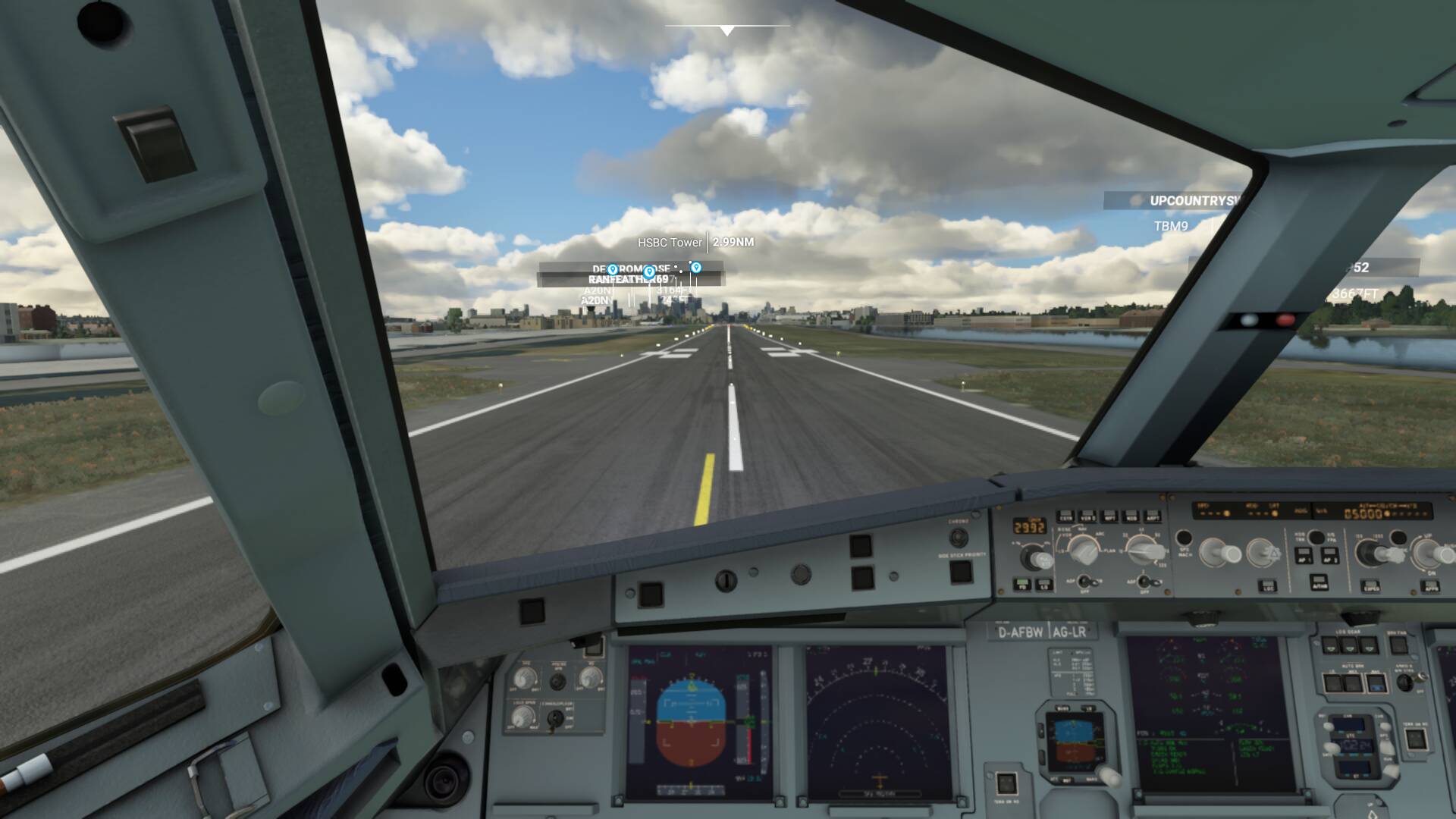
Terrain/Object detail 10,100,200 compared at Render scale 100

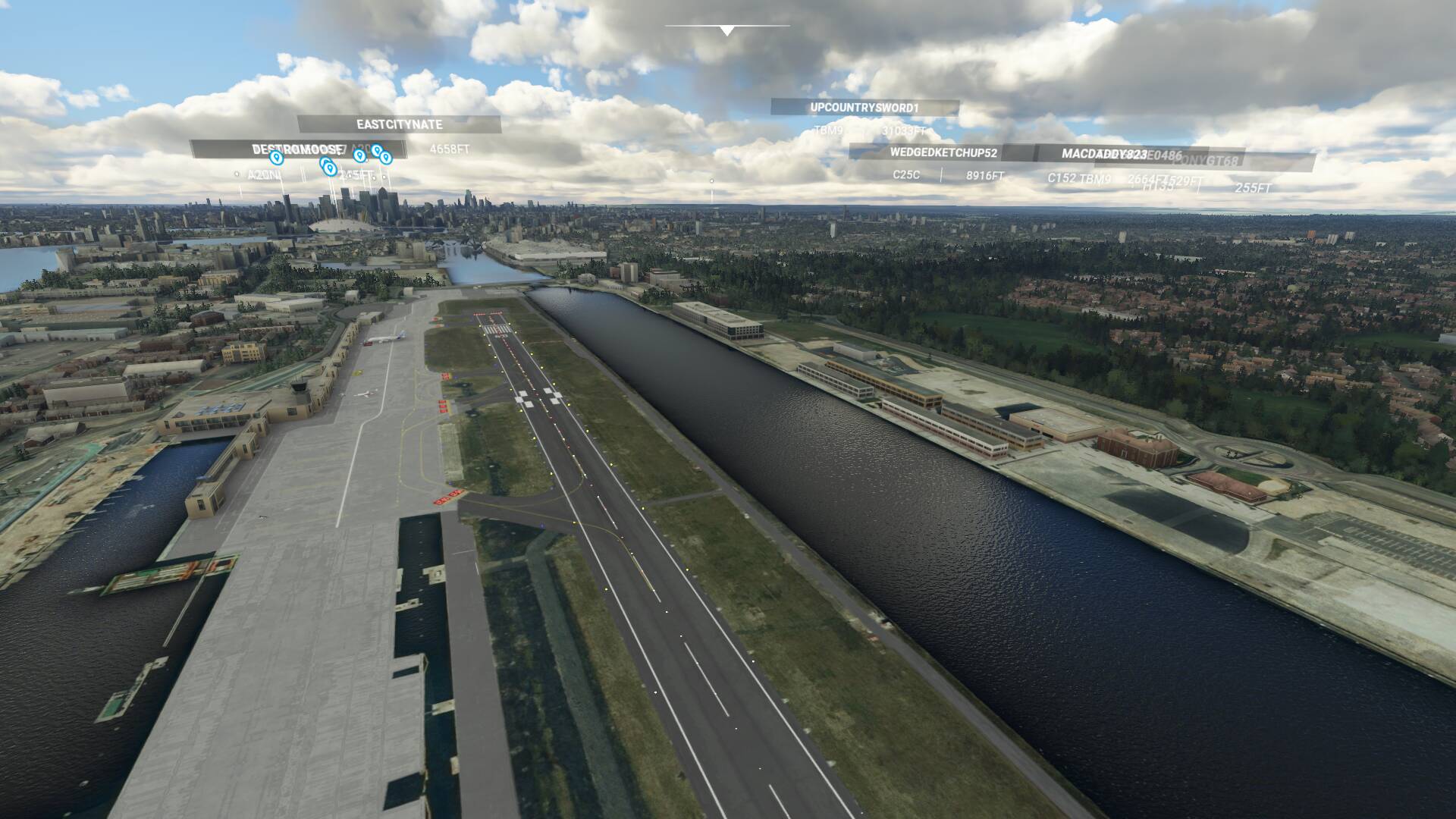
Close up of the building comparing Render scale 100 with Render scale 200
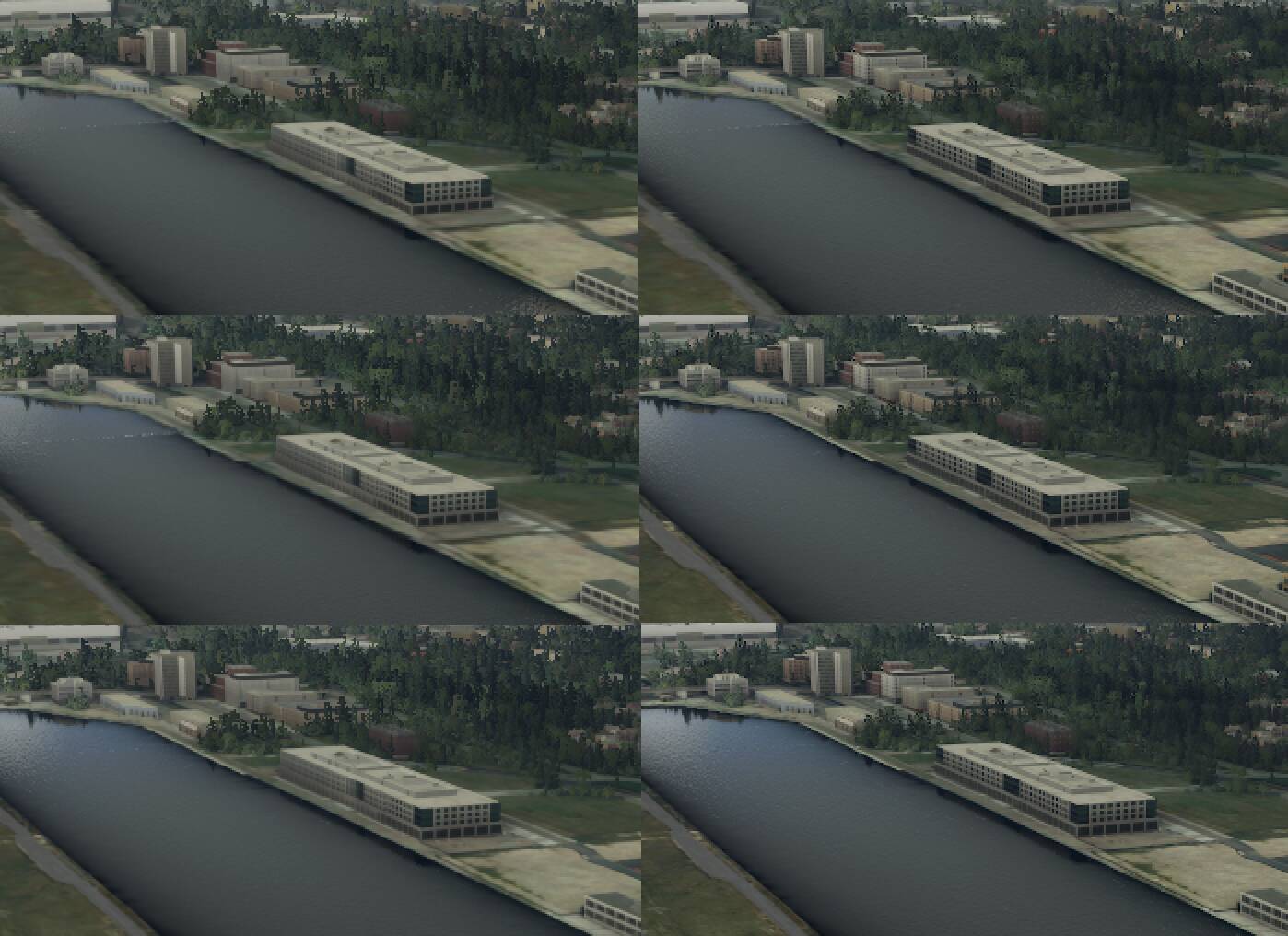
(Pixel doubled image to combat jpg compression interference)
Draw distance is not affected by rendering resolution, yet the amount of detail, or rather the clarity, is.
That ‘high definition’ line in the middle of the building moves with the camera. I moved the drone so that it’s in the middle of the building in those shots.
3 Likes
And in your close up building example you can really see how that happens, despite the resolution being the same. Left column, rendering pipeline calculates every pixel as basically the same gray color and the windows are all smeared out. Right column, rendering pipeline “knows” from the higher render scale representation that some pixels should be darker than the others and the windows have much better definition.
1 Like
Differences I see with Render Scaling set at 150
-
scenery - nada, nil, zilch, none
-
exterior aircraft views - close enough to none
-
buildings - minimal close enough to none
-
Cockpit - noticeably sharper and easier to read labels and non-glass gauges
TLDR - the only reason to increase above 100 is if you are struggling to read gauges
I find this rather difficult to believe after seeing the differences from my setup. 100 to 150 creates a much sharper image across all distances with negligible performance loss.
TLDR - use a high render scaling value if you can unless you really need the extra performance.
Of course every setup is different, as are people’s eyes , and this is only my experience.
3 Likes
Test results on secondary render scaling. 1920x1080p
This test is simply to determine whether secondary scaling is specific to cockpit scaling.
200 secondary scaling
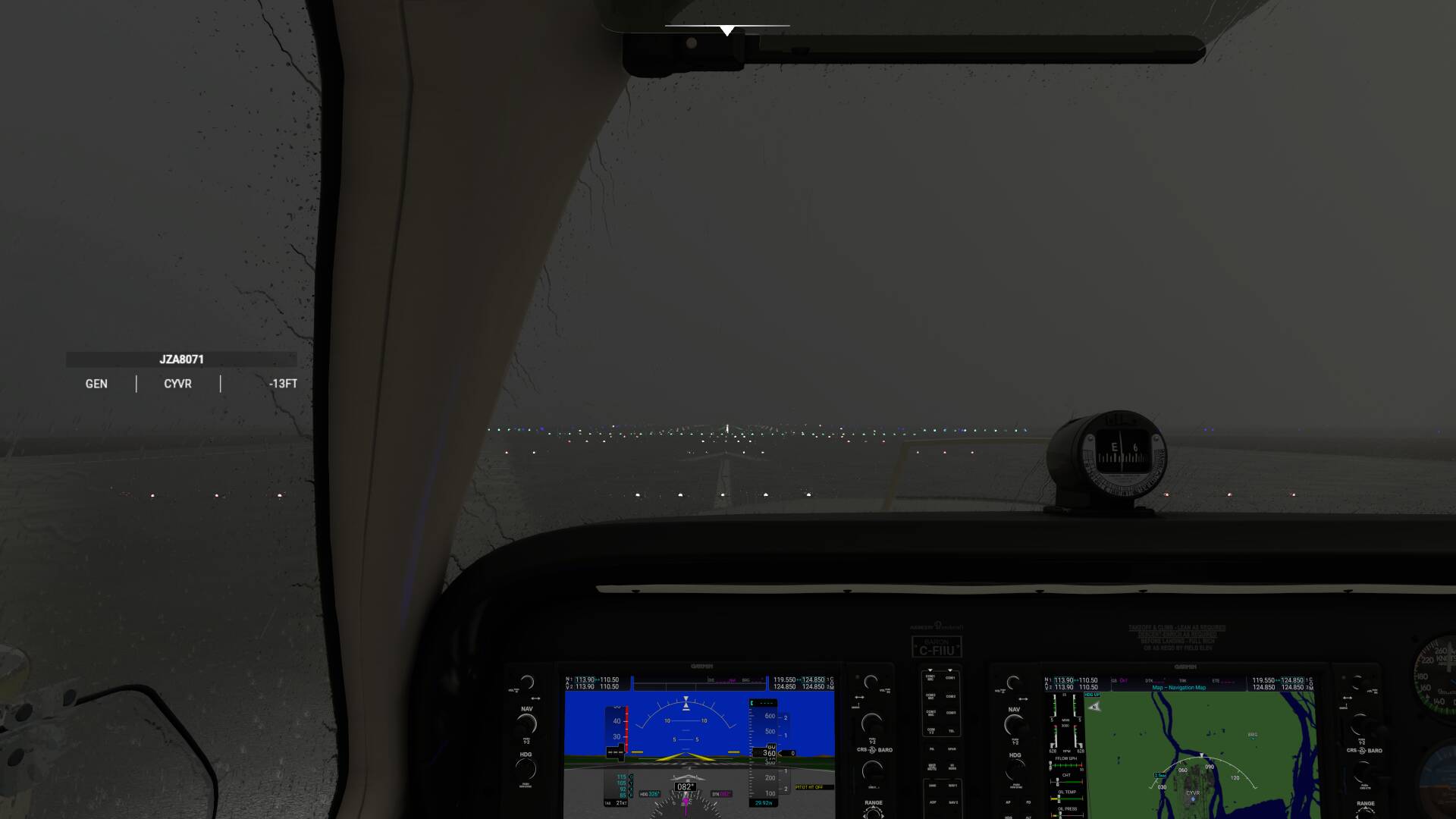
110 secondary scaling
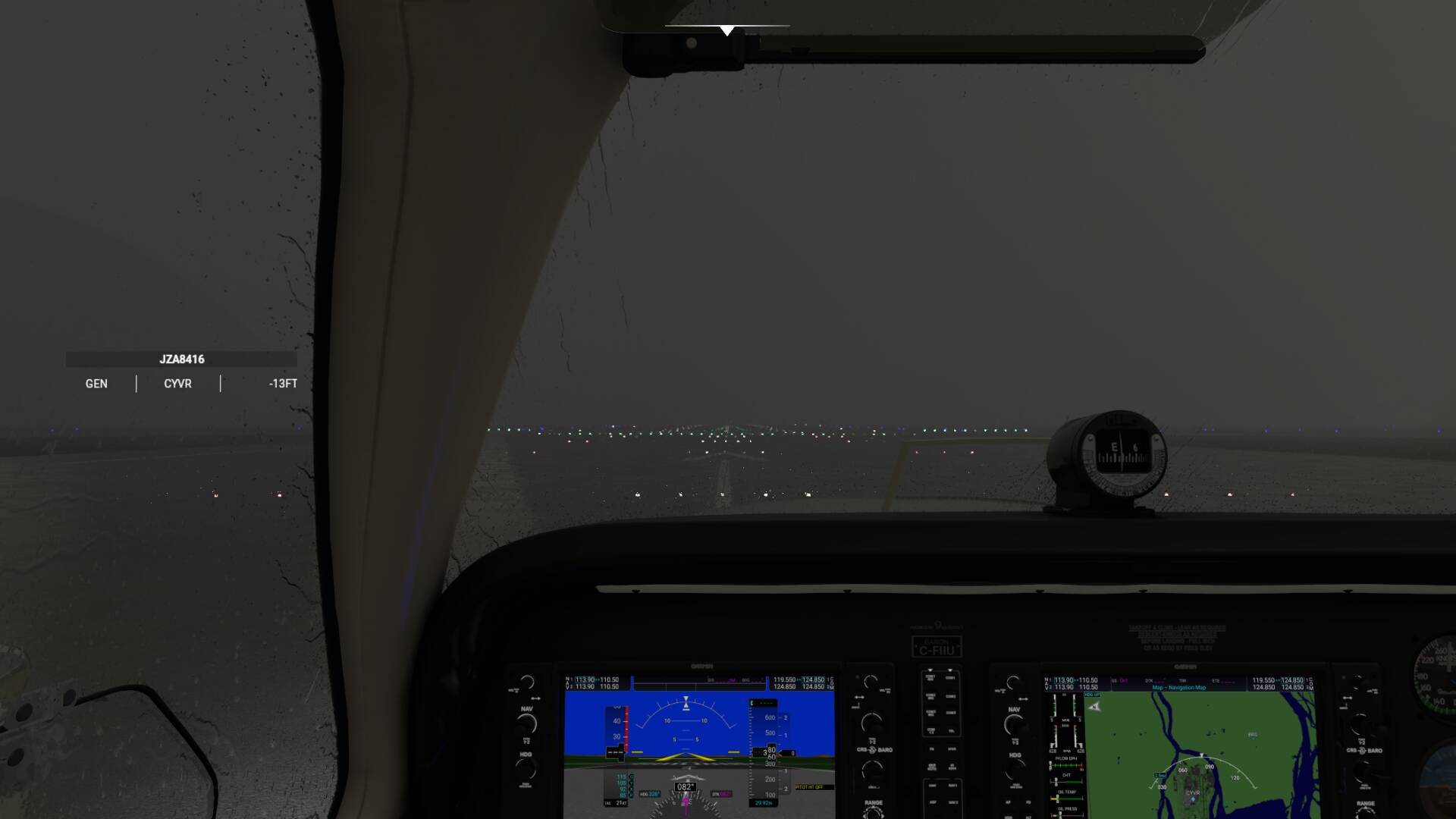
100 secondary scaling
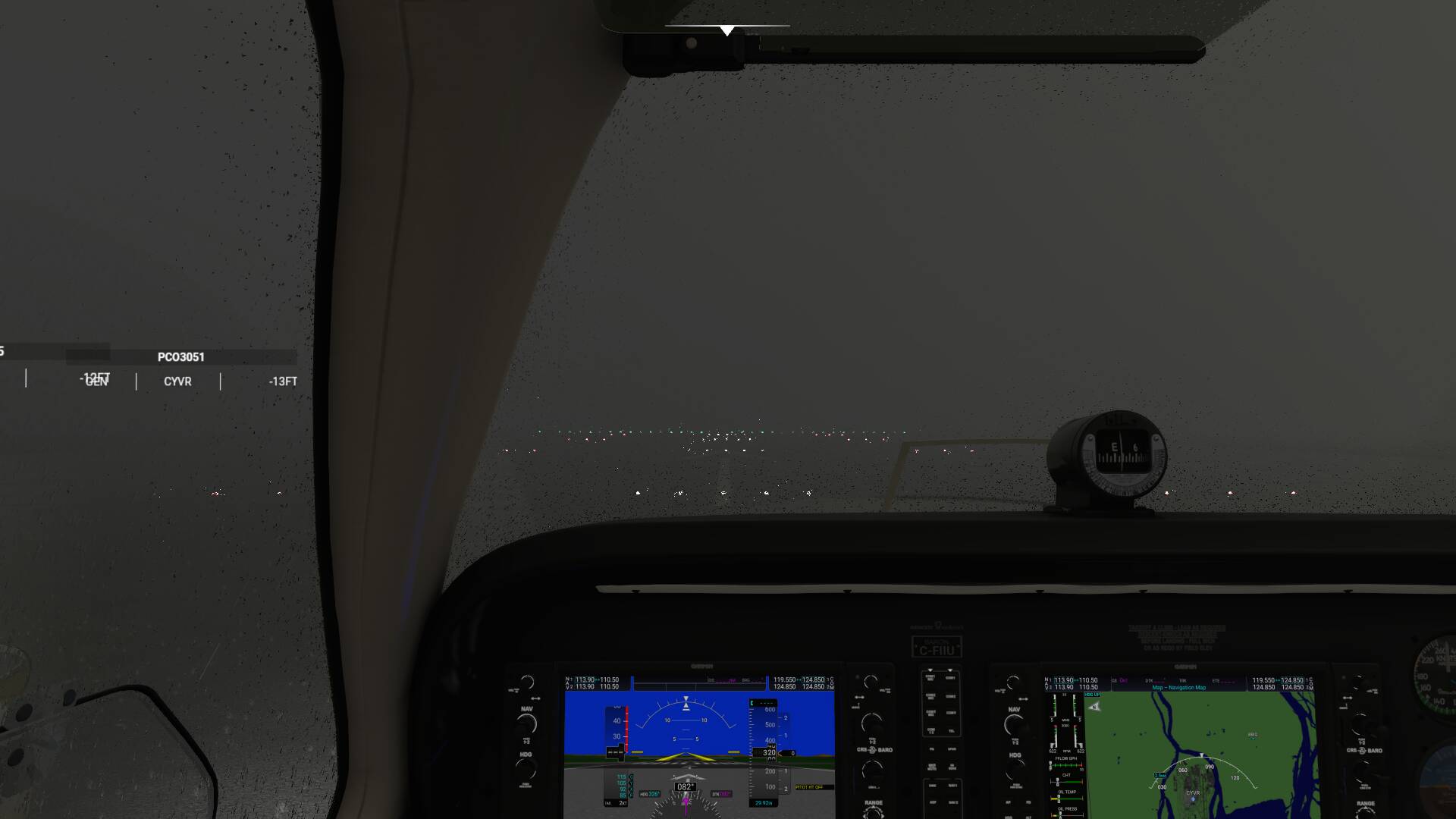
Can’t make out any discernable difference.
Still don’t know the purpose of secondary scaling.
You’re compressing 1080p screenshots into a filesize of 80 kilobytes. Of course you’re not going to see any difference there.
As an older gamer I’ve seem this topic countless times and it’s synonyms (render scale, downsampling, supersampling) here is a good article explaining what it means and how you can use it even in games that don’t have a built in render scale slider like MSFS.
2 Likes
Compression isn’t helping but it looks like it’s the same as primary scaling. If you look at the white outline around the knobs on the dashboard, they have better AA at 200 secondary scaling. The same as with primary scaling doubled. Super sampling.
Testing my theory the effect is the same
London Primary 1.0 Secondary 1.0 (Render 1080p Post 1080p)
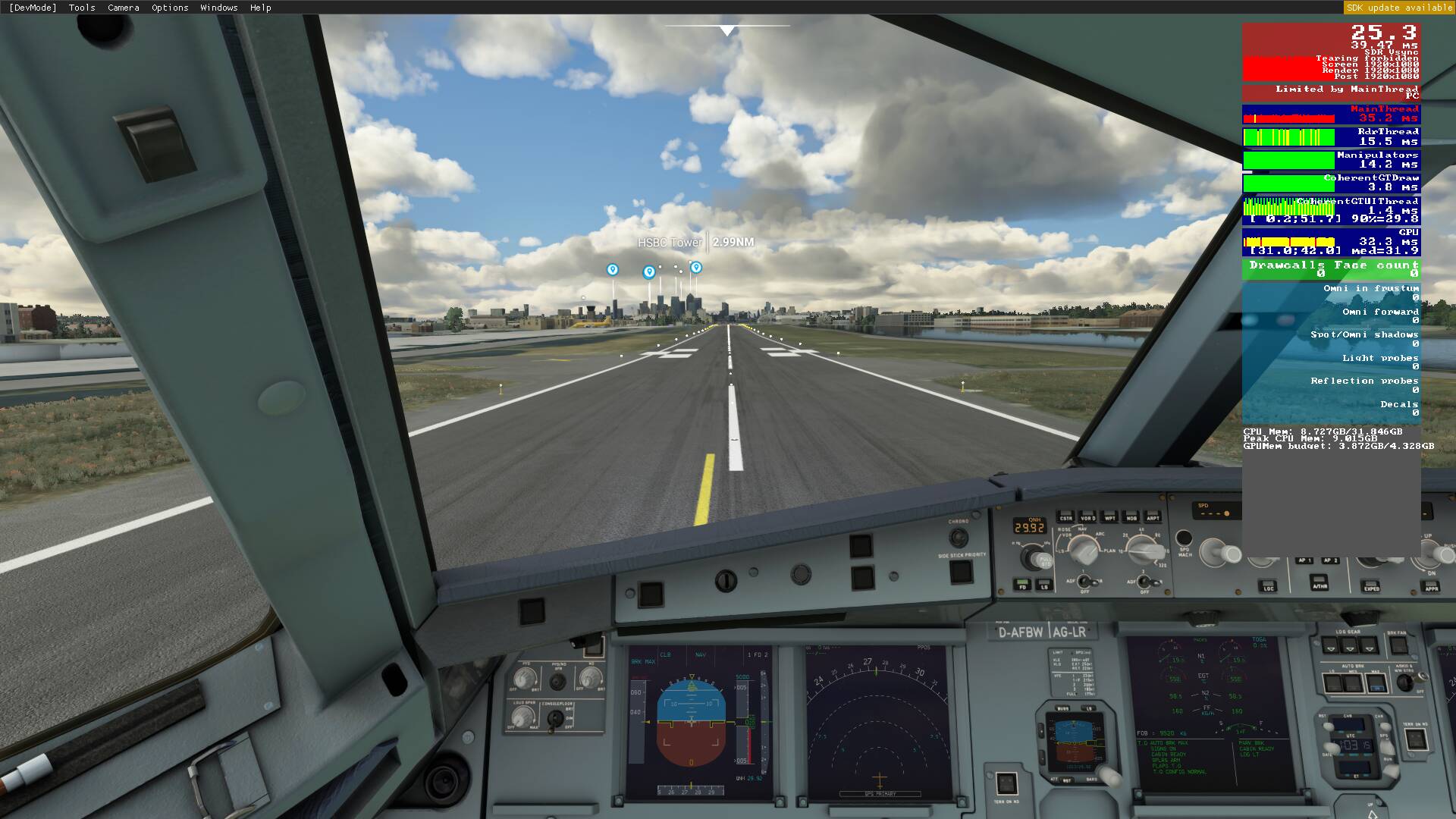
London Primary 0.5 Secondary 2.0 (Render 1080p Post 2160p)
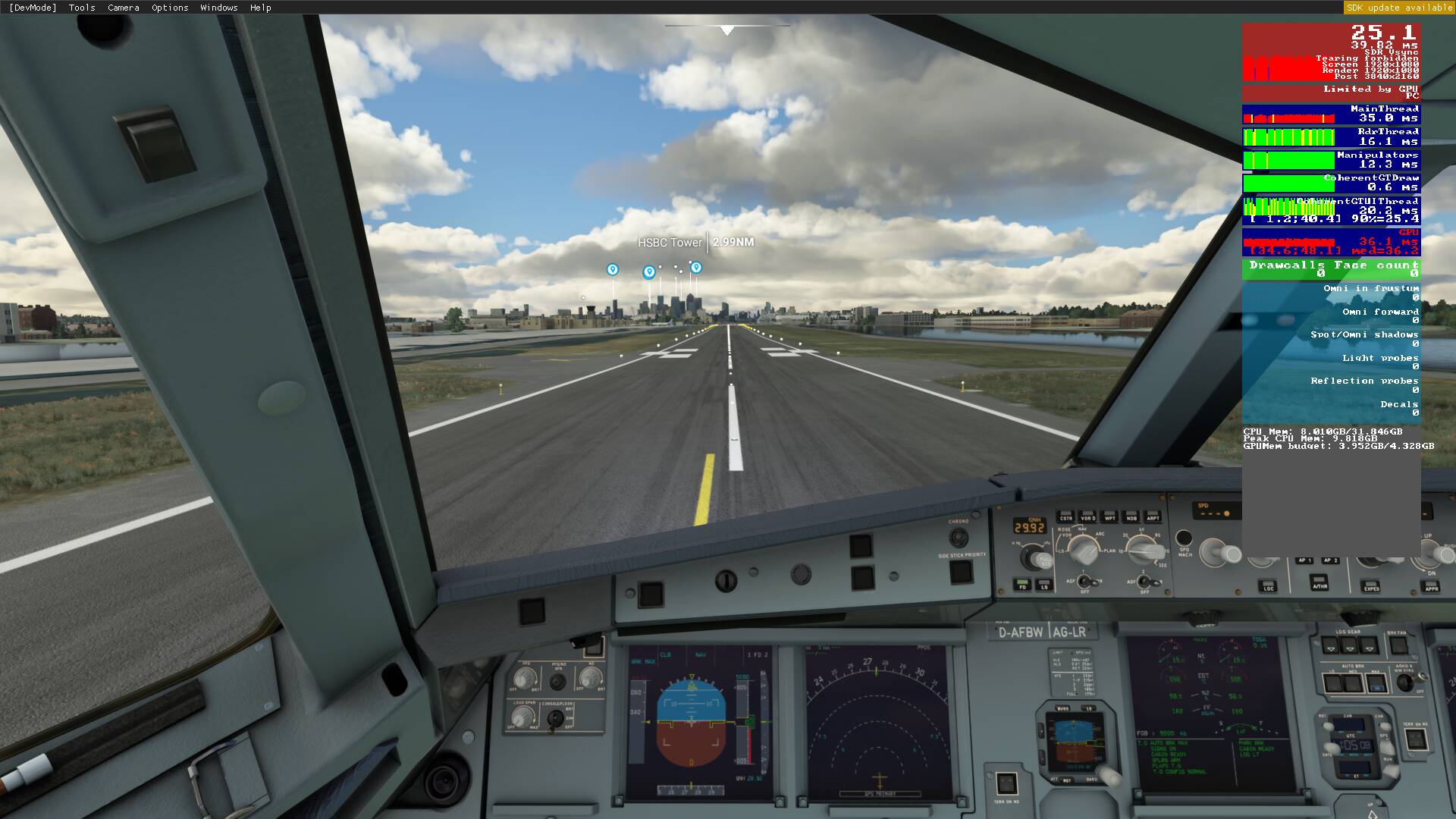
London Primary 2.0 Secondary 0.5 (Render 1080p Post 540p)

Secondary affects the post resolution based on screen resolution.
Primary affects the render resolution based on post resolution.
What’s all done in post as opposed to render, I don’t know.
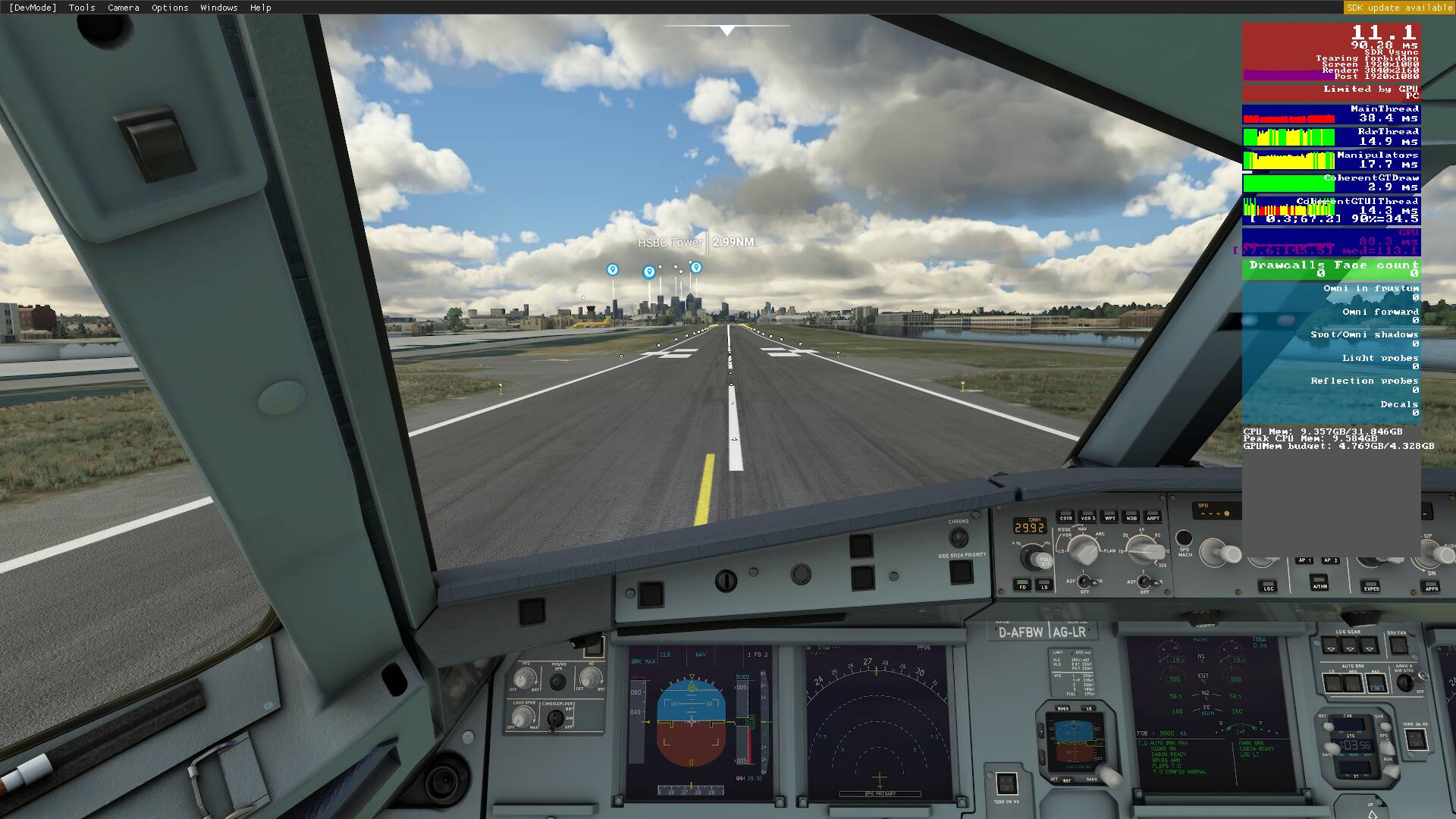
Primary 1 Secondary 2 (Render 2160p Post 2160p)
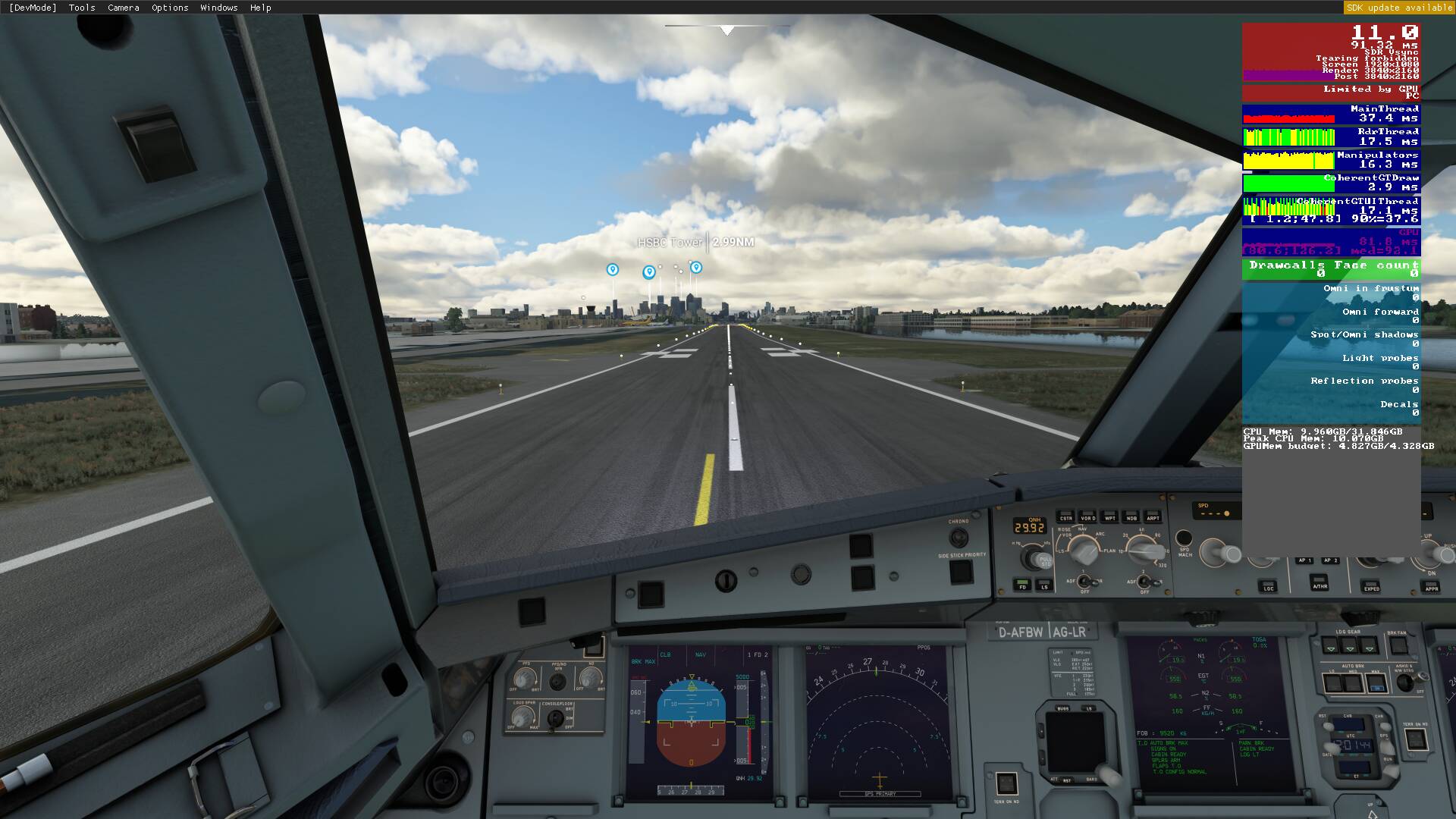
Primary 2 Secondary 1 (Render 2160p Post 1080p)
Edit: just realized there is a postprocess section in usercfg.opt and I have most of it turned off
{PostProcess
Enabled 1
EyeAdaptation 1
ColorGrading 0
Sharpen 0
Fringe 0
LensDistortion 0
Dirt 0
LensFlare 1
FilmGrain 0
Vignette 0
LensBlurMultiplier 1.000000
FringeMultiplier 1.000000
}
So no wonder I don’t see much of a difference.
I’ll test later what the effects on sharpen are with a higher secondary scaling (yet same render resolution) as seen in the first two images
1 Like
It looks like secondary scaling reduces the impact of the sharpen post process, maybe it will help with grainy clouds. It’s hard to spot the differences, compare the png shots full screen or you’ll miss it.
Sharpen off, Render 1080p Post 1080p

Sharpen on, Render 1080p Post 1080p

Sharpen on, Render 1080p Post 2160p (Primary 0.5, Secondary 2.0)

I guess it affects TAA as well since the tops of the tree are smoothed out better, and more detail is visible in the grass. The windows on the buildings are the same. Cockpit instruments are less easy to read.
Higher vantage point
Sharpen off, Render 1080p Post 1080p

Sharpen on, Render 1080p Post 1080p

Sharpen on, Render 1080p Post 2160p (Primary 0.5, Secondary 2.0)

Night lighting
Sharpen off, Render 1080p Post 1080p

Sharpen on, Render 1080p Post 1080p

Sharpen on, Render 1080, Post 2160p (Primary 0.5, Secondary 2.0)

Anyway very little difference, cockpit instruments don’t seem to benefit at all. (Actually get worse). The instruments are clearest with sharpen on and no secondary scaling. (And worst with secondary scaling applied)
2 Likes
Glass or steam ? I noticed a definite improvement with higher render scales on steam gauges.
1 Like
Maybe that’s why I didn’t notice any difference when I was testing Secondary Rendering. I have post turned off in the config.
These tests are for Secondary Scaling. No argument that hi scales in primary make a difference.
1 Like
What Willisxdc said.
Primary scaling (the only one you can change inside the game) indeed improves the clarity of instruments and the cockpit in general. It changes the render resolution.
Secondary scaling (only accessible in usercfg.opt) changes the post process resolution (and indirectly the render resolution). If you set it so render resolution stays the same and only post process is super sampled, instruments look worse.
It seems the process goes in reverse
Screen resolution (output)
Secondary scaling determines post process resolution (derived from screen resolution)
Primary scaling determines render resolution (derived from post process resolution)
So if screen resolution is 1080p
Secondary scaling at 2.0 makes post process resolution 2160p
Primary scaling at 0.5 then makes render resolution 1080p (render scale 50 in game)
This way only the post process resolution is super sampled which affects the detail in grass and trees, and maybe reduces the graininess in clouds. It seems to help TAA a bit. However it makes the instruments less readable.
If you just change the render scale then post process resolution stays the same as screen resolution.
Putting all the options in order
Render 1080p post 1080p
Render 1080p post 2160p (primary scaling 0.5, secondary scaling 2.0)
Render 2160p post 1080p (primary scaling 2.0, secondary scaling 1.0)
Render 2160p post 2160p (primary scaling 1.0, secondary scaling 2.0)
3 Likes
So this is why running at 2160p with render scale at 60 (around 1400p) results in noticeable worse performance than using 1440p resolution for me, because the post processing is still at 2160p right?