Trying to help a friend out with his FS24 settings on his system. Does anyone have tips, tricks and preferred settings to get the most out of FS24 on this older setup? I’m running a 5700X3D and a 7900XT so, it’s hard to guide him based on his setup.
Thanks!
If your friend just wants advice on settings, it’s still best if he posts himself and describes his setup. People will be able to suggest much better, more accurate tweaks when they can see the exact hardware and what he’s trying to achieve.
That would make the most sense but, he’s not that kinda guy. LOL. Was just looking for a rough baseline to get us started. We’ll figure it out!
I can offer some general conceptual suggestions, based on my own limited experience.
-
BIOS
• Learn how to boot in to BIOS, and to reset it to defaults if any of these settings make your system unstable.
• Memory efficiency is central to how well MSFS performs.
• I’m assuming that generation of CPU / Motherboard doesn’t have EXPO, if it does, then enable EXPO and ignore the next step
• If no EXPO, then if possible enable XMP or DOCP profiles for the memory in the computer’s BIOS, these are faster timings that usually come from a profile on the motherboard or the RAM stick itself - assuming the RAM is on the motherboard’s QVL list, which is worth checking…
• Enable PBO, which is AMD’s algorithm to manage boost clock while staying within the thermal, power, and current limits of the CPU.
• You can and should do a basic test for stability with Cinebench and it’s not a bad idea to test with stock BIOS, then make changes and see if it runs any better.
• You want to make sure your cooling is in good shape too.
-
Windows (assuming Win 11)
• The idea is to make sure only what is essential is running
• Disable any unused startup apps
• Disable hibernation (which constantly saves what is in memory to disk)
• Disable OneDrive, App Resume, Windows Search
• Add an exception to Windows Defender (or your Antivirus) for the MSFS Limitless folder, which prevents unnecessary scanning of the MSFS data while flying.
• Download and install DLSS Swapper (only download from Github, the official source - the website by that name is not associated with the author and should not be trusted), and use it to “swap” in the latest DLSS AND FSR versions, they make a difference. Also be sure to set each to “Recommended”.
-
MSFS
• Start with the LOW settings to get a baseline of how MSFS Behaves on your PC
• Anti-aliasing, try DLSS which I think your card supports, with the following render scales:
• 100% = DLAA (like TAA)
• 67% = Quality
• 58% = Balanced
• 50% = Performance
• 33% = Ultra Performance
• You may find that DLSS Performance is best, and if you have “swapped” the latest DLSS and set it to use “Recommended” then I think you’ll get great results. It uses less processing power by downscaling, but the rendering is still quite good.
• TAA is another alternative (by AMD) and it also has a customizable render scale.
• If all works ok on the Low setting, increase to Medium and try.
• You can change some graphics settings on the fly, but if you change the parent preset from Low to Med, or High, etc, you need to reboot MSFS. That’s because it changes “Texture Resolution”, which if you change that requires MSFS to reboot.
-
Things you can reduce in MSFS to improve performance:
• TLOD and OLOD (Terrain and Objects Level of Detail, which is really draw distance) have a huge effect. Turning down means you don’t see objects further away.
• Parked Aircraft Quantity and Aircraft Traffic Quantity (the MSFS traffic has a performance hit, so turn these down if the PC is strugling)
• Turbulence and Wake Turbulence use quite a bit of processing, so turn them to low.
• Light Shafts (off)
• Motion Blur (off)
These are just general guidelines, I have no experience with your hardware, so your mileage may vary, but I think you’ll see the concepts! Hope some of that is helpful.
I did find out tonight he was pushing a 4K monitor with the 2080 Super. I ran that card and FS2020 in 2K with good results. Told him to step down to 2K before we get too far on testing.
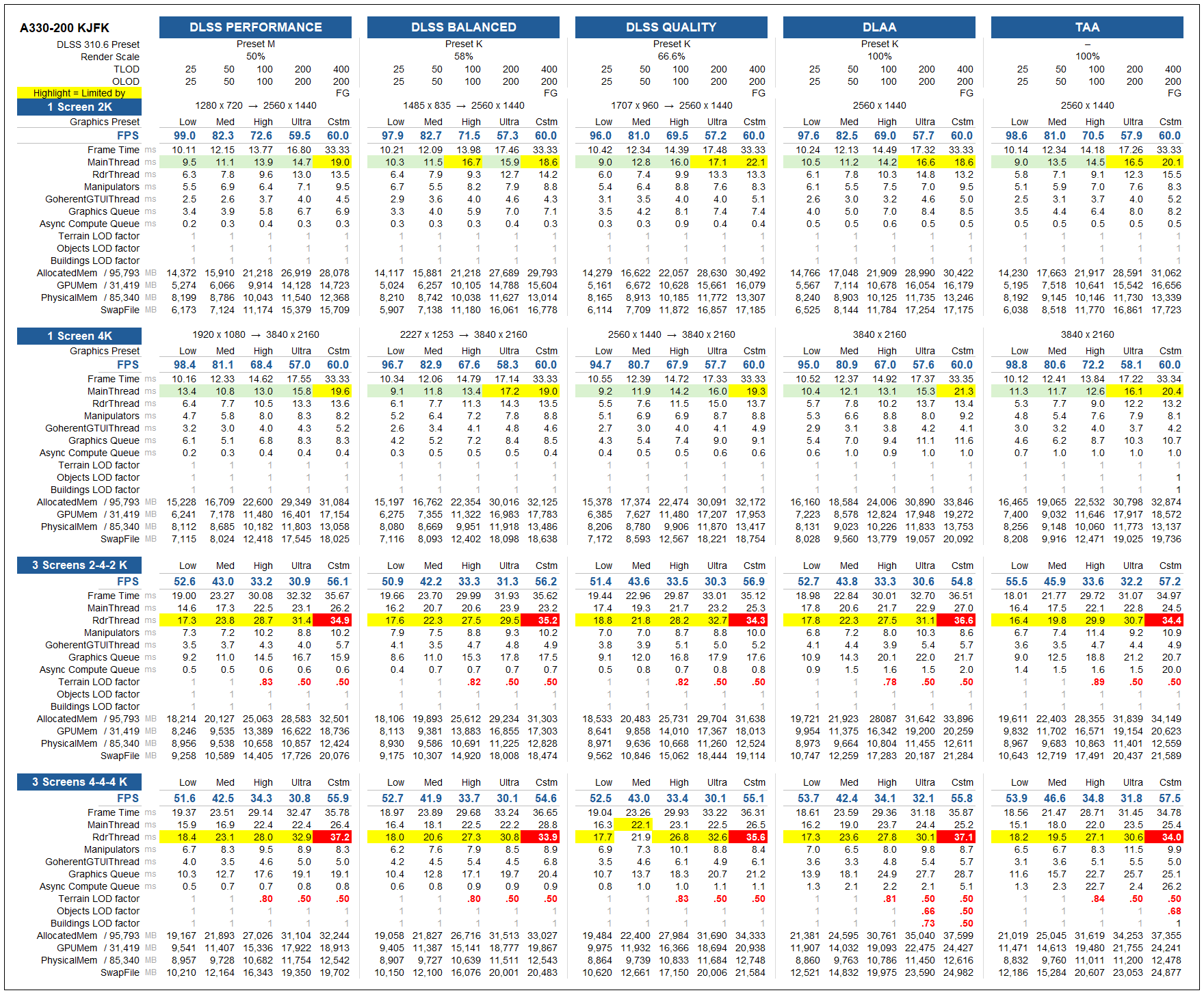
If it helps, I recently did a whole bunch of testing to see what RAM and VRAM usage looked like across the range of settings, and 1 vs 3 screens, on my PC…
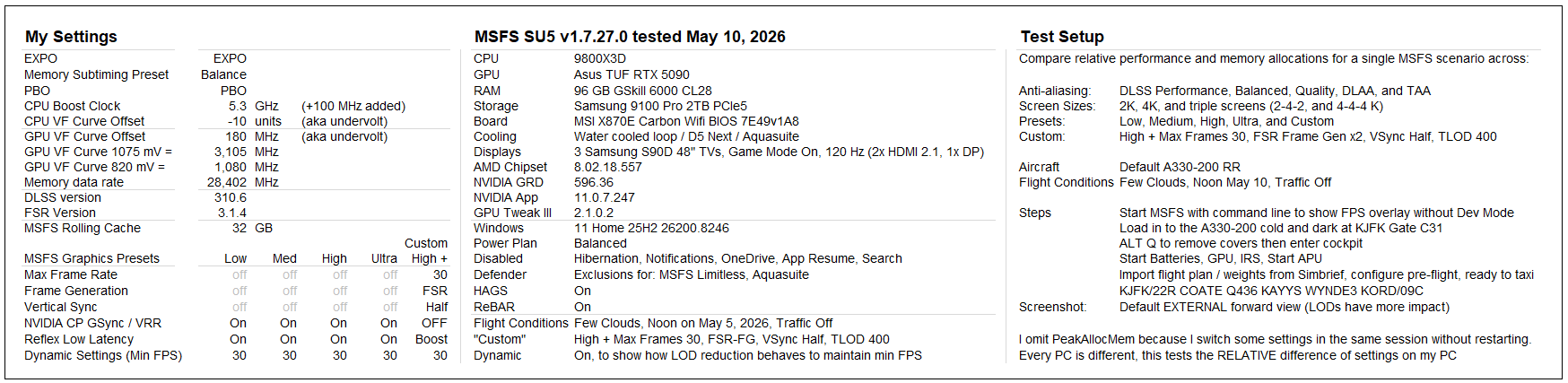
Keep in mind, my PC is very different and built last year, and so these results will not reflect how any other PC uses resources or performs, but it might be useful in a general sense to see what MSFS uses when it has room to do so…
Look at what the PhysicalMem and GPUMem values are - but keep in mind Windows itself has overhead too:
Results
So if the 2080 Super has 8 GB VRAM…
Then it looks like either 2K or 4K with Medium settings, with DLSS Performance (Preset M) would possibly fit in that budget, and is likely the best choice. Preset M with Performance is much better in terms of reducing ghositng, and rendering glass cockpit instruments, than Preset K.
But again, those numbers are what MSFS used on my PC, and I have no idea if they will be the same on your PC…
And if you lower things like MSFS traffic, you might be able to increase TLOD a bit, etc. YMMV.