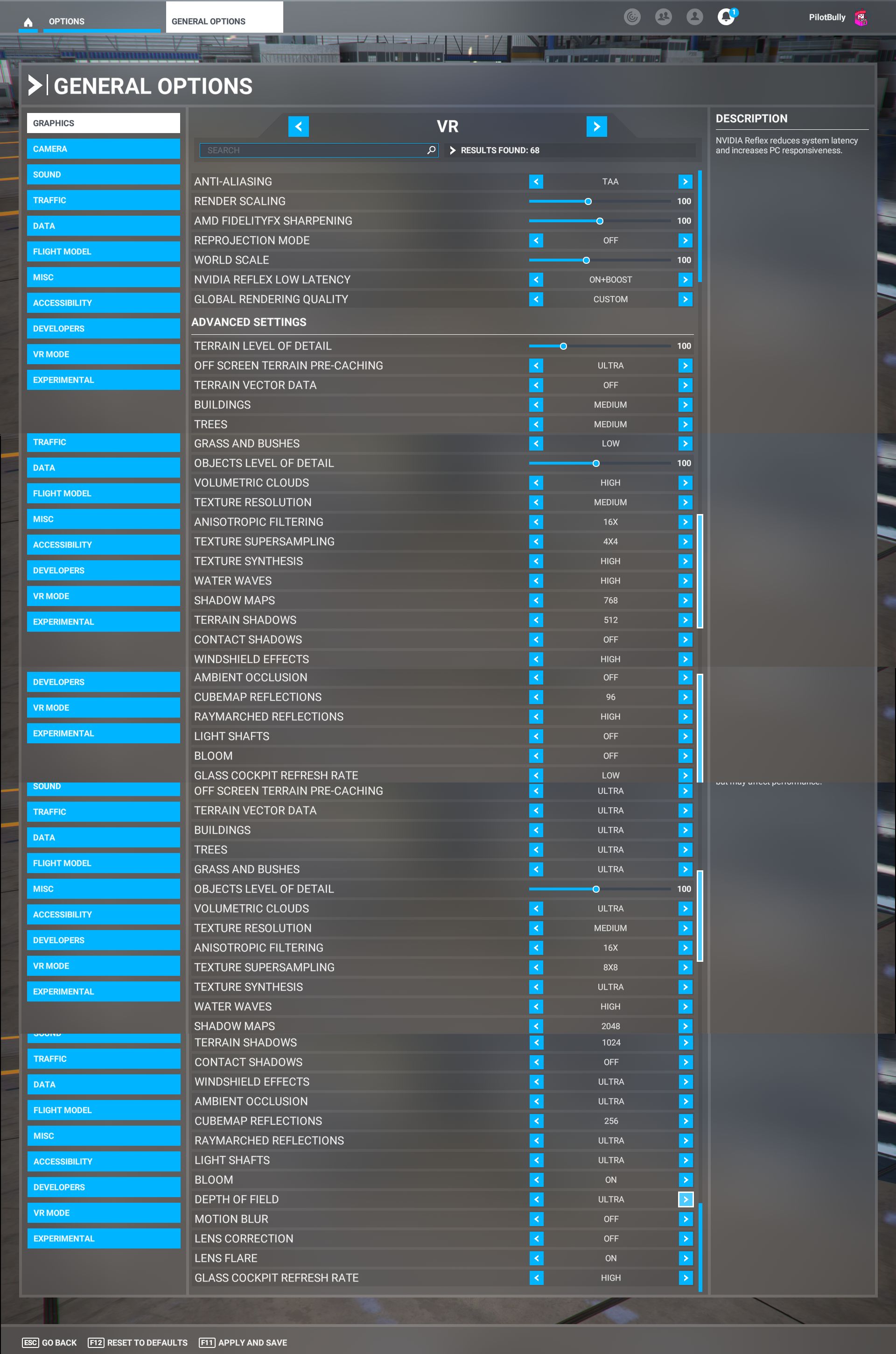
Anyone with a Quest 3 find the perfect settings to make it perform well? I’ve watched several videos on You Tube, but still have issues.
Specs: AMD Ryzen 9800 3d, 64 GB DDR5 ram, Nvidia RTX 3090, Quest Link cable.
With flight sim 2020, I used to run it though steam, and then use the SteamVR render res to make it sharper, and could have detail and good FPS.
With 2024, that does not work anymore, everything is blurry and the render res option has zero effect on the sim, I can lower it to 50% or up to 300% and there is zero visual change.
Because of that, I don’t use it though SteamVR anymore, I now use Virtual Desktop, which appears much sharper and higher frame rates for me.
Nothing perfect, but I gave up on link after working with Meta support. Virtual Desktop is significantly better (even though wireless vs. wired). Lots of config tweaking with VD settings to get it working well - most would be specific to your rig. One thing though is to disable hand tracking as it interferes with use of mouse and/or any other hardware you have (like stick/throttle).
I would suggest raising the poor Link performance with Meta as they seem to think it is just me.
I’ve just recently shelved my Quest 3 and gone back to using my 4K monitor with Tobii eye tracker 5.
Thought I’d never ever go back to flying on a monitor after using VR but since getting the Quest 3 back in December all I’ve done is spent most of my time trying to get the best balance between clarity and performance, constantly tweaking this and that and watching endless YT vids that to be all honest I don’t think they help much other than lead you down the road of more tweaking.
I tried Air link and the meta link cable but The best setup I found was using virtual desktop in ultra mode, 80fps, bitrate 120, sharpening 75, SSW enabled. Codec AV1 and VDXR runtime. WiFi 6E router in same room.
Settings in sim mostly low to medium, no traffic land, sea or air and no live weather.
All latest drivers on system and latest DLSS.
I found that in order to get smooth flights the sim settings need to be turned down and for me it just seemed a waste of time trying endlessly to get the best out of it when I have a 4K monitor in front of me and can crank the settings right up and enjoy the eye candy.
System: 7800x3d, X670E Tomahawk, 64gb ram, 4070ti Super.
Mark’s video at Sim Hanger on the subject helped me get excellent results in MSFS 2024 and also 2020. I use Virtual Desktop with my Quest 3 and it is very good. I actually get better performance than with my Varjo Aero. I have an RTX 4080 installed in my PC.
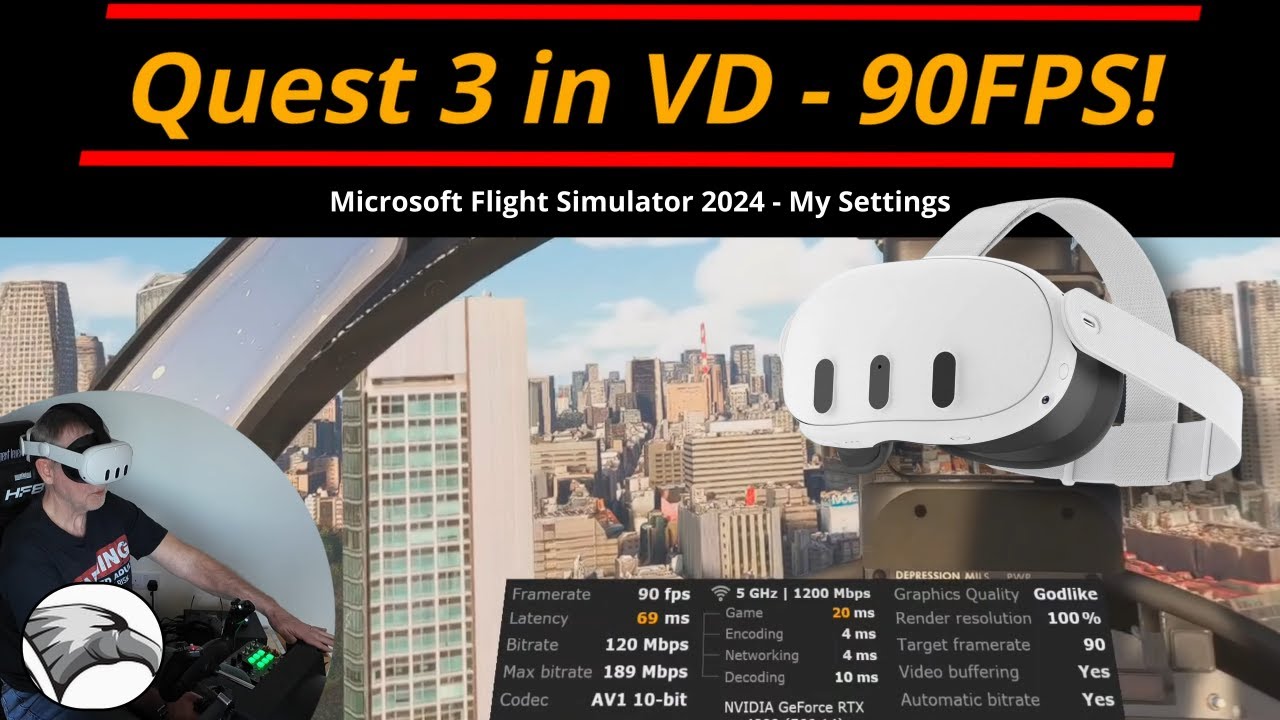
Thanks. I’ve spent hours trying to tweak the settings. The sim can’t find the headset when airlink is enabled, but it does connect to the computer, so I don’t know what’s going on there. I can play other VR games, so I know the air link is working. These guys that are showing great images baffle me. I set mine up exactly like theirs, and no go. I’m so ■■■■■■ at Microsoft for eliminating WMR, and making my G-2 into a paper weight!
What VR desktop are you using?
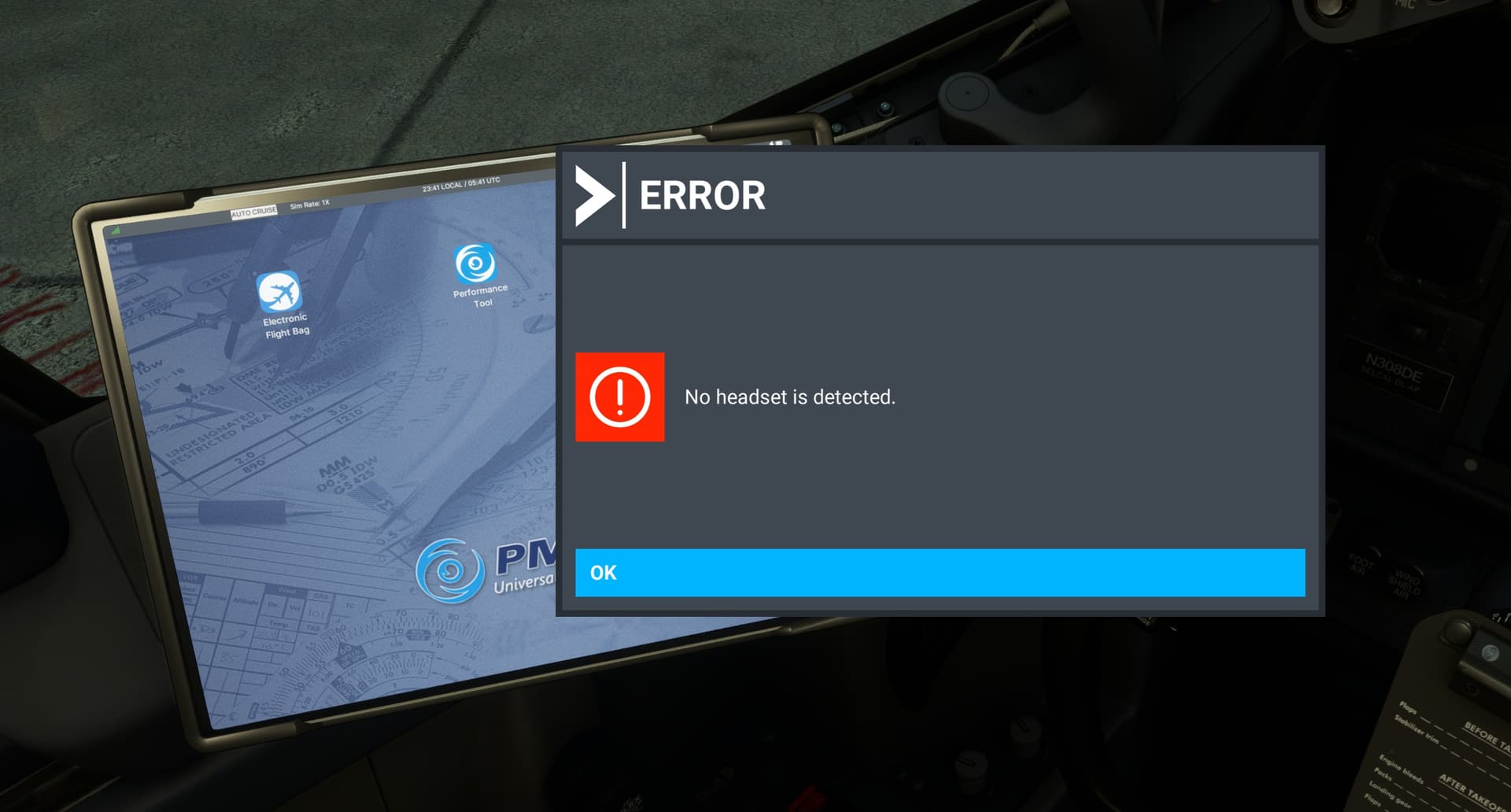
It looks like your headset setup needs to be rerun. I will assume that you have already done this but why not try it again.
The other thing is that to use VD and the AirLink you do need a close, within 20 feet, and modern router. Most, if not all, guides suggest that at least a WiFi 6E router purely setup for the headset.
I don’t believe you have mention your wifi setup but could this be the issue?
I’m using Meta’s Virtual Desktop. I don’t use Air Link, that I know of at least. In case it helps here is Meta’s description of it:
Connect wirelessly to your computer(s) to watch movies, browse the web, play games on a giant virtual screen or stream PCVR games. Virtual Desktop is a highly optimized, native application developed for low latency, high quality streaming.
• Computer must be wired with Gigabit Ethernet cable to a 5 GHz router
• Supports most PCs and laptops running Windows 10 or 11, macOS Catalina or later
• PCVR game streaming requires a VR Ready PC running Windows 10 or 11
• Videos tab allows you to download or stream regular/180/360 videos directly from your computer
• Supports Bluetooth mice, keyboards and gamepads
• Supports 3D Side-by-Side / Over-Under content on screen
• Supports multi-monitors (physical and/or virtual)
• Includes a Microphone passthrough option
• Supports remote connections over the internet (enable UPnP on your router)
make sure your router has intranet access enabled for whatever wifi your headset is on.