DX11 and DX12 are still part of MSFS - nothing has changed there, which is why DX11 is still available in the settings. As for CTDs during loading, it’s still unclear whether the issue comes from Asobo, Microsoft, Nvidia or something else entirely. No point in guessing until there’s an official explanation.
Do you have the same issue if you follow the OP’s steps to reproduce it?
• Yes, CTD before main menu, although I do not have the Nvidia app installed, just the latest drivers.
Provide extra information to complete the original description of the issue:
• I clean install updated from Win 10 to Win 11, installed the game, ran it once and it loaded ok, so I installed the marketplace content. Then I went to run the game again the next day and it crashed on load, showing the following error:
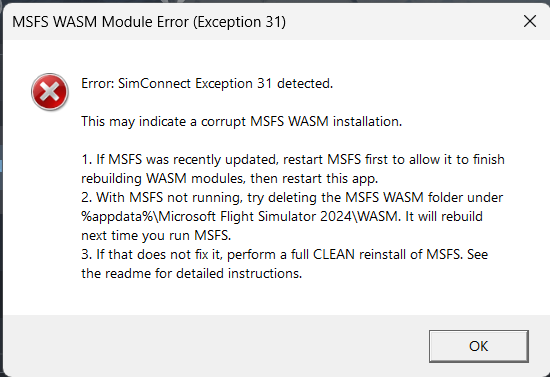
I was thinking the error may be from 3rd party software as it says MSFS 2024 despite me only having 2020 installed, but even if I launch in safe mode, and also empty community folder and delete caches, it crashes prior to the menu. And I think it may have still showed the same warning too, so I’m not sure. The warning only appears for a couple of seconds then closes, I was lucky to capture it.
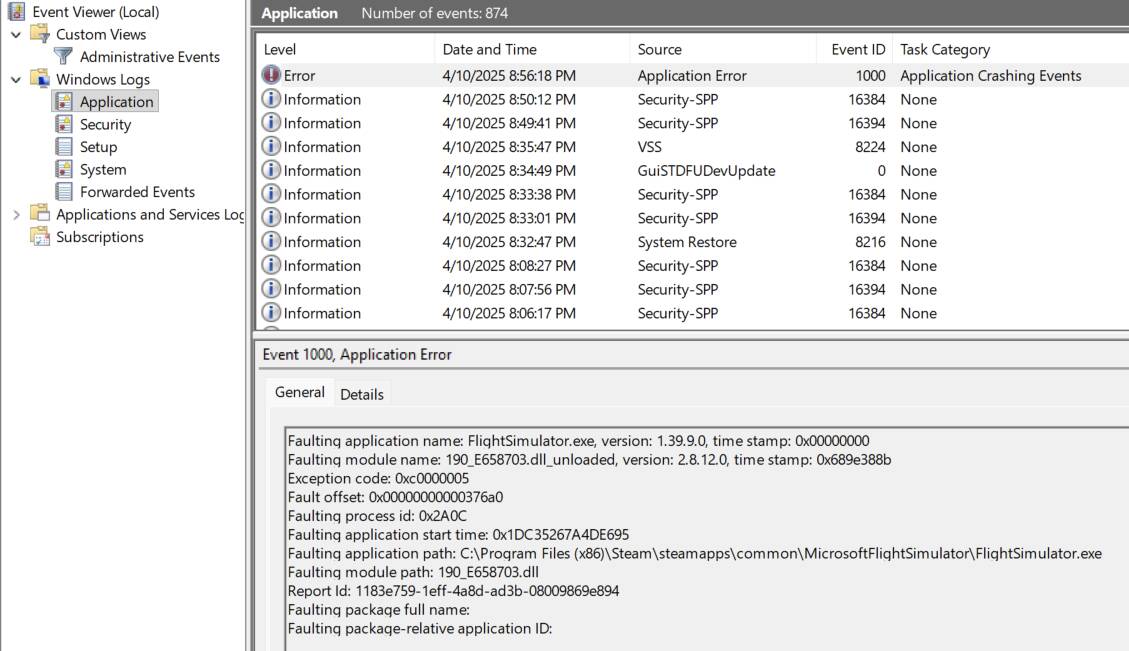
So I tried the steps, and did a clean install of MSFS, but it still crashes before the main menu. There is no 1001 Event ID/Fault Bucket listed in Event Viewer, only the 1000 Event ID - 0xc0000005.
If relevant, provide additional screenshots/video:
•
This worked for me, thanks.
Now its time to download everything from the content manager again 
Very kind of you, but I did see your other post.
Since then, I’ve actually tested all my addon airports, and with only Chaseplane and a couple aircraft I’m waiting for, I fully switched to 2024. Thanks for taking the time though!.
I’m starting to think that MSFS is trying to do something with “DLSS / Framegen” in DX11 when it’s not allowed.
That would clear up why it work in DX12 and also why it still work in DX11 without HAGS because no FG without it.(HAGS).
Lets just hope Asobo/MS do something. If they have proper QA and test a little they would at least launch the Sim in DX11 for testing I guess…
I don’t have details about NVidia others that they know about the issue. (not really hard to repro)
I remember the first time I encountered this DX11 error was when I received the first batch of updates for RTX 50 series support for the Nvidia package (Driver and App). Until then, MSFS was working normally. Something at Nvidia changed (my assumption) that caused this side effect in MSFS (my guess).
This worked for me, very easy to do. Thank you for your efforts
I’m experiencing the same issue with my RTX 5060. I reverted back to driver 576.88 and uninstalled the NVIDIA app. With this setup, I can use DX11 again.
However, even in this setup, I still get CTDs when loading a flight in VR mode. The only workaround is to load a flight in non-VR mode first and then switch to VR once the flight is running. In DX12, this problem does not occur.
I’ve also noticed issues when changing the DLSS version while using DX11. Overall, there appears to be something seriously broken.
Which nVIDIA driver are you using ?
If it hadn’t for the coincident of seeing a response from TenPatrol where he was assisting a simmer with this issue, I would either be still battling with this or I’d given up on getting the MSFS 2020 to work again. I purchased a RTX4090 about a year ago and was extremely happy with it. Then about a couple of months ago the iniBuilds A350 plains disappeared from the iniManager and I spent days or weeks trying to get them back. Then after basically clearing the MSFS 2024 and reinstalling the sim they came back albeit not working properly and during that process the MSFS 2020 gave up and crashed during loading and never got up to a working condition. This where I was when spotting the help line from TenPatrol and decided to try the easiest approach first and uninstall the Nvidia app. Hey presto, it worked. I’m no in the middle of a lenthy process of getting all my community stuff where it’s supposed to be and hopefully that will be sorted tomorrow, about 12 hrs from now. Just for a test, I decided to check if I had managed to get the A350-1000 cabin and flight deck and to my surprise that was actually the case. It looks like we have been limping along for nearly a year with buggy drivers in the GPU, something you wouldn’t expect for a card like that. The RTX4090 wasn’t exactly a budget item when it was released and still that price when my son and I purchased them. , Last but not least, I’d like to thank TenPatrol for the assistance because it’s for people like this that we manage to overcome the problems when they arrive. Nvidia, please don’t keep it a secret when there are problems with your gear.
Too early to celebrate, all gone down in a heap again. Back to square one.


After struggling for three days , heck even a complete reinstall didnt work, but this did. Always had a CTD either on the japan screen at 90% loading or on the main screen after loading. I did this and all this worked for me, i am on a older gpu though(rtx 3070).
1 . Go to msfs click on reset/restore in the nvidia app then Removed that stupid nvidia app(if you have it installed) - the source of all problems
2. Used DDU to clean remove all the drivers
3. Clean installed to Nvidia driver 770.00 minus nvidia hd audio and that stupid nvidia app.
4. Deleted rolling cache.cc
5. MOST IMPORTANT. - in the userCFG.opt file i put AUTO or OFF in front of DLSS, PUT 0 in front of VSYNC and PUT 0 in front of HDR10 and put 1 in front of DX12
-
Selected a time zone and then clicked on sync time now in time settings.
Below are my settings in the usercfg file
{Video
Adapter “NVIDIA GeForce RTX 3070”
Monitor 0
Windowed 1
FullscreenBorderless 1
WindowActive 0
Resolution 1920 1017
FullScreenResolution 1920 1080
PosX 0
PosY 23
AntiAliasing TAA
DLSSMode AUTO
DLSSG 0
Reflex OFF
FSRMode BALANCED
PrimaryScaling 1.000000
SecondaryScaling 1.000000
SharpenAmount 1.000000
ReprojectionMode 0
WorldScalePercentVR 100
AntiAliasingVR TAA
DLSSModeVR AUTO
DLSSGVR 0
ReflexVR OFF
FSRModeVR PERFORMANCE
PrimaryScalingVR 0.800000
SecondaryScalingVR 1.000000
SharpenAmountVR 1.000000
VSync 0
HDR10 0
Raytracing 0
PreferD3D12 1
IntelMessageBoxDisplayed 0
CurrentGPUDriverVersion 577.0.0
DoNotShowGpuDriverRequirementPopup 0
}
This fixed it for me. My gpu is running very hot though and at very good utilization btw, heck most pmdg planes and their interors load way crisper than with stupid dlss on.
You’re no longer getting CTDs because you’re on the 577.00 driver, you removed the NVIDIA app, and you’re running DX12 instead of DX11. The CTD during MSFS 2020 loading is a known bug, so nothing unusual there.
I keep repeating on the forum that you won’t get CTDs during the MSFS loading phase if:
- you switch to DX12 instead of DX11 in the usercfg.opt file
- you’re on an NVIDIA driver up to version 577.00 and don’t have the NVIDIA app installed
no for me even after moving to 577 and removing nvidia app and optimization and switching to DX12 nothing fixed it. I had to specifically turn off DLSS and set it to auto(currently on TAA) turned off DLSS and had to turn of vsync and hdr10 aswell. That got my game working. I am a 30 series 3070 LHR gpu. Always crashes with DLSS on in msfs, works fine in other games.
Worked for me. Thanks 
You’re welcome.
Fly safe.