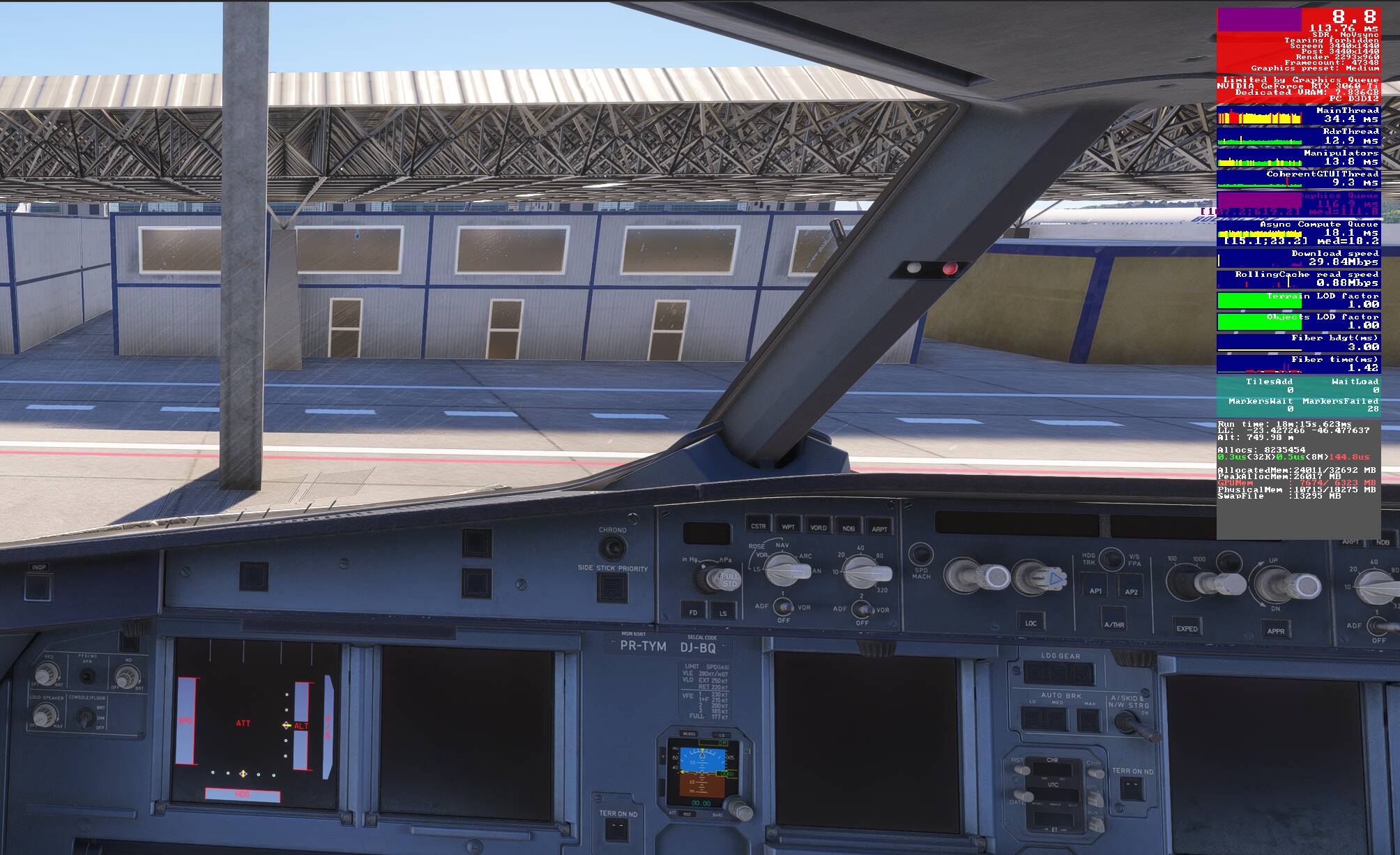
Launch msfs 2024 and place the aircraft on a runway with the engines running. Then go to settings > advanced options. Enable developer mode. Once the top menu bar appears, click the debug tab and select display fps. Return to the cockpit view and take a screenshot with the fps overlay visible and attach that screenshot in your reply.
It says “NoVSync” and Graphics Queue is in Purple (bad), so it’s not LOD, something is going on with graphics processing…
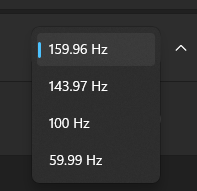
In Windows > Settings > Display > Advanced > refresh rate?
In Windows > Settings > Display > Graphics > Advanced > VRR on or off?
(also on this page you can add MSFS with a preference to use the GPU, to avoid Windows trying to use the iGPU)
NVIDIA Control Panel > GSync > enabled or disabled for your monitor? And in "Manage 3D Settings section, is VSync on or “used 3d app setting”?
Take screen shots of the “Manage 3D settings” list…
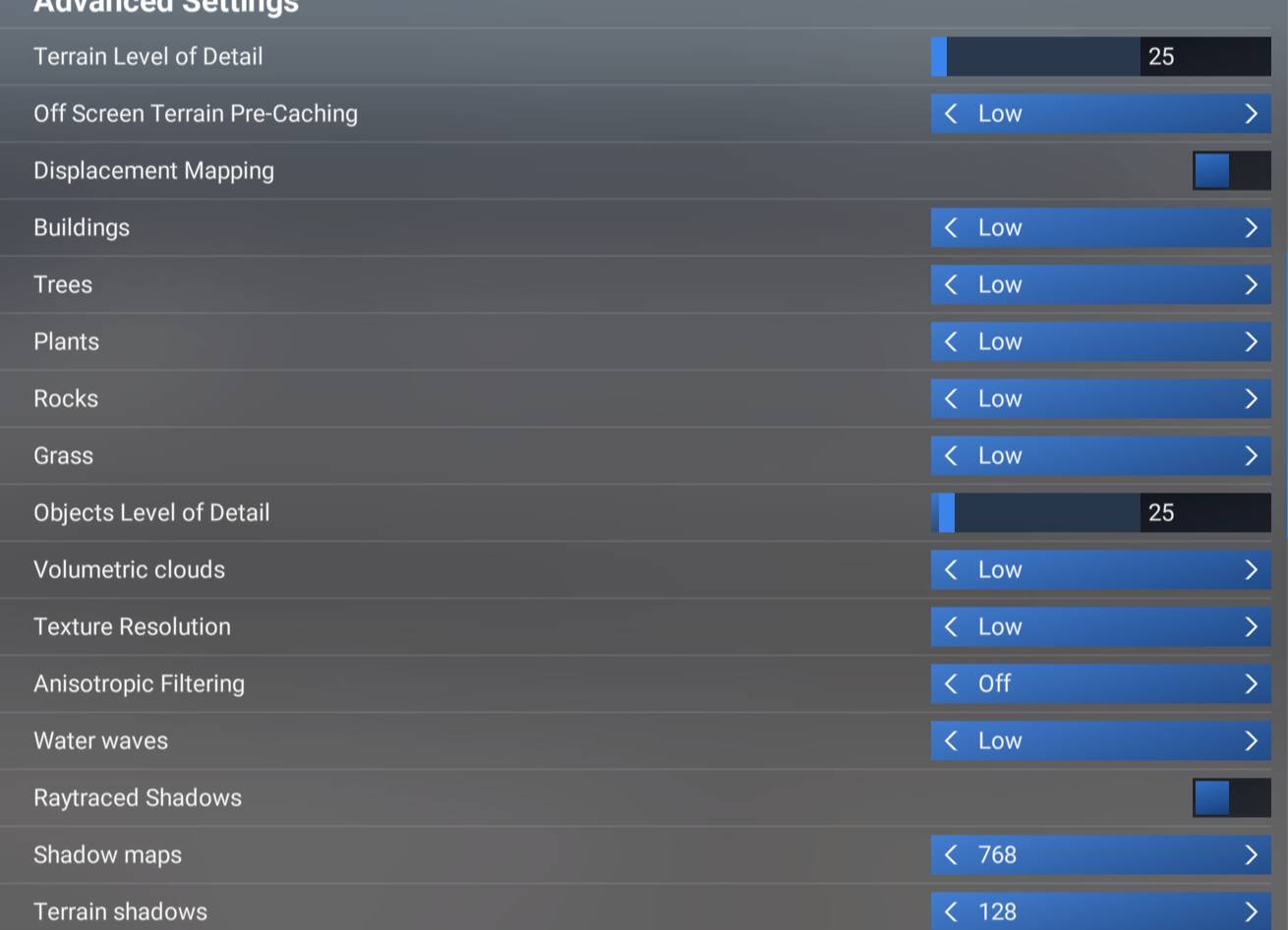
MSFS Graphics Settings, the top section… screen shot?
Settings > Display > ADVANCED > Refresh Rate > My guess is that it is set to 60. Try changing it to 120… ?
Then…
Settings > Display > Graphics > ADVANCED > Turn VRR ON… if it’s not available, then you first go to NVIDIA Control Panel… Now that the refresh rate is 120 Hz, GSync should show up on the left of the NVCP, Enable it for your monitor… is it there now?
Screen shot the list shown in NVCP > “Manage 3D Settings”
Screen shot the MSFS > Settings > Graphics page - the TOP of the page that shows all your screen resolution, Anti-aliasing, Frame Gen, Refresh, etc, etc.
And / or, In NVIDIA Control Panel, on the left choose “Change Resolution” and sometimes it has different sections, one for screens, and scroll down and there will be PC resolutions and refresh rates…
The idea here is that windows is treating the screen as not VRR, so hopefully a combination of these settings will enable it (which I hope will help!)
On mine (a Samsung TV, connected to an RTX 5090), the TV is “VRR capable” but I had to do this:
Set Windows refresh rate to more than 60 (I set 120)
In NVCP > GSync appeared, and I enabled it for the screen
That made “VRR” appear as an option back in Display > Graphics > Advanced, which I turned on…
Complicated, but it worked… so I’m guessing you have to do something similar… not sure, but worth a shot.
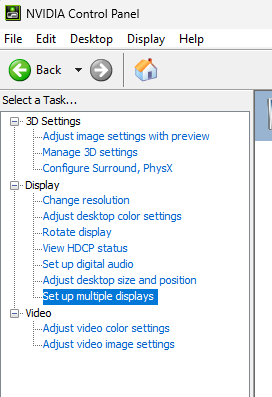
It’s showing 4 screens… are you trying to run MSFS on more than one screen? Have you tried MSFS with a single screen?
Is the video cable (HDMI, Displayport?) to the screen you are having this issue with plugged in to the GPU, or the motherboard?
Notice the 2 LG icons are different - the 2nd one is recognized as GSync compatible, the 1st is not. This could be if the screen isn’t VRR, or the cable, or ports are not up to the spec it is expecting…
At any rate, go back to Windows > Settings > Display > Graphics > Advanced, and see if you can enable VRR now for each monitor… you have to check each monitor separately
Again, I’m not sure if this fixes your issue, but worth a try.
Also, does your monitor itself have settings, and if so, is there a “Game Mode” or anything related to enabling GSync or VSync, or VRR?
I had some stuttering issues while panning, so I turned off Resizable Bar, as well as Hardware Accelerated GPU Scheduling. Problem solved.
Both of these settings will use up more GPU memory when turned off, than left off. Same goes for developer mode. If you want a CPU/Memory/GPU usage counter, use something like MSI Afterburner. It doesn’t eat up 1 GB of VRAM to use.
Why is your Video Encoding engine in use? Are you trying to run OBS or other recording software while using MSFS2024? That will just eat up even more RAM/VRAM.
It looks to me like you are running your computer at its limit. VRAM and RAM are fully used. That could mean, that your computer is busy shuffling around data to free some space for what comes next. To me, the limitation by the graphics queue points in that direction.
There is not much you can do to increase VRAM. Switching off Resizable BAR is the only possibility I know off. As far as I understand, it allows to transfer bigger chunks of data but uses VRAM to do so. And if you are short of VRAM, this feature is counter-productive.
The biggest step forward in terms of FPS for me was to use DLSS (currently version 4.5).
Switching off hardware accelerated GPU scheduling is generally recommended, but it did not change a lot for me.
Why is your NVidia control panel showing 4 monitors? Even if you run MSFS on one screen only, is there another monitor in use (eating up resources)? And if so, is it attached to the same graphics card? Than you would have to “add” the pixels to the msfs screen. I run a triple screen setup and I easily double my frame rate by switching off the outer monitors. Size matters, especially when you are already at the limit.
VRAM is full, that is the problem. You have to reduce the graphic settings, close background apps and use specific addons reducing VRAM usage (like low-res textures). And disconnect Monitors.