I have the same problem. I made all the recommendations of the forum but none worked, I also did a clean installation of windows that was useless. I give up and hope tomorrow’s update fixes this problem
I won’t even get opp. to download update to possibly fix problem, as each time I try to load SIM, it tells me its attempting to download (what is already fully installed, and was working fine), then tells me I own this product, and this product is installed. I attempt to launch…same over and over…
I’m not about to reinstall Windows and Sim again 3times in one month. Check out vid @0305 on 17 jun 21…
Sick of it now to be honest…
Off to chill for a while with P3D.4, at least it launches.
Re-install gaming services manually.
How to re-isntall gaming services manually
In windows seacrh bar type
powershell
right click on powershell and select run as administrator
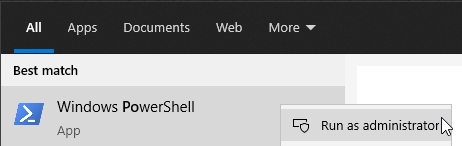
Copy the command below and paste into powershell (right click to paste into powershell window)
get-appxpackage -allusers Microsoft.GamingServices | remove-AppxPackage -allusers
Copy the command below and paste into powershell (right click to paste into powershell window)
Remove-Item -Path “HKLM:\SYSTEM\CurrentControlSet\Services\GamingServices” -Recurse
press enter
Copy the command below and paste into powershell (right click to paste into powershell window)
Remove-Item -Path “HKLM:\SYSTEM\CurrentControlSet\Services\GamingServicesNet” -Recurse
press enter
//////////////////////////////////////////
Restart PC.
/////////////////////////////////////////
Download Microsoft.GamingServices_2.53.28001.0_neutral___8wekyb3d8bbwe.AppxBundle
Right click on it and select install
After that run powershell as administrator
Copy the command below and paste into powershell
Stop-Service -Name “GamingServicesNet”
press enter
Copy the command below and paste into powershell
Stop-Service -Name “GamingServices”
press enter
IMPORTANT
In windows search bar type notepad
Right click on it and select run as administrator
Copy the command below and paste into NOTEPAD
Add-AppxPackage -register “C:\Program Files\WindowsApps\Microsoft.GamingServices_2.53.28001.0_x64__8wekyb3d8bbwe\AppxManifest.xml” -DisableDevelopmentMode
Run powershell as administrator
Copy command from notepad and PASTE INTO POWERSHELL
press enter
Restart PC.
Cheers Ten, but I’ve tried to do that, and to no avail. Used Uninstaller Pro to remove and it still says same, Ie; you own this product…install to my machines(devices), product installed. Launch…nothing…
So I’m gonna fry drive altogether, found an ISO to (update) my OS…
As these issues are since a Win update (I normally have auto updates’Disabled’, but in process of forcing an update I required and needed, one of the Microsoft auto updates slipped past, which is what I think messed it all up).
I’ll keep you posted.
Don‘t know if it is still relevant, but can not hurt to link it: