This is a great question. It’s the only thing missing from POPM. This latest version is very good indeed and is the best it’s ever been for me. I suspect the issue may be how to access data that differentiates between versions. As a workaround for one’s like the DC-3 where one version requires no popouts perhaps a mappable key that can be used to cancel the pop out process. This would not solve something like the C414 that has a GNS version and a GTN version. An even worse case is the C310R or JF PA-28 Arrows that have switchable avionics in the same loaded version.
Yes you can. I do it for many aircraft. Have you got the touch enabled for that popout?
Addionally are your touch screens calibrated in the Windows OS?
I loaded this program and thought I had it configured perfectly. I created the profile for the Cessna 172 G1000 and popped out the two displays to a portable monitor. I also created a profile for a second plane. When I switched planes in MSFS it worked perfectly. I shut it down and reloaded the software and the pop ups didn’t work at all. Outside of locking each profile I don’t see anywhere there is an actual save button. Am I doing something wrong here?
Also, I renamed the file on my computer from MSFSPopoutPanelManeger.exe to something that looked better i.e. with spaces in it. When I did that the program wouldn’t load (strange). When I changed it back it loaded again but no planes were there. Maybe this had something to do with it.
It’s loaded when the sim loads so you don’t need to do it manually unless you force close it or there is a crash. There is an entry in your exe.xml file that will have the path to the POPM app. There is no save needed it will retain all the settings you make.
Thank you for your quick reply.
Unfortunately it is still not working. When I start MSFS it opens the Pop out manager but it says to get started create a profile. If I minimize that and start a flight, it does not open any pop ups.
The manual says the user plane profile data and application settings are stored as JSON files under your “Documents” folder. (%userprofile%\Documents\MSFS Pop Out Manager)
• userprofiledata.json Stored your various plane profiles.
I cannot find this file anywhere. The program itself I put in a folder on my desktop and when I extracted it it put a folder their called community. There are no files there that look like .xml files or .json except for layout and manifest.
It doesn’t seem to be retaining anything I have made.
Hi all, sorry for missing in action for the past week, I was on holiday/vacation with family.
For the question asked by FlybyRobs for POPM to only react to certain variant of an aircraft for auto pop out, currently this is not possible since POPM applies pop out profile to all variants (liveries) of an aircraft. This was changed since v3.0 of POPM because this remove the need for users to use a POPM aircraft for all version of an aircraft.
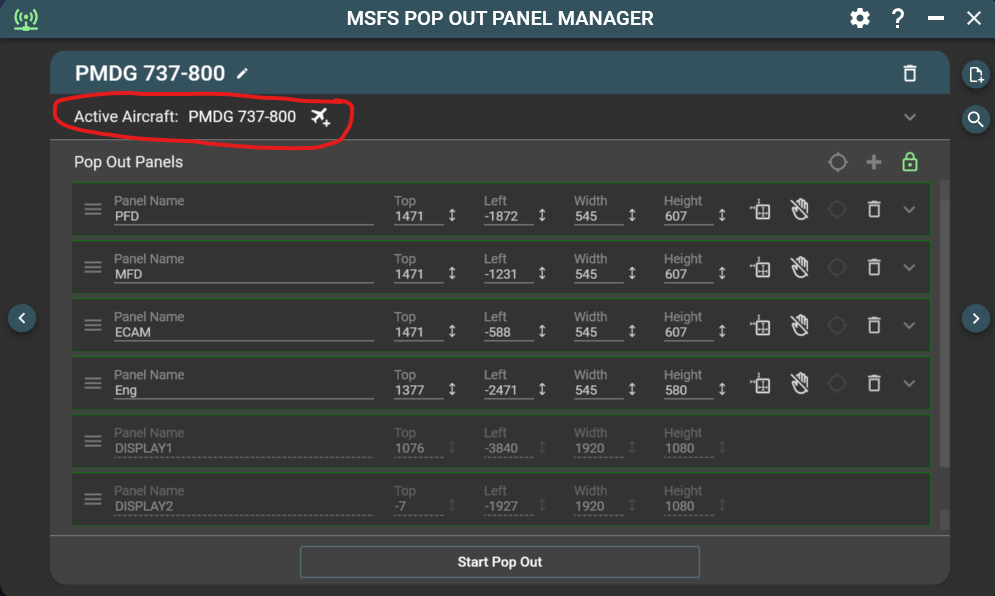
One way to work around this is to disable auto pop out for an aircraft, and then use keyboard shortcut Ctrl-Shft-P to initiate the pop out process for the variant of the aircraft you want to pop out panels. To disable auto pop out for an aircraft, click the aircraft minus icon and the active aircraft title should change back to white color (auto pop out not active).
Vision jet should work with the latest version of POPM and I’m running with with the same setup (Spacedesk on iPad pro for GTC touch screen). Please try increasing touch down touch up delay to 25ms or higher in POPM preference settings. Increasing this value 5ms at a time until you get the correct reaction from touch to have the best performance. For some reason, this aircraft is slower to react to touch emulation in POPM reported by other users.

Hi 
For a few hours, I’ve been trying to get the plugin to work, which looks great!
Coupled with AirManager, we are working on the creation of a HomeCockpit for HPG’s Airbus H145 on FS2020.
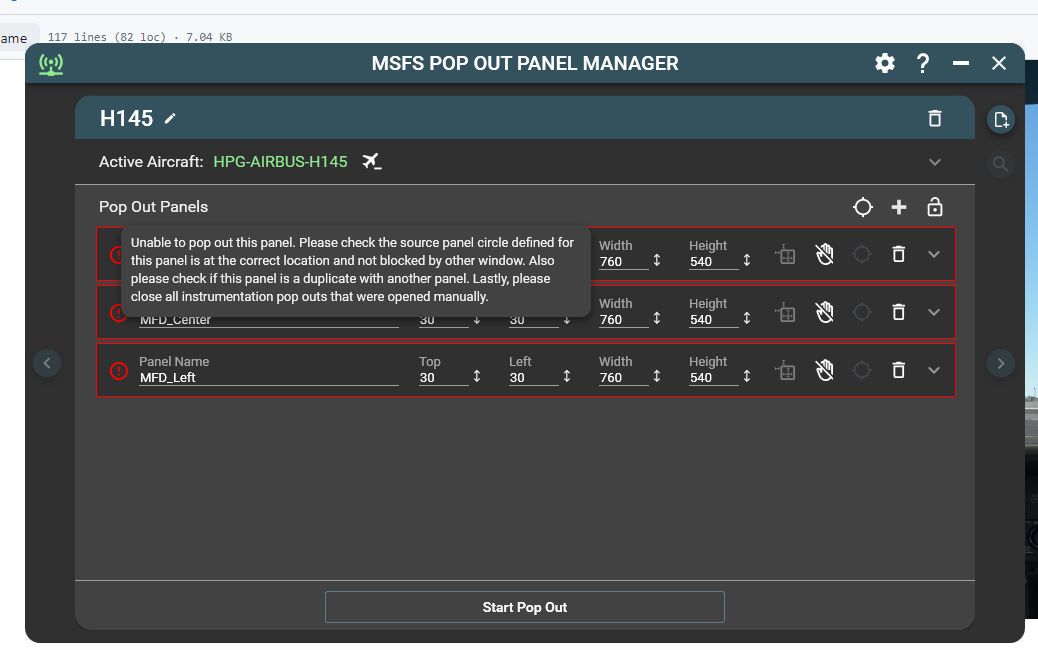
I followed the installation recommendations on GitHub and Flightsim.to to the letter, but I am unable to extract the MFDs from the H145 (I also tried with a c172 G1000 and a TBM930 without success) .
We tried with both versions (Github and FlightSim.to) by also adding the folder in community, without success.
Regardless of the configuration we always have the same error (cf screen). Obviously, we tried the classics (installations, uninstallations, reset, other versions, other planes, etc.)
Our setup :
- Windows 11
- Fs2020 1.35.21.0 (steam)
- Nvidia 546.29
- Popup manager 4.0.3
- Framework 5.0.17
- SimConnect RTM 10.0.60905.0
- SimConnect SP1 10.0.61242.0
- SimConnect XPACK : 10.0.61637.0
If anyone sees a solution to something I definitely did wrong?
Thanks in advance.
Hey, I ended up disabling the virtual HID device under Spacedek in device manager and this resolved it for me. Thanks
thanks,
I have tried calibrating but the calibrate button is greyed out. The screen is listed as touch in device manager and I can launch apps from that touch screen i.e. it is working.
Thanks for any help.


Have you clicked setup and followed the instructions thereafter. The very first part of the setup is telling the OS which of your monitors is the touch screen because it doesn’t know until told. It may have it right by default but when things don’t work with touch this is always the first thing to try.
Hi
Yes. I did and it asked me to touch the correct screen with one finger. Will give it another go today.
Thanks again
Josh
Ok. it seems to up and running now. Thanks for the help. Much appreciated.
Josh
1 Like
Please check if you’ve Right-Alt Left-click assign in MSFS control settings to pop out panel. Also, if you’re using auto panning in POPM (in preference settings), you’ve Ctrl-Alt-0 (zero in top row of keyboard and not the number zero in num pad on keyboard) assign to load and save custom camera view 0. This will allow POPM to set the correct camera view so the color circles, where POPM will emulates mouse click to pop out panels are in the correct location.
1 Like
Any tips on how to enable msfs pop out manager title bar color customization to work? I set it to Black but still is on the default Grey. Thanks.
You just need to enable color customization setting and set the value to all zeroes. Once the setting is updated, pop out your panels again.

@RoastGnu Strange. I did exaclty that and still is the same def grey.
It could be something your system that POPM is unable to override (windows theme, 3rd party theme software) or my POPM code does not work across all systems for overriding the default windows title bar color. I’ll do some investigation and see if there is another way to change the title bar color. Btw, I’ve only tested the customized color setting on Windows 11, maybe if you’ve have Windows 10, it does not work at all.
Good evening,
It finally worked.
Thank you for the help provided.
I am using Windows 10. I hope there is a way @RoastGnu