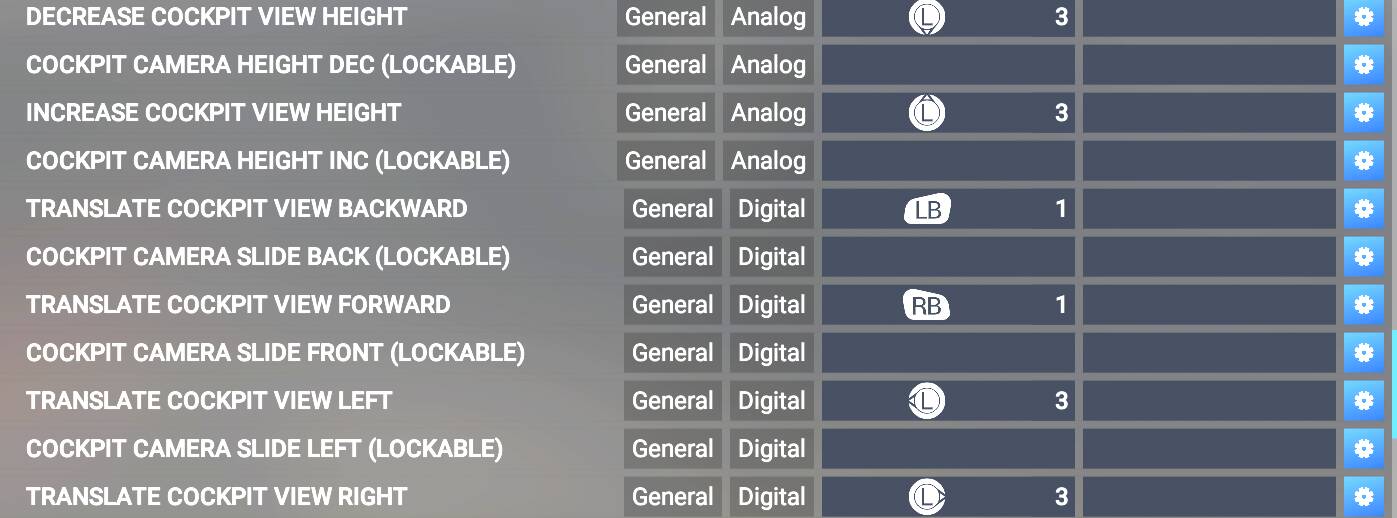
I am using the latest store version of MSFS2024 and my XBox controller used to control my avatar in walk around mode outside the cockpit using the left joystick to move left, right, forward and backward while the right joystick turned the avatar clockwise, counterclockwise, upward and downward. When I entered the cockpit by hitting shift-c the left controller joystick allowed me to translate upward, downward, left and right and the right joystick allowed for view left, right, up and down. Now I find I can either have the external walk around mode OR the internal cockpit translate mode but not both at the same time. To be clear I can now only use the xbox controller to move the external avatar OR I can use it to translate the view when inside the cockpit. Here are the settings I use for cockpit mode:
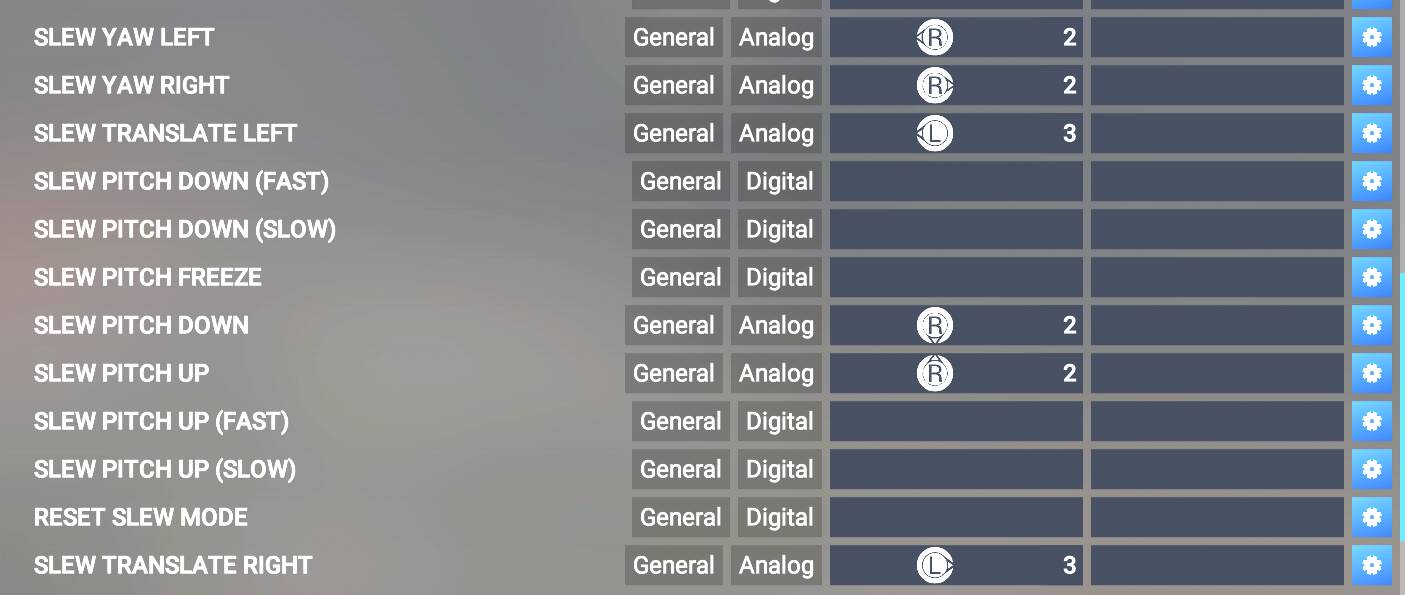
Here are the settings for the avatar walk around mode:
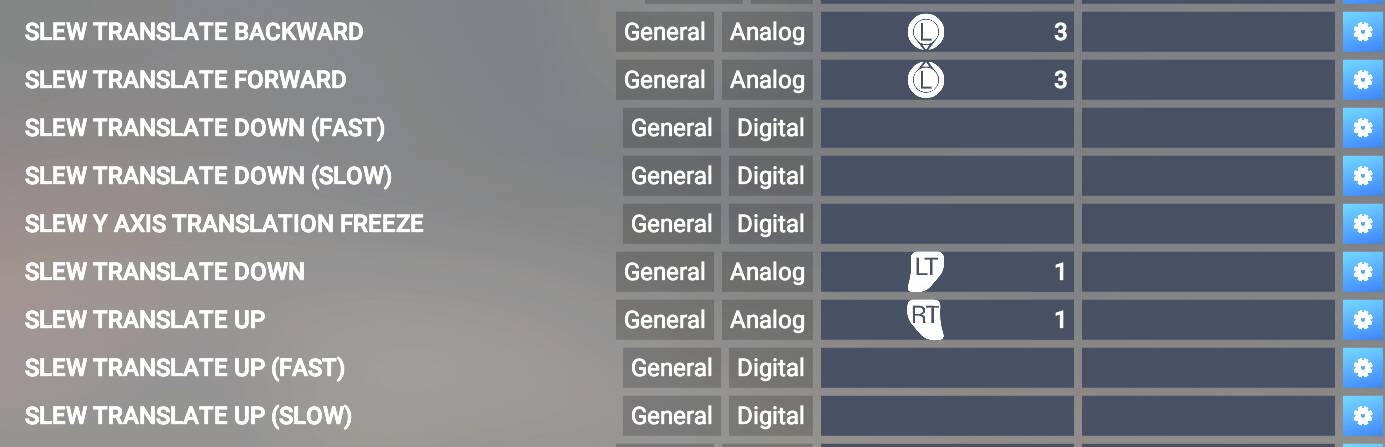
and here are the settings for the external camera:
These settings used to work. Now if I want the avatar to walk around using my xbox controller, I must clear out the cockpit translation settings. Any ideas what may be wrong? Thanks!
The SLEW Settings are not used for avatar movements. In the Controls Settings search for ‘character’ (MSFS name for the avatar) and you will get a list of the correct controls settings.
Edit: There is also a settings category named ‘Player character’. Select ‘All’ and scroll down to that category, click on it. it will show the subcategories ‘Interactions’, ‘Camera’ and ‘Movement’.
@FrankP134
These are my controller settings - hope this helps:
General
| Action |
Mapped to |
| Toggle Plane Controls |
Left Button + B |
| Reset Fixed Camera |
Right Stick Push |
| Reset SmartCam |
Right Stick Push |
Character
| Action |
Mapped to |
| Take Control of Character |
Left Button + A |
| Interact |
A |
| Rotate X Axis |
Right Stick L/R |
| Rotate Y Axis |
Right Stick U/D |
| Move Left/Right Axis |
Left Stick L/R |
| Move Forward/Backward Axis |
Left Stick U/D |
| Toggle Crouch |
Left Button |
| Set Run |
Right Button |
| Camera Reset |
Right Stick Push |
Cockpit Interaction
| Action |
Mapped to |
| Cockpit Interaction X Axis (Lockable) |
Right Stick L/R |
| Cockpit Interaction Y Axis (Lockable) |
Right Stick U/D |
| Interaction Lock |
A |
| Interaction Unlock |
Left Trigger + A |
| Cursor Down |
Left Stick Down |
| Cursor Left |
Left Stick Left |
| Cursor Right |
Left Stick Right |
| Cursor Up |
Left Stick Up |
Cockpit View
| Action |
Mapped to |
| Cockpit View Pitch Axis |
Right Stick U/D |
| Cockpit View Yaw Axis |
Right Stick L/R |
| Increase Cockpit View Height |
Left Trigger |
| Decease Cockpit View Height |
Right Trigger |
| Cockpit View X Translation Axis |
Left Stick L/R |
| Cockpit View Z Translation Axis |
Left Stick U/D |
| Reset Cockpit View |
Right Stick Push |
| Toggle Cockpit View |
Y |
External View
| Action |
Mapped to |
| External View Pitch Axis |
Right Stick U/D |
| External View Yaw Axis |
Right Stick L/R |
| External View Zoom Axis |
Left Stick U/D |
| Reset External View |
Right Stick Push |
| Toggle External View |
X |
Drone View
| Action |
Mapped to |
| Drone Pitch Axis |
Right Stick U/D |
| Drone Yaw Axis |
Right Stick L/R |
| Translate Drone Up |
Left Trigger |
| Translate Drone Down |
Right Trigger |
| Drone View X Translation Axis |
Left Stick L/R |
| Drone View Z Translation Axis |
Left Stick U/D |
| Reset Drone Target Offset |
Right Stick Push |
| Reset Drone Roll |
Left Stick Push |
| Toggle Drone Camera |
B |
Slew
| Action |
Mapped to |
| Slew Pitch Axis |
Right Stick U/D |
| Slew Yaw Axis |
Right Stick L/R |
| Slew Translate Up |
Left Trigger |
| Slew Translate Down |
Right Trigger |
| Slew Translate Left |
Left Stick Left |
| Slew Translate Right |
Left Stick Right |
| Slew Translate Forward |
Left Stick Up |
| Slew Translate Backward |
Left Stick Down |
Photograph
| Action |
Mapped to |
| Toggle Auto Exposure |
Left Button |
| Toggle Auto Focus |
Right Button |
| Zoom In |
Right Trigger |
| Zoom Out |
Left Trigger |
| Rotate X Axis |
Right Stick L/R |
| Rotate Y Axis |
Right Stick U/D |
| Translate X Axis |
Left Stick L/R |
| Translate Z Axis |
Left Stick U/D |
| Take Picture |
Right Stick Push |
Tools
| Action |
Mapped to |
| Quick PreFlight |
Left Button + X |
| Set Pause On |
Back Button |
| Set Pause Off |
Start Button |
Thank you! I found the settings. I recently had to reinstall MSFS2024 and somehow lost my previous settings and forgot how to correctly set them up.
Thank you! I used your settings and they were very helpful. I learned about axes I hadn’t thought to use before. Everything is working now!