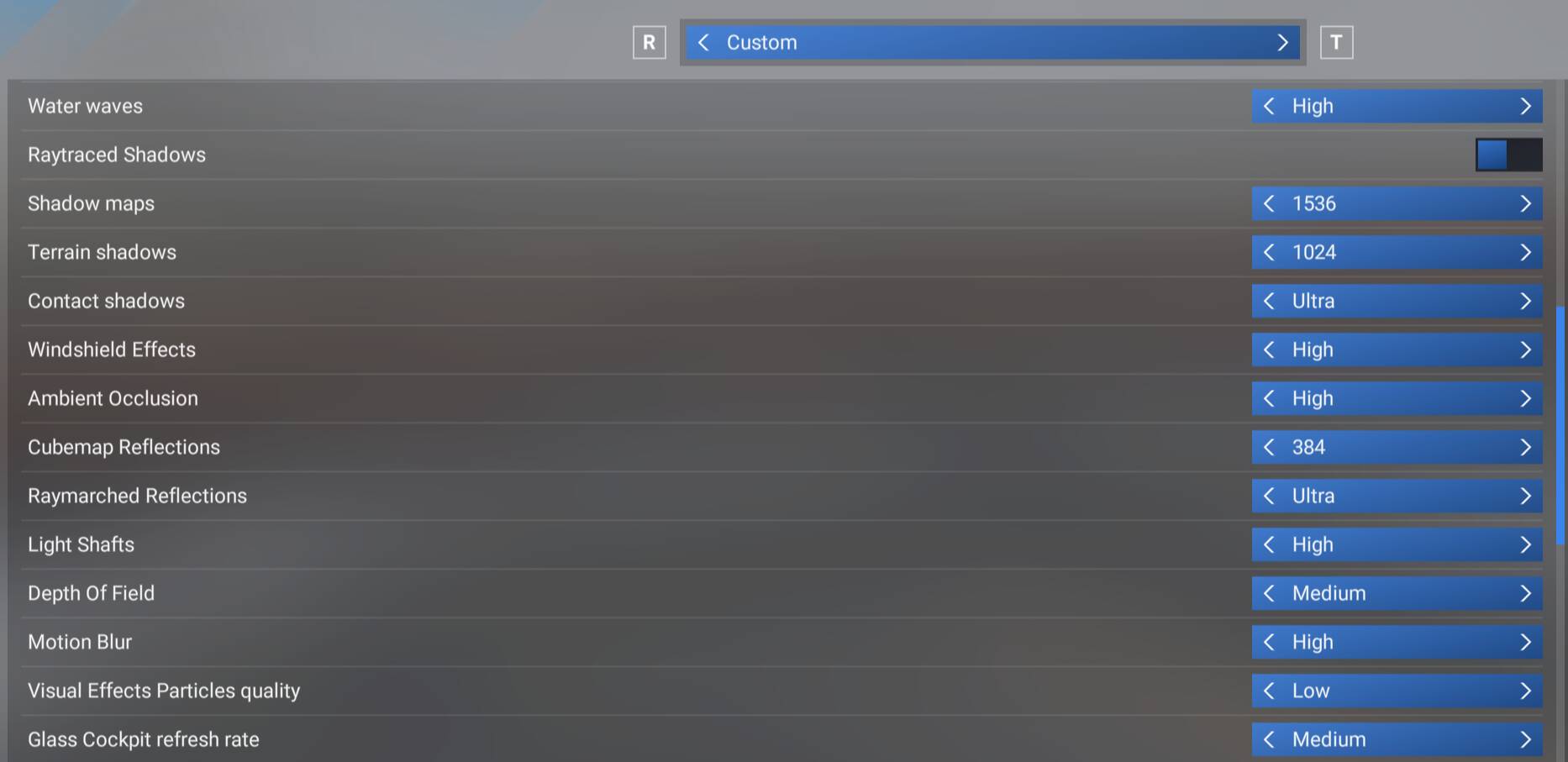
Calling all experts on sim performance and settings for an NVIDIA / AMD Ryzen based PC for MSFS2024.
I had MSFS2020 figured out, and I think I have a pretty good handle on MSFS2024 so far - running with inibuilds aircraft and scenery with good performance, but I do get the dreaded “exceeding gpu resources” tag at some airports like JFK; so, welcoming tips for best performance and best graphics - I feel like I can squeeze more out of this.
I do have some specific questions:
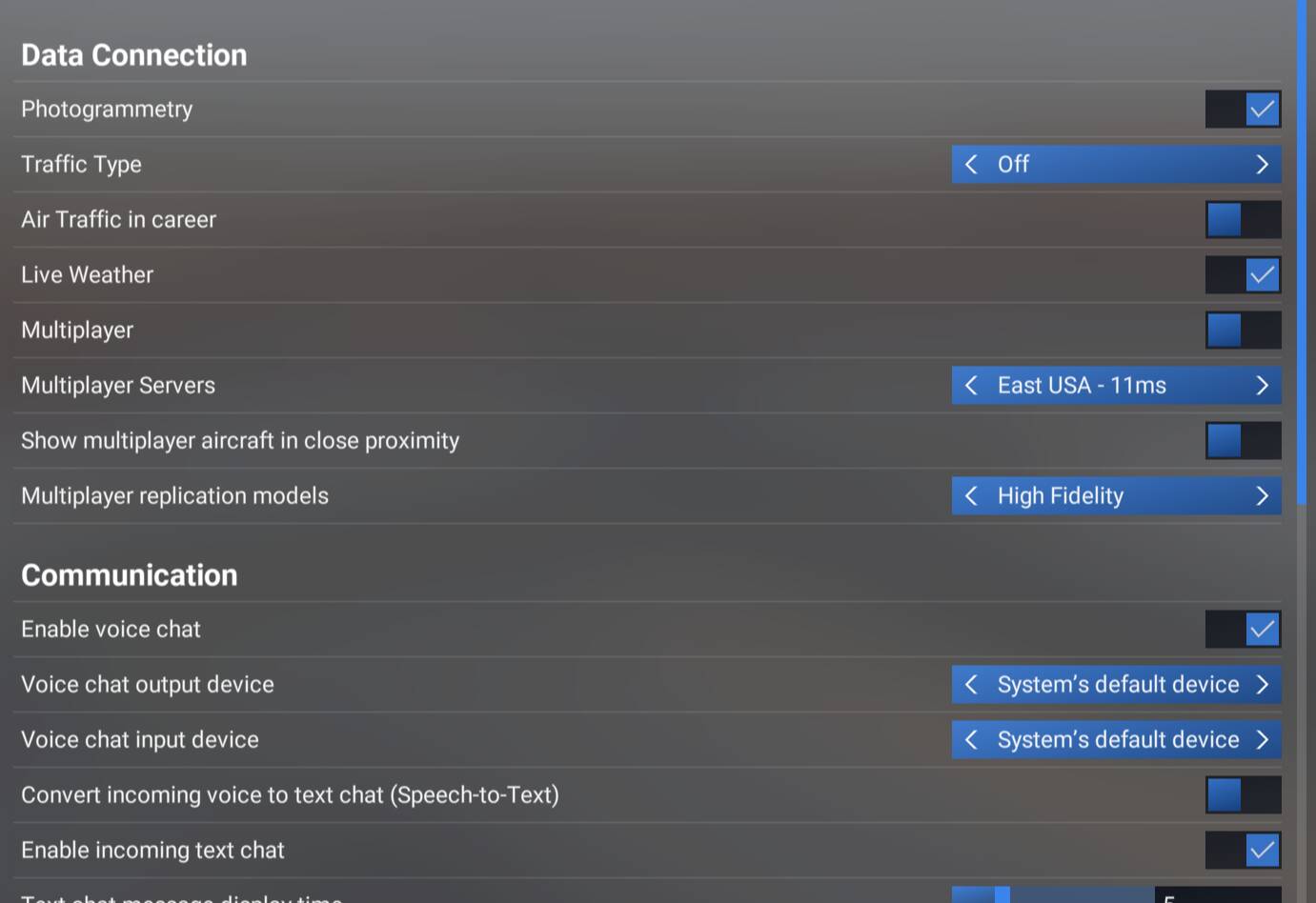
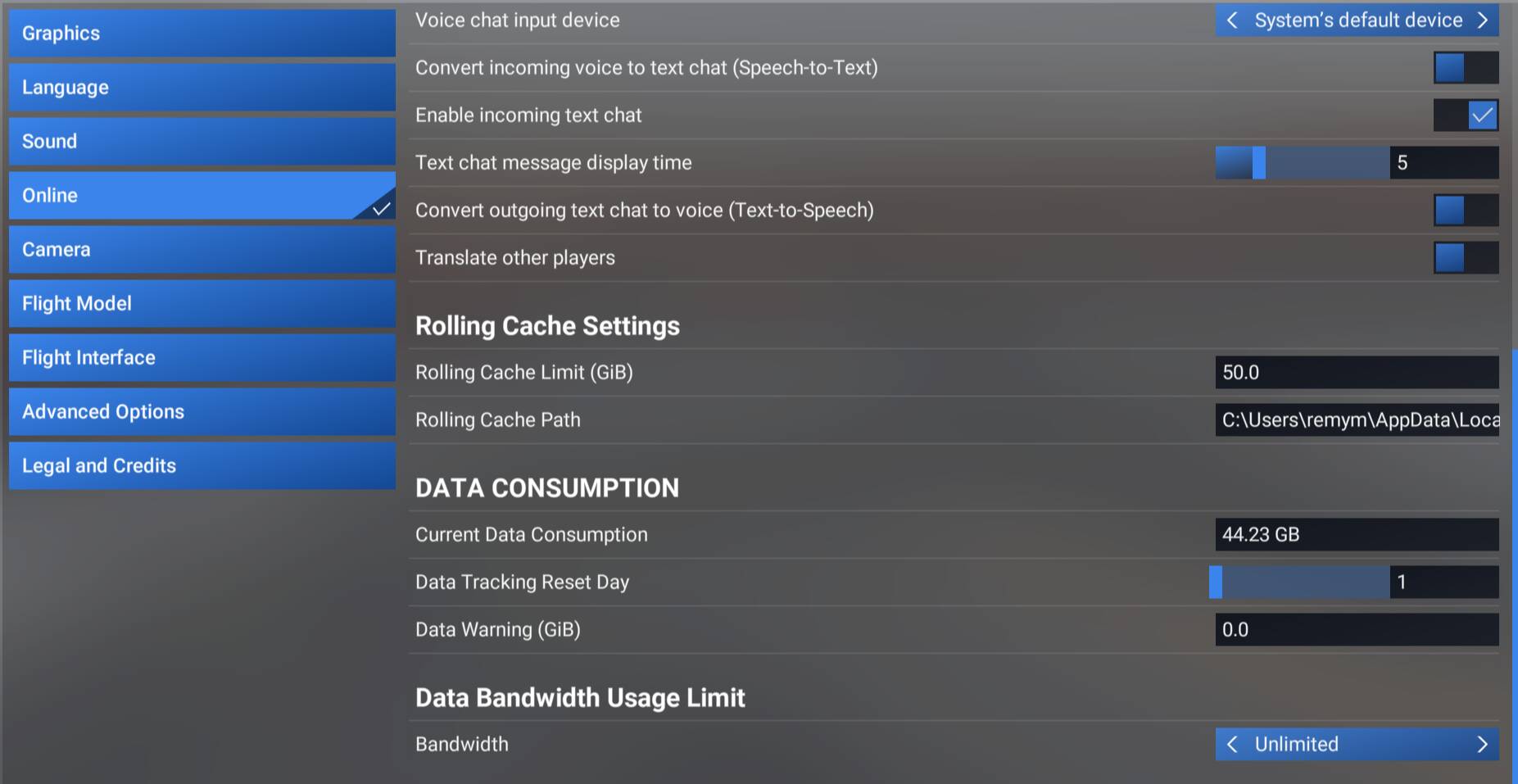
- Photogrammetry - on or off? seems like there ar emixed opinions. I am not a big fan of the melted cities. I guess if I turn it off and want the cities, I need to download the content? I noticed if I turn it off, NYC, for eg, has no buildings.
- Dynamic MSFS2024 settings - on or off? I heard it can help perf, but also can mess with the photogrammetry
- Best tips to get it looking more “real”. I know DLSS5 can do that, but I am going to wait till it is native, I am not into modding.
Computer Info:
Processor: AMD Ryzen 9 9900X3D (12-Core) 5.5 GHz Turbo (3D V-Cache) (Zen 5)
Motherboard: MSI PRO X870E-P (Wi-Fi) (AMD X870E) (Up to 3x PCI-E Devices) (DDR5)
System Memory: 64GB DDR5 6000MT/s Kingston FURY RGB
Graphics Card(s): 1x GeForce RTX 5080 16GB (VR Ready) (ASUS)
Power Supply: 1000W Digital Storm Performance Series (Semi-Modular) (80 Plus Gold)
Storage Set 1: 1x SSD M.2 (1TB Samsung 990 PRO) (NVM Express)
Storage Set 2: 1x SSD M.2 (1TB Samsung 990 PRO) (NVM Express)
Cooling: H20: Stage 3: TRYX Panorama SE 360 Liquid CPU Cooler (Triple Fan) (Fully Sealed + No Maintenance)
Chassis Fans: Digital Storm Performance Series - CoolerMaster (2 x back, 3 x front)
Operating System: Microsoft Windows 11 Home (64-Bit)
Per this previous post, with the help of @TenPatrol I optimized my BIOS/Hardware settings for MSFS2020, see here: New High End Computer, Awful Stuttering at certain airports - help / advice wanted [MSFS2020] - #5 by TenPatrol
- Fast Startup is disabled
- Hibernation is disabled
- Ultimate power plan on
- USBs are optimized
- Refresh rate is 100hz, highest my monitor has
- BIOS was optimized and profile saved per tips in that post ( New High End Computer, Awful Stuttering at certain airports - help / advice wanted [MSFS2020] - #23 by TenPatrol )
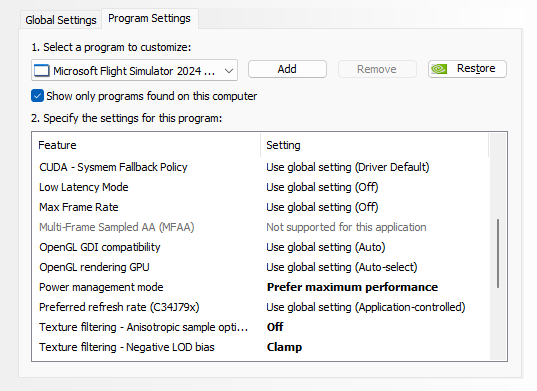
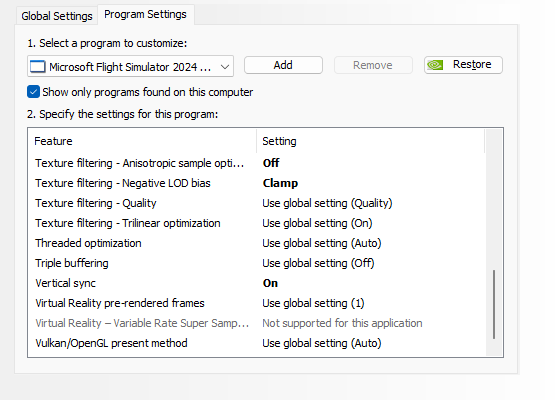
NVIDIA Control Panel settings for MSFS2024 are here:
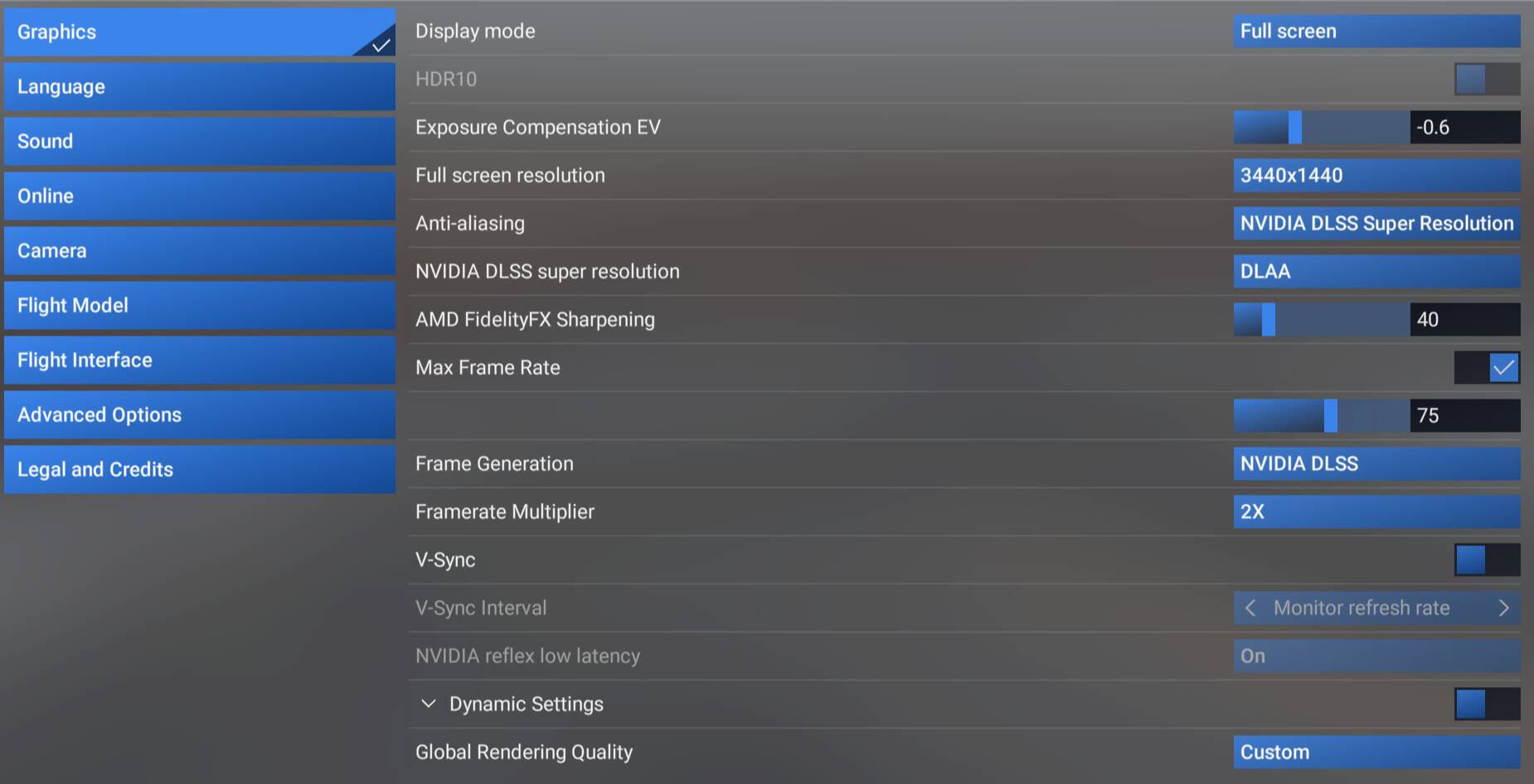
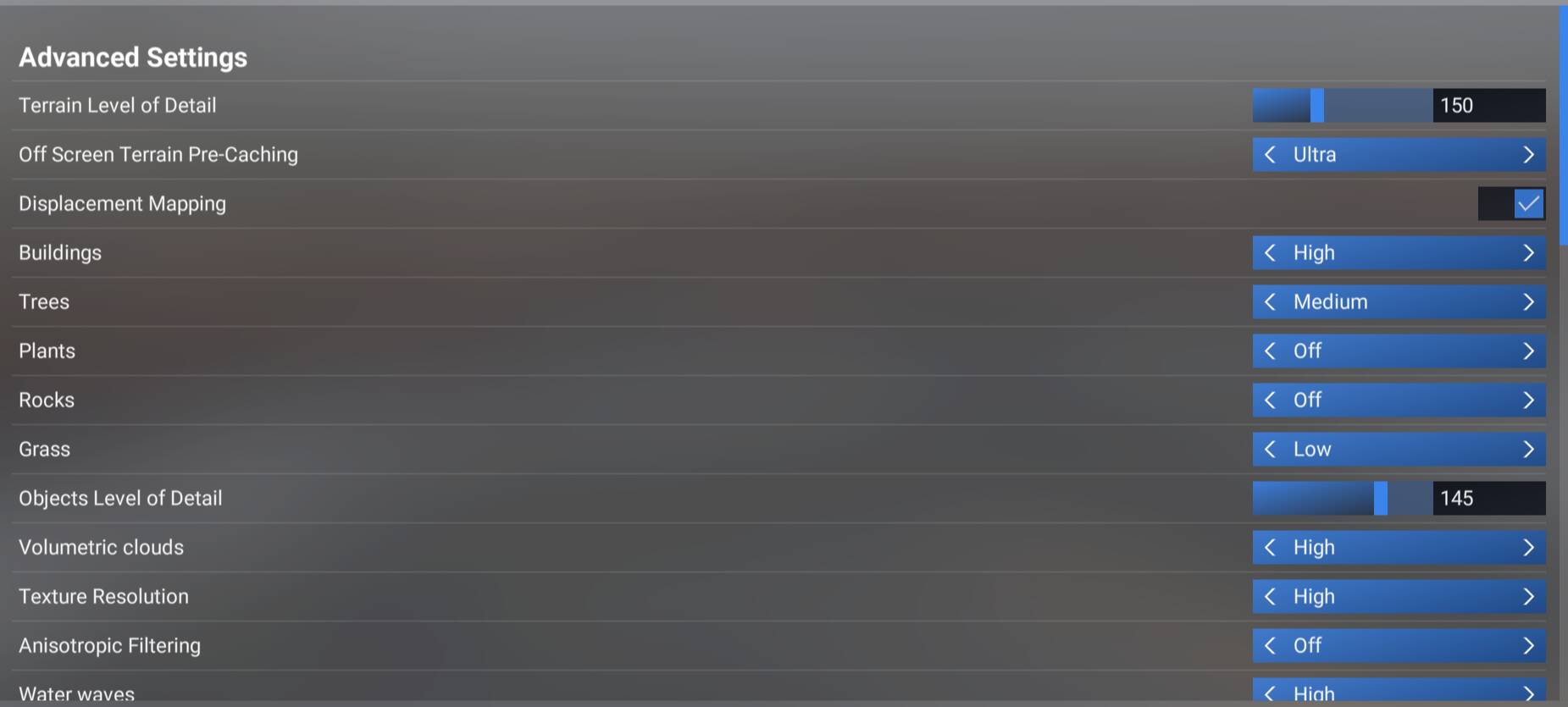
MSFS2024 Settings:
Thanks in advance everyone who comments.
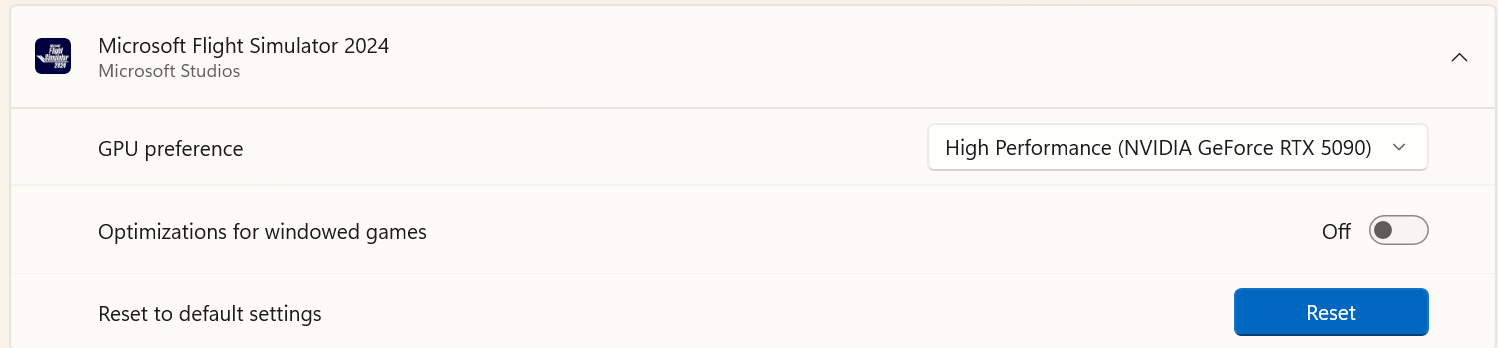
Go to Windows Settings > System > Display > Graphics. Click “Add Microsoft Store app” then select Microsoft Flight Simulator 2024 from the list. Click on Microsoft Flight Simulator 2024 to open it and expand the options, then set GPU preference to High performance (NVIDIA RTX 5080).
If you mainly fly airliners, you can turn off the grass, since the grass at airports is generally kept short and well maintained anyway.
Also, why did you choose DLAA instead of TAA or DLSS Quality?
Nice PC.
I notice you have set:
- Max Frames 75
- Frame Gen x2
- This is targeting 150 FPS
- TLOD and OLOD at 150
I personally trade higher FPS for higher TLOD / OLOD:
- Max Frames 30
- Frame Gen x2
- Targeting 60 FPS
- Dynamic On, 25 (which means 50 with x2 FG)
- Global Rendering Preset High and some changes
- TLOD 350 or 400 depending
- OLOD 150 or 200 depending
- Clouds Ultra
- But… keep an eye on VRAM, so lower settings make work better, but the idea is the same, you might be able to trade some FPS for some increase in details.
Since my TV(s) are capable of 48 to 144 MHz, I target 60 FPS. But I also set Dynamic On and set it at 25 and with x2 Frame Gen, Dynamic is targeting 50. This creates a buffer below 60 and means that only when the FPS drops close to 50, MSFS will dynamically reduce TLOD, OLOD, and Buildings LOD to maintain 50 FPS. This strategy has worked well, since MSFS can sometimes dip (especially at the airport, or landing) but it doesn’t trigger the LOD changes unless it really dips to 50.
I also leave the NVIDIA settings all at default, except:
When using 1 screen I use GSync / VRR:
- in Windows > Display Refresh 120 Hz
- in NVIDIA > GSync On
- … Monitor Technology GSync Compatible
- … which allows VRR to be enabled in Windows
- in MSFS VSync on, Half Monitor Refresh (might be ignored)
When using 3 screens I use Fixed Refresh:
- in Windows > Display Refresh 120 Hz
- in NVIDIA > GSync Off (which disables VRR)
- … Monitor Technology Fixed Refresh
- … VSync to Adaptive Half Monitor Refresh (60)
- in MSFS VSync on, Half Monitor Refresh (might be ignored)
Seeing as I’m not an Nvidia user, but a lowly AMD RX9070 user, I do not have the expertise as the other two gentleman that have already commented here, but what I can add is that I see you set your pre-caching to Ultra. Seeing as your concern is the VRAM low memory warnings you could try a High or Medium setting there to ease the usage on the VRAM.
I also didn’t see any mention of your ReBar setting, either on or off. Some users report a 1 GB savings in VRAM when ReBar is off so you could also try that as well.
Curious about impact of air traffic on these recommendations whether in game generated or injected from external source. Either way I’m pretty convinced they are the cause of the micro spikes I see in the developer mode fps graph. I’m on 5090 9800x3d 64gb ram and high/ultra settings but as soon as other air traffic is involved I get these infuriating tiny pauses, I hesitate to call them stutters because they are so brief.
Would you select “Add Desktop App” if you’re on Steam, or does this not apply?
Thanks!
Yes, you can add it using “Add Desktop App”. That’s how I add the games I have on Steam as well.
Also, “Optimizations for windowed games” works with DX11 games. MSFS 2024 only supports DX12, so I have this option turned off.
What does this accomplish if Windows is selecting the correct GPU automatically?
It would be very evident if MSFS - or any other game - tried to run on integrated graphics.
Hi @TenPatrol
Will do the Windows settings.
I was just testing between DLAA/TAA/Quality, no particular reason. When I took the screenshot I was testing DLAA.
Will test the others.
Let me try some of these. I can lower the frames probably a bit.
I am confused by the frame genx2, what is that actually doing to achieve more frames?
I can turn that off but will that turn off the ability to take screenshots too?
Frame Generation inserts an AI generated frame between 2 real frames. The benefit comes when MSFS can’t produce enough frames for smooth motion. Frame Generation uses some resources, but much less than trying to produce double the real frame rate.
So if MSFS is producing, say 40 Frames per Second (FPS) by itself, and you then add Frame Generation x2, it will insert an AI generated frame between the real frames (calculating pixel motion, etc), doubling your FPS to 80 (or, it will attempt to, if there isn’t any other bottleneck).
In my experience, 60 FPS is smooth, and anything above that I don’t really notice, so if there is left over power, I spend it on TLOD.
I would suggest this to understand how your system behaves:
- MSFS Settings > General > Advanced > Developer Mode > On
- A menu bar appears, select Debug > Display FPS
- Now you will see a colourful overlay in the upper right corner of your screen with a lot of info, the big number is FPS.
- Only use this when testing, having it open uses some resources, so when using MSFS to fly normally, turn Dev Mode off.
Now go to Free Flight and load in to an aircraft at a parking gate, and see what the FPS is. And then play with the settings to see the effect.
Your Screenshot:
You have set Max Frame Rate to 75 - so MSFS will limit what it produces to 75. You have also set Frame Generation x2, so NVIDIA DLSS will try to produce 75 x 2 = 150 FPS, by looking at 2 frames as they are produced, and insert an AI frame in between to double the frame rate.
There are 3 strategies:
|
Max Frames |
Frame Gen |
Comment |
| 1 |
Off |
Off |
See what raw FPS MSFS can produce |
| 2 |
ON (eg 60) |
Off |
Give each frame a bit more time |
| 3 |
ON (eg 30) |
ON x2 |
Give each frame more time |
Dynamic then tries to put a floor on the FPS, and it will dynamically lower TLOD and OLOD to maintain the number you set (if you set 25 and have Frame Gen x2, then Dynamic activates at 50).
Gotcha, thanks for the information @GimbalAxis I will do some testing and see what works.
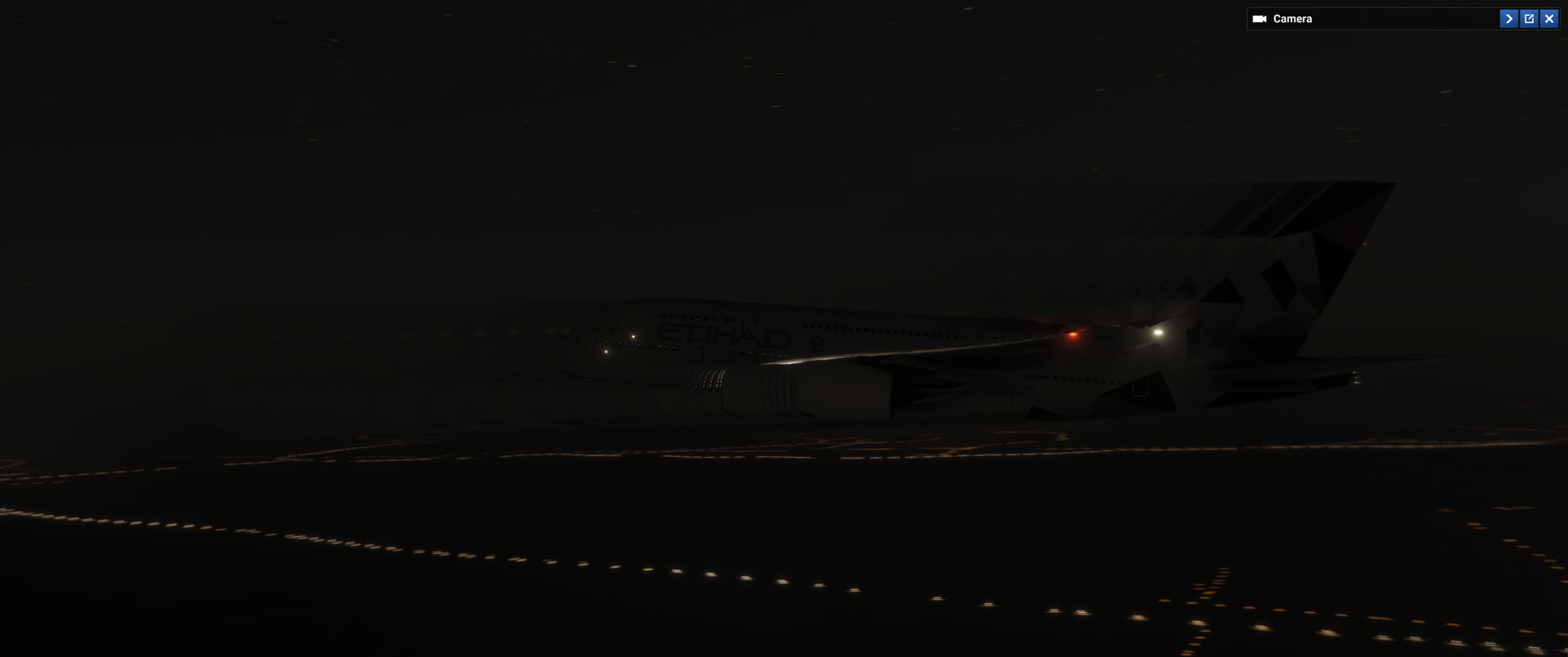
Another question - when rotating the camera in exterior, there is a lot of ghosting as I rotate around, I think that is how it would be described - like I can see the artifact of the aircraft moving as I rotate.
Any idea how to solve this?
Here is my best example taking a screenshot:
That is a side-effect of DLSS Anti-aliasing, especially prominent in darker lighting scenes, and sometimes on cockpit instruments when numbers are moving quickly. Try changing MSFS > Graphics > Anti-Aliasing to TAA instead of DLSS.
Ok going to TAA did the trick for the night scene right now.
I guess I will have to weigh the benefit of having DLSS… or TAA.
DLSS is miles better in fine detail in scenery. If you haven’t done so, updating your DLSS file with DLSS Swapper is very easy and will reduce the ghosting, in some cases dramatically.
No, ReBar whether enabled or disabled has no impact on taking screen shots.
Just so I’m being clear, I am not necessarily recommending for you to disable ReBar. I just mentioned it because, depending on how far you want to push your VRAM, disabling ReBar may give you a little bit extra room but there could be a slight cost to frame rates.
Some users prefer it but it’s up to you to test both on and off and decide which is best for you.
Before changing your ReBar setting, however, I would still try lowering you pre-caching to medium or high to help lower your VRAM usage, if you’re still getting those VRAM memory warnings. I set mine to medium, since I do very little panning while flying, and have no issues with stuttering, with the one exception of the cockpit stutter while switching instrument views, which is a known issue.
I’d also like to add that if you set your max frame rate to something higher than the sim can produce on your setup, you’re effectively not setting a max frame rate at all. The sim will still continue to try to put as many frames as it can out to the GPU, making the sim do far more work than it needs to, and expecting the GPU to sort it all out – adding frame time.
Additionally when you have an inconsistent number of frames hitting the GPU, the GPU has to try to determine which frame is best to multiply, render, and display in order to keep things smooth. This is where you can actually end up with the appearance of stutters that aren’t actually performance related but are merely out-of-sequence frames.
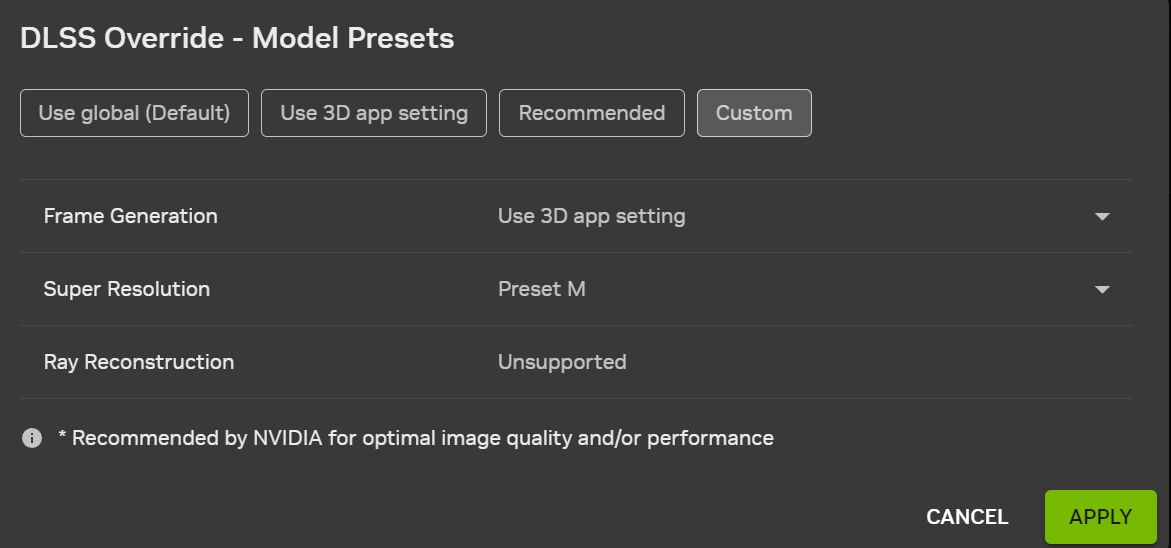
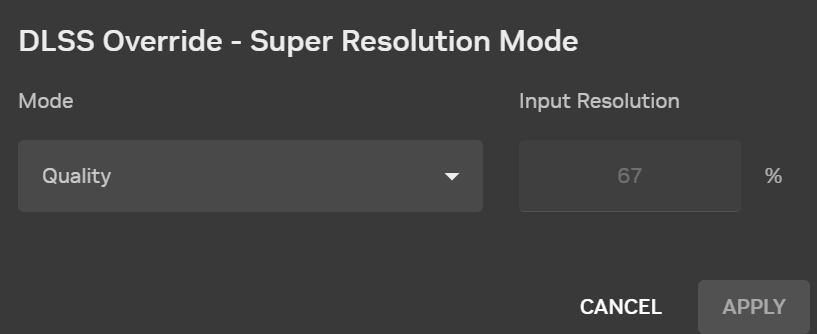
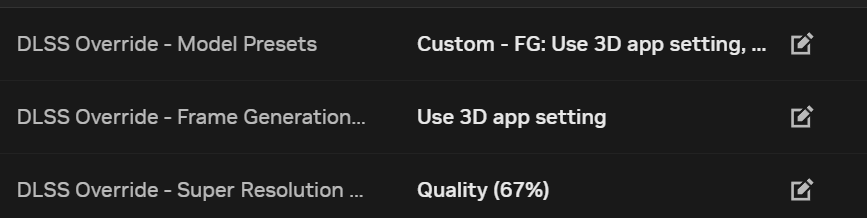
You can set DLSS Quality in the MSFS settings, and then in NVIDIA App, under the NVIDIA driver settings, set the DLSS Override Model to M - Quality. There’s no need to replace any of the original game files. Model M is pretty good overall - almost, because it does have some drawbacks.
Since SU6, Asobo has added DLSS 4.5 (310.6).
Personally, I’ve been testing DLSS Quality in the MSFS 2024 settings for some time now. In the NVIDIA app, I’ve selected Preset M - Quality.
For some time now, I’ve noticed that MSFS 2024 runs better when I set the FPS cap and Vsync directly in the MSFS 2024 settings.
In the NVIDIA app, for the MSFS 2024 profile, I only set the DLSS Override Model to M - Quality and Power Management Mode to Prefer maximum performance. Everything else is left at the default settings. I don’t change any global NVIDIA settings.