What do you mean?
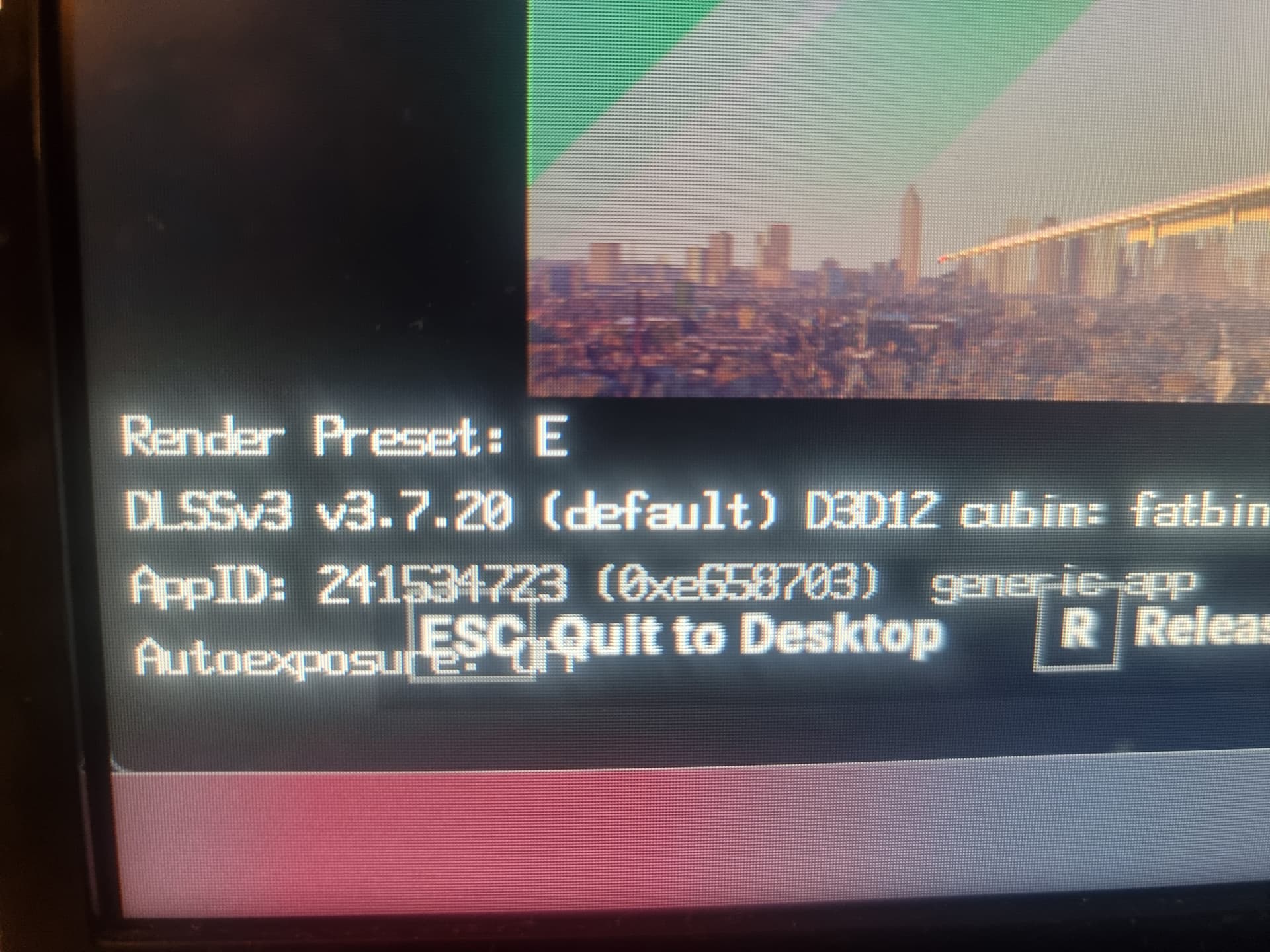
I restored the original dlss files (3.7.20)
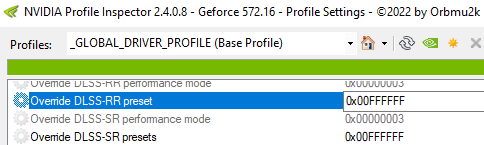
Used the FFFFFF entry and 01 for the overrides.
(Nvidia profile inspector)
Still see preset E and 3.7.20
What do you mean?
I restored the original dlss files (3.7.20)
Used the FFFFFF entry and 01 for the overrides.
(Nvidia profile inspector)
Still see preset E and 3.7.20
You’re very welcome.
Fly safe capt.
I have a different question. Whenever I have looked for the Nvidia Profile Inspector I find 2 different versions, one from nvidiaprofileinspector.com(version 3.5.0.0) and one from Github Releases · Orbmu2k/nvidiaProfileInspector · GitHub from the user Orbmu2k (version 2.4.0.8) which is the one Im using.
Why 2 versions?
Use (version 2.4.0.8)
This has been an absolute disaster Asobo and Nvidia need to talk to each other - terrible
So first off, you do not need to download any DLL’s or swap any DLL’s.
1.) Download new NVidia drivers. Install them
2.) Download new NVidia app. Install it.
3.) Restart PC.
4.) go in new Nvidia app, select MSFS2024, and make sure that in DLSS override - Model presets is set to ‘frame generation - Latest’.
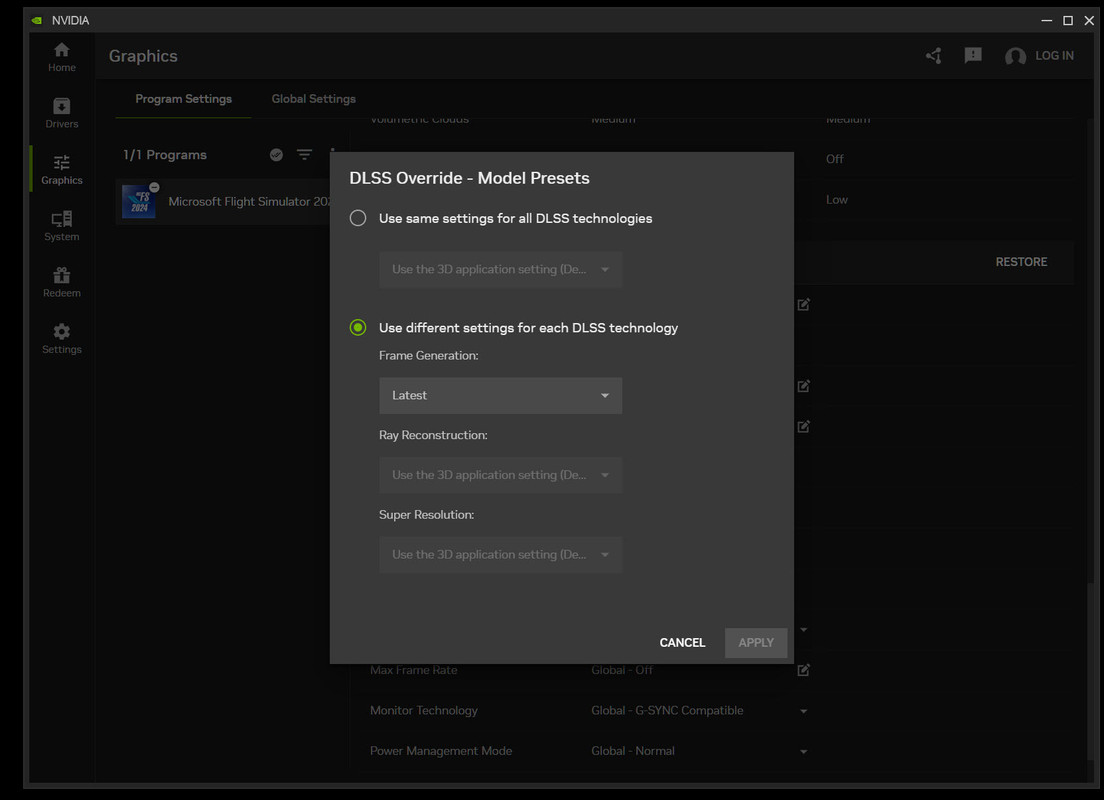
5.) Download NVidia inspector. You need new version 2.4.0.8 https://github.com/Orbmu2k/nvidiaProfileInspector/releases/download/2.4.0.8/nvidiaProfileInspector.zip
6.) Run it and change the settings as per my pictures below.

7.) That’s i! All done, go fly MSFS2024 in new DLSS4.
Anyone else had Nvidia Profile Inspector crashing since the update? I tried reinstalling from scratch but no luck. Opens but crashes seconds later.
So i tested it carefully and this is the result:
Presets J and K in both versions 310.2 and 310.1 have horrible smearing.
Preset E in 3.8.10, 310.1, 310.2 has no smearing.
So many hours wasted just to find out that while the new presets look really sharp they have HUGE issues with artifacts/smearing that make them unusable for me in 4K native DLAA, no FG, no upscaling. Once you turn on upscaling it gets even worse of course.
download latest version 2.4.0.8
Nvidia app is not required and in some cases, it may even be responsible for CTDs.
I decided to share what I did to get the latest DLSS models without using the Nvidia app, replacing game files or adding extra XML files.

MSFS 2024_beta
MSFS 2020
You don’t need the NVIDIA app at all for that. Just use the inspector and you are fine.
My “latest version” is 2.4.2.3 from Orbmu2k:MIA
No idea why there are so many.
Anyway it all works for me in FS2024 beta, without using the Nvidia app.
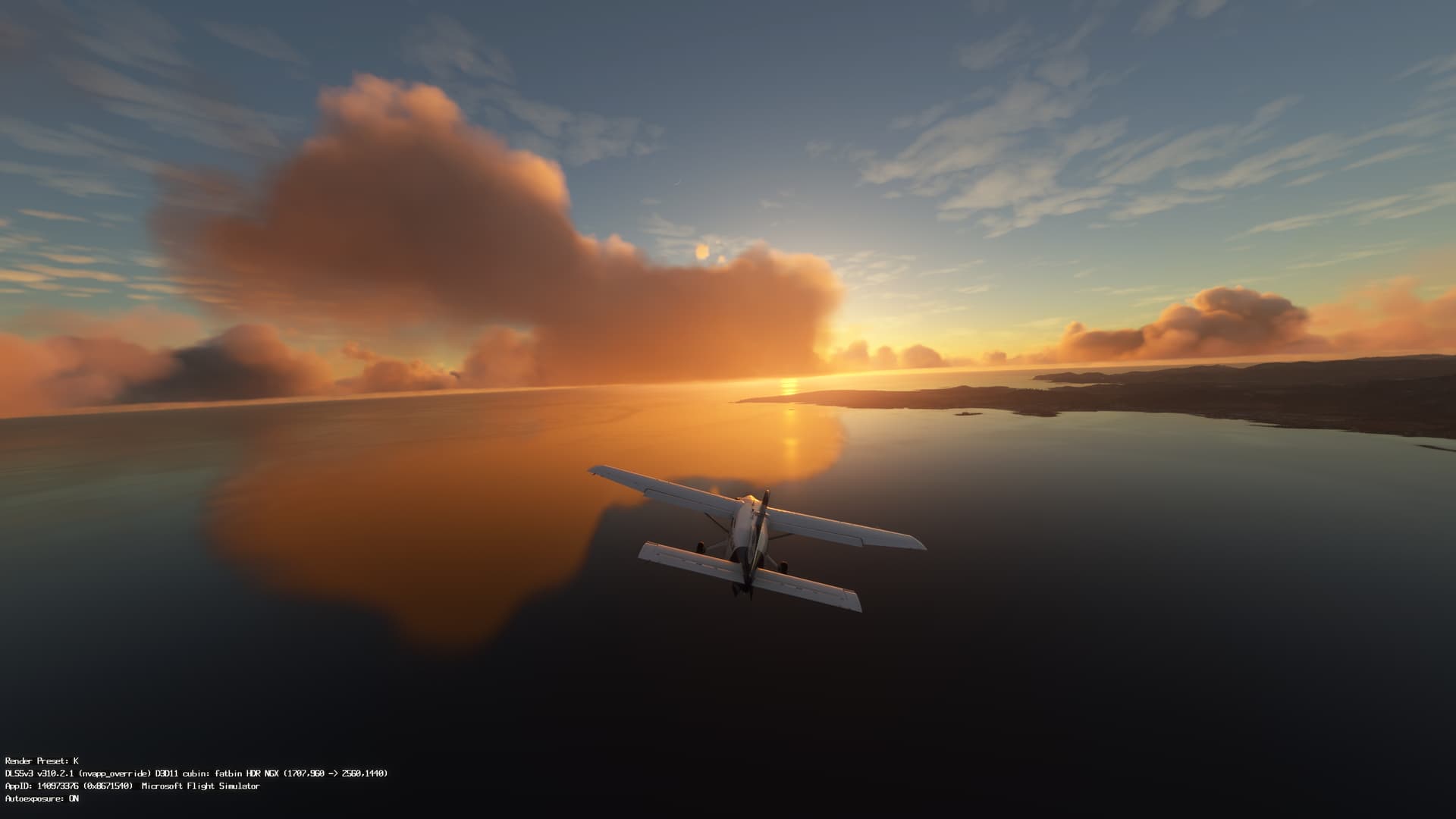
Wanna see something really bad with preset J or K that takes only 3 mins?
Set up a cloudless sunset, take off from LEPA (24R) straight towards the sun and ocean. After 1 min you are above the water, make some left and right turns while you keep the sun in sight…after that you will use TAA or preset E 
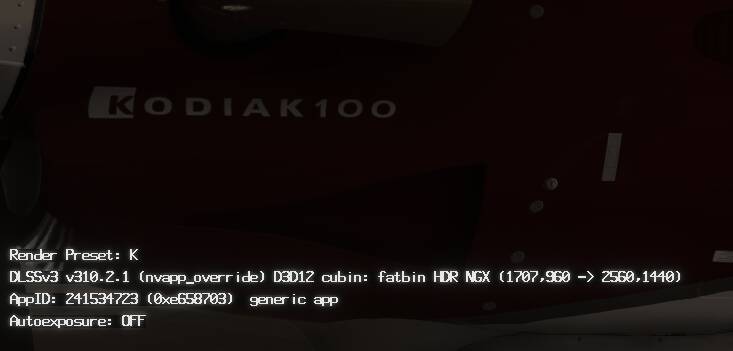
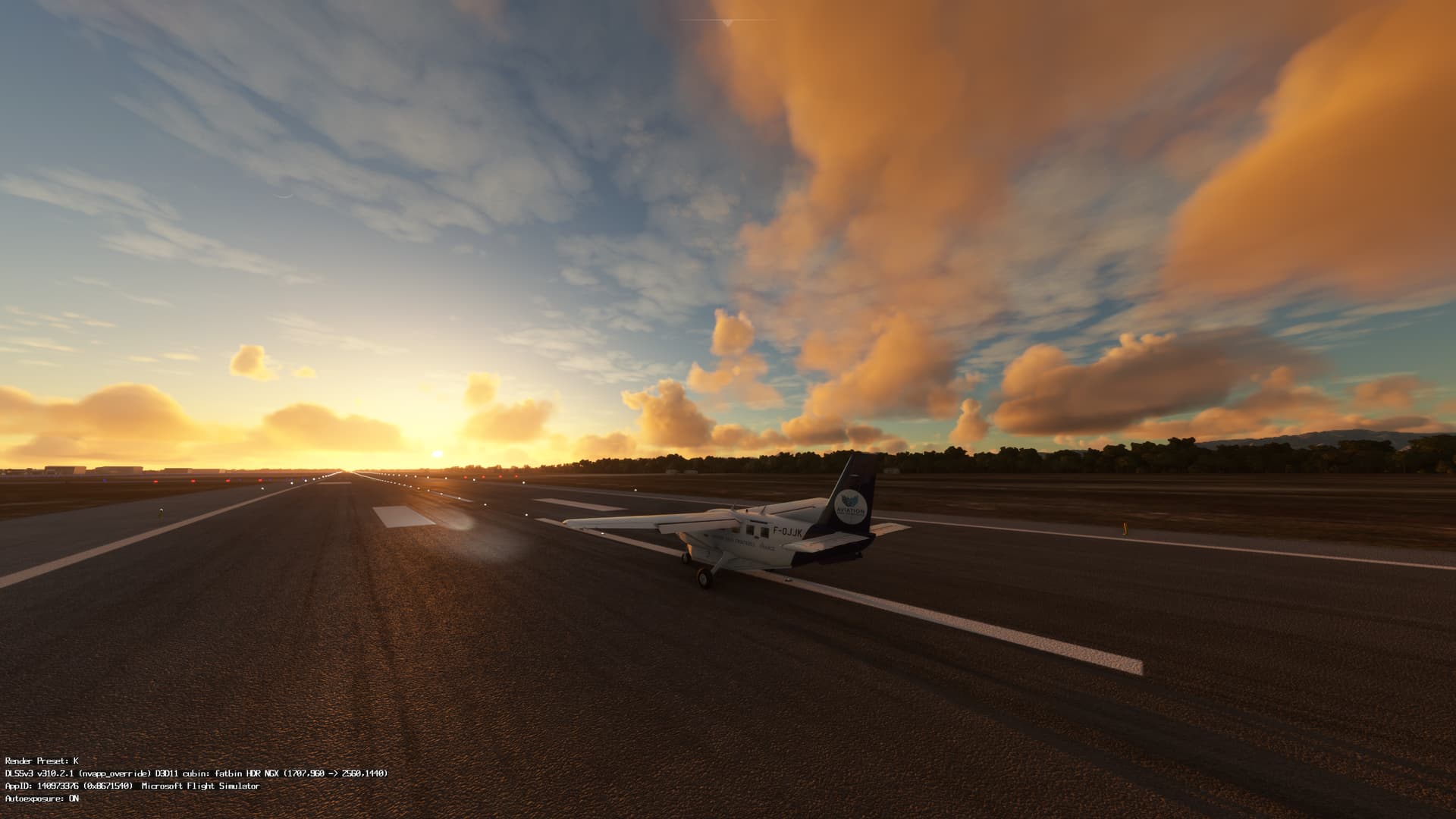
I was waiting for your instructions!!! Just followed them to the t. Question for you, how are you seeing which Render Preset you have on your screenshot?
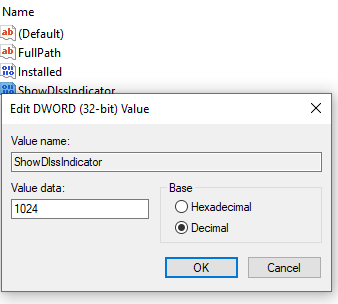
Do you have a DWORD (32-bit) value named ShowDlssIndicator in the system registry at
HKEY_LOCAL_MACHINE\SOFTWARE\NVIDIA Corporation\Global\NGXCore
with a value of 400 (hexadecimal) or 1024 (decimal)?
edit
If this is not present in the system registry, the DLSS version and profile letter will not be displayed in MSFS. You need to manually add an entry to the system registry. Copy the code below
Windows Registry Editor Version 5.00

[HKEY_LOCAL_MACHINE\SOFTWARE\NVIDIA Corporation\Global\NGXCore]
"ShowDlssIndicator"=dword:00000400
paste it into Notepad and save the file as DLSS_Indicator.reg (not as a text file, this is very important). Then run the file and agree to make changes to the system registry.
OK as I thought, DLSS v 310.2.1.0 preset K, Quality (this is even zoomed in a bit):
for comparison, TAA:
side note: have not tried preset J, maybe that is the magical no ghosting dlss that people are talking about …
will take a look; thank you!
So all the blurriness’ still there, still a no go for me…
in the situation from that picture just move your mouse up and down, left right and look at the water. I can’t believe it is all fine for you.