Hi,
You may want to check your DLSS version. Version 3.10.5 is not the latest.
I use version 3.10.5.3
Hi,
You may want to check your DLSS version. Version 3.10.5 is not the latest.
I use version 3.10.5.3
anyone help me out here. since installing 591.74 on my 4070 i have gotten terrible stutters. so i rolled back with ddu. and theyre still there. ive tried every single troubleshoot option in the last two days. but its still the same thing. game is fine. 3 minutes in. unplayable because of stutters. the game was fine before this and now i cant play
Deleting some of the many cache files may help. Start with the nVidia Shader Cache files:
In the nVidia Control Panel General tab, set ‘Shader Cache Size’ to ‘Disabled.’
Reboot in Safe Mode. Microsoft made this much more difficult since Windows 10 was released. Here’s how you do that:
(Note that you will need to have the ‘Show Hidden Files’ option enabled in File Explorer, else you won’t see the ‘AppData’ folder.)
Press Win+R to open a Run dialog. Type ‘Disk Cleanup’ (without the quote marks.)
Choose the C: drive.
Select ONLY the ‘DirectX Shader Cache’ and ‘Temporary Files’ and delete.
Reboot normally.
Go to the nVidia Control Panel General tab and set the ‘Shader Cache Size’ to whatever you want. I set mine to 100GB, but 10GB is probably enough, and others recommend ‘Driver Default’.
There are a lot of other cache files, and even a tool to automate much of the cache delete process. I recommend starting with the instructions above.
You might also try deleting your Rolling Cache file and rebuilding it. You’ll want to find the ‘rollingcache.ccc’ file on your system, delete it, then start the sim and point it to the desired location on your drive. I recommend putting it on your fastest drive.
I set mine to 128GB, but again, the right size is a matter of much speculation.
Hope this helps.
This is a question about an Nvidia bug that was prevelent in MSFS 2020, I came across how to fix it. It occurred if you had the Nvidia app installed. This is what I had to do to run 2020—
Go to C:\ProgramData\NVIDIA\NGX\models Win R
Then, go to the search bar in the upper right corner and search for or copy this name: 190_E658703
Once I deleted all the files that started with 190, the sim would launch
I am running 2024 now, my question is, is this still occurring (have not installed the Nvidia app ((yet))
You don’t need to worry about CTDs anymore when loading MSFS 2020 if you’re using DX11 instead of DX12. The issue has already been fixed. There’s confirmation in the thread where I originally reported the bug - it now has the fixed-on-live tag, meaning the fix has been deployed.
https://forums.flightsimulator.com/t/msfs-2020-ctd-during-loading-with-or-without-nvidia-app-installed-dx11/732584/187?u=tenpatrol
Ah, I did a refresh and it showed up. Thanks.
hey dude thanks for this
i did all of the above. including countless of other troubleshooting thingies.
but unfortunately the stutters remain. my current tlod is at 200. and olod. on 120. on a 7700x and a 4070. now i now thats pretty high up but heres my thing. before fiddling with the new driver. this setup with frame gen ran like a dream. im talking 80fps stable
then i updated driver. stutters came. i lower tlod and olod all the way to 85. still slideshow. i cant play anymore at this rate unfortunately. but i am eager to know what is causing this after 2 days of troubleshooting.
hope you can help me further
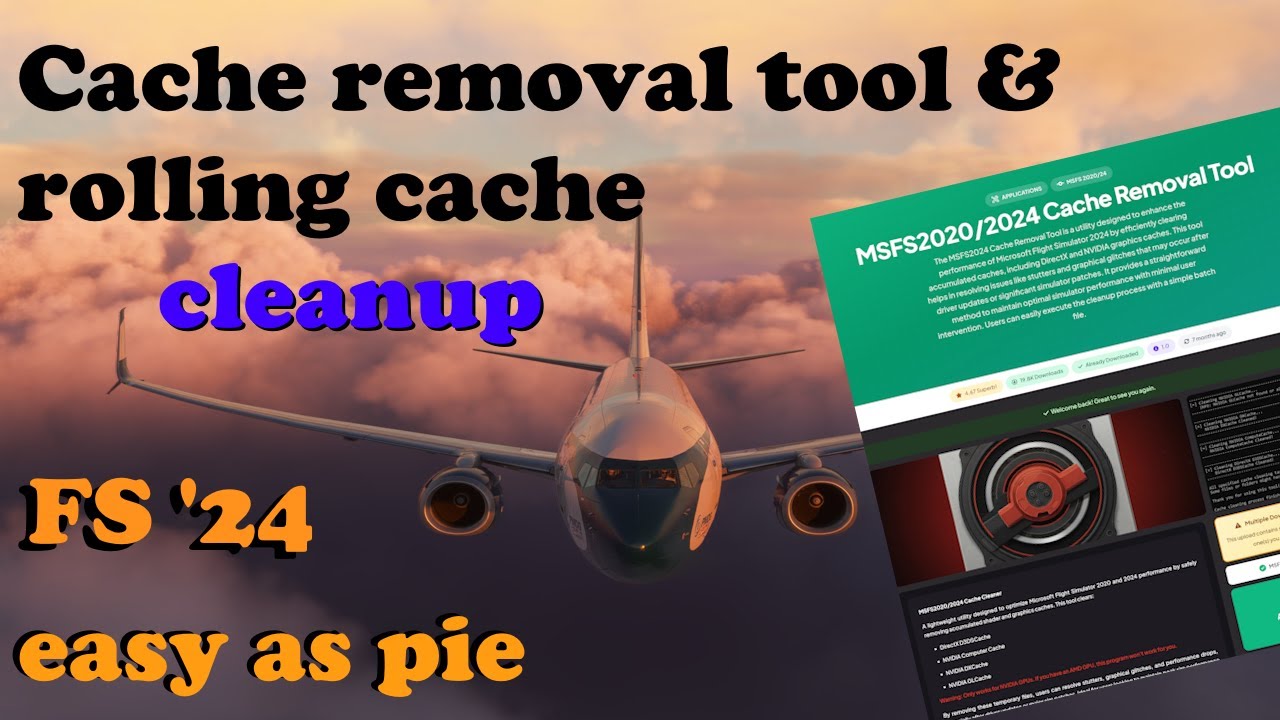
I would use this tool to delete all these caches.
For me, using DDU in safe mode to fully uninstall previous nvidia drivers, also clears all my nvidia and dx cache. Rolling cache in both msfs2020/2024 is easy to delete and regenerate within the sim. Each to their own I guess. Cheers.
I guess I never knew that using DDU clears those two nVidia cache folders, simply because I very rarely update my nVidia driver. Makes sense though.
As for the RC… it’s a habit to delete the .ccc file in file explorer.
More questions:)
With AMD I didn’t have the HAGS option in Windows. Now I have it. Should I leave it enabled? Or it’s better to disable it?
What about the Game Mode in W11? Do you use it?
I can’t get past the shimmering, think that’s what you call it in some of these DLSS modes, only DLSS quality seems to mostly eradicate it. Was seeing it in some trees and mountain top ranges.
Only just updated to latest driver and have not retested though.
I will check later, but should having nvidia app set to recommend get me DLSS 4.5 and preset M (performance) , or do I still need to use DLSS swapper?
I don’t see anything like what you are referring to as “shimmering” on the current or recent drivers and DLSS versions, but then again I have trees dialed down to low, as seeing trees in detail is just not important to my sim flying. Glad to hear that DLSS Quality seems to be working for you in this regard. Cheers!
I don’t use Game Mode, but that’s because I use Process Lasso and a core parking tool to control processes and core availability.
As I understand it, Game Mode basically is Windows’ way of scheduling core usage when it detects a game.
I’ve gone back and forth with HAGS. I had it off for a long time, but recently did some testing and found a slight, but measurable, performance gain with it on.
You should run CapFrameX tests and test different variables yourself. It’s really the best way to determine what works best for your system.
Say, for most NVIDIA users, would you agree that it is better to leave HAGS on unless a user has a very specific reason to disable it, based on in-depth information about what HAGS is and is not doing in their PC? Just asking because I’ve read numerous posts about HAGS across multiple thread in the past year and that remains my chief take-away. Just leave it alone to work as intended?
Perhaps that’s the not correct word, it’s like a blurryness/flicker as if the frames haven’t caught up on certain terrain.
I’m not using any frame gen. All nvidia settings are default apart from recommended for DLSS presets and vsync on in nvidia control panel, maybe I should try vsync on in sim instead. Will have to do some testing.
To keep things as simple as possible for me and my PC, I stay out of the NVIDIA control panel. Vsync is on in-game and set to 60 for my 60Hz limited HDTV, works just fine. While rare, my sense is that when flickering defects appear they are more likely due to a DLC defect that has not yet been caught by a developer and soon to disappear in an update, but that is just my experience, again rare.
I do tend to fly around the same region a lot (UK), I need to get out more and explore!
So checking DLSS version info
Im getting version 310.5.2 , preset M with DLSS performance.
I presumed nvidia app set to recommend would get me DLSS version 4.5.
Do I need to use the DLSS swapper?
Possibly. I had to use DLSS Swapper to get 310.5.3 on my PC. After that, I can get Preset M or L either in DLSS Swapper or the NVIDIA app. What I really like about DLSS Swapper is the option to have the DLSS version displayed on screen (see settings) so I always know what I am getting over time. This has been discussed in other threads but it is nice to have as drivers and DLSS updates come and go over time, not to mention sim updates that reset everything back to many generations ago. Cheers!