NVIDIA GeForce Game Ready Driver 596.36 Discussion

Please use this thread to discuss the NVIDIA GeForce Game Ready Driver version 596.36.

Game Ready for Conan Exiles Enhanced
This new Game Ready Driver provides the best gaming experience for the latest new games supporting DLSS 4.5 technology including Conan Exiles Enhanced.

Gaming Technology

  • Adds support for the GeForce RTX 5070 Laptop GPU (12GB)

Fixed Gaming Bugs

  • God of War: Ragnarok: Certain textures may intermittently flash white during gameplay. [5856704]
  • Assassins Creed Shadows: Flickering on character model clothing [5987951]
  • The Crew Motorfest: Grass and vegetation flickering [5950261]

Fixed General Bugs

  • Blocky artifacts when playing back H.264 content with DXVA 2.0 [6058551]
  • Blender 5.0.1 EEVEE: Non-shader nodes connected to the material output rendered as black (zero value) [5965763]
4 Likes

How to perform a clean installation of NVIDIA drivers.


First things first: a proper clean installation of a GPU driver does not delete your games, apps, or wipe your C drive. It simply removes old driver files, registry leftovers and related components so the new driver installs on a clean base.

First, download the latest NVIDIA driver and the DDU - Display Driver Uninstaller software.

Latest NVIDIA drivers
GeForce Game Ready Driver 596.36 | Windows 11 | NVIDIA

DDU
Display Driver Uninstaller (DDU) V18.1.5.2 Released. - Wagnardsoft Forum

NVIDIA driver removal is best done in Windows Safe Mode - I’ve been saying this for a long time and I’m not changing that opinion. The only exception is when Safe Mode doesn’t work properly on someone’s system.
So before proceeding with any further steps, make sure that Windows Safe Mode is working correctly.

Also, there’s no real need to disconnect from the internet or disable your internet connection during driver uninstall or installation. What actually matters is Windows behavior - just set it so it doesn’t automatically install devices or pull drivers on its own. That alone is enough to prevent conflicts during the process, without having to unplug anything or go offline.

If you’re not an advanced user, don’t feel confident digging deep into Windows settings or simply don’t want to bother, there are easier alternatives.

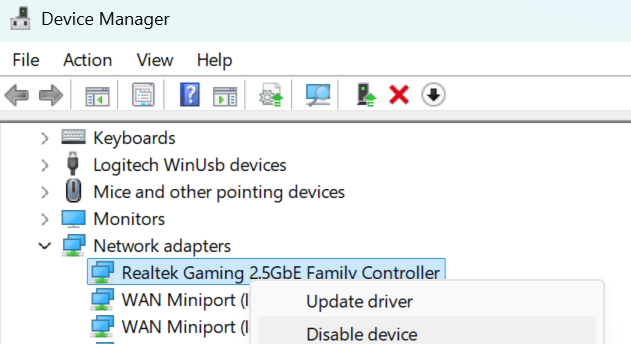
You can just unplug the Ethernet cable, turn off WIFI or disable your network adapter directly in Device Manager.
In that case, if your PC case is pushed against the wall or placed under a desk, disabling the network adapter is usually the quickest option. Just right-click the network card in Device Manager and disable it.

Right-click “Start” icon and select Device Manager.
Expand Network adapters
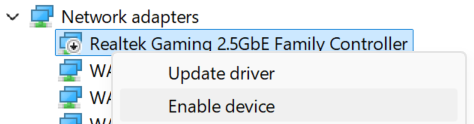
Then right-click your network adapter and select Disable device.

Disabling the network adapter in Device Manager is the most convenient and fastest method.

You can also, after launching DDU in normal Windows mode, go into the DDU settings and enable “Prevent downloads of drivers from Windows Update when Windows searches for a driver for a device”
While still in the settings, also enable “Enable Safe Mode dialog”
// Also, as I mentioned above, make sure to check that Safe Mode is actually working on your system before proceeding.

image

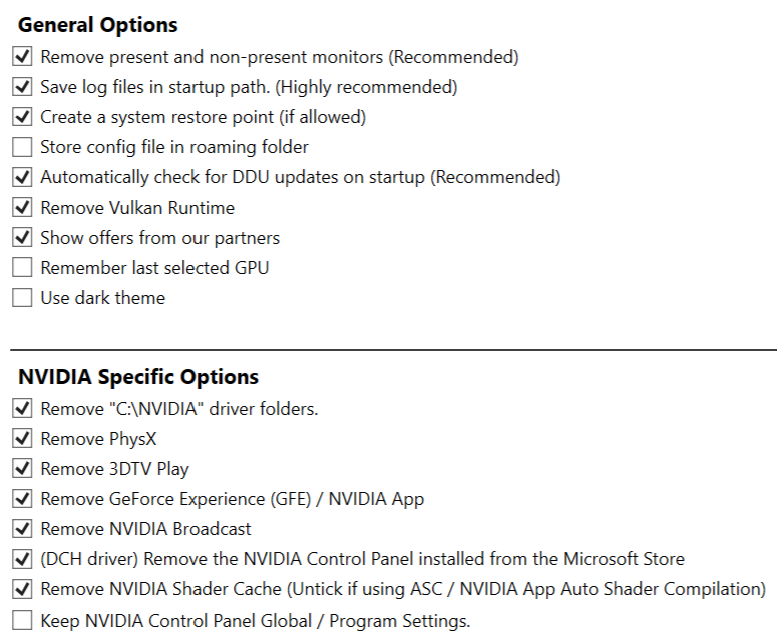
Under General Options and Specific Options, you can select the same settings that I have enabled here

Be careful with “Remove present and non-present monitors” - this setting removes monitors and their drivers. After a restart, they will still work, but Windows will not have proper drivers installed for them, so you may need to reinstall the monitor drivers.

Also note that after removing monitors and restarting the PC, Windows may change the refresh rate settings. Go to Windows Settings > System > Display > Advanced display. Check if “Choose a refresh rate” is set to the maximum Hz of your monitor - if not, change it to the max or set it to your preferred value (for example 120Hz instead of 240Hz).
I once forgot about this and Windows set my monitor to 60Hz instead of 165Hz. As a result, I had stuttering in MSFS 2020/2024 and couldn’t figure out why. It turned out the cause was exactly the refresh rate.

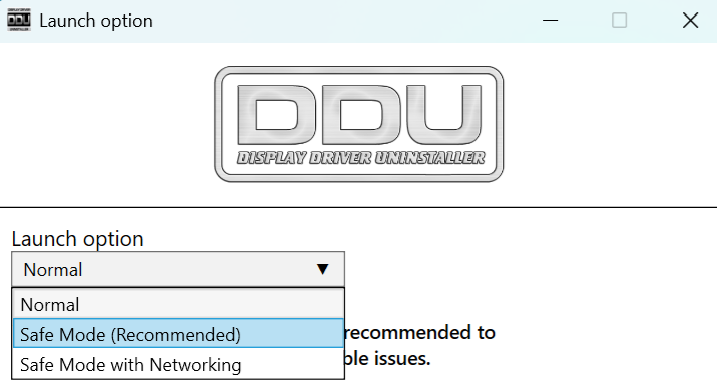
So now you already have DDU configured and know a bit more - it’s time to prepare for reinstalling the driver. Before switching to Safe Mode, download the NVIDIA driver you want to install. After downloading it, you can launch DDU and under “Launch option” click Normal and select "Safe mode (recommended).

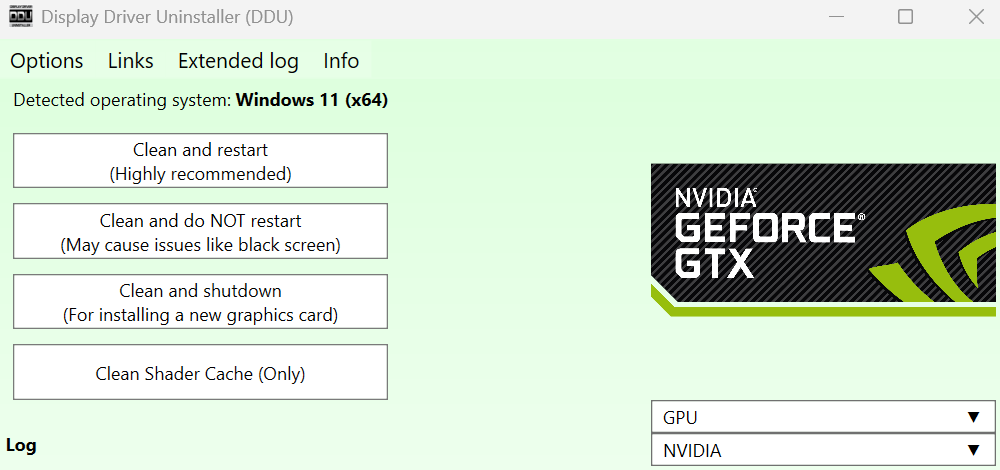
After the system switches to Safe Mode and DDU is launched, select the GPU you want to uninstall, in this case NVIDIA.
Then click “Clean and restart”.

After the restart, you can install NVIDIA driver. I recommend installing the minimal version, meaning only the driver and PhysX - this way you can make sure everything works properly without NVIDIA app.

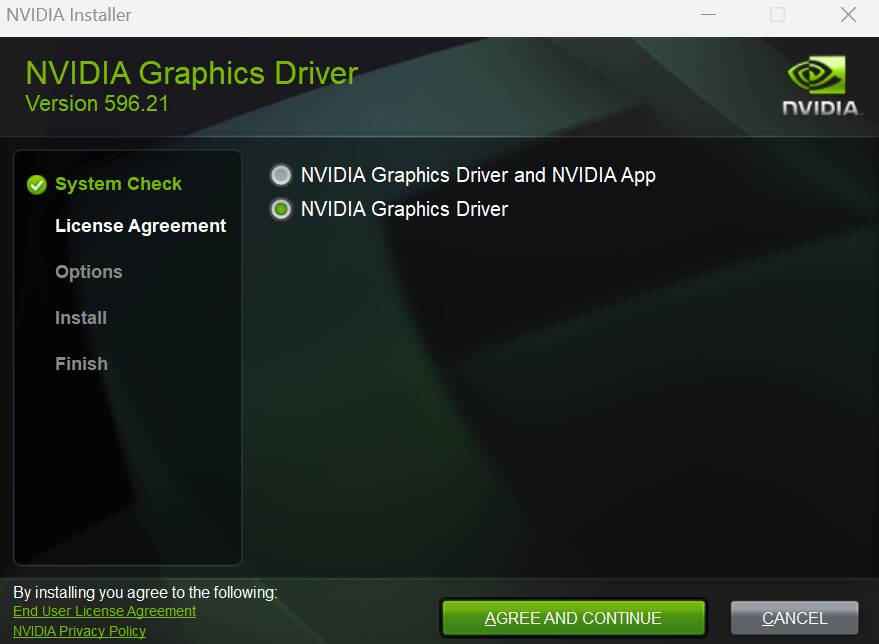
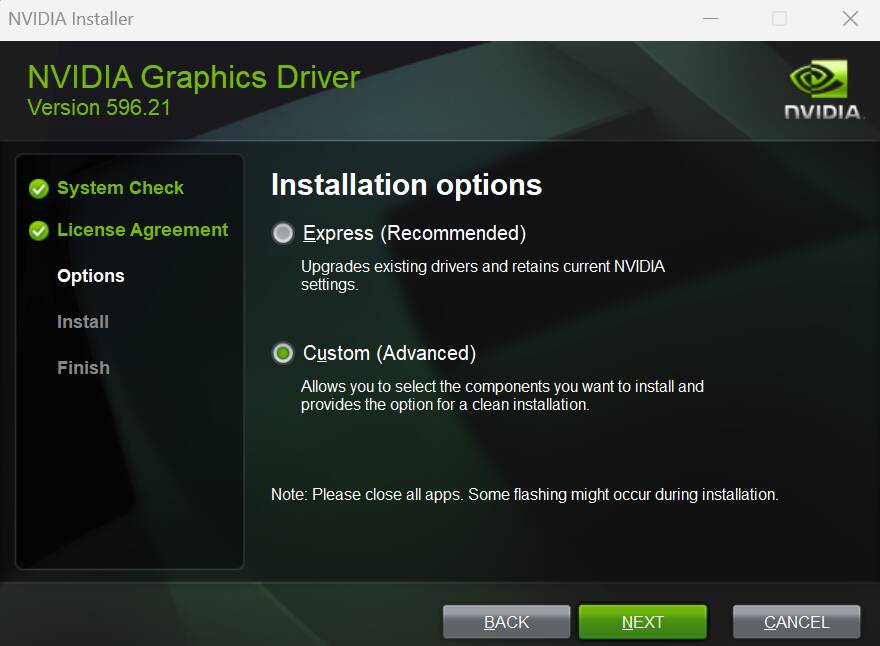
So run the previously downloaded installer, select “NVIDIA Graphics Driver”, then click “Agree and Continue”.

On the next screen of the installer, select “Custom (Advanced)” and click “Next”.

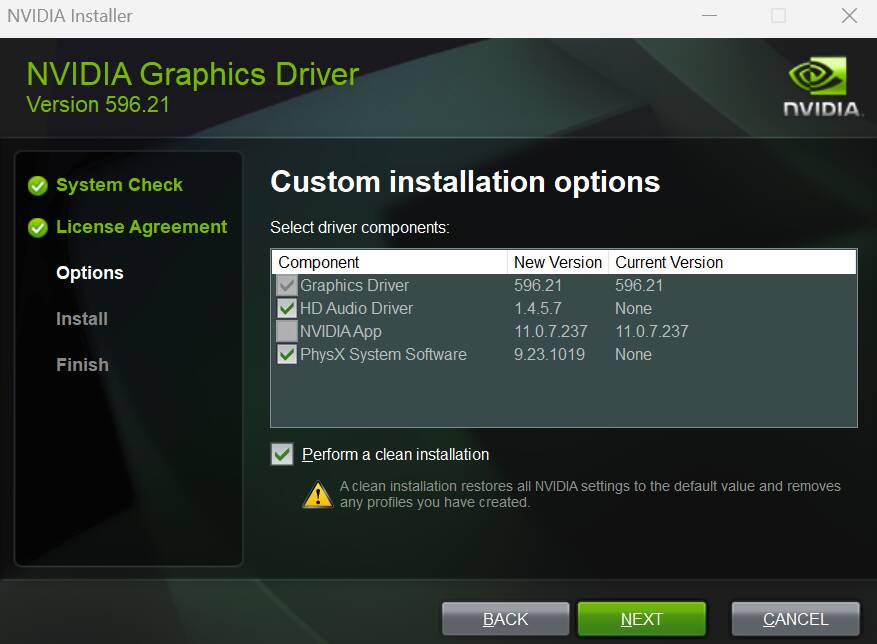
On the next screen of the installer, uncheck “HD Audio Driver” and make sure “PhysX” and “Perform a clean installation” are selected, then click “Next”.

After NVIDIA driver installation, restart PC. After reboot, I remind you to install the monitor drivers if needed and check the monitor refresh rate (Hz) in Windows settings, as mentioned above.

If you have checked in DDU

image
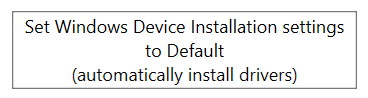
and want Windows to install other drivers again, launch DDU in normal mode and under “select device type” click
image

Now you can enable your network adapter in Device Manager. Open Device Manager, right-click the network adapter you disabled, and select “Enable device”.

Restart PC.

Now you can open the NVIDIA Control Panel and set a profile for MSFS according to your preference. The only important thing is not to change settings in the global profile unless you really need to.

After setting up the MSFS profile, check how the game performs. If everything is fine and you need the NVIDIA app instead of the NVIDIA Control Panel, you can download and install it.

Fly safe.
9 Likes

anyone tested this driver yet?

2 Likes

If your current driver is working fine ……… why change. If it ain’t broke don’t fix it. It rarely, IF EVER upgrades anything relivent to MSFS

2 Likes

Does this version solves the problem when 3 monitors are connected only 2 are working?

I’m thinking of expanding my setup to a triple monitor solution …

Thanks!

Hi,

Tried it this morning with the latest version of the L-1011 in VR and all was well.

2 Likes

MSFS getting a few mentions on the Nvidia forum thread, I guess you never know if it’s the driver or the individual’s setup.

https://www.nvidia.com/en-us/geforce/forums/geforce-now-for-mac/13/585355/geforce-grd-59636-feedback-thread-released-42826/?commentPage=1

First flight on 596.36 now in progress in the 1.0.4 TriStar, all systems go, everything looks great and works smoothly in DLSS 4.5 Performance, 310.6.0 preset M (PC spec in my profile). Cheers!

5 Likes

Did a flight this morning in stock A320neo V2 on SU4. KOCF to KEYW. 596.36. Beauty….

2 Likes

I do a million and one things with my PC other than MSFS.

3 Likes

Can anyone confirm if this driver resolves the red flickering issue in low light situations related to the 595 Branch?

1 Like

All working very well with msfs2020/2024 (su16/su4) in VR with my QPro/Link cable at 750mbps max dynamic bitrate. DLSS/Perfomance with preset M is looking great and I seem to be getting a bit smoother performance compared to the previous 596.21 driver.

PC specs = 9800x3d/rtx5090/64Gb 6000ram. Cheers.

1 Like

Can confirm what @TenPatrol mentioned earlier:

  • After installing this new driver (after DDU to remove previous version), I launched NVIDIA App prior to reconnecting to the internet, to ensure “Automatically Optimize” game was OFF.
  • I then rebooted and reconnected, and the NVIDIA app offered to update to v11.0.7.247
  • Upon launching the new app, it had unilaterally decided to “Optimize” MSFS.
  • There was a “Revert” button, which I clicked, but it should not have done that.
1 Like

Last time I tried the Nvidia app (albeit a couple of months ago) the revert didn’t work and I needed to redo all my msfs2020/2024 settings. I also seemed to get 2x of each of these (separate PC/VR settings?). So, besides this, plus still not all nvidia control panel settings are available, I’m still going to avoid using it.

For now, I’ll just continue to use DDU in safe mode, custom driver clean install without the nvidia app, followed by nvidia control panel, and then nvidia profile inspector. I also add a ShowDLSSIndicator key with regedit to confirm my DLSS version/preset. Cheers.

1 Like

Are you using DLSS-Swapper to set 310.6.0 Preset M?

I am not completely sure yet, but I have the suspicion that the 596.36 driver is not running well on my system. I have had CTDs more often after 15 minutes of flying.

Faulting application name: FlightSimulator2024.exe, version: 1.7.27.0, time stamp: 0x00000000
Faulting module name: FlightSimulator2024.exe, version: 1.7.27.0, time stamp: 0x00000000
Exception code: 0xc0000005
Fault offset: 0x00000000010935b2
Faulting process id: 0xFE0
Faulting application start time: 0x1DCDA75190D20B5
Faulting application path: C:\Program Files\WindowsApps\Microsoft.Limitless_1.7.27.0_x64__8wekyb3d8bbwe\FlightSimulator2024.exe
Faulting module path: C:\Program Files\WindowsApps\Microsoft.Limitless_1.7.27.0_x64__8wekyb3d8bbwe\FlightSimulator2024.exe
Report Id: d88be6ee-8901-4f54-904d-a81528736641
Faulting package full name: Microsoft.Limitless_1.7.27.0_x64__8wekyb3d8bbwe
Faulting package-relative application ID: App

MSFS 2024 and NVidia driver completely (clean) reinstalled. No add-ons.

I am now testing the major previous version 595.97 again. Let’s see.

Specs: 4080S/9800x3d/64GB

1 Like

While I do have DLSS Swapper installed, and have used it over the past year or so since I got my new PC, 310.6.0 comes courtesy of the Nvidia app with the beta features opt-in. After SU5 dropped, 310.6.0 preset M was there for me right away, no need to do the DLSS Swapper thing after the SU installed. This was a first for me. Everything is running smoothly so I’m pleased with the app on my PC.

2 Likes

Since the SU5 update yesterday I’m having CTDs. This happened yesterday on my last NVIDIA driver, and it seemed to get better when I updated the driver to the newest. Unfortunately today I am having persistent driver crashes in MSFS only.

1 Like

I may be mistaken, but I have learned from this forum that CTD’s are mostly caused by add ons and rarely by drivers. Wondering if folks here have found the same? Just a thought. Best.

The problem is that error message is indicating that the driver itself is crashing. When this happens, the graphics driver crashes and the system temporarily reverts to Intel graphics until it restarts. It acts exactly like what happens when you install a new NVIDIA driver with the screen blinking.

1 Like