Then you should say “I recommend a clean driver installation in case you are having problems”. There is no need for a clean installation if someone doesn’t have any issues.
any suggestions how to configure Bios properly? Thanks!
This isn’t really a BIOS settings discussion, but I’ll drop a link below with example BIOS settings.
https://forums.flightsimulator.com/t/new-high-end-computer-awful-stuttering-at-certain-airports-help-advice-wanted-msfs2020/768788/23
I’m not changing my stance. When I say I recommend a clean driver installation, that’s what I mean. You can disagree with it.
I have explained this many times, so I will repeat it once again and I hope you will remember it. I think globally - I only think about individuals when I am helping someone. A clean installation includes, among other things, removing buggy profiles, possibly corrupted profiles and files.
Therefore, it is better to perform a clean installation and avoid potential issues. You may disagree with this.
Thank you @TenPatrol
Will test out today I always do a clean install with DDU
FWIW I’ve updated the last two drivers (this and .47) using the App and using the “Clear cache” and “Complie now (beta)” processes they have in the App for doing so, and they’ve been the two best drivers I’ve ever tested.
Helpful as I forgot those toys are hidden in plain sight.
PS You can also clear the cache in one step using an option on Disk Cleanup.
This new NVIDIA driver isn’t as good as some gamers make it out to be.
You are right to point that out, but it does say MAY not be applied properly and it works fine on my system.
I think that I read somewhere that it only happens if your Power Management mode is set to Normal and the game wants to set it to Prefer maximum performance that it sometimes doesn’t set it correctly.
If anybody had this problem I think that it would be obvious to them.
I think that the fault has been around for quite a few drivers anyway, they are only reporting it now.
I was running this driver, had no problems with it. However, I found (on my system), a problem. I let my monitors go to sleep after an hour of non use. The system will wake up when the mouse moves.
However, when the sleep period is too long (or goes into the next day), the system will (crash?) not come back on, so I have to manually shut it down, then restart. I am guessing it is the new driver, will see.
You have your PC set to sleep mode. Turn it off.
Just double checked them, my PC is not set to sleep. This only started after I installed 610.62
I think I am right here, but would welcome any correction should it be necessary, that coming alive after sleeping is fixed in this driver but some people are still reporting problems with it.
I would suggest setting your monitors to no sleep until a complete fix is announced.
That is actually not a bad suggestion. I will make the change. (I do like these drivers, lol)
Try, turn off “Fast Startup” in Windows settings and Fast Boot in BIOS settings.
How to
I strongly recommend disabling both Fast Startup and Fast BOOT.
Fast Boot is available in the BIOS of Intel motherboards and some AMD motherboards.
To disable Fast Startup, hibernation must be enabled. If hibernation is disabled beforehand, the option to turn off Fast Startup will disappear. So the correct order is:
1 Disable Fast Startup in Windows
2 Then you can disable hibernation if you want.
How To Disable Fast Startup in Windows
1 Open Control Panel
2 Power Options
3 Click - Choose what the power buttons do
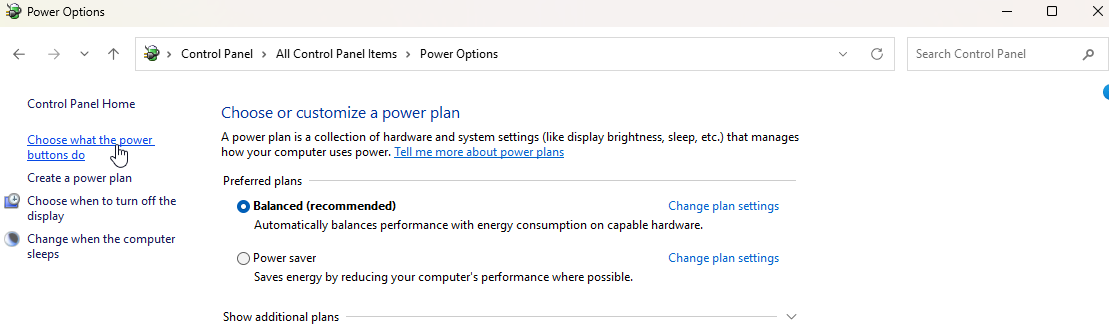
4 Click - Change settings that are currently unavailable
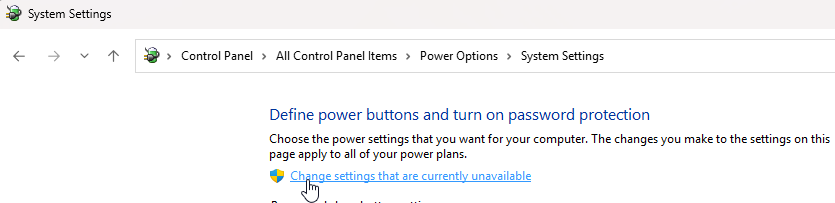
5 Uncheck “Turn on Fast Startup”
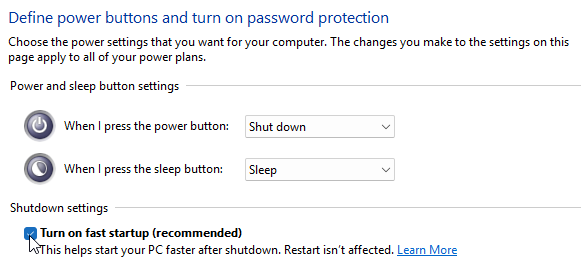
6 Save changes and restart PC.
7 Then you can disable hibernation if you want.
After disabling Fast Startup, you can disable Fast Boot in the BIOS.
NOTE: Fast Boot is available on motherboards for Intel CPUs, but only on some AMD ones. Therefore, if you have an AMD motherboard, the Fast Boot may not be available.
Someone might ask: “Why do you recommend disabling Fast Boot and/or in Windows, Fast Startup?”
The reason is simple: this kind of “quick boot” has a bad impact on drivers, which in turn can cause issues with overall system stability and especially with games.
Also, turn off “Link State Power Management” in the Power Options settings → Apply
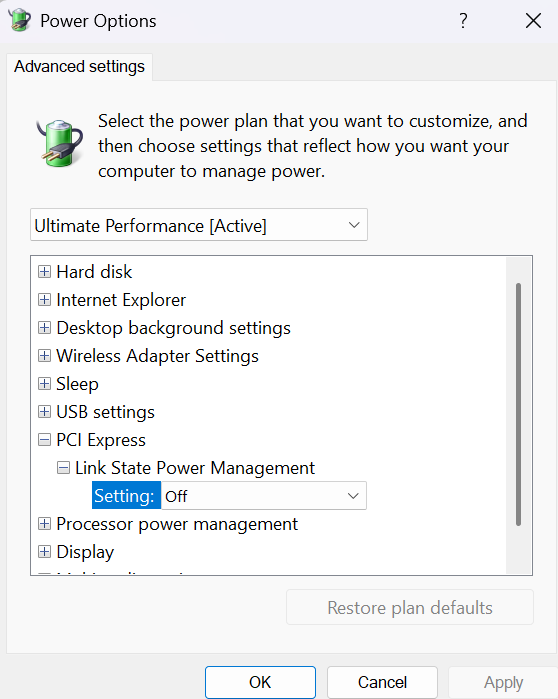
Also, set "Sleep after” to “0” (never)
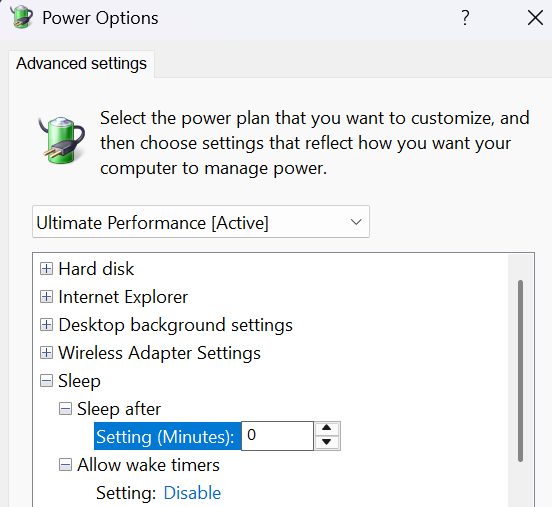
Restart PC.
I’d love to see a 1:1 comparison with max performance mode on and off while flying in MSFS. I would guess it makes almost no difference on a 5090. I used it for a little while on my 4090 and got tired of hearing the case fans sounding like a window fan constantly.
With my 9800x3d/rtx5090/64Gb 6000ram PC I haven’t seen any difference in VR FPS performance with Power at normal of prefer max performance. Nor have I ever noticed my fans ramping up. They only seem to ramp up a bit during msfs2020/2024 startups, lol!
The main thing I’ve always noticed in VR is that I get fewer stutters with it set to prefer max performance. Like everything VR, your results may vary. Cheers.
An issue is that typically it is after doing a non-clean install the issues show up. I have had the problem where I have had to do a clean install after issues have shown up from a ‘normal’ update. I do a clean install every few updates and since then have not had any NVidia driver associated problems.
In the same manner every so often I find MSFS 2024 itself starts slowing down and an uninstall/reinstall cleans everything back up.to normal.
I would recommend a NVidia driver clean update once in a while and a MSFS 2024 uninstall/reinstall once in a while also.
For me this keeps the system well balance in VR whatever versions of both I am running with.
Especially when those voices are making valid points that are relevant to this thread and to those who may be visiting this thread.
People do make money and do make a name for themselves out of bad faith and through the propagation of advice that they mischaracterize as “important” or “best practice.” When those people cross the line from simply making suggestions to acting controlling (e.g. saying you must do something a certain way), it is genuinely valuable for those seeking information to be able to spot the difference. That’s harder to achieve when the cautioning voices are silenced.
I am still using this version with no issues in a 5080.