Hi all
Somebody have the same issue??
I’ve the beta version 1.21.18.0 of MSFS
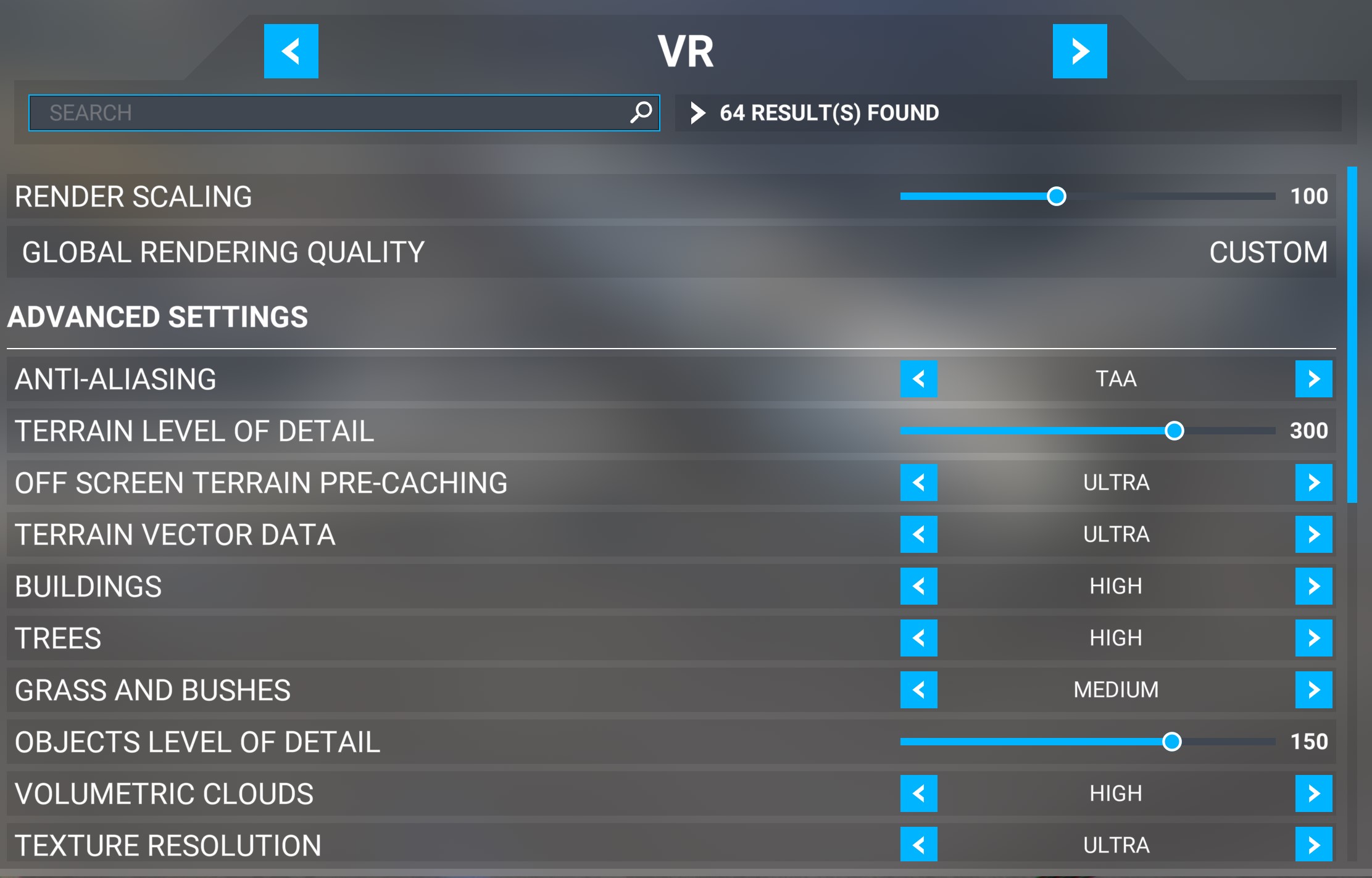
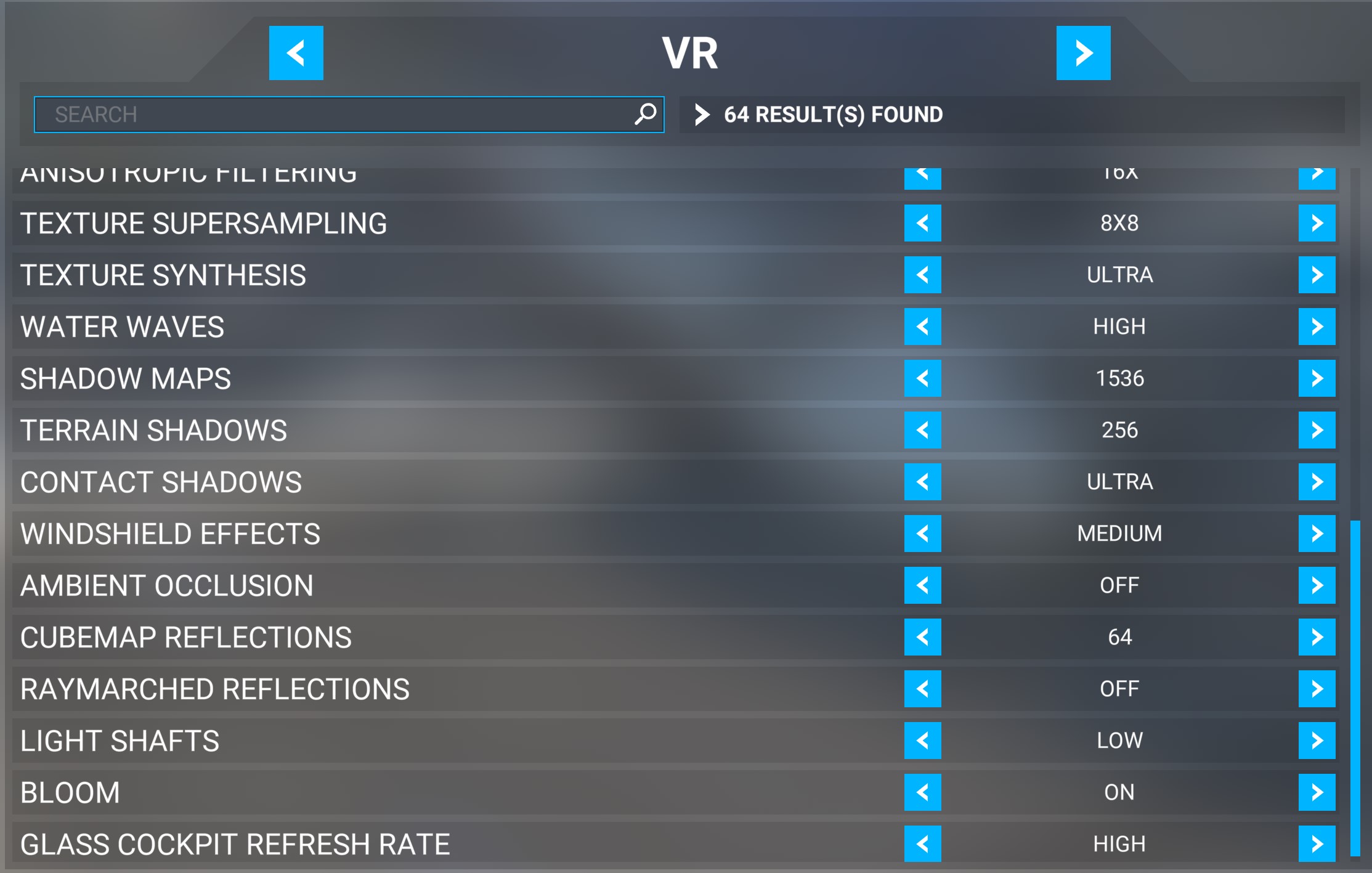
And since I’ve install OpenXR NIS Bêta #1 (0.9.2). I’ve this
Thanks for your reply
I’ve seen that same error from a friend’s PC and we didn’t know how to fix it - so really interested on any tips for how to diagnose it. His .json file in the error looked all ok, and pointed to a DLL of the runtime that looked ok. Win 10 update to date.
Existing info here.
Yep! Same here.
But it seems like everything is working as it should though…
Hi, Matt,
Question: Assuming 100% render scale in MSFS, are the following two example settings the same? Do they result in the same final render scale in the sim?
Thanks,
Bill
mbucchia, Thanks for releasing this tool. I have been testing this out for the last few days, and it’s really working. Cockpit gets a little more shimmer on the digital readouts, but the outside scenery really improves and shows off what Reverb G2 is capable of rendering. I am running 6800XT overclocked to 2.6Ghz and have settled on 90% scale with 15% sharpening to minimize shimmering (OXR and in-game RS at 100). Capping the frame rate at 32fps using Adrenalin driver, I am getting butter smooth, stutter free performance with GPU power to spare (80% utilization). This gives me the better scenery quality than 100OXR/100RS (which uses about 92% of GPU). I am wondering if this would be equivalent to what FSR might be able to accomplish.
@Rubiom20 @notsofearless @JorgenTroll @CaseStarling790 this has been reported a few times. Not so sure what is happening but it looks like a permission issue accessing the layer. It’s definitely an issue with the layer only.
Using Dbgview, reproducing the problem and looking for OpenXR-Loader tagged messages should give more details, but I still need to did into the OpenXR loader code to understand what exactly causes the error.
This is highly dependent on your headset, I cannot answer the question. When you use the configuration tool, you will see next to the scaling slider the target resolution. This can help you find out what’s equivalent.
Note that if you modify the OpenXR render scale while the NIS configuration tool is opened, the changed resolution should get reflected within 10s in the indicator I just mentioned (next to the slider). The tool queries OpenXR every 10s.
Also beware that the lower you set NIS scaling, the more details you are loosing. Increasing the OpenXR render scale will not effectively counteract that (too late, information on the image was lost). 50% is the lowest and will yield the worst visuals, regardless of OpenXR render scale.
If you go to the next tab after getting this error, and then click back on this tab - it works and shows all layers correctly. It’s just the first time you try - it times out with an error.
NIS and FSR are two ways of doing the same thing. Upscaling + sharpening.
I have read in many places that NIS was considered better than FSR. I don’t have the personal experience myself. But this made me decide to focus on NIS.
Anybody wants to share their experience?
Same MSFS render resolution, yes.
Same image output? no.
1 - will yield better NIS quality do to smaller resolution change, however NIS will introduce shimmering which will be visible since NIS output is at native headset resolution.
2- NIS will upscale to 140% of headset resolution, the image quality will be worse than at #1, however the image will be downscaled back to native headset resolution smoothing out some of the jagged edges. Also the outside view will be much better.
Great tutorial tanx.My NİS scaler resulution show 1840x1840 why?Could you tell me ?How can I change it?Oculus setup is 120hz 1.3
HI . I came across the topic last night and I installed the little program which was B version already and the result was just stunning. Basically the program removed all the mess the SU7 brought to me. I run a system which Ryzen 3600 , 32 g ram, 3080 and G2 headset and I used to get around 40 FRS in a small centre such as Queentown in NZ and 27-30 FFs in those big city like London. After SU7 I got 22-25 in Geenstown. However after installing the program I can run 44-47 FRS in Qeenstown under the setting of OXR 100, rendering scale 100% and rest of setting all high . thank you so much and looking forward to the update now.
I have the same card. What are your in game graphics settings?
This setting nets me 35-40 with OXR90/RS100. Locking it at 32fps actually gives me smoother frames with no stutter. All green in Developer Mode with about 80% gpu utilization. Leaving room on GPU is the key to reducing micro stutters. If I go OXR80/RS100, I could hit low 40 fps, but, limiting the fps to 32 still is smoother. YMMV.
Great tool. Works great. Can definitely see the change with shimmering going on and off when you enable/disable the scaler. One interesting side effect is that changing the sharpening while in Drone Mode (CTRL-F2/F3) changes the general luminosity. Is that expected?
So you’re using 90 OXR and 90 in NIS? Cheers
It’s due to the key being mapped to exposure control as well in the game:
That is quite interesting…. Did not know we could change exposure level in VR. I guess we can’t really as this is limited to the drone camera.
Merry Christmas everyone! 
It seems I did not fully grasp the interplay of different scalings (in-game, OXR, NIS) yet.
Let’s say my default settings without NIS are 50% in-game and 200% OXR because that gives me much better performance than 100/100. Now what would be the quality-equivalent settings with NIS? NIS=100, in-game=50, OXR=200? If that’s correct, I assume NIS would not scale at all, therefore no impact on performance but I’m gaining the opportunity to apply sharpening?
I appears so, yes. @mbucchia already pointed out possible options to address brightness/contrast/saturation but unfortunately my coding skills are too limited to really help with implementing