If anyone is interested, here are my EARLY test results, while trying to “tune” my PC for MSFS. They are a bit rough and my process wasn’t all that polished or strict, so I will do another round in SU5 testing, but for now they show some interesting things.
TL/DR: If you have an AMD CPU, with ram on your motherboard’s QVL list, then:
- Enable EXPO
- Enable PBO > Auto
- Set PBO Curve Optimizer to All Core, Negative 10 or 15
- Enjoy your life
If you want to go further - I went further.
First the background, and my limited understanding:
Disclaimer: A year ago, I didn't know much about PCs...
… or BIOS, or tuning, but I had just sold my Xbox, and started planning to build a new PC, for flight sim. I wanted the immersion of triple screens, higher quality aircraft and ATC, and eventually a range of peripherals. I had to save / wait for a GPU, so I spent the time learning how to tune the PC.
So my understanding is limited to what I’ve learned so far building 1 PC, using AMD 9800X3D, and NVIDIA RTX 5090. I make a lot of assumptions and am often wrong, and happy to be corrected!
This week I decided to do a full reset, and finally figured out a way, maybe, to benchmark MSFS - and not just FPS, but to understand better what aspects of tuning affect MSFS.
System Specs
Hardware:
- MSI X870E Carbon Wifi, BIOS v7E49v1A80 (Jan 2026)
- 9800X3D
- RTX 5090
- G.Skill Z5 96 GB 6000 CL 28 DDR5
- Samsung Pro 9100 2TB SSD PCIe5
- Asrock PG-1600G PSU
- Custom water cooling loop
- Samsung S90D 48" OLED TV, “Game Mode” Enabled to allow VRR, connected by HDMI 2.1 cable
System:
- Windows 11 25H2 26200.7705
- ReBAR on by default
- HAGS on by default
- Display set to 120 Hz, VRR enabled
- NVIDIA 591.86 (310.5.2) set to “Recommended”
- G-Sync Compatible enabled in NVCP
- VSync On for MSFS in NVCP
3 simple BIOS settings to try first
-
EXPO: AMD’s Extended Profiles for Overclocking (similar to XPO for Intel), loads memory timings from the RAM itself, in combination with profiles provided by the motherboard. Example, my memory’s default speed is 5600 MHz, but enabling EXPO sets it to 6000 MHz, which is how it is advertised. It also sets some of the memory subtimings. Most people would want this on if memory is on motherboard’s QVL list.
-
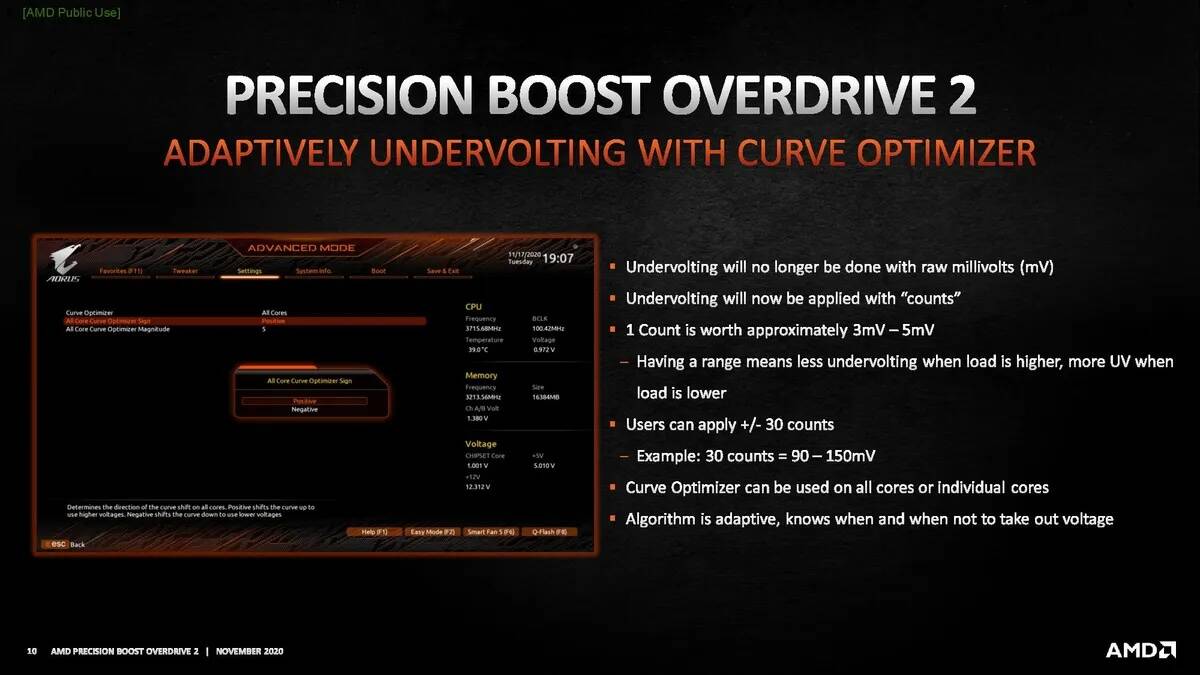
PBO: AMD’s Precision Boost Overdrive. AMD sets Thermal, Power, and Current limits to protect the stock CPU. PBO expands those limits to work with your motherboard’s capabilities. The idea is to allow AMD’s PBO algo to manage clock speeds and power when boost is needed, either as a spike or sustained, while protecting the CPU. For example the 9800X3D default clock is 4.7 GHz, but can boost to 5.2 GHz - PBO’s algorithm monitors all parameters every 1ms to determine the boost and power, within limits. It’s well worth looking at the slides from AMD’s presentation of PBO 2 back in 2020, which I could only find on this page at TomsHardware.com

Under-volting - the concept:
- Clock frequencies require voltage. Higher frequencies require higher voltage. AMD and Intel set the Voltage Frequency curve (VF curve) for each CPU model.
- Every individual CPU is slightly different, and individual cores in each CPU can differ too, so to ensure they all work, AMD and Intel set voltage high enough, and clock frequency low enough to ensure they all work to spec with margin, to avoid recalls and returns.
- This means most of them have room to adjust (but some may not). A CPU running at 5+ GHz gets HOT, and reduces the headroom for that boost clock when needed.
- A slight undervolt can have significant benefit, because it draws less power, creates less heat, and then the PBO algo can make more use of the boost clock when needed
Under-volting - the practice
- A simple test would be to run Cinebench Multi Thread test, open HWInfo and reveal the individual CPU voltages, and just get a sense of the numbers under load. My 9800X3D core voltages were around 1.2V
- For the AMD 9800X3D in BIOS on my MSI board, the undervolt setting is found in PBO > Advanced > “Curve Optimizer” and I would start with an “All Core” offset of Negative 10, or 15 “Counts” (AMD defines a Count as about 3-5 mV, managed by the algo in a range depending on workload)
- Then run Cinebench with HWInfo again, and you’ll see those voltages and the CPU PPT, and temperature numbers are lower.
- It’s important to know that your best / preferred core (the one the CPU chooses when you run a single core or single thread workload) is the one at the lowest voltage already, because it is the most efficient. This means it won’t go much lower, and has the least room to undervolt, and if you go too far, this core will be the first to become unstable since it won’t have enough voltage.
2 Steps further: Per Core Offset, and Boost Clock
I decided to undervolt “Per Core”, which essentially is lowering the voltage on each core (under load) to better match your best core. A picture describes it better - you’ll see the worst cores to start with had the most room to undervolt.
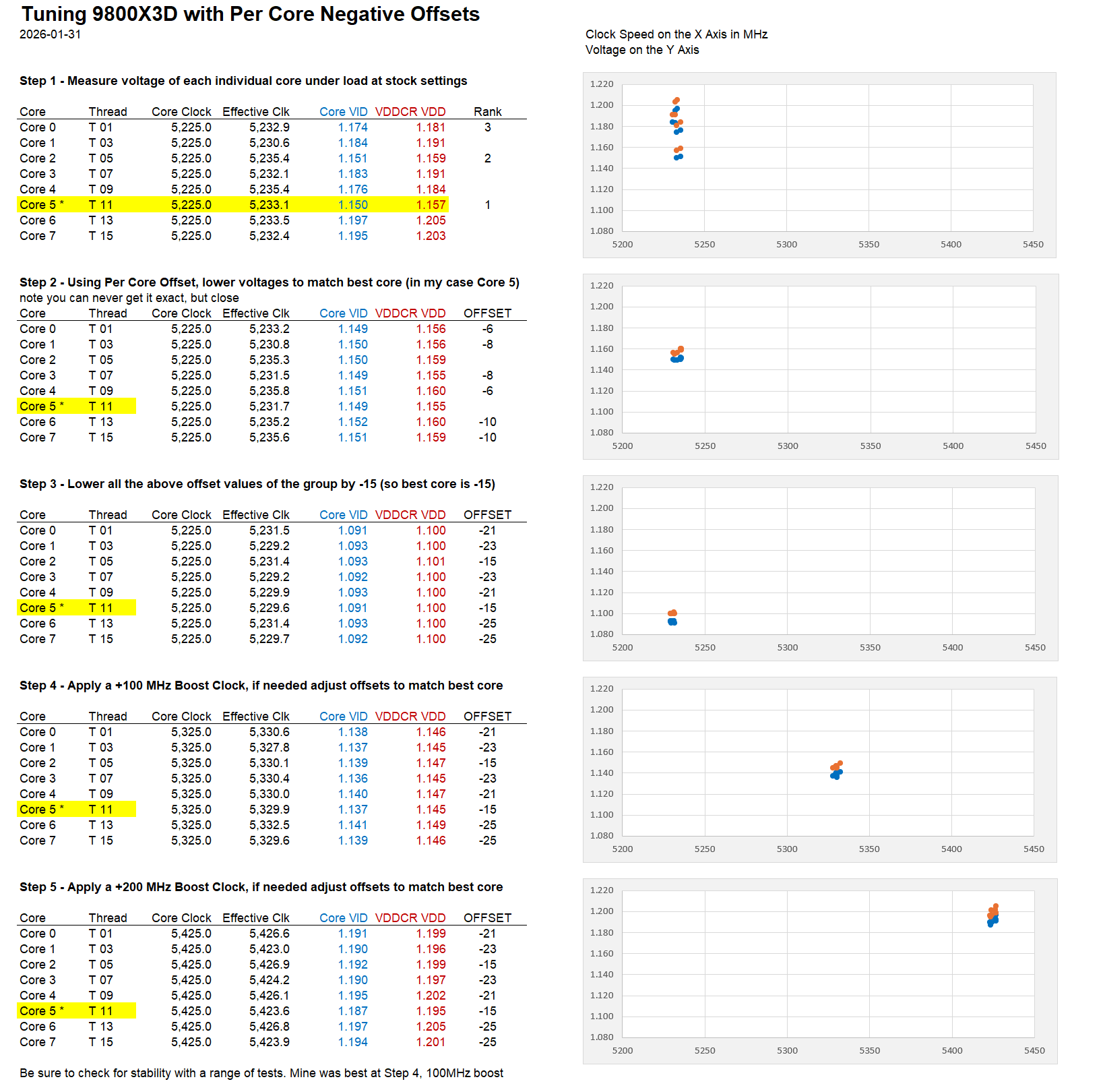
Here is a screen shot of the tedious process I used, loading one core at a time - Core 5 (Thread 11) shown:

Once I had a stable lower voltage, it created room to add a bit of Boost Clock in PBO > Advanced. Example, the 9800X3D runs at 4.7 GHz, and boosts to 5.2 GHz. PBO offers adding up to 200 MHz, so it would go to 5.4 GHz if desired - and still be under the original voltage and heat of stock settings.
... More about EXPO and Memory Subtimings
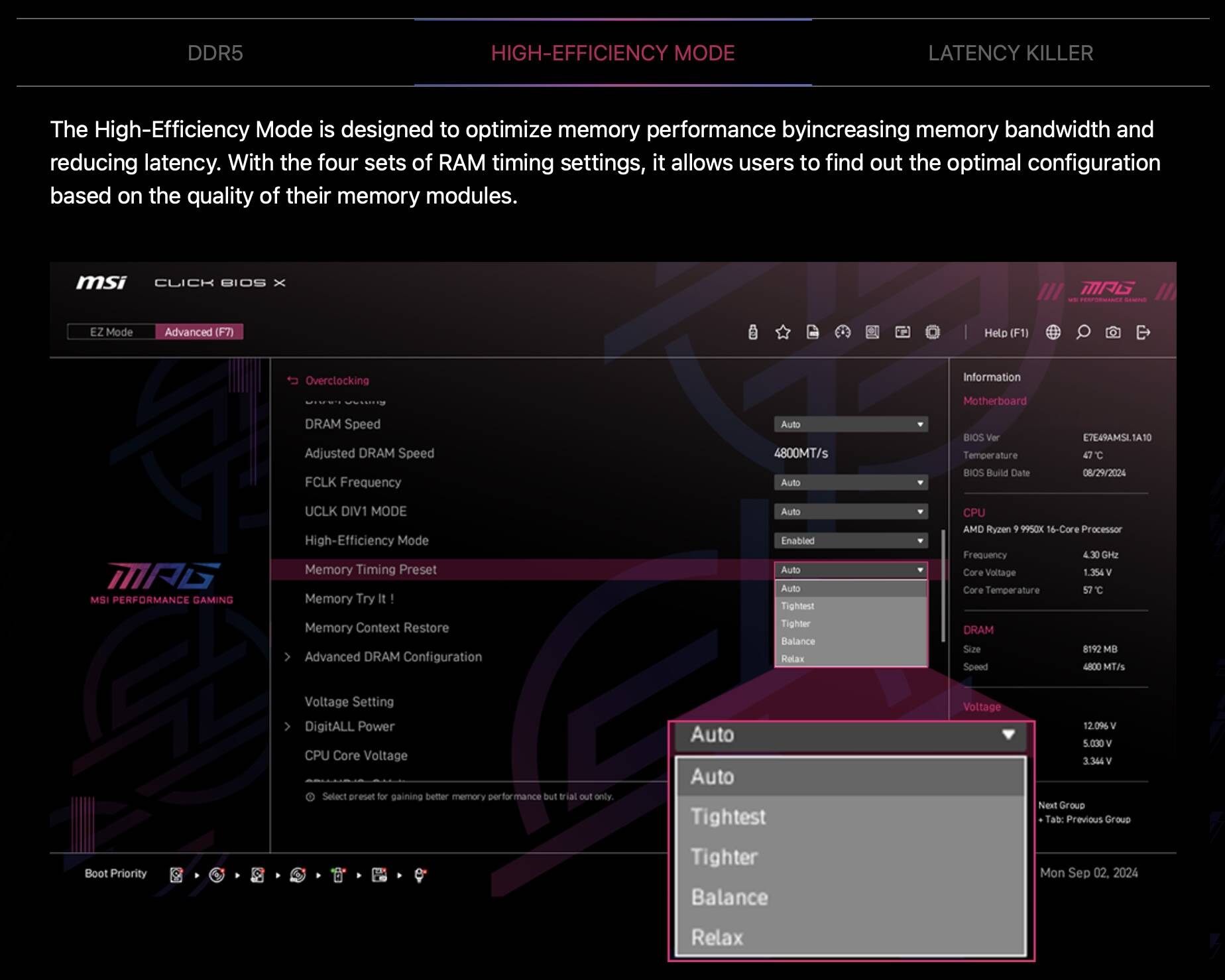
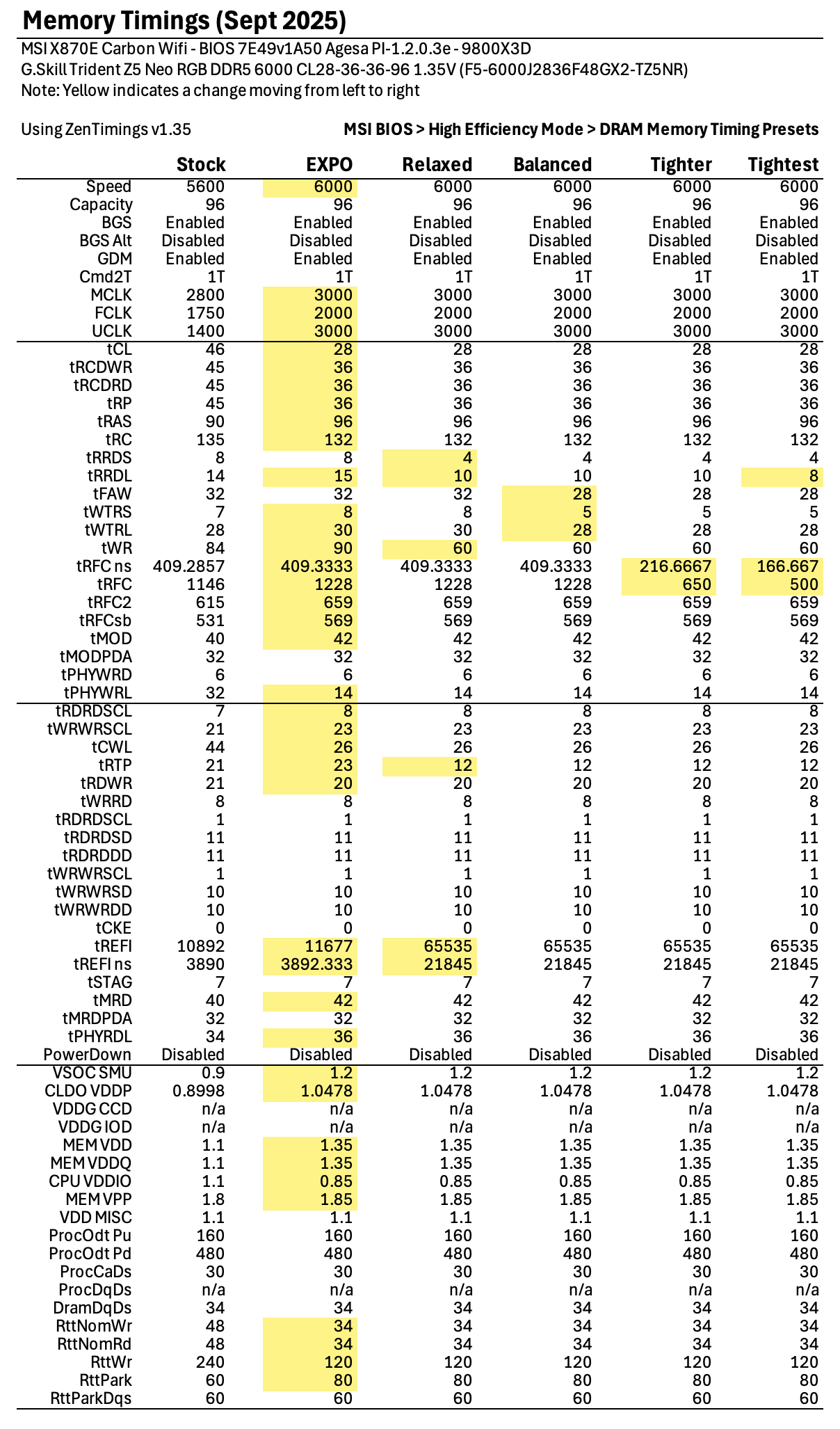
On my MSI X870E Carbon board, if you enable EXPO, a new option appears: High Efficiency Preset. These are 4 presets which “tighten” memory subtimings according to info the motherboard has about your RAM. The significant subtiming appears to be tREFI, set to 65535 (you’ll have to google what that does…). I think these BIOS memory presets exist in various forms for AM5 boards with DDR5 EXPO memory, but I only know about my board…
The test results in MSFS further down, show how important EXPO, and if available, subtimings can be. I think the reason for the impact is the shear amount of data MSFS is moving around in RAM and VRAM - so improving / tuning timings has a large impact (as long as it’s stable!)
These numbers are likely unique to the combination of my board, bios version, and specific model of memory, but you’ll see the idea.
GPU Undervolt
I have 3 screens, driven by an RTX 5090 - it’s a power hungry card, drawing 600 W, but can spike to 1200 or more during moments of high demand. I really wanted to apply the same concept of undervolting to the GPU to make sure it - and my PSU - were happy.
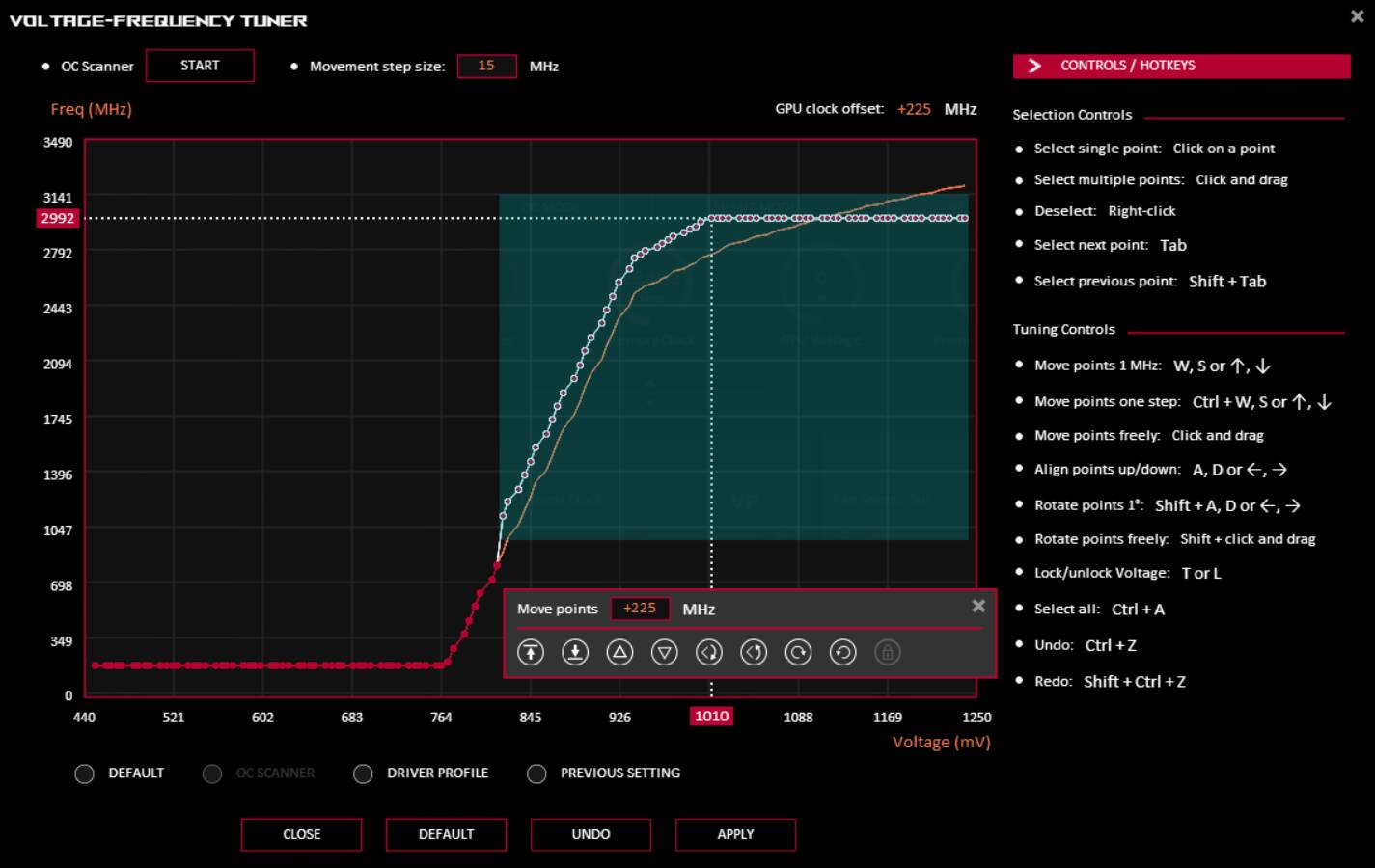
Short version: I shifted the VF Curve by 225 MHz and capped it at 1010 mV (or 1.010 Volts). Like PBO, I think NVIDIA has some algo in there, because it will boost higher than 1V when it wants to, so it sort of takes the settings as a guide, and obeys the “spirit” of them, and not strictly the numbers. The result is about 10-15% lower power draw in MSFS, which is great
Longer Version: Since my card is ASUS, I used ASUS GPU Tweak III. This is not a BIOS thing, but simply runs at system startup. here are my steps:
- I used Unigine Superpostion, Furmark, and MSFS itself, each with HWInfo running, to get a sense of the upper clock frequency and the voltage the stock card liked running at. In my case it was roughly 2992 MHz at around 1.150 V I think.
- The goal was to keep the frequency, but run it at a lower voltage, like .950V (950 mV), about 20% lower… So you do this in GPU Tweak (or MSI Afterburner) by shifting a curve. Many videos online show selecting 900 mV as the peak, and shifting the curve WAY up, but I wanted the GPU to have lots of power, and just trim back a bit for heat and those spikes. I ended up at 1.010 V (1010 mV).
- You should only shift the “active” voltage range, so that you don’t set the idle frequencies higher. In my case the active range is 820 mV to 1010 V.
- I then flatten everything above 2992 MHz so it limits the GPU to your selected voltage.
- This reduced power draw significantly with no side effects
How I prepared for testing:
Reset PC, preparing to benchmark
First, I did a complete reset:
- Deleted all custom controller profiles IN MSFS, and reset all settings to default in MSFS so that what was saved in the cloud would effectively be the original stock settings (I hope).
- Then I did the command line to delete MSFS cloud save data.
- Then I went a step further, and deleted “cloud save settings” on the Microsoft > My Account > Devices web page.
- I then reset my BIOS to defaults, and installed the new stable version which had just come out (I avoid the beta versions)
- Installed Windows 11 Home, chipset, and NVIDIA drivers
- Basic benchmark tests to ensure stability
- Installed MSFS as if for the first time
- Installed HWInfo, paid version to limit PresentMon to MSFS
- Regedit to show DLSS info on screen
MSFS Graphics Settings
- 4K single screen for testing (I had my other 2 monitors connected, but MSFS was just using the main screen)
- DLAA Preset K (310.5.2)
- No Max Frames or Frame Gen
- VSync On, set to Half Monitor Refresh Rate
- Graphics Preset: Ultra with no changes
- No addons
- My intent was stock settings, but I had turned off MSFS music and I may have turned off all the Assists, and Multiplayer, out of habit without thinking
How I captured data
- I designed two 20 min flight plans, for the C172 and A330, and ran each under 4 sets of BIOS settings
- I ran HWInfo and the MSFS FPS overlay, and captured screenshots of these at roughly the same points in each flight, to compare
- This is NOT scientific, but is what I could manage, to get a sense of how things behave.
- I’m still learning - and I’m sure others will know what software to use, or what specific metrics are meaningful.
- HWInfo has PresentMon, which shows statistics about frame rates and frame times. I paid for the Pro version so that I could limit PresentMon to just MSFS (via command line).
- For AMD processors, HWInfo suggested on their forum to enable “Snapshot Polling” which reduces the requests to the sensors to a default of every 2 seconds (2000 ms, which you can change), reducing impact on results.
Testing MSFS!
I created 2 flight plans, both 20 minute circuits:
- Default A330, KJFK/31L GLDMN CASLE DPK KJFK/DPK.I31L (cruise 5000 ft)
- Default C172, KTEB/06 JULEB RINNG HUDSN LBRTY LAYDE DANDY KTEB/06 (cruise 3000 ft)
- Flight Conditions: “Few Clouds” Preset, at Noon
I flew each flight under 4 sets of settings:
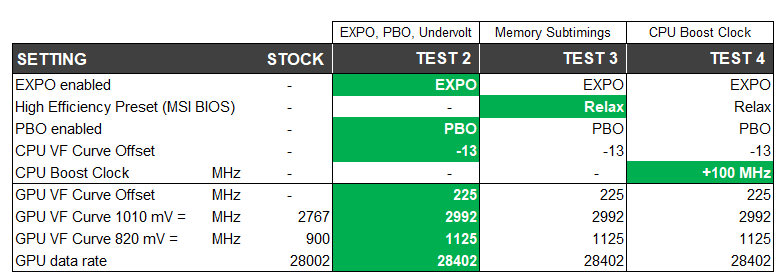
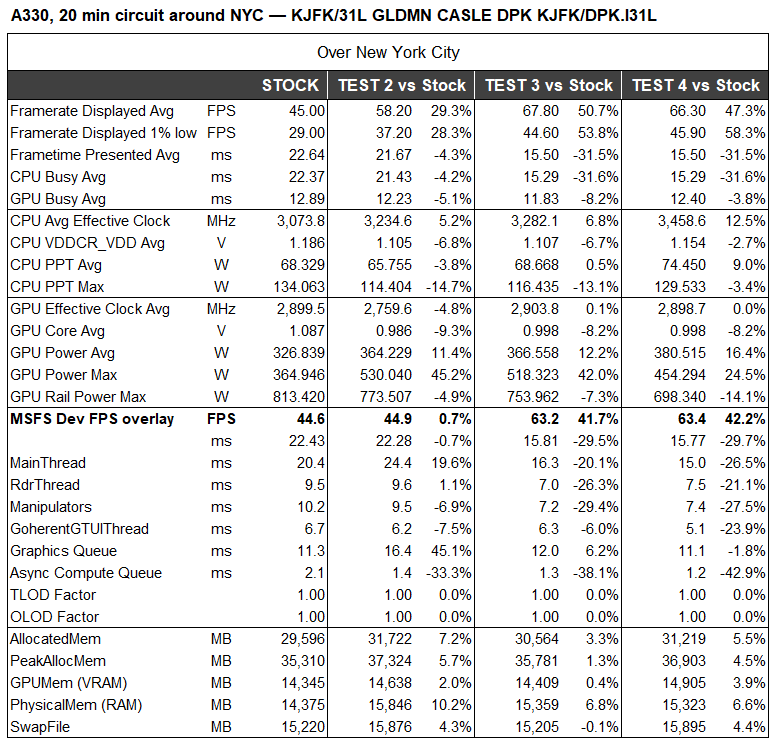
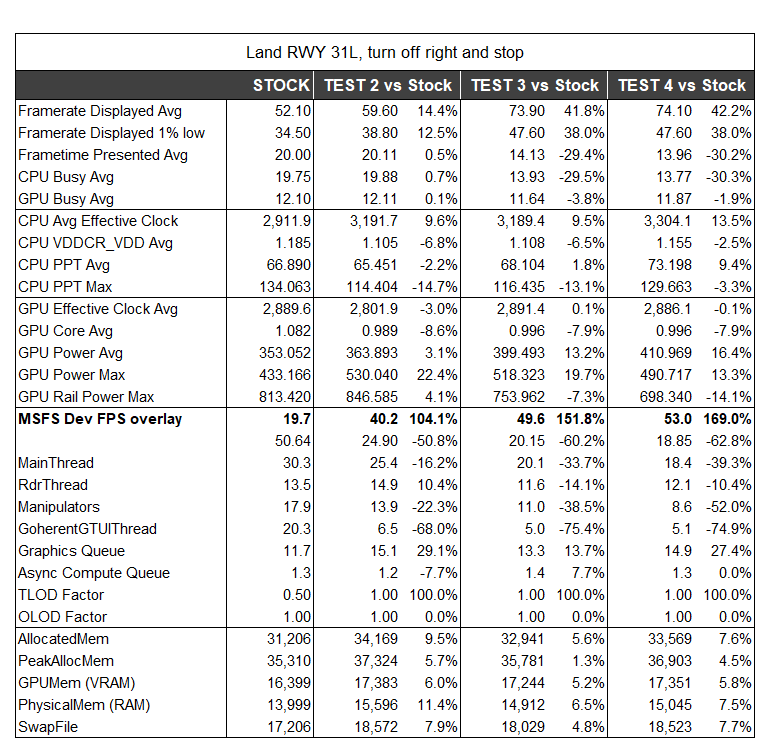
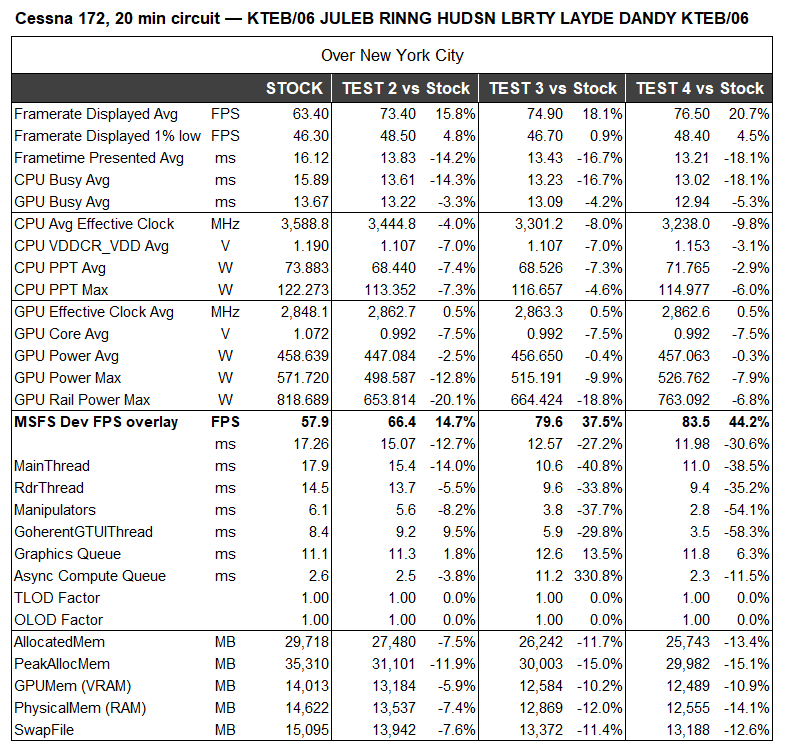
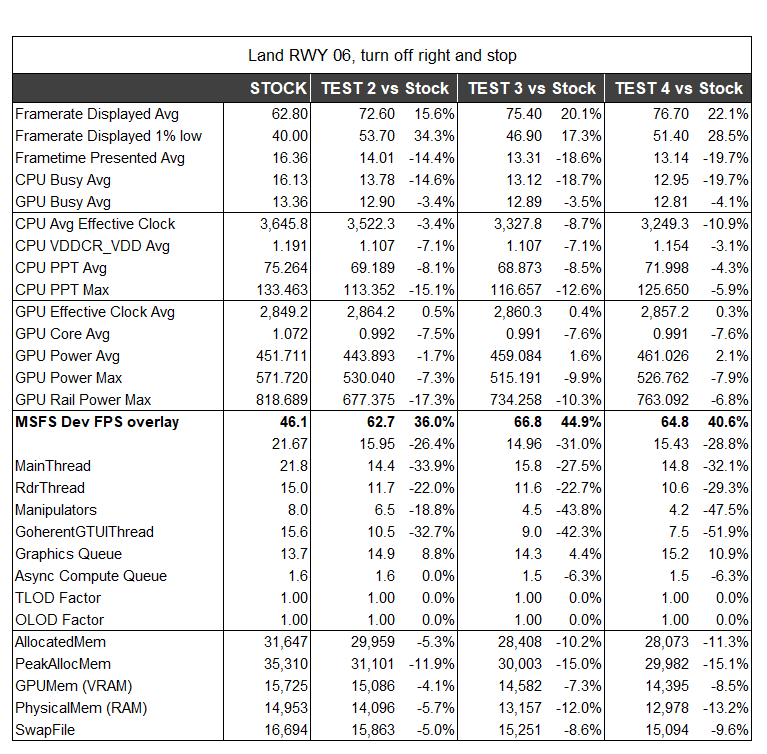


The A330 results landing at KJFK in stock settings were terrible. I think this was down to Ultra settings with TLOD 200 brings a lot of airport objects in to memory very quickly and it just gets saturated - and stutters on landing is what everyone has been reporting. I thought it was an anomaly, since taking off from KJFK wasn’t an issue - but I ran it a few times.
What really stands out is how EXPO improved results by improving the topline memory timings. AND how the subtimings have a real extra benefit.
As @TenPatrol has said, enabling EXPO (or XPO for Intel) is a no-brainer, but the trick is finding the balance between these settings that is stable for your system.