Disable frame generation and dynamic settings completely.
- Anti-aliasing - TAA
- Frame Generation - Off
- Dynamic settings - unchecked
Then enable developer mode and turn off the smart docking system.
Smart Docking System “ON”
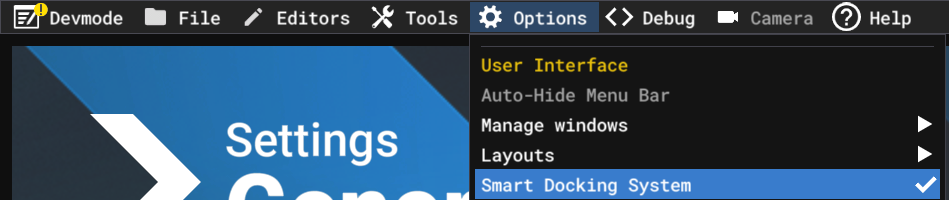
Smart Docking System “OFF”
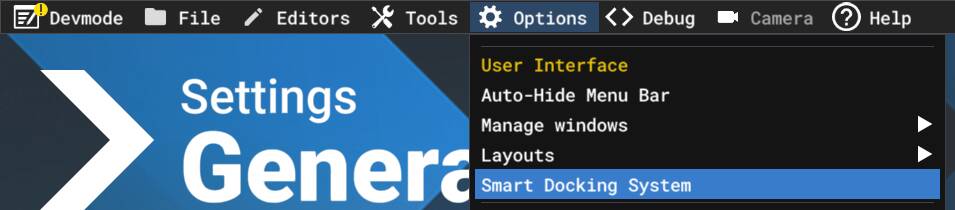
After turning off the smart docking system, disable developer mode and then close MSFS.
On some hardware configurations, there is a noticeable FPS drop - and even stuttering - when Developer Mode is enabled. However, anyone who wants to monitor FPS is currently forced to keep Developer Mode turned on.
For gamers who are benchmarking, testing performance, or simply monitoring MSFS behavior, Developer Mode itself is unnecessary. They only need the FPS overlay.
For that reason, I decided to share a workaround that allows you to keep the FPS overlay enabled without having Developer Mode active.
How to Enable FPS Overlay Without Developer Mode
After creating the shortcuts, start MSFS from the new shortcut and test without enabling developer mode - the FPS overlay will still work.