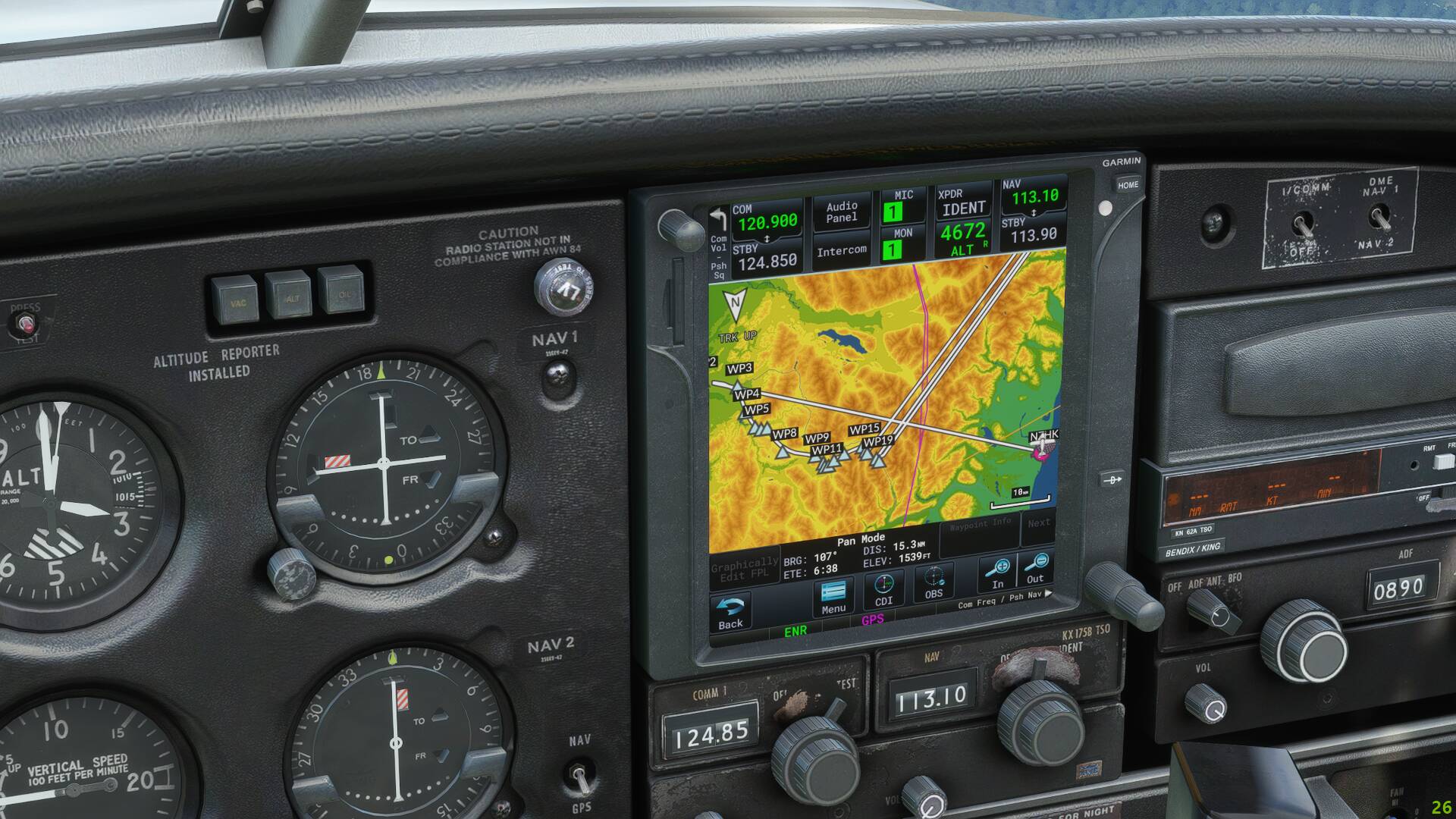
Is the 172 variant of the GTN only available on the glass cockpit G1000 version of the aircraft? I’ve seen it on at least one other steam cockpit plane, that being the various Just Flight Arrows.
Am I somehow setting it up wrong, or is that just the way it is supposed to be?
Thanks for that Andy.
This is a problem of cache at Asobo level apparently. I got it also sometime with the VFR map.
This will be fixed on our side in the next release.
Yeah, but the way I do it is save SimBrief flight plan and load it on the map screen in the MSFS flight planner. Boom, everything is in GTN (but the approach).
The GTN provides a way to import a pln flight plan.
The Navigraph ingame panel provides a way to export the FP.
So theoretically, it should work but…
The NAvigraph export function doesn’t ask for a filename so I don’t know if the file is really exported and where.
I will ask that to Navigraph.
I agree that it would be nice to have a direct import of the Navigraph flight plan to the sim without leaving the current flight.
I tried the navigraph export flight plan function. I think the flight plan gets saved into the default MSFS flight plan folder. Can you make it so that GTN750 can import navigraph flight plans directly from MSFS flight plan folder?
Hi, did you try to export the flight plan in the InGame Navigraph Charts Panel or using the Navigraph Charts App?
I’m not sure that the InGame Panel .pln file export is currently working. I have not been able to find newly generated files in MSFS folders and subfolders.
The InGame “Copy route to clipboard” is however ok. So if the GTN750 has the ability and the rights to access to the clipboard content then this could be a way to import the flight plan.
Inside that folder, you could create a symlink to the 750 addon folder for flight plans, and copy/rename the file into that location.
You could even write a little program that watches that folder for newly exported plans, and it will do the rename/copy operation for you. No need for the symlink at all then.
Actually, I wonder if you could do it the other way. Create a symlink inside the 750 mod, that looks back at the MSFS default plans folder. All you need is a rename then. I haven’t tried it yet, but from the correct folder, this appears to work for me:
mklink /D gtn750 D:\WpSystem\S-1-5-21-3738441901-1295518950-3516428421-1001\AppData\Local\Packages\Microsoft.FlightSimulator_8wekyb3d8bbwe\LocalState
symbolic link created for gtn750 <<===>> D:\WpSystem\S-1-5-21-3738441901-1295518950-3516428421-1001\AppData\Local\Packages\Microsoft.FlightSimulator_8wekyb3d8bbwe\LocalState
dir
Directory of D:\Flight Simulator\Addons\Sim Mods\pms50-gtn750-premium\fpl
We cannot access this folder from the cockpit.
You can copy the saved flight plan to the required directory for the GTN750 to import it.
Now the best would be that Navigraph directly imports the FP to the sim from their panel. I contacted them about that to see what can be done here.
Yes it is possible to have a watchdog moving and renaming the last flight plan generated from any folder to \pms50-gtn750-premium\fpl\gtn750\fpl.pln. And then you can import it in the GTN750. It can be done live with MSFS up and (running) flying.
But the question was regarding the .pln export function of Navigraph Charts In-Game Panel (not the Windows App). I was not able to see if it worked.
Then my idea was to ask if it was possible to use the clipboard to feed the GTN750 as I can confirm that the “Copy route to clipboard” export is ok in the Navigraph Charts In-Game Panel.
And at last if Navigraph can positively answer to Scorpion request, everything will be solved.
No need to move anything as my post shows. But you would still need to rename the exported .pln file to one the 750 understands. Navigraph would need to do that.
I’ve noticed on occasion, in various aircraft types, that the GTN750 visually scrambles a custom flight plan in terms of changing the position and order of waypoints.
However if coupled to autopilot with GPS as nav source, the aircraft will still fly the actually route that was plotted. Most of my flight plans are created in Little Nav Map and exported into MSFS.
When the scrambling happens, I have also been noting a FPS loss of between 15 and 20 FPS in both external and internal view modes.
Anyone else experienced this or know of a fix? I’m running the latest version “pms50-gtn750-premium”
I did not know I needed update the nav database inside of LNP. Are you able to provide any more information about how one might do this? (I don’t have a Navigraph subscription) TIA
If the database is different between LNM and the sim you may have issues when importting a flight plan.
Check the way to update the database in LNM forums.
I will test to import your FP.
I just upgraded to the Pro version for a year. I got the license activated just fine, but I’m having trouble with the token for METAR. I have the free token from the website given, but when I click on Test METAR after entering the key, it says “No Data”, which I assume means the key was entered incorrectly. The keys I’m getting seem to be a bit shorter than what the GPS lets you enter, but as far as I can tell I’m entering them correctly. Is there a way to copy and paste the token into a file somehow, instead of the rather tedious method of using the touchscreen in the game?
THere is no possibility to cut and paste here. The technology in use forbids that.
Nearly 100% of the issues are a typo error.
First copy your token to the notepad in order to clearly distinguish possible confusions between the characters (ex uppercase i and lowercase l).