Note : Added some more tips at the end of this post including in-game pc graphic settings for VR
There are abundant setting suggestions for high-ends desktops (i9, rtx 3080, etc) in this forum but not for mediocre computers like mine; a gaming laptop with i7-9750H, rtx 2060, 32GB, & ssd. After a year of trial and error since the introduction of vr to msfs world, now I’m quite satisfied with my humble computer presenting immersive vr flight experiences with reasonable stability, smoothness, and clarity.
I can say that my settings are also based on TonyTazer1504’s idea of combining low in-game render scale and high OTT super sampling and I appreciate his contribution while mine is modified to fit for my less powerful machine and my own preference.
-NVIDIA Control Panel-
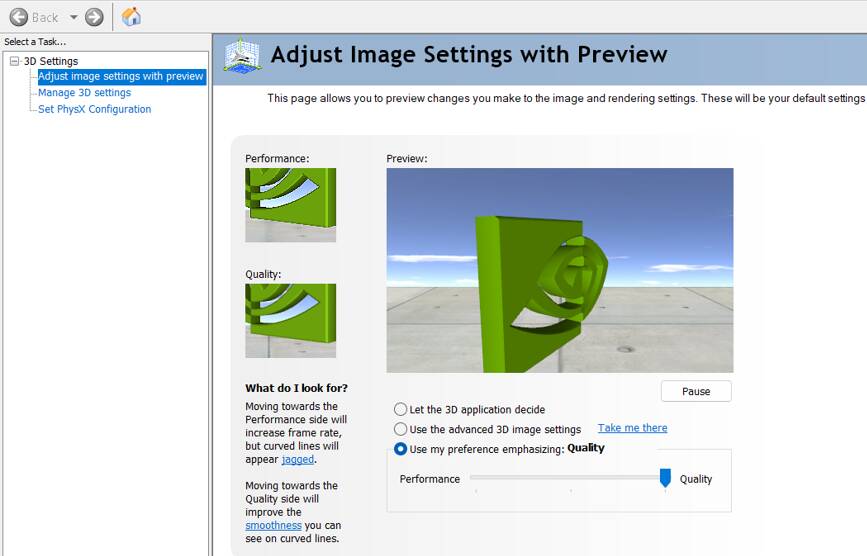
I found this settings by preview is not only simple to use but also quite powerful in my case. Quality emphasizing option brings literally overall improvement of graphic quality. It might be subjective but I feel this nvidia option is more effective and less performance-consummative than tweaking in-game graphic settings in bringing noticeable graphical enhancement.
-OCULUS App Settings-
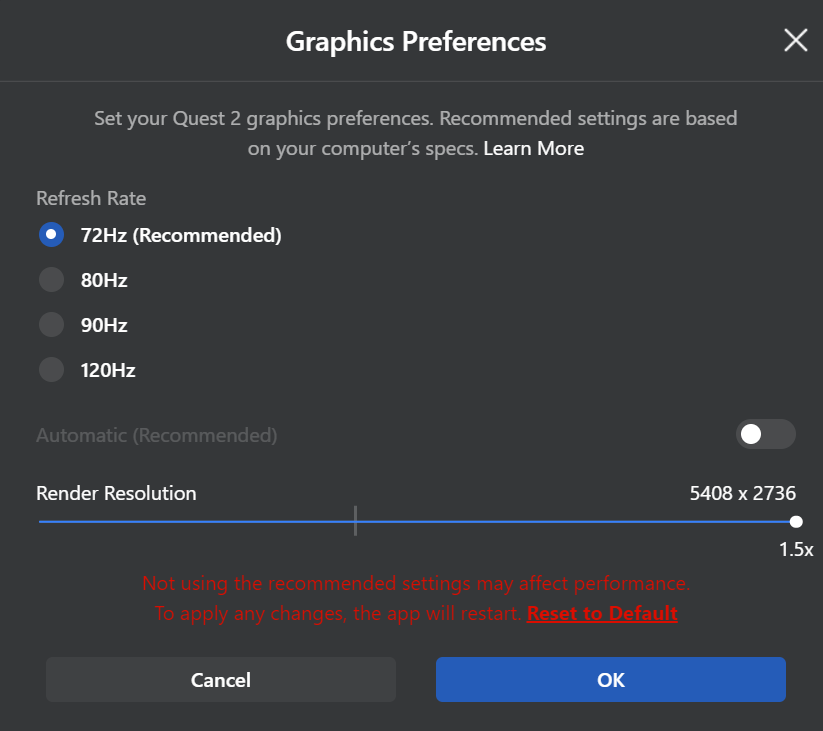
The higher settings like 80, 90 or even 120hz might be certainly better than this 72hz if the target resolution is same. Actually still I don’t know exactly which one is better, 72 with the highest resolution or 80 or 90 with modest resolution and little bit higher OTT SS.
-Oculus Tray Tool Settings-
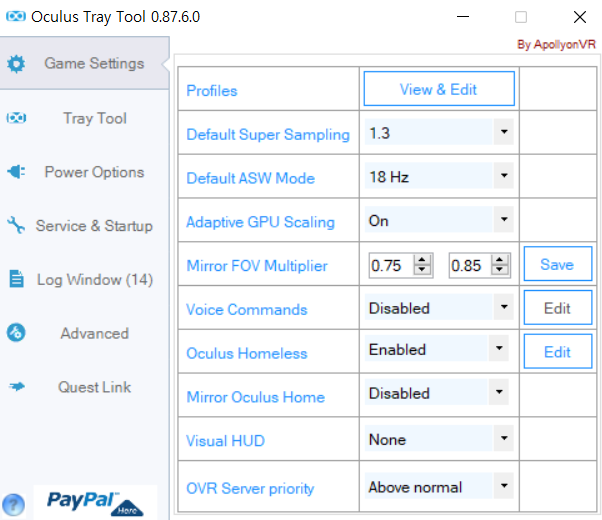
Except 18hz, other asw options brought severe stuttering with my settings making the game unplayable. SS 1.3 is compensation for 70% in-game render scaling.
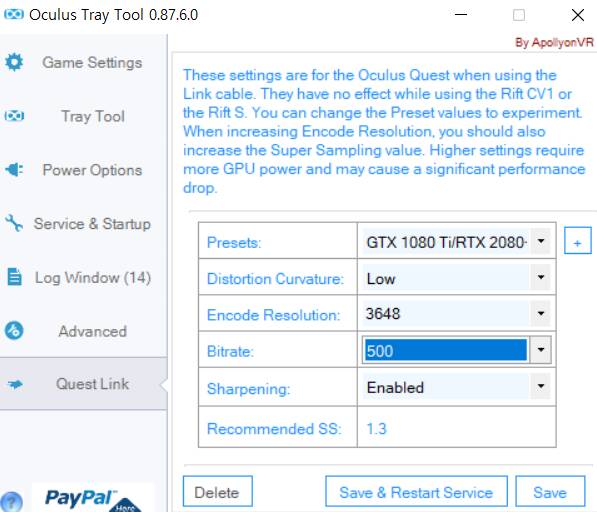
Bitrate 500 is for the Link Cable. 500 is the highest and works well with my original Link Cable.
-In-Game Settings-
Medium or low settings overall. I think touching graphic driver or ott app is better than tweaking this in-game settings higher.
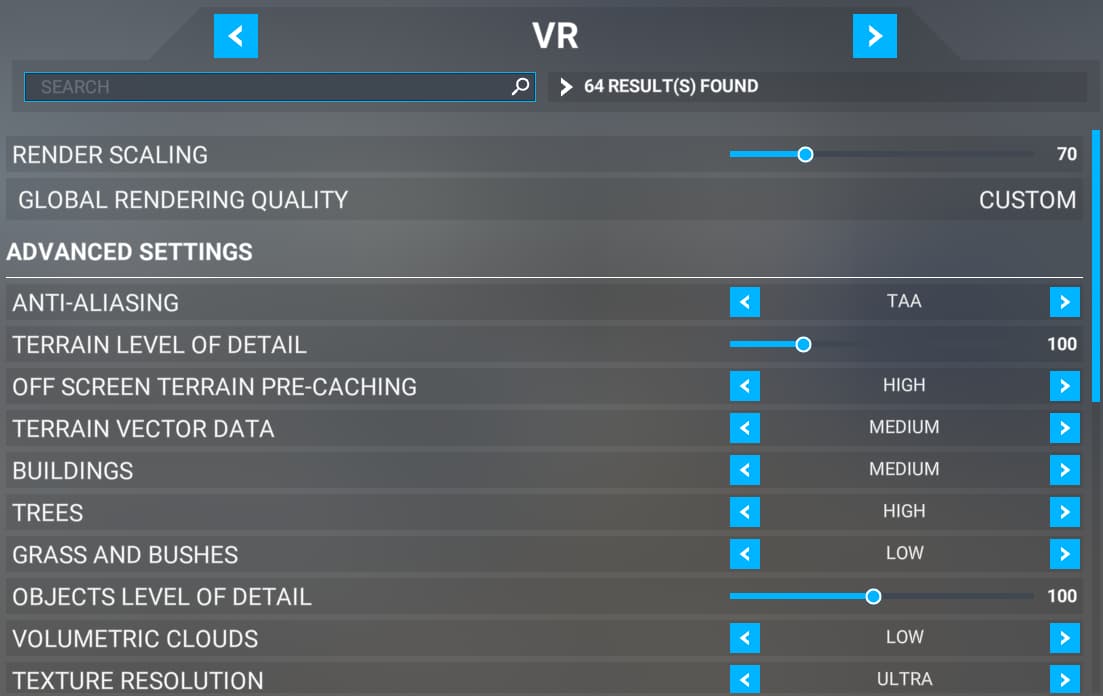
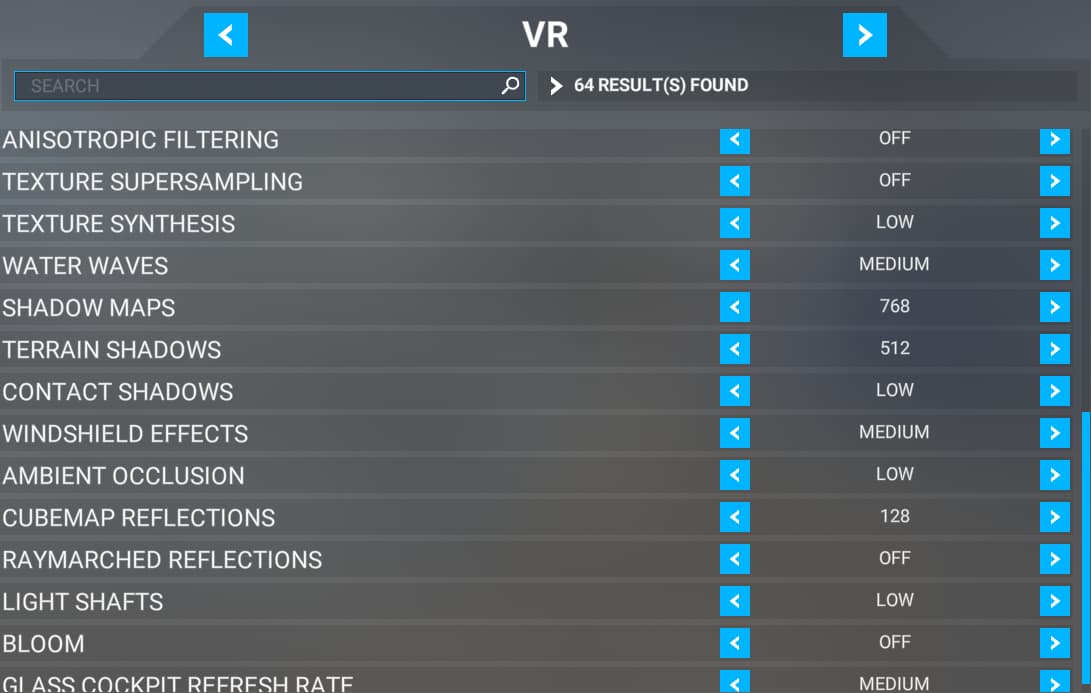
——- Added ————
It might sound ridiculous but what I found is vr graphic quality is affected by pc graphic settings. Setting the global rendering quality as ultra has brought quite noticeable graphical improvement in vr.
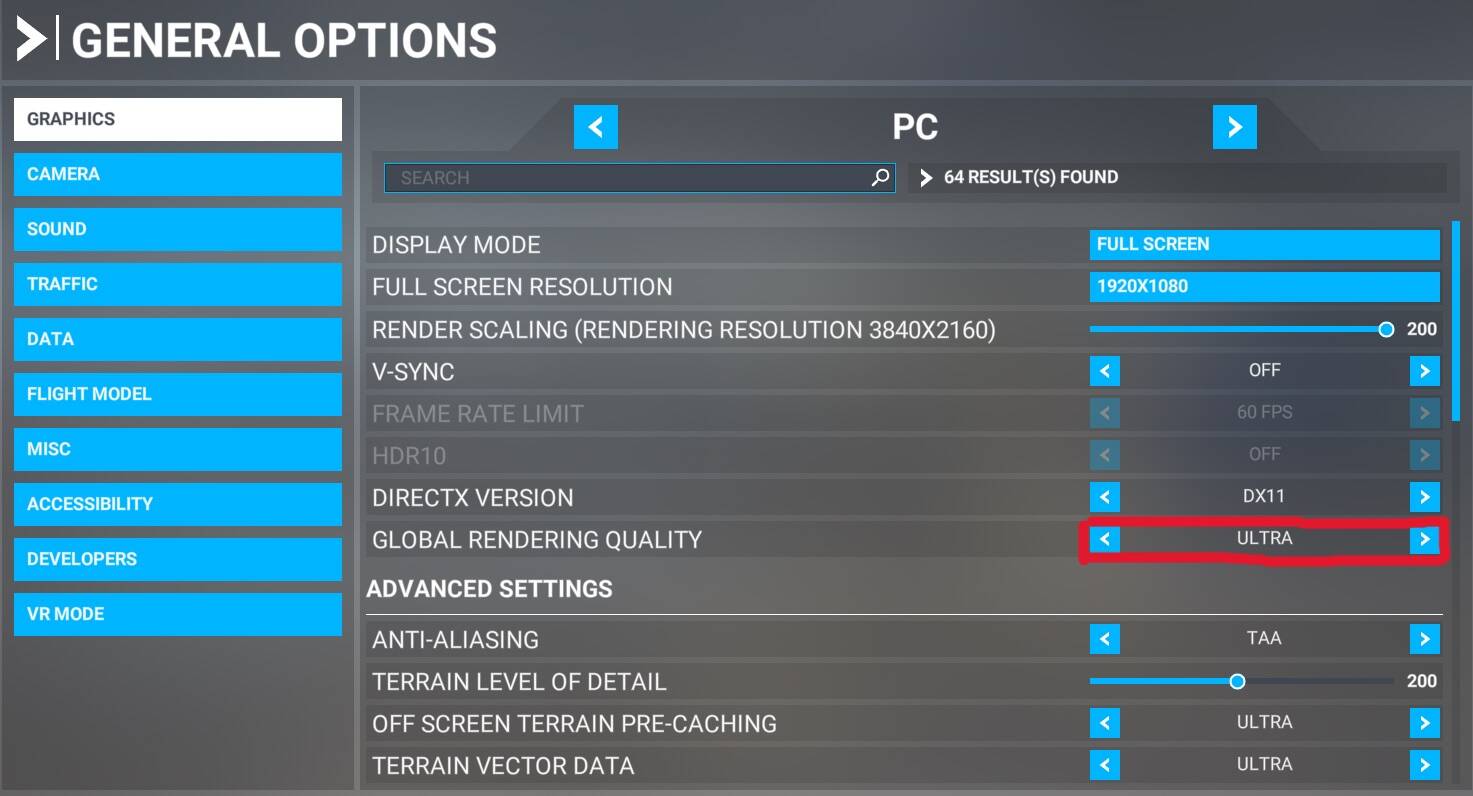
If it is unbelievable, wish you to test it by switching setting options.
Another finding is annoyingly above settings are not always successfully implemented by PC and VR. If you feel the outcome is somewhat unclear, try changing setting parameters like OTT SS, in-game vr rendering, and in-game pc global rendering and returning them to original parameters while you are flying. In my case, this switching settings restored clarity and sharpness.
My reference is small writings like the warnings written on the front board of C172 as below. If I can read it and discriminate each letter without reclining forward, I regard all settings are successfully applied.
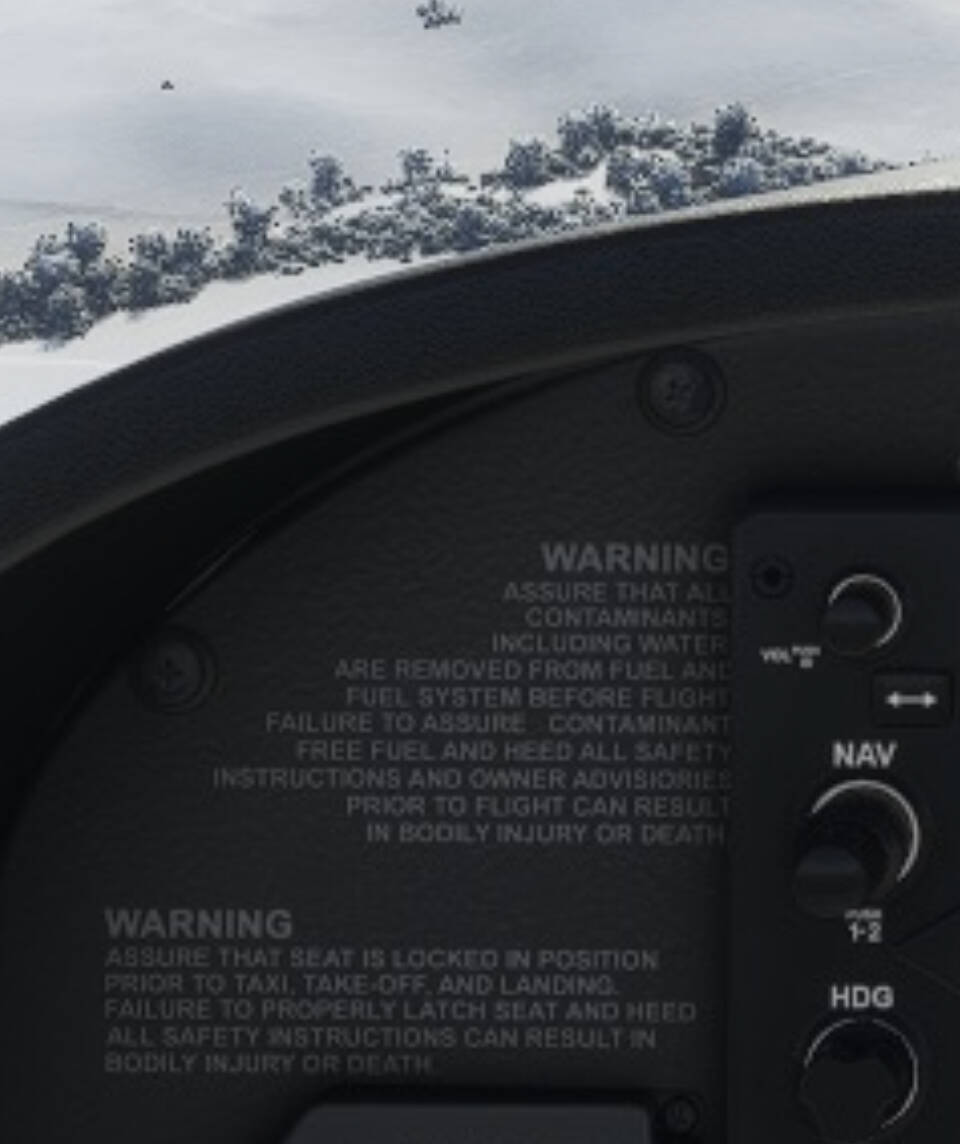
After posting the above, I could find one major reason of inconsistency of graphic quality. Unfortunately settings of OTT, especially Super Sampling value, is not always translated into equivalent ODT settings and consequently brings immature visual outcomes without proper super sampling. Cross check of both OTT and ODT is needed…
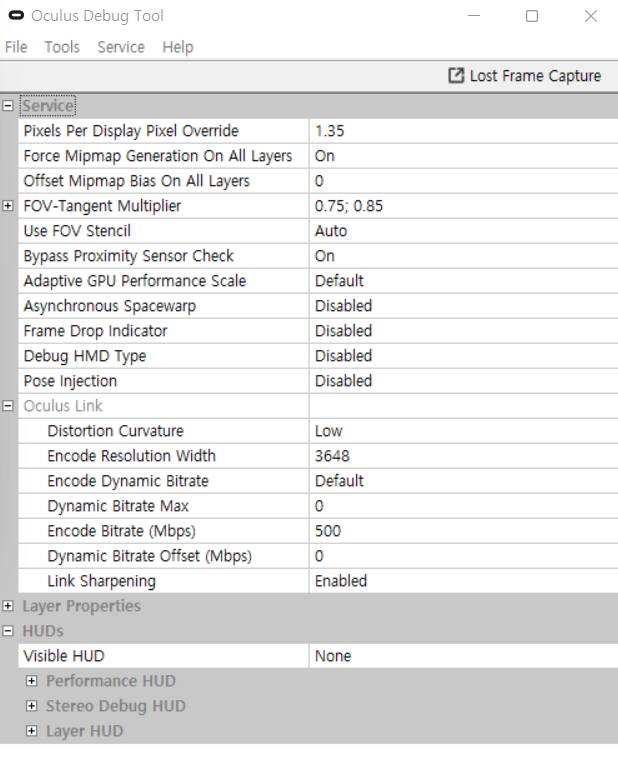
Additionally, It is usually recommended running OTT and ODT as the administrator to make sure its implementation.