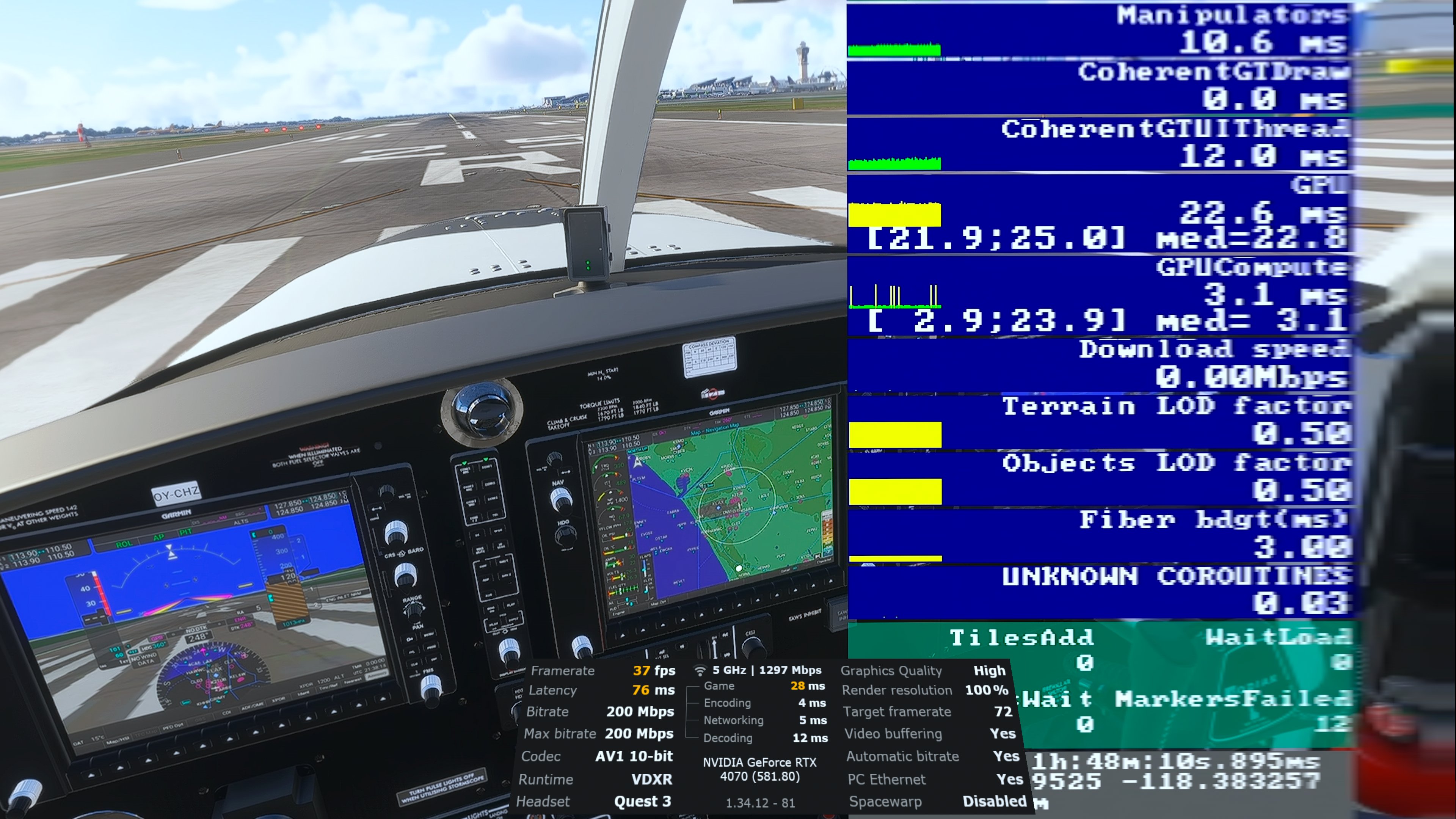
Proud owner of the Quest3 for a week and I cannot for the life of me get latency in the Q3 lower than 75ms without going further down the hierarchy from “High” to “Medium”.
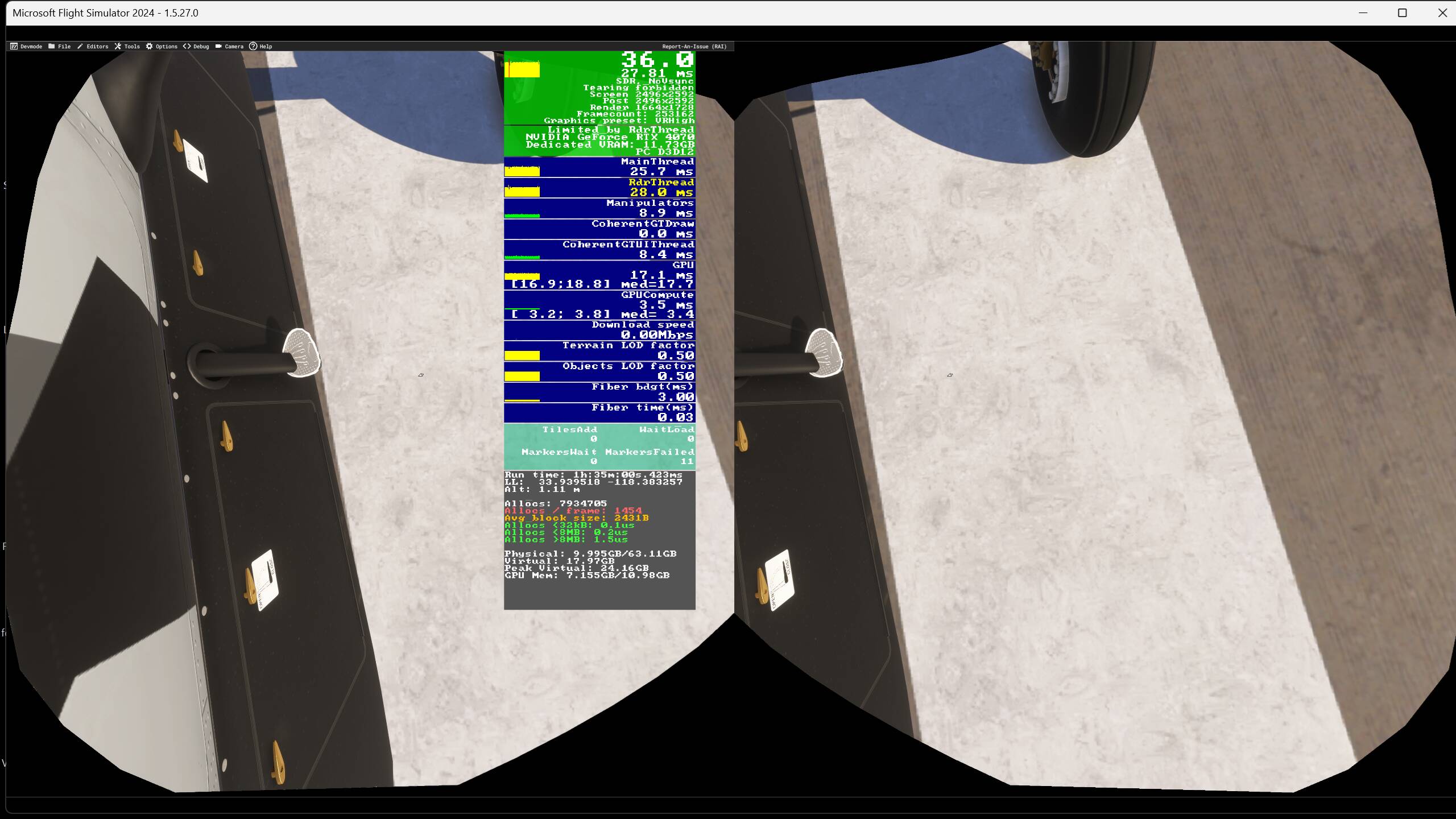
In MFSF2024 performance window everything in the green. VRAM to spare Can the Q3 be the bottleneck??
I tried different combos and Latency 75 ish is the lowest I can get to. The visuals ar good (I think, my first VRheadset). Tested like this (with restart of game in between):
SWS Kodiak100 on RW23R KLAX stock only static aircraft, Few clouds
Streamdeck and AAO active
Meta app and ODT open
Q3 with official Link cable to usb 3. Test-speed 2,9 gb/s
Virtual Desktop Streamer “High” 72hz, 200mbit, snapdragon on, ASW disabled
Environement “High” in settings
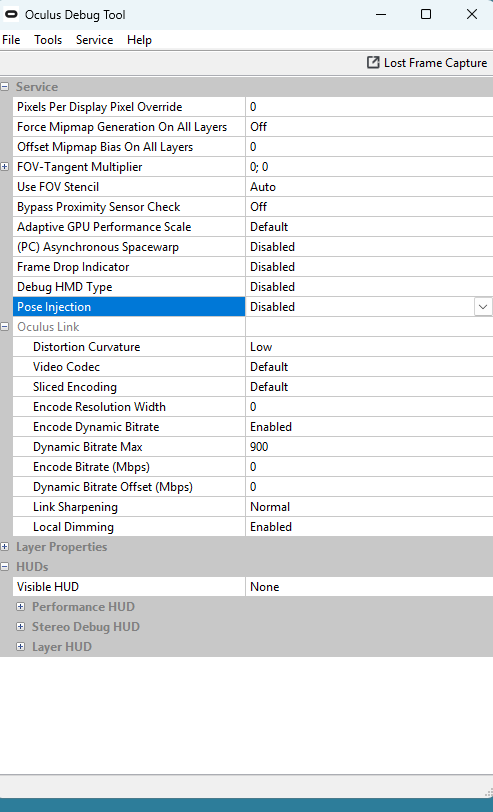
In Oculus DBT Speed 500 (btw can not get the performance window to show anymore)
Bitrate to auto (500 in ODT)
Msfs2024 Preset “High” with TLOD 50
In MSFS2024 everything is tn the green, VRAM overhead
Experimented with CODEC From AVI 10.bit to H.264 (marginal gains)
Changed Hz to 90
Set 36 fps max in MSFS2024
Tried all the settings with ASW on (gives more latency)
Tried all the settings wiht snapdragon off (Marginal gains)
Avoided virtual desktop but got huge smearing and artefacts in the room before going to desktop.
Ditched the link cable, router WIFI 6 placed 10 centimeters away. Gave me staccato audio en stutters.
HAGS on and off
Windows 11 optimized fro gaming On and Off
What can I do to reduce latency in the Q3? The 4070 is not really struggeling and I seem to be main thread limited. What am I not seeing what probably is right under my nose?
75 msec. is fairly standard with MSFS. Usually you have to tolerate two frames worth + input/output latency. Maybe though you have Vsync enabled or maybe the video buffering setting with Virtual Desktop. A total of less than 100 msec. should be OK except with fast or unstable jets. I agree though that it would be better if total latency is less than maybe 50 msec.
In ODT, with the Link cable, try setting encode bitrate to 900 (you may have to copy and paste that value from Notepad, as it may not accept manual input). Change the Encode Resolution Width to 3664. Use only the H.264 codec.
Those settings persist between sessions, once entered. That helped my latency a lot.
With Link, since around the v74 update, I’ve found it best to leave all ODT Link settings at defaults/zeros except enable dynamic encoding bitrates and input 900mbps Max dynamic bitrate (which you do not need to copy/paste).
Meta will automatically use the right codec and other bits. The great thing about this is that you can use this same ODT for Air Link as well. Try it, you may like it, lol! Cheers.
Thanks guys! Will try these tips! What about not seeing the overly in ODT? I used to be able to see it, now it just doesn’t show anymore. Have reinstalled the program. Anybody experiencing the same problem? Do I have to toggle something extra besides just choosing show performance and performance summary?
@DocWatchtower I normally only use those HUD performance displays (performance and link details) when finetuning settings. I just tried these out with latest non-beta v81 (headset and meta-link pc app) and these both display fine. So, not sure why they don’t for you. Maybe try downloading the meta-link app from the meta support website and run a Repair. Otherwise, contact meta support, including you log files, and see if they can help you. Good luck mate and cheers.
This is the same ODT that I use for both Link and Air Link with both my Q3 and QPro headsets. Using the ODT Performance/Link Details HUD this normally results in 750-800mbps bitrate with Link and 220-230mbps with Air Link. Both actually give very good results with msfs2020/2024. Link results in a bit fewer compression artifacts (like = none) and slightly better distance clarity. Cockpit clarity, thanks to the latest dlss override with preset K, is good (= TAA clarity) using dlss/balanced, and I’ve found I no longer need to increase ODT Pixel density to improve these.
With msfs2020/2024 I also set ASW to = Forced 45fps with asw = off (results in 40fps forced with my 80hz refresh rate). I use the Oculus Tray tool to setup game profiles to do this but you can either manually do this with ODT. Or, can use keyboard commands; ctrl+num2 (numeric keyboard 2, not top row 2) = Forced 45fps, asw off. Ctrl+num1 = asw off, num3 = forced 45fps, asw on, num4 = asw auto (default). You can do these keyboard commands on the fly btw, to see what best suits you. Just note that these commands do not work with Virtual Desktop because it does ot have the official Oculus runtimes, just their version of it.
Other meta-link settings; 80Hz refresh rate with res slider full right.
Nvidia control panel settings all default except power = prefer max performance and change Quality default below that from Quality to High Performance.
Win11 settings; HAGS disabled and Game Mode = off.
Thanks! I discovered that in all my royal Noobness Ihad gone above and beyond to reach a new level of Noobness…. I discovered that I had the desktop streamer open while connected with Link/cable, and then the overlay won’t show in the headset!