The Valve Index doesn’t come with Dolby or DTS enabled, but you can fix that with a few simple clicks. This guide is for Nvidia audio connected headsets. You will also require either a copy of Dolby Access or DTS Sound Unbound from the Microsoft Store. If you don’t have these you can choose Windows Sonic for Headphones below.
First, start SteamVR as this controls the headset and makes it visible to Windows.
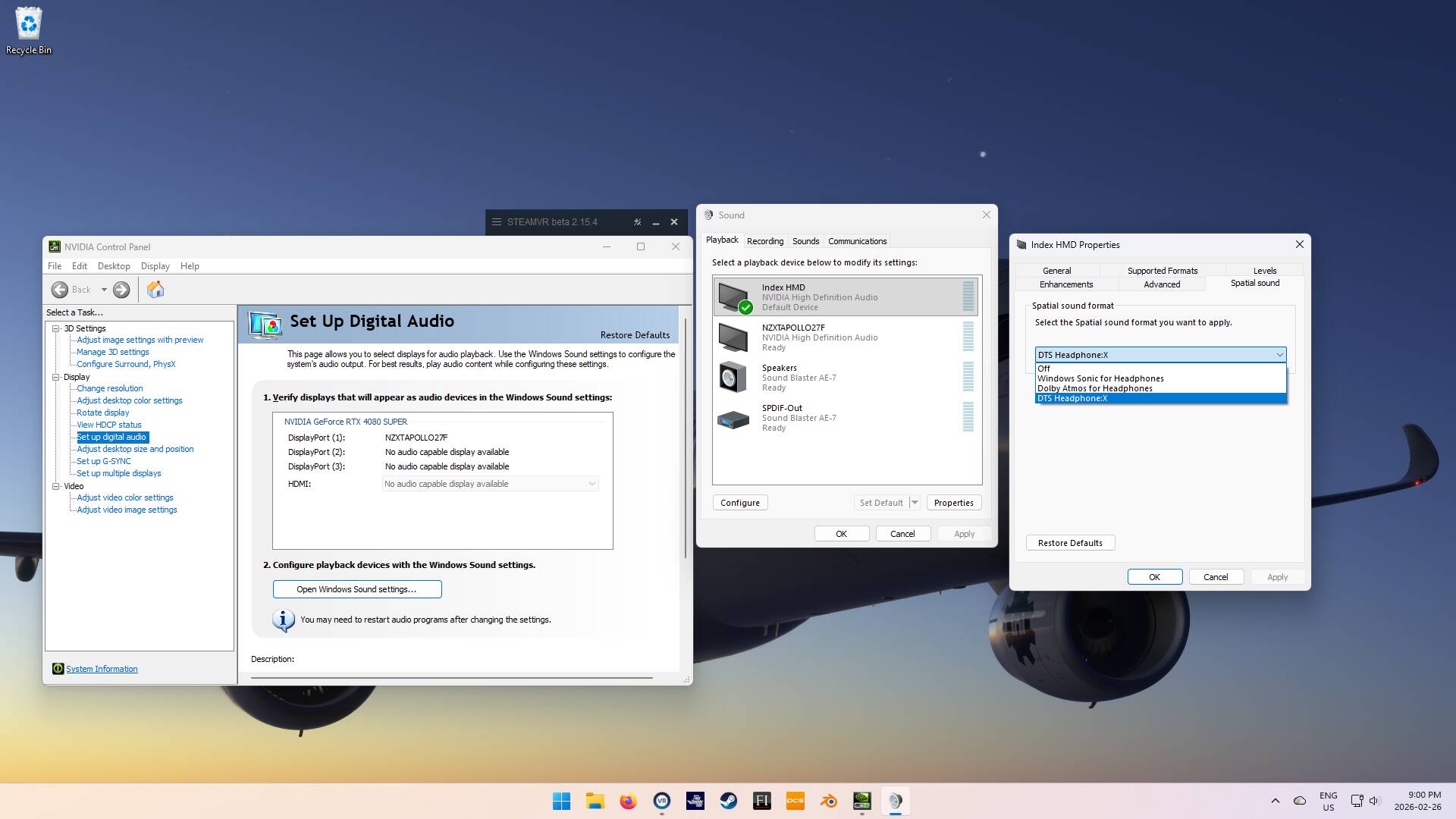
In the Nvidia Control Panel, select Open Windows Sound settings. Look for your Index HMD. Click Configure to set up your speaker configuration. Choose Full Range, Front Left and Right and Finish.
Then click Properties. Choose your Enhancements. Then Choose Spatial Sound. If you have Dolby or DTS installed, they will show up under the drop down menu. Click Ok to close, and enjoy.
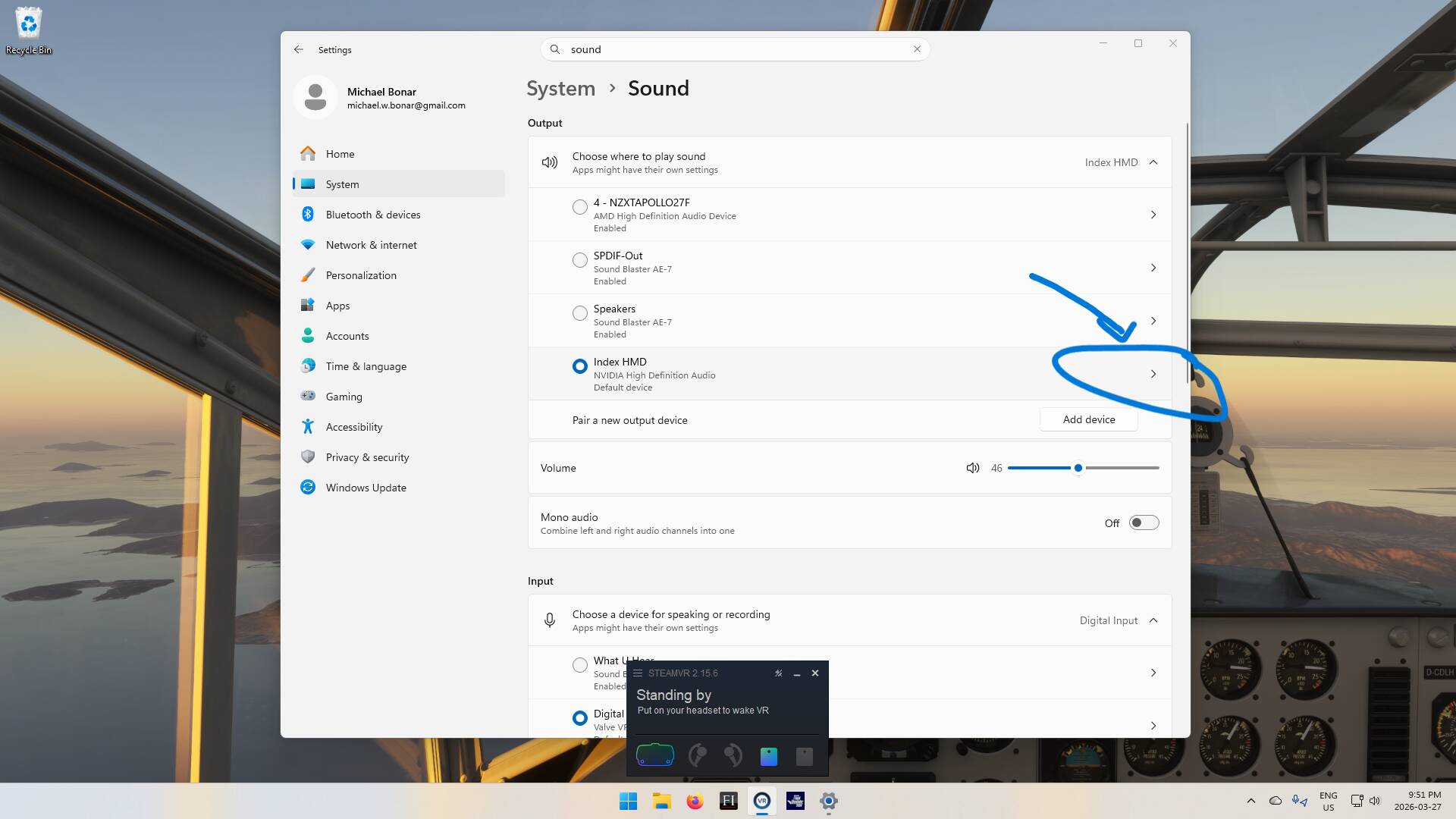
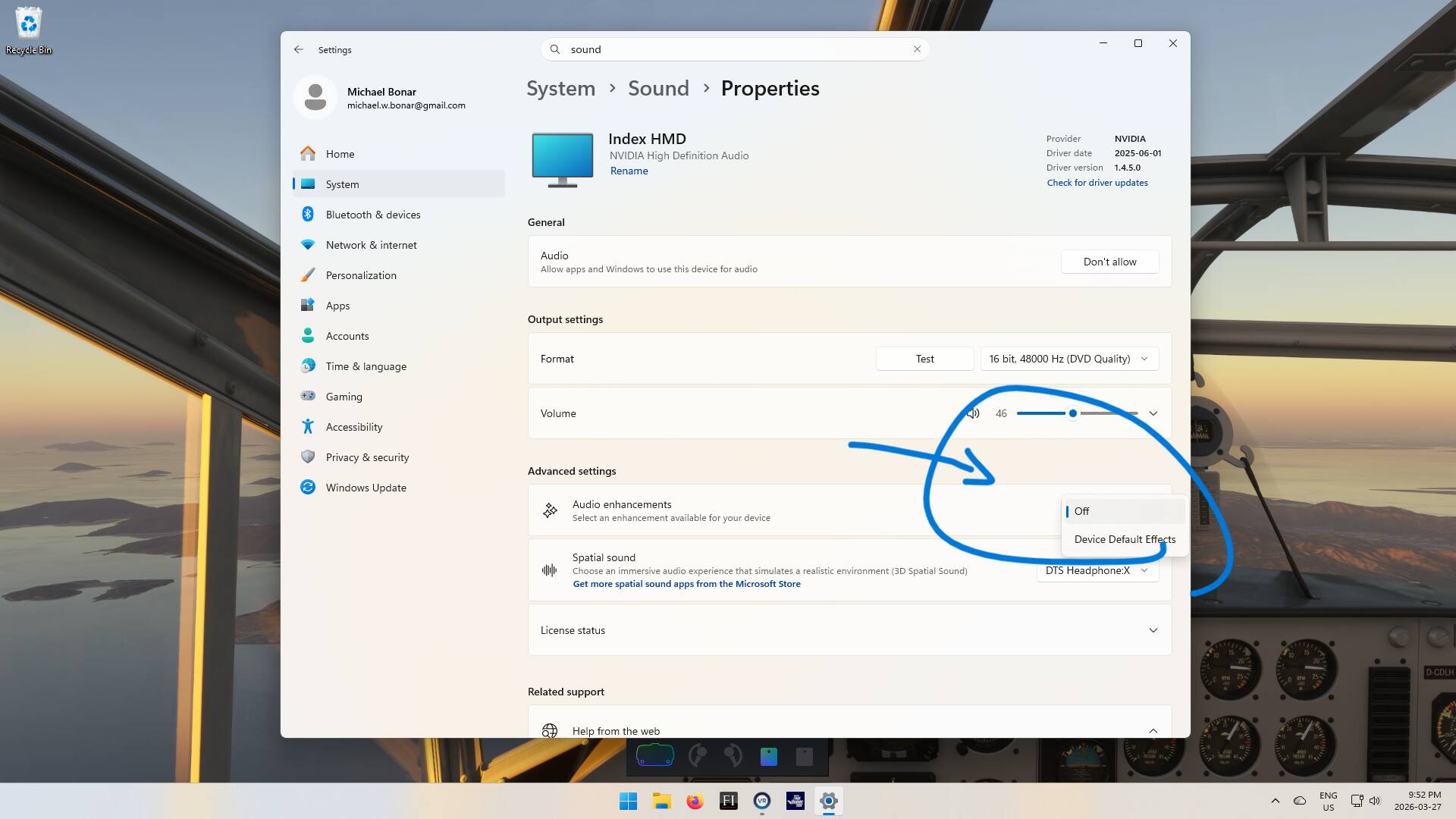
This changes a bit if you install the Nvidia App. Again, make sure SteamVR is running. You simply go to Settings > Sound Settings, and select the arrow next to your Index. There is a drop down for Audio Enhancements. By default this applies an Nvidia home theater preset. Turn this off if you are going to use a custom encoder. Select your custom spatial audio encoder under Spatial sound.
I know, the Steam Frame is right around the corner, but this tip applies to any headphone setup.
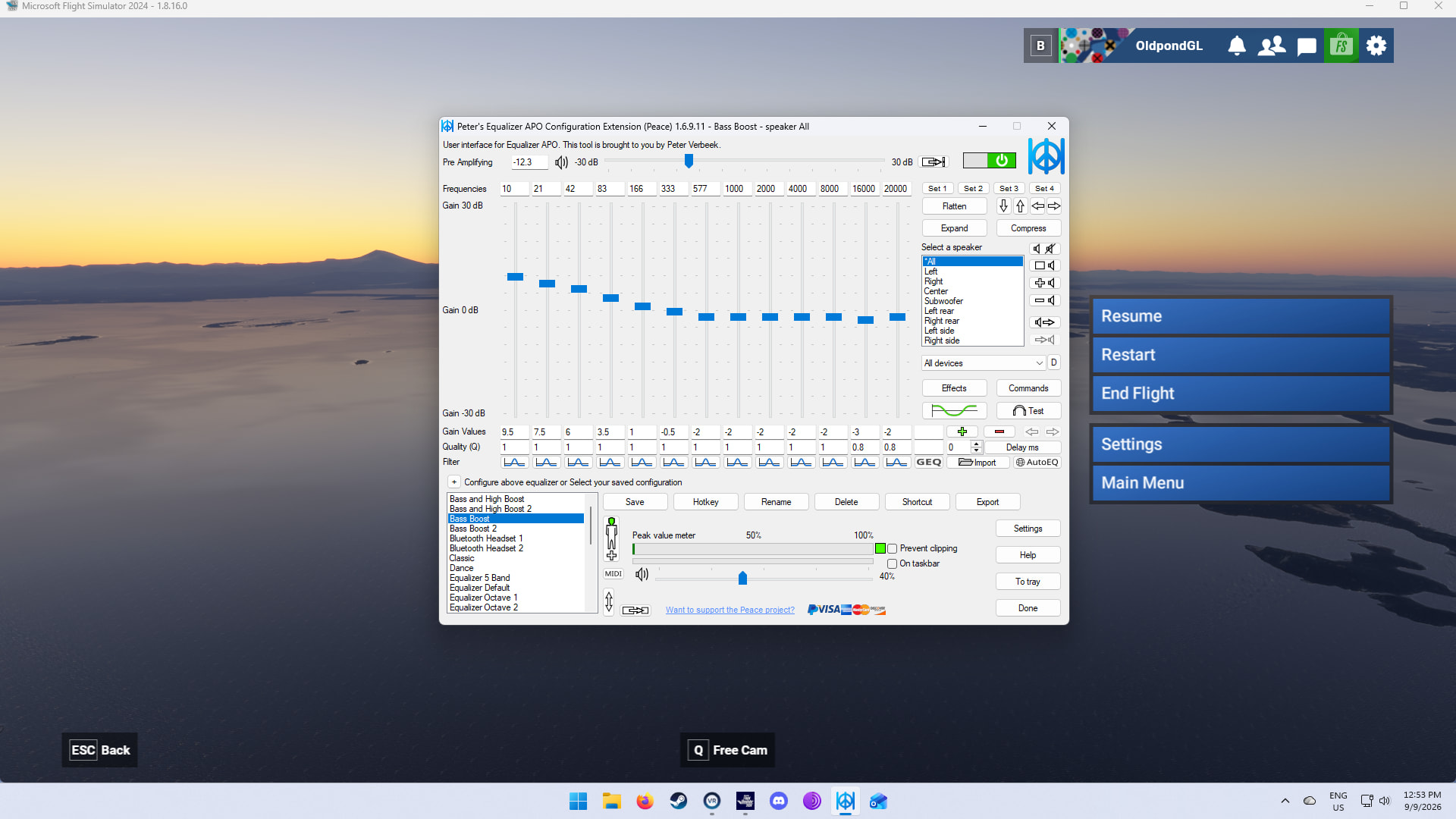
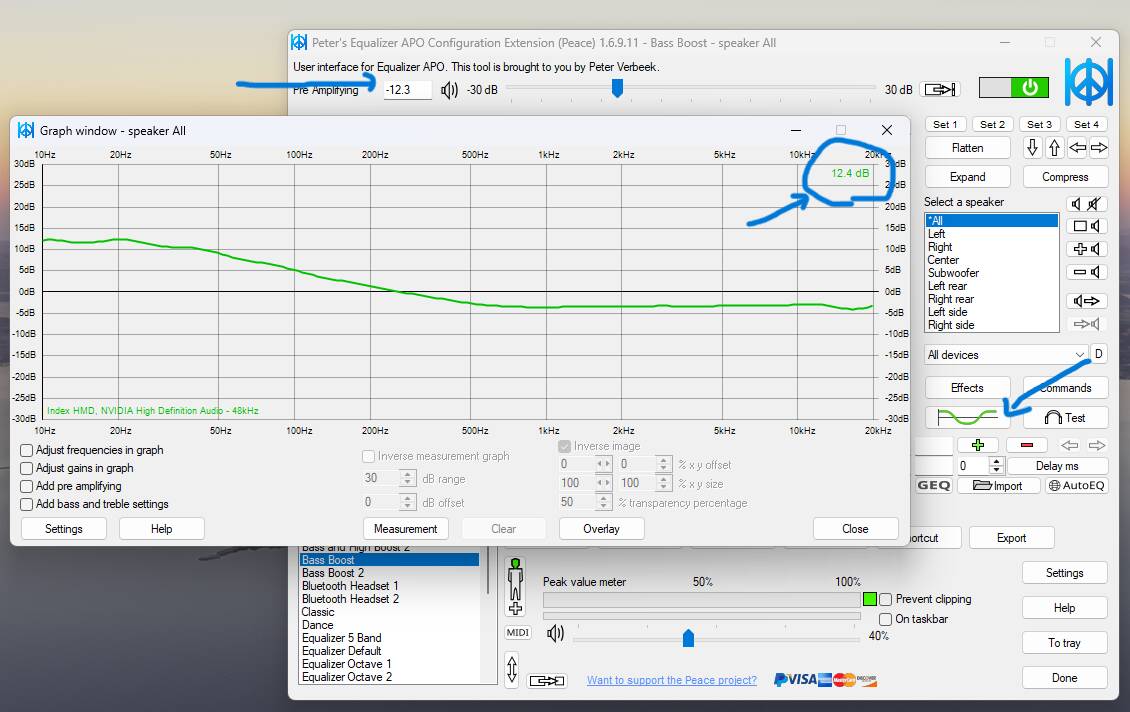
I’m using a combination of APO Equalizer and Peace UI to provide system wide equalization to Windows.
I found the frequency response graph for the Valve Index in this article.
There are some great YT videos on how to tune.
Basically, I chose one of the premade bass boost profiles for my Valve Index (don’t forget to adjust the pre-amplifying gain by showing the Graph Window, observing the number in the top right corner, and adjust accordingly). Easy peasy.