I recently installed Windows 11, and wanted to do a clean install… and didn’t realize MSFS installed its content to C: automatically, even when the Steam Library is on another drive.
There is lots of conflicting information about how to move the content.
If cleaner, I’m considering just re-installing. However, I’d like to know if the Steam installer lets us pick the installation location for the “big” portion of the install (in my case about 180 GB).
You can install MSFS launcher on your C drive, and the game packages (520GB) on a different drive. This is actually recommended because if something happens to Windows and you need to format your C drive, the large game files will remain on the other drive, so you won’t have to download them again.
Also, if you ever uninstall the launcher - for example, if it becomes buggy or corrupted MSFS packages will remain on the other drive, as long as the uninstallation is done properly. They won’t be removed automatically.
Thanks - the issue I have here (and other similar instructions is that it says “MOVING THE PACKAGES INSTALLATION FOLDER TO A NEW DRIVE
After moving the packages installation folder to a new drive, **update the UserCfg.opt file.”
**
This doesn’t address the folder that the Packages folder is in, or the other folders and files in that same parent folder. So, it’s not really clear enough to follow.
1 Create a new folder on (for example) your C,D,E,F,G,H … drive/partition named MSFS 2020.
2 go to
C > Users/YourUserName/app data/roaming/microsoft flight simulator/packages/
Then copy the folders official and community and paste them into the newly created MSFS folder.
3 Open the usercfg.opt file in Notepad and edit the last line. After editing, the last line should look like this InstalledPackagesPath "D:\MSFS 2020"
4 Save changes and launch msfs
If you already had a folder containing, among other things, you can safely delete the files and folders inside the Official folder on your C drive.
Also delete Rollingcache file.
Ok - before deleting my C: drive stuff, I changed the folder name from “Microsoft Flight Simulator” to “xMicrosoft Flight Simulator” so the application wouldn’t see the folder.
It immediately wants to create a new folder, and gives me the option to tell it what directory to use.
The new folder I created (“Microsoft Flight Simulator” on G:) only contains Community and Official.
I’m not familiar with what this structure is supposed to look like, or if I can direct the installer to the new folder I made, or if I should be moving some or all of the rest of the files from C:, etc.
I really wish it just installed to the Steam Library
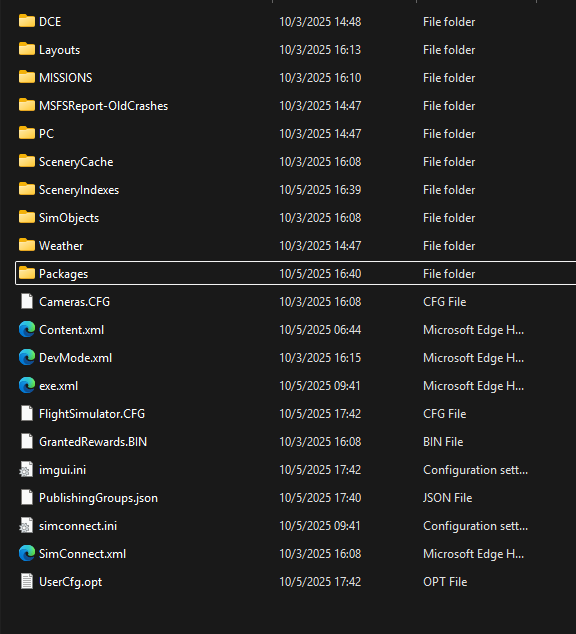
I didn’t say to rename the folder - I said to delete the files and folders inside the Official folder. The Official folder is located in the Packages folder - the same one shown in your screenshot.
If you don’t understand any step, ask before doing anything. Do not act on your own - you’ll risk deleting game settings, aircraft configurations, folder paths, profiles and other important files.
However, I renamed the folder to test what would happen when the app was run, and to see if the files in the screenshot above would be re-created on my drive after running it with the usercfg.opt pointing to the G drive (as well as if the usercfg.opt would still be needed). The files shown above weren’t re-created on G.
I’d like to avoid having MSFS files across three drives.
So, at least at this point, UserCfg.opt needs to remain visible on C.
Are there other steps that follow to relocate the remainder of the files on C: ?
So, then - it seems that the only way to get all that “extra stuff” to the drive I want (and therefore 2 drives rather than three), I assume, is to uninstall & then designate a folder on my G drive for the new installation?
you can just move the Official and Community folders. Keep the game launcher and MSFS settings on your C drive, and place the large files/folders (Official and Community) on your G drive, for example
G:\MSFS 2020
On my G: drive, an Nvme, is my main install of MSFS 2020 (chosen in the initial installion process); and a separate Steam Library (my main is on my S: drive) for MSFS. I also have my rolling cache and other c:\users stuff (specific to MSFS) symbolically linked to the G:\ drive - ultimately, everything related to MSFS is on my G:\