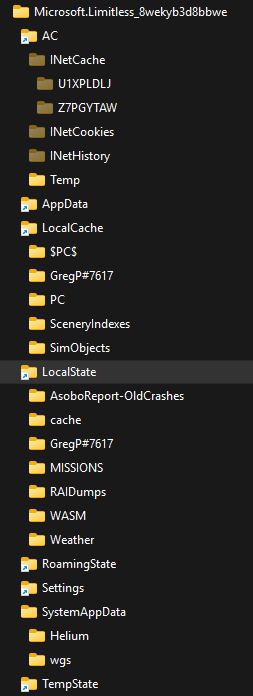
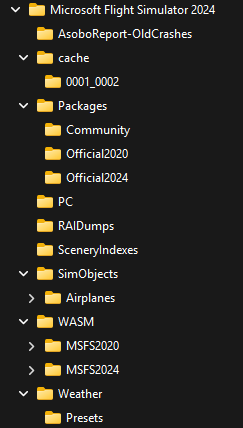
Recently I tried getting FSLTL to work in MSFS 2024 and the error log, when it refused to start, showed that somehow, I appear to have folders on C that are associated with both the MS Store version and the Steam version of MSFS 2024 (which I’ve never had) - and even have some duplicate files, for example the rolling cache file, useropt.cfg, flightsimulator2024.cfg, etc.
I don’t know what I did to cause this to happen, but it shouldn’t be like this, right? Has anyone else encountered this situation? I’m wondering if this might have to do with me moving my community folder, after the initial sim install, from the default location to a separate folder I have on a different SSD. I’d like to try merging everything into the ‘bbwe’ folder, but a bit worried that it’ll mess up my install.
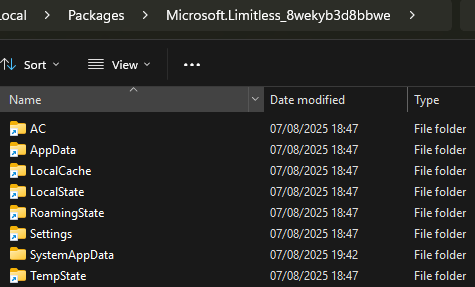
Here’s what I have in the ‘C:\Users...\AppData\Local\Packages\Microsoft.Limitless_8wekyb3d8bbwe’ folder:
Thanks for the help. After poking around some more through my folders, I realized it was just too much of a mess and decided to do a complete reinstall of the sim. Hopefully that will allow me to get the traffic working again.
Thanks for the suggestions, guys. Unfortunately my install was more convoluted than above - I had imperfectly reset my folders from within FS24 at least twice, and had made quite a mess of it. A reinstall (after saving my Community folder, of course) seems to have fixed it - I’ve got everything nicely consolidated on my D drive and FSLTL now runs without any issue.
Edit: also I should’ve clarified that the error I got from FSLTL specifically said “portions of store and steam versions appear to exist – unable to locate correct community folder”. Aside from that I had not had any issues with my install, but it had admittedly gotten messy.
I’ve been struggling with this as well. I recently uninstalled the sim and used Xbox App to reinstall, pointing it to my D:\MSFS_2024 folder.
These symbolic links, multiple locations of the flightsimulator2024.exe file, and especially the Packages folder on a ridiculously long path (D:\WpSystem\S-1-5-21-2997017442-1106904157-1831008082-1001\AppData\Local\Packages\Microsoft.Limitless_8wekyb3d8bbwe\LocalCache\Packages) is driving me crazy.
It’s causing problems. I haven’t tried launching FSLTL yet, but trying to set my ‘Community’ folder location in ‘Addons Linker’ has been an exercise in frustration, as I’m getting a similar “Incorrect folder location” error, no matter which folder I point it to.
Why can’t I have my Community folder in D:\MSFS_2024\Community (and ONLY there?)
Why are there multiple locations of the Launcher file?
I even tried uninstalling/reinstalling, this time pointing to the default location on the C: drive.
It put everything in my small C: drive (as expected.) But when I tried to move the Community folder to the D: drive, weird things happened.
Perhaps my memory is faulty, but I recall that back in November 2024 I installed the base files on C:, and the first time I launched the sim it asked me where I wanted to put Packages. I told it D:\MSFS and that’s where it went - no muss, no fuss.
I wonder if it’s the Xbox app that’s causing all these headaches.
Maybe I’ll try to install from the MS-Store instead.
The program expects the Community folder to be in the Packages folder.
There is not.
For MS Store installs to non-C: drives:
The install drive is selected.
The FS2024 app is installs in the default drive\XboxGames folder.
The Packages, including the Community folder, is installed in the drive\WpSystem\ …\Packages folder.
For Xbox app installs to non-C: drives:
The install drive\folder is selected. You create and choose the folder.
The FS2024 app is installed in the default drive\ folder.
The Packages, including the Community folder, is installed in the drive\WpSystem\ …\Packages folder.
Move the Packages folder and then update the UserCfg.opt file to tell the program where it is now located.
The install program has been changed and no longer does that.
The Packages folder on non-C: drives has always been installed into the drive\WpSystem folder, FS2020 or FS2024.
The only difference between the MS Store and Xbox install is where the F2024 app is installed.
MS Store is drive\XboxGames.
Xbox app is drive\folder.
One thing that I think helped me was that after I uninstalled it I made sure to go through and delete all of those old spurious folders that I had found. So when I reinstalled, there was no chance of it using any of those unwanted locations.
I don’t think there is any chance it will use those old spurious folders but they will still use disk space.
So, its good to delete them and free up that space.
With FS2024’s small disk size, 8 GB download, it easy to now uninstall and re-install to move the Packages where you want them without manually doing it via cut, copy, paste and getting the program confused. ( but save your Community folder first)