Hi there!
I just used the option within the content manager to transfer the location of my 2024 Packages. It successfully moved my Packages to the new location on a separate drive but the packages folder is still the same in my former location below.
C:\Users\””\AppData\Local\Packages\Microsoft.Limitless_8wekyb3d8bbwe\LocalCache\Packages
Should I delete the files in the above location and only keep the ones in the new location? A guide / manual would be useful if there is one as at the moment it seems like there are two copies of everything!
It is correct because it is a Symbolic Link which the program internally points to the actual physical location.
Don’t delete it.
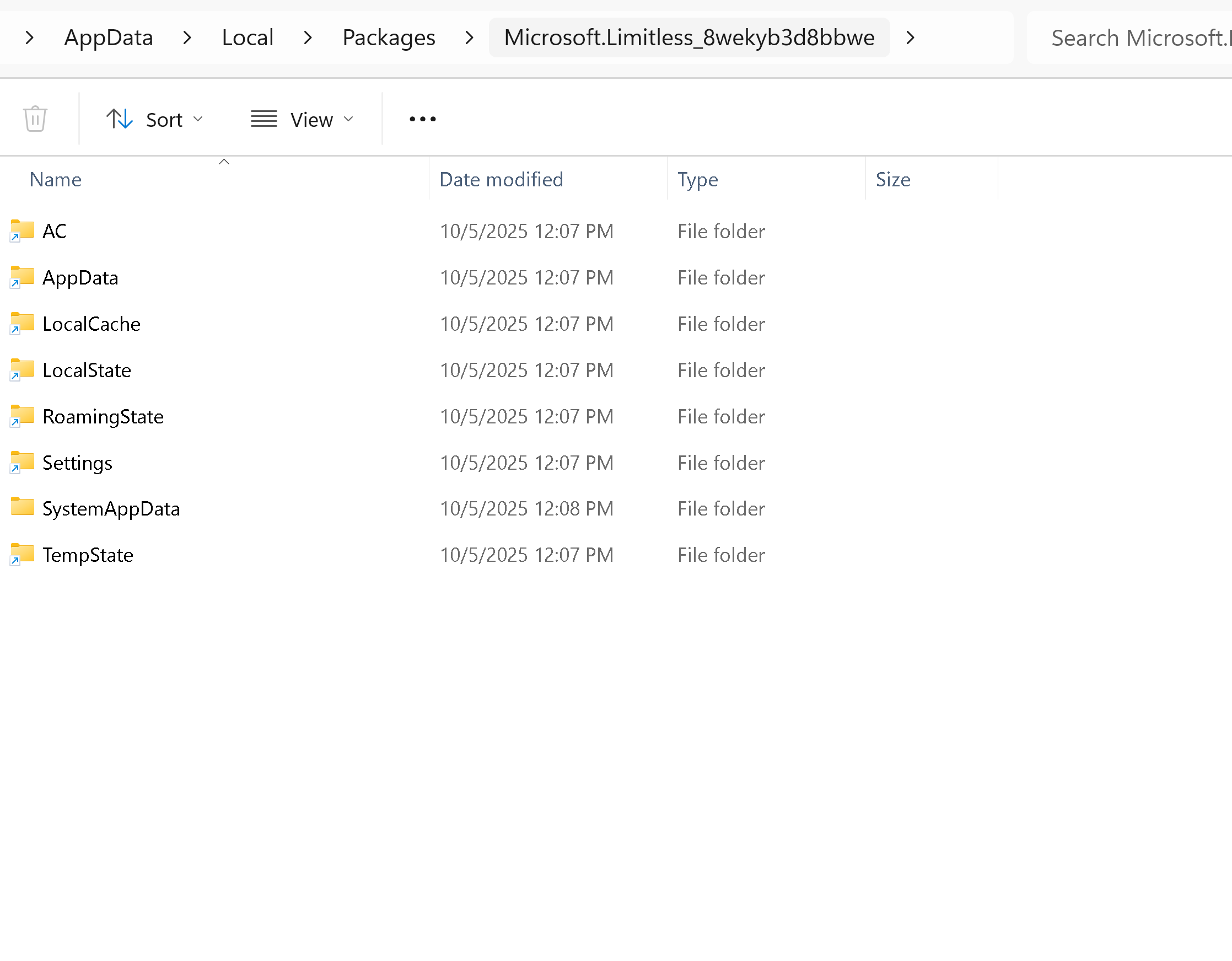
Look at your Limitless folder.
The blue arrows indicate a folder that is a Symbolic Link.
Go to
C:\Users\””\AppData\Local\Packages\Microsoft.Limitless_8wekyb3d8bbwe
Open that folder, take a screenshot showing its contents and attach it in your reply.
Here are the contents of that folder!
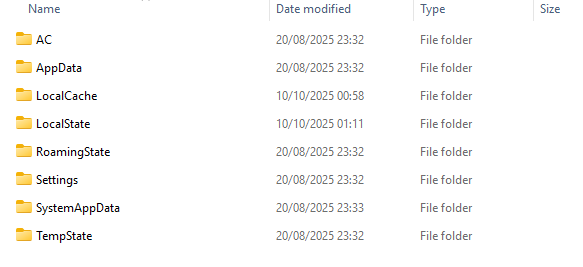
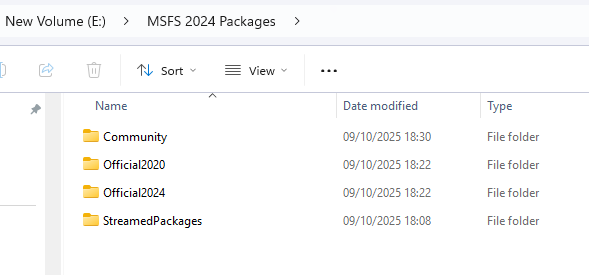
I don’t seem to have the symbolic link icon. Below are the contents of the folder I moved the packages to.
Here is the last line in the UserCrg.opt file: InstalledPackagesPath “E:\MSFS 2024 Packages”
You moved the contents to.
But did you tell FS2024 where they are now that you moved them.
Last line of the UserCfg.opt file is where you do that.
I guess:
The program will then build the Symbolic Links.
I don’t move mine myself.
I uninstall and re-install to the new location that I want.
The Symbolic Links are made.
You could try:
InstalledPackagesPath “E:\MSFS 2024 Packages”
Hmm, I’m not too tech savvy so I’m not 100% sure if I am understanding / following your advice correctly but I did select the new location in the content manager. I then went and changed the UserCfg after a relaunch in which I discovered I was caught in a loop of it asking me to relaunch (followed the instructions on the forum report on that issue carefully I hope) to point to the new location which is on my E: drive. I have also launched the sim multiple times since changing that file!
A screenshot of the last line of UserCfg.opt will help us see what it is pointing to.
I’m not sure what your reference to Content Manager is.
This is mine:
}
InstalledPackagesPath “C:\Users\userid\AppData\Local\Packages\Microsoft.Limitless_8wekyb3d8bbwe\LocalCache\Packages”
Above is my last line in the usercfg!
Changing the My Library folder results in endless loop - #2 by TenPatrol This is the issue I was facing and the steps I took to try resolve it! I also deleted the second last line as is suggested further down the post
You’ll have to wait and let @TenPatrol help you.
Or:
Save Community folder.
UNinstall FS2024.
Re-instal l FS2024 to the
E: via MS Store
or
E:\MSFS 2024 Packages via the Xbox app.
You can safely delete all folders from StreamedPackages folder
C:\Users<your_username>\AppData\Local\Packages\Microsoft.Limitless_8wekyb3d8bbwe\LocalCache\Packages\StreamedPackages
I’m just wondering whether you have everything streamed, or if you actually downloaded and installed some content locally?
I have everything streamed except the iniBuilds A330 and A340!
In the folder
E:\MSFS 2024 Packages\Official2024\OneStore
you should have two folders: A330 and A340.
Please check if these folders are actually there.
They are indeed! Along with .fscontent
Great.
Go to
C:\Users<your_username>\AppData\Local\Packages\Microsoft.Limitless_8wekyb3d8bbwe\LocalCache\Packages
and delete everything from the following folders:
Community
Community2024
Official2020
Official2024
StreamedPackages
That looks to have worked and everything in the sim is running as expected! Thank you for the tips and I apologies for the drawn out process! 
Interesting.
I initially thought that this would require a re-install of FS2024.
But I tried it on my PC.
It seems that FS2024 just rebuilds the Symbolic Links.
Good advice.