I have a 3 monitors a 3440x1440 and 2 2560x1440 that sit on each side. The multi monitor options in MSFS don’t really work for myself - As many have noted without view field options for each monitor it never lines up for many setups. Camera up and down causes the sides to become very distorted and unusable. Two questions:
1 - Has there been any responses from Asobo about updates to Multi monitor in the future? I feel like I haven’t seen much buzz on this lately.
2 - Has anyone with a similar setup gotten either NVIDIA surround with CRU or remove the border from windowed mode to work correctly?
Hi there @erfspam
2) I use nvidia surround setup on 4 monitors 19 inch to 1 and i have set a 5th 17 inch monitor on top of the 4 in the middle and im pleased with the result. Running in resolution of 5160x1024
The 5th monitor is running from my cpu11700k and is activated es extended desktop in windows monitor setup at a resolution of 1280x1024 so my pc sees it basically as a 2monitor setup
All the screens have the same own resolution of 1280x1024 while the 4 are the same brand slithly different on type and the 5 top screen is another brand.
i use for steering the 5th screen in game experimental multimonitor and my experience are rather well for i also set all screens in a full screen mode with this.
Do camera panning all the time in various directions and with this it gets a little out of sync but at most points in cockpit it hooks up on others.
Any way when i played the simulator it is notable but not disturbing.
If you like to see it working i have made a small video on
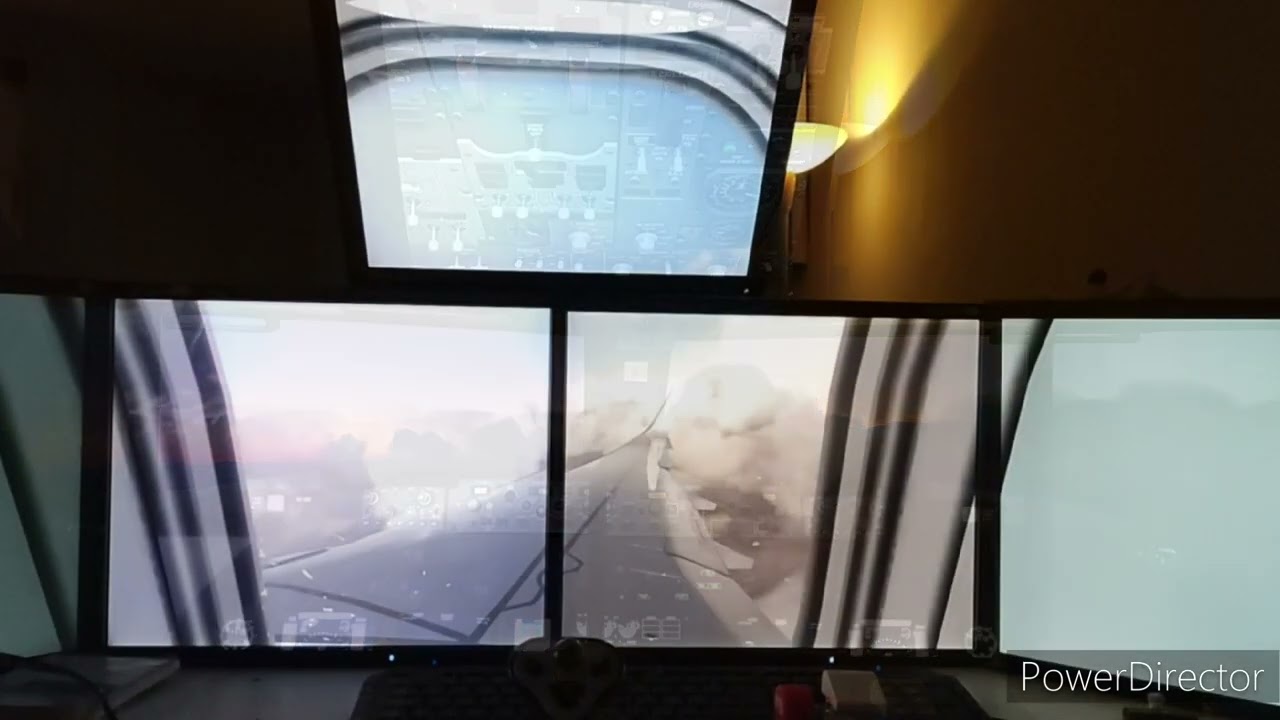
To me it sounds that the trouble youve experience lies in the fact that youre middle monitor is giving you the distortion problem but maybe you can overcome this by lowering the monitor resolutio also the same as the other two monitor so they all run the same resolution 2550x 1440 also try to allign and adjust height in extended desktop and then put them in surround setup but you probably will have some overscan on the middlescreen, for this try bezel correction to get the best for the point youre viewing from.
Hope this helps but main keep on try and search
NB for multimonitor setup ingame setup the position and zoom u use mostly in the sim,me for example translate viewpoint off center and pan a little left and from what became my new seat position from there i setup multi monitor. But i find from this way view adapts to zoom but this could be placebo, after all it is all about fooling the mind which fill in the gaps for you.
Looks good, nice! I tried lowering the resolution on the main monitor and some point maybe I’ll go back and mess with it again but I really think the mix and match monitors along the horizontal line causes issues (I haven’t seen a video with my setup that works right).
What’s interesting if I set windowed mode and span the sim across all the monitors it looks and works perfectly, but I have borders that I cannot get rid of.
I’m curious, are those monitors in your setup all flat or do you curve any in? I cannot tell from the video.
Hi @erfspam
The reason probably you have that in windowed mode the reach from edge left to the edge right
Is not possible due resolution in capability because of height and wideness of the screens with their own resolution so it leave some border just to fit the screen as much as possible while in borderless
It fills but have only so many pixels and screen tearing wil happen.
What you can try is setup 2 screens in surround setting and add a 3th screen as extended desktop
In multiple screen select in graphicscard control panel
About your curiosity my setup up are four similair flatscreen screens eizo 1961 19inch
And a 5th dell 17 inch on top
Concearning the four eizo i have two straight next to eachother in the front, while the two side screen have
About -22.5° on the left and 22.5° on the right all four in surround to one big screen resolution 5160x1024 i was lucky my employer threw them away after many hours of duty, but they serve me well i must say. Like one mans thrash is another ones treasure
The 5th top screen runs on the cpu chip and is setup as extended desktop resolution 1280x1024 in windows10 as second screen and is set on top with 35° angle and serves mainly as overhead panel
No hassel with frustrum or individual center but just the place from where i be seated panning and translating view to how i like
I found a fairly convoluted workaround that allows this setup to work with the sim.
- Download and install Translucenttb from the MS Store and turn the option on to make the Windows taskbar translucent.
- Run the Windows task bar in autohide mode.
- Download Autohotkey and create a script file with the following (This removes all title bars in any game’s windowed mode):
^q::
WinSet, Style, -0xC00000, A
WinSet, Style, -0xC40000, A
return
- Run the game in normal single screen mode and load to a flight
- Change the resolution to windowed mode and stretch the screen to the edges.
- Press Ctrl+Q to activate the script
Works better then any option I can set within Experimental, and the stretching at the edges doesn’t matter much with Trackir (as you turn your head those stretched areas will be out of view). Also you may need to de-stretch the screen or change to single screen mode between flights as this method causes textures to become white blocks on the World Map. Total pain, but the difference is worth it. Asobo, please work on this more!
@PHSepp796
“What you can try is setup 2 screens in surround setting and add a 3th screen as extended desktop
In multiple screen select in graphicscard control panel” ← Since I can only combined the two side / identical monitors this won’t work as I cannot add the main one in the middle of the surround mode of the 2 27s.
2 Likes
This is good reading, that you have found a work around to enjoy multimonitor use
Sounds pretty complicated to but your right track ir is a good way viewing around and the edges that get a little stretched
As a tip i would suggest when you found your best cockpit position to start from set it in general> camera> home cockpit to on as this prevent disruption accidently by mouse
Also keep track of mouse and zoom speed for less stutter. I know this sounds strange but if you have quick responds on joystick movement adapt speed on mouse movement and zoom (try to find balance)
I have mouse speed and movement set in windows to very slow (handy when in paint programs for more control and accuratesse
In menu of general setting i have my mouse speed on 5, but zoom speed at 10 it give more fluent move while zooming in and out also freelook around i set fairly low to regress stuttery due rendering which can occure when going to fast from left to right or vice versa.
Keep these in mind while configure track ir
But for now happy landings
I suggest this excellent explanation by Russ Barlow:
The basic idea is to not use NVIDIA Surround, or to stretch the screen, but to set 3 windows all with the same Field of View angle, but with view offsets to left or right.

And then the actual settings in MSFS:

I am reaching the final status of my Cockpit, final as meaning just for now:
I have as my central monitor a Samsung Odyssey G8 32" and to each side a Samsung Smart TV M7 32". You can see this on the image I have included.
The 2 upper monitors are connected via Thunderbolt 4 I/F managed by the graphics functionality of my i7 11700K CPU. The resolution of the 3 monitor is 3840x2160, the right one on top also has that resolution. My old 28" monitor that I had planned for beeing the right one stopped working.
I do as suggested. I got to the experimental mode and add 2 windows to the msfs2020. I plan to follow the instructions and advices in the video shown. It seems that a key parameter is the angle data from my eyes to each monitor. Will see and I will report. I believe it is of interest. I use 3 USB Power Quadrants from Saitek. I do configure them for single-, twin- and 3 motor planes. The challengue is that msfs2020 only generates one entry for power quadrants so a frind and myself will see that we add 2 entries for the 3 configurations.

I have moved a couple of steps ahead in my work on the Cockpit:

The challengue I have been facing was how to connect all tohe peripherals to my cockpit. 4 Monitors 32" 3840x2160 Samsung M7, 1 Monitor Asus Odyssey G8 32" 3840x2160, up to 240MHz.
Each monitor requires a power cable, a data cable and an USB C cable. A big problem proofed to be connecting the 6 Logitech Indtrument panels. Each requires 1,5A so 5I did initially use 3 active USB hubs powered with 3A. Now I have purchase 5 12VDC/5A power supplies and could so reduce the hubs required from 3 to 2.
I have the 3 Saitek panels, autopilot, radio and multi-switch plus 3 Saitek Power Quadrants so I can control the engines from 1 to 3 individually. This requires 2 additional USB hubs. The pedals Thrustmaster TPR and a Brunner force feedback yoke That has its own power supply and has to be connected via USB directly to the motherboard.
Finally a webcam, 2 USB cables for the keyboard plus 1 for the mouse. Finally the Tobii 5 Eye- and Headtracker.
Due to my health problems it will take me one more month to finally be able to fly again.
The cockpit is to achieve my goal to fly virtually the same way I used to fly in real GA airplanes.The feel has to be as close as possible to what I did feel when flying in the past. I did my multi-engine in San Jose, CA, with Cessna 310 and so that will be my main plane. Also navigation the old analog way is a must, so no displays in the cockpit.