Yes.
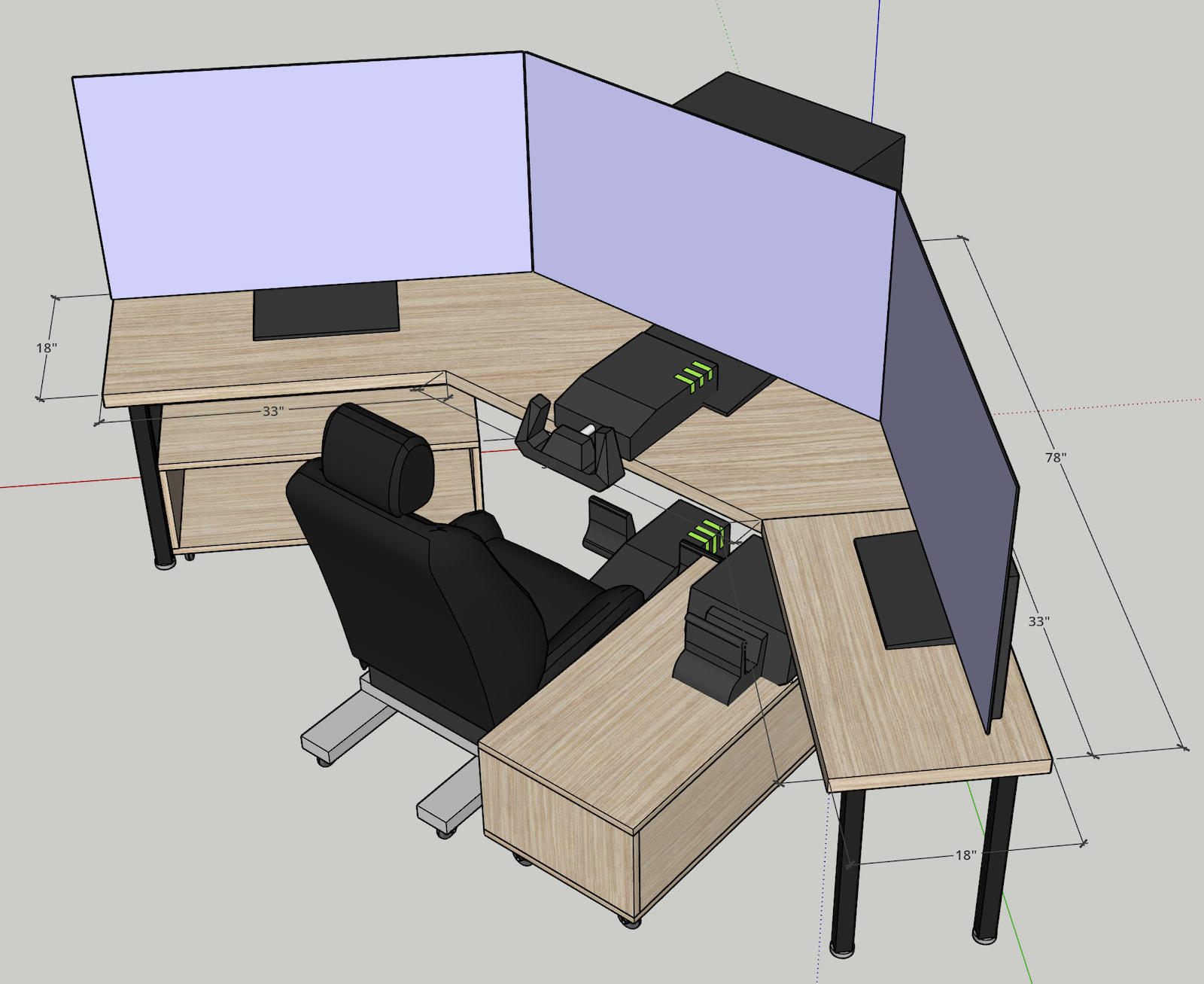
I have 3 Samsung S90D OLED TVs which are “VRR gaming compatible” with HDMI 2.1 ports. My Asus Tuf GPU has 2 HDMI ports, so I connect 2 screens HDMI to HDMI, and the 3rd with DisplayPort to HDMI (not as good). The HDMI to HDMI connection allows VRR and RGB color, whereas the DP to HDMI does not allow VRR.
You still want VSync on for tearing, but VRR works allowing refresh between the TVs min and max (usually min 48 and max 144).
Be sure to get an 8K HDMI cable (minimum 4K @ 120 Hz) to make sure it can handle the bandwidth.
TV and NVIDIA App set up details
By default the TV has Game Mode OFF and is fixed at 60Hz.
Using the on-screen menu, I turn Game Mode ON, which unlocks the refresh up to 144 Hz and tells the GPU it is VRR capable (making the NVIDIA App recognize it as GSync Compatible). Note it also puts the screen brightness etc up to full, so I manually adjust the TV colour settings, and disable as much “smart” stuff as I can. Just neutral, brightness 40/50. I don’t use HDR.
For MSFS you will have a choice between fixed refresh, or variable refresh. I found that on 1 screen VRR works well, but I use triple screens and for that, fixed refresh is more reliable. Either should work for 1 screen.
For VRR:
With Game Mode On on the TV, The NVIDIA App > Graphics > Global should show “GSync Compatible”. (On this page I would suggest also clicking the DLSS Override - Model Preset, and changing it to Recommended, which will give MSFS the latest DLSS version.
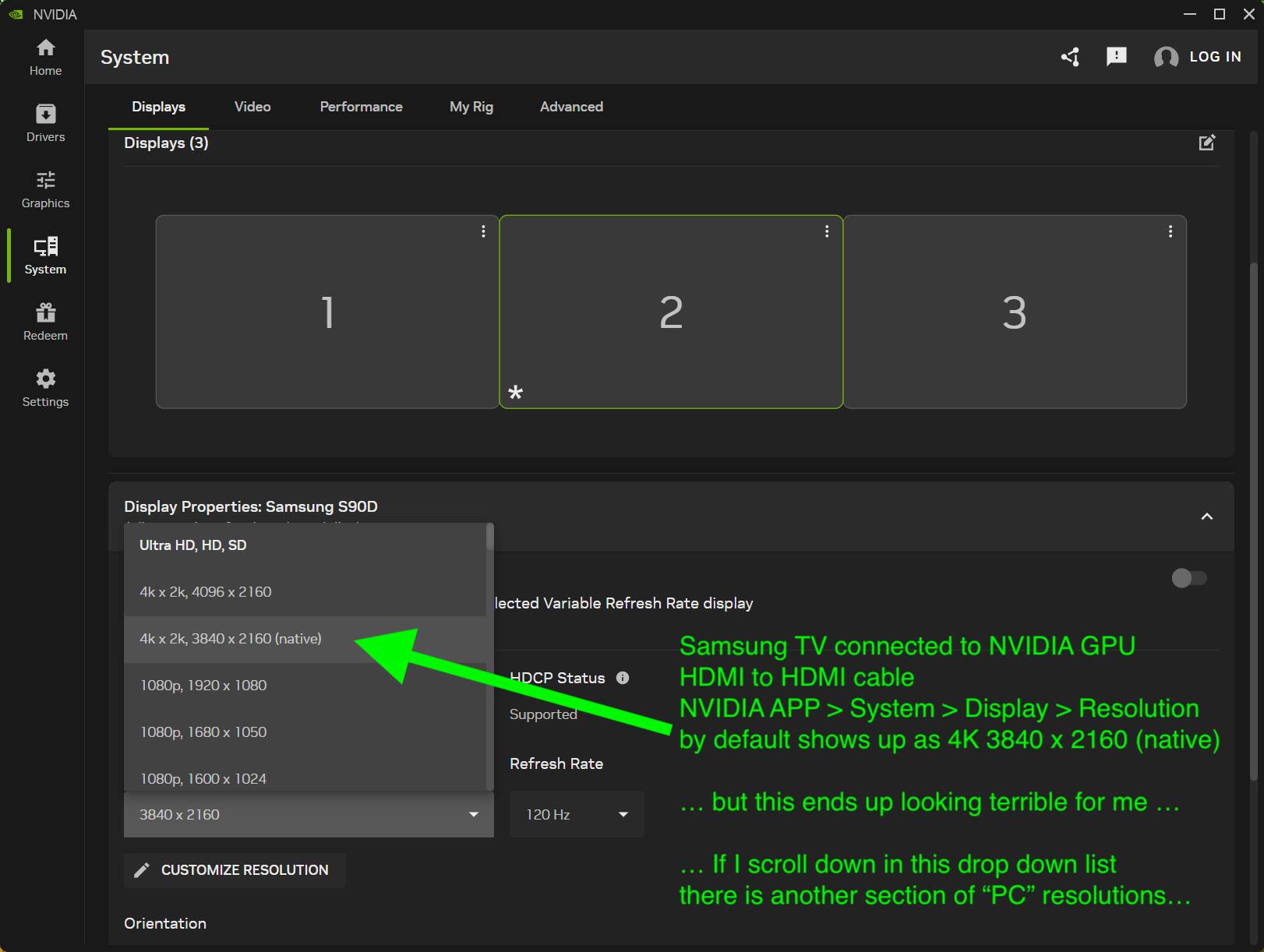
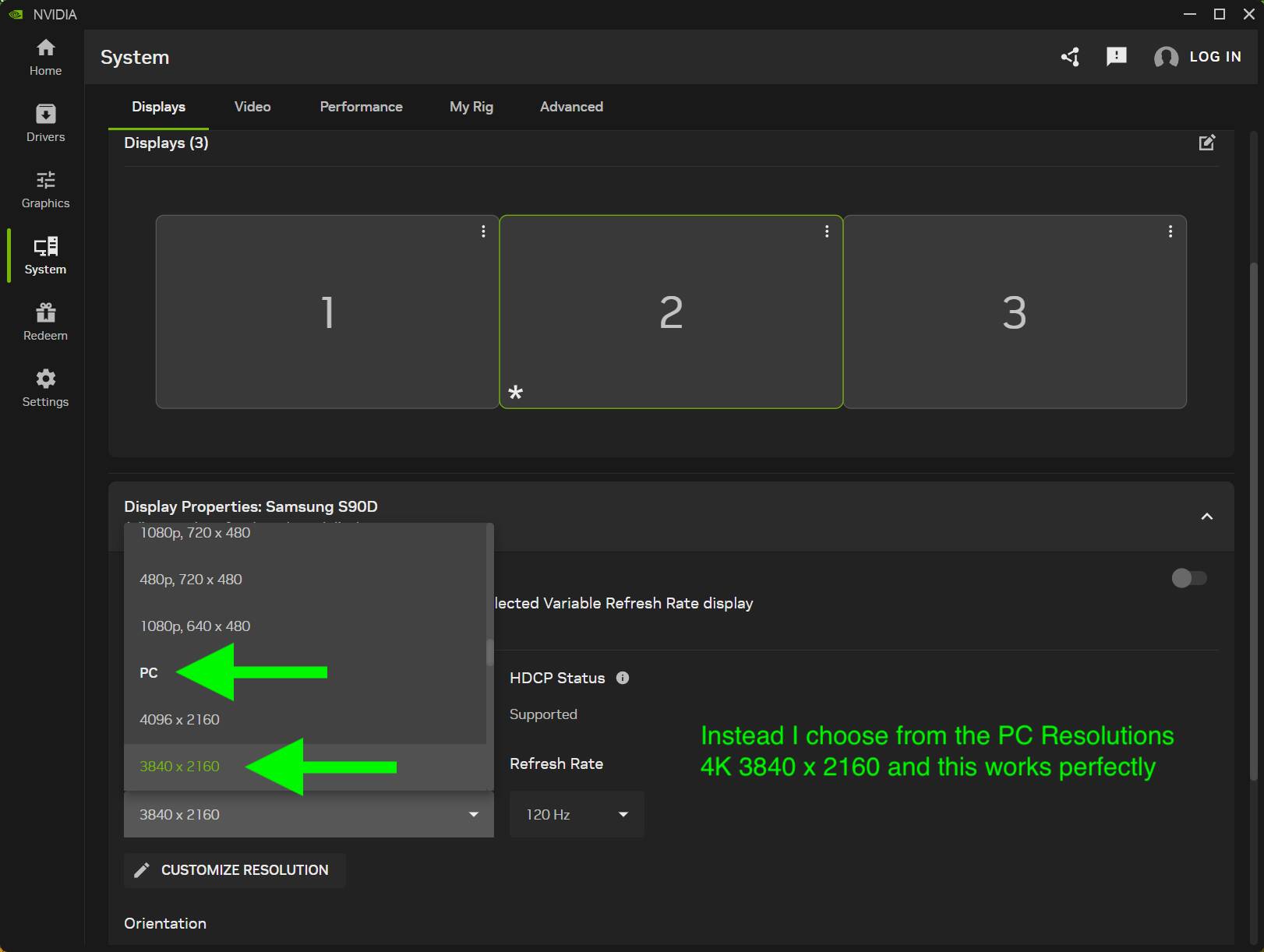
Then, in the NVIDIA App on the left click System > Displays and you will see the settings. At least on my system, the Resolution defaulted to 4K (native) but for whatever reason this looks terrible on my TVs. if you click the drop down menu and scroll down, there is a “PC” section which also has 4K and this works properly for me.
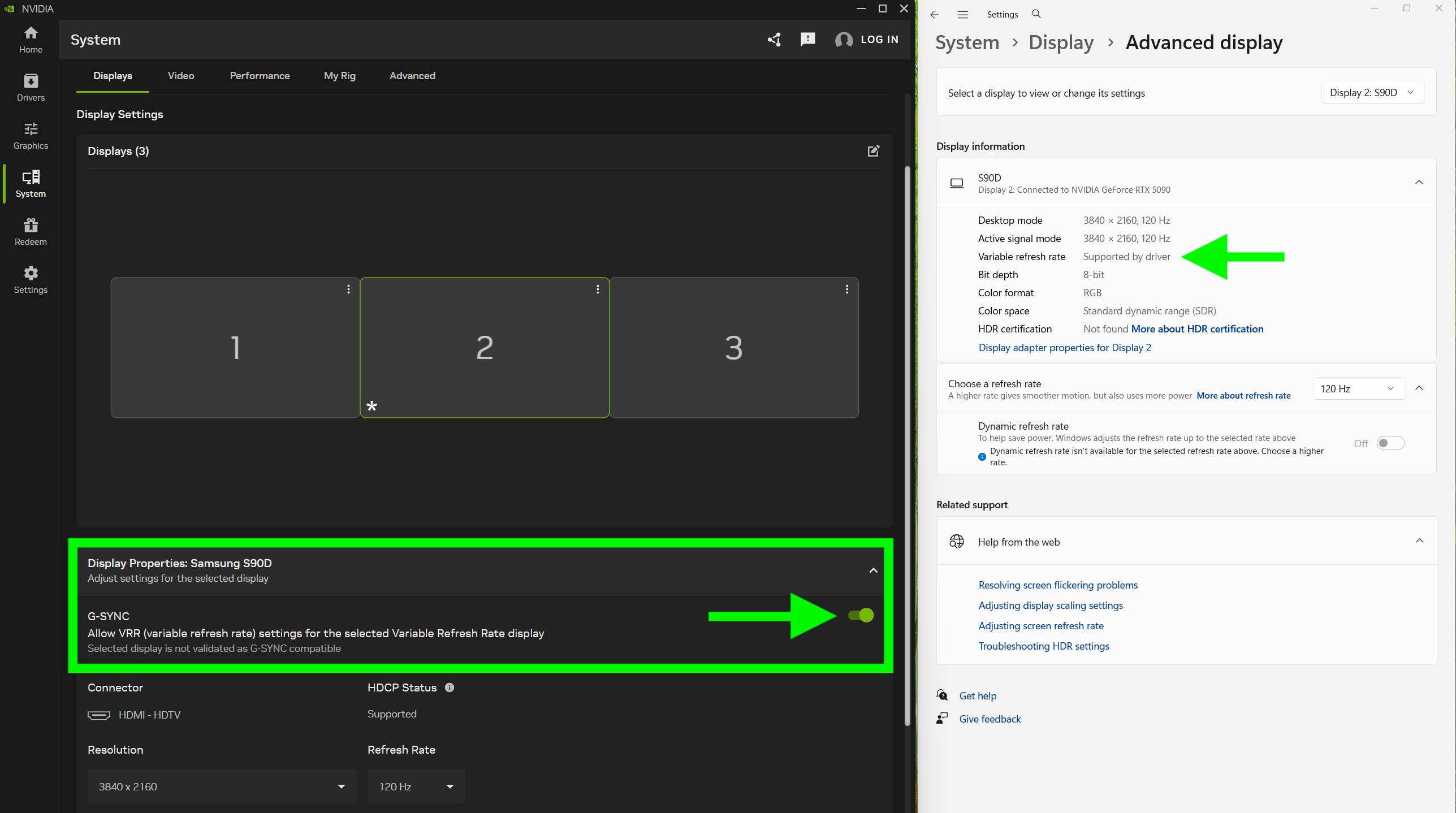
Then on the same page is the choice to use GSync VRR or not. If you enable it then MSFS and the GPU and TV will use VRR. (Note, in the latest NVIDIA App version, currently has a bug where the setting doesn’t save, so you may need to try a few times…)
You will still want VSync on in MSFS and/or in NVIDIA > Graphics to avoid tearing.
Then in MSFS, I would suggest starting with:
- Anti-aliasing: TAA
- VSync: On, Half Refresh
- Dynamic: On
- Global Preset: High (changing requires reboot)
- TLOD 200 / OLOD 200
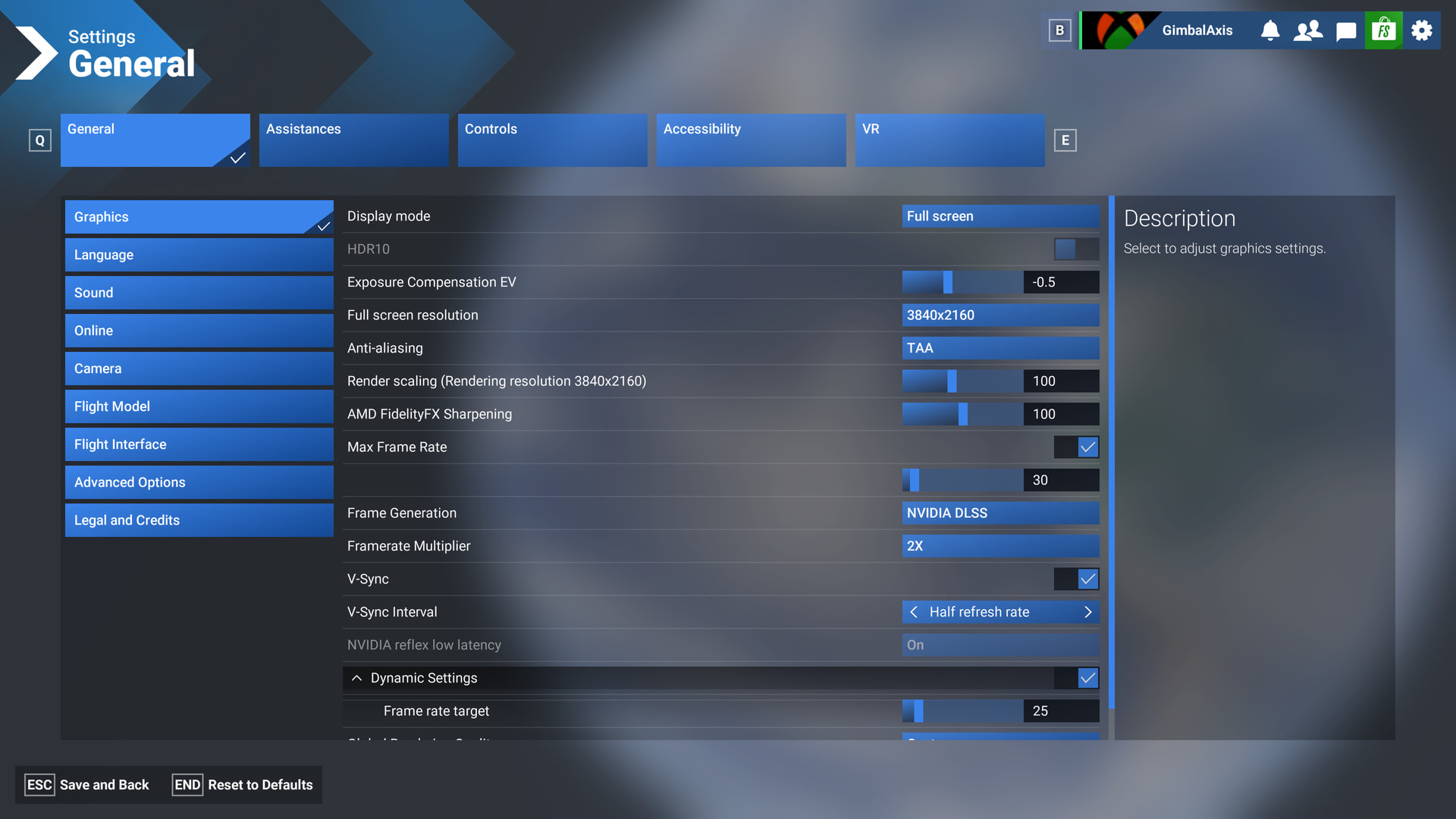
If you then want to try Frame Generation, it works best in combination with a Max Framerate cap. I use Max 30 and FG x 2 targeting 60 FPS, and spend any extra power on higher LOD values.
Here are my settings when I use 1 screen:
For Fixed Refresh instead of VRR:
I use the following settings for triple screens, TVs at 120 but targeting 60 FPS, using 30 + Frame Generation:
NVIDIA App > System > Displays you would turn GSync VRR Off…
(Note, in the latest NVIDIA App version, currently has a bug where the setting doesn’t save…)
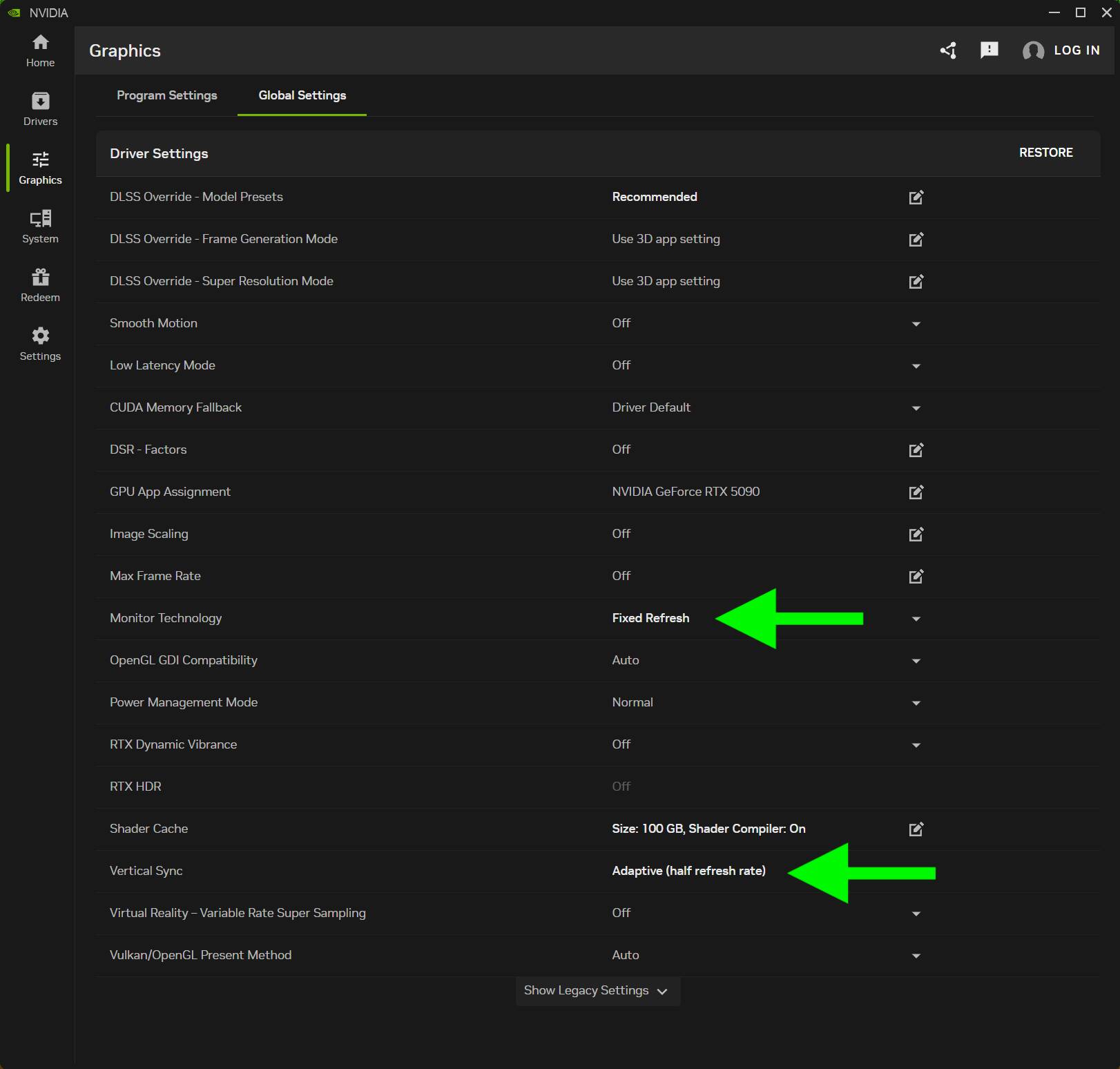
NVIDIA App > Graphics > Global > Monitor Technology > change to Fixed Refresh … then you must quit the app, and relaunch it.
NVIDIA App > Graphics > Global > VSync > Adaptive Half Monitor Refresh (if monitor is 120, this targets 60). (
(Note: To get the Adaptive option to appear, you first have to set Monitor Technology to Fixed Refresh, then quit and relaunch the App.)
Also a good idea, if you are updating drivers etc, to use DDU in Safe Mode to completely remove previous driver, cache, settings, etc. When you launch the newly installed NVIDIA App - the Control Panel is no longer there, it is now the NVIDIA App - when you launch it, disable the “Automatically Optimize Games”, at least for MSFS.
Running DDU in Safe Mode
- If you use Windows Hello PIN to sign in, just to be safe you should temporarily turn off this setting:
Windows > Settings > Accounts > Sign In Options > disable “For improved security, only allow Windows Hello sign-in for Microsoft accounts on this device”
-
Download the NVIDIA Game Ready Driver (or version of your choice)
-
Download and install DDU
-
Disconnect from the internet to avoid Windows installing a driver while the uninstaller is running.
-
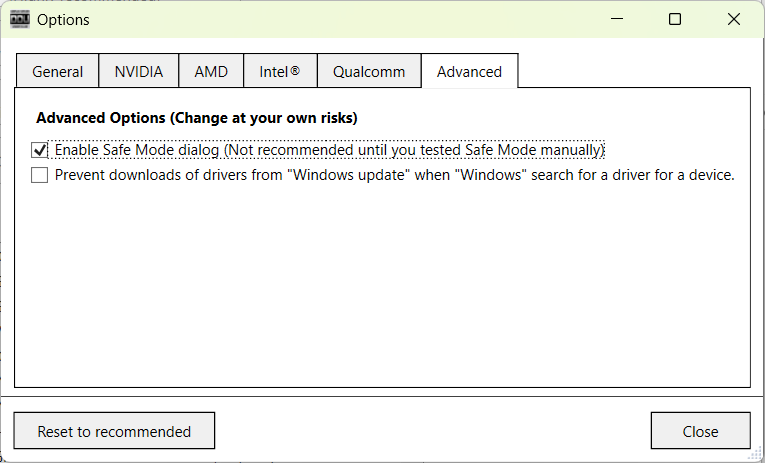
Launch DDU and go to Options and Enable Safe Mode.
-
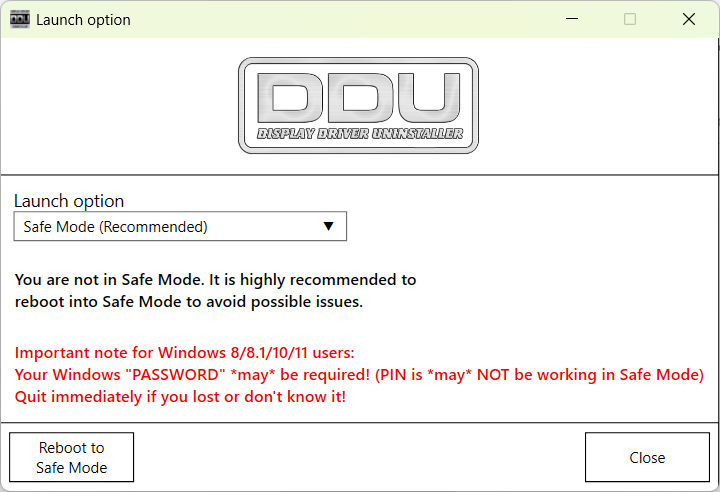
Quit and relaunch DDU for it to then put the computer in Safe Mode
-
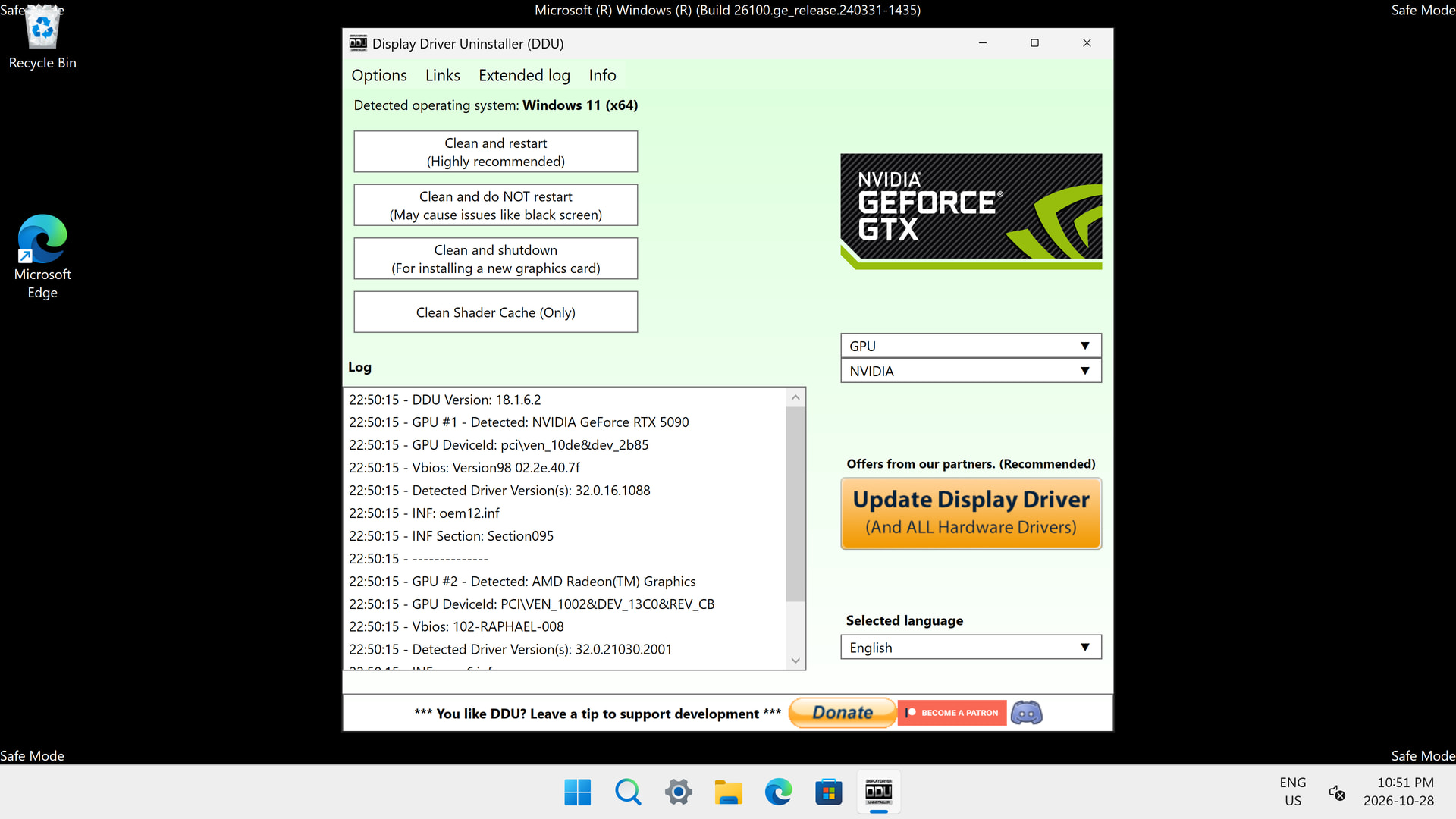
Once booted in to Safe Mode, choose “GPU” and “NVIDIA” (assuming, you mentioned 5080), and click “Clean and Restart”
-
Once it reboots, Run as Administrator the downloaded NVIDIA GRD installer, choosing:
- NVIDIA Graphics Driver and NVIDIA App
- Custom (Advanced)
- check: Perform a Clean Installation
- Reboot and reconnect to the internet.